











You can now design pages, manage CMS content, and structure Webflow sites just by asking Claude.
Webflow is now available as an official connector in Claude!
You can ask Claude to take real actions in Webflow, like managing bulk CMS updates or running SEO, content, and usability audits all from a prompt. Instead of stopping at suggestions, Claude can work directly with your site to make your suggested changes.
It is a more practical way to use AI with Webflow. Claude helps with structure and follow-through, while you stay focused on the creative decisions that need a human touch.
What you can do with the Webflow connector in Claude
Once connected, Claude can work with the same tools you use every day in Webflow. You can ask it to help with CMS structure and content, variable and style creation, even apply custom code and attributes, and see those changes reflected directly in your site. Here are a few ways you can start using Claude with Webflow today:
Manage CMS structure and content
Claude helps keep content aligned with the CMS structure you want by creating and updating CMS collections, as well as adding and modifying fields. It can also assist with bulk content changes that would otherwise be time consuming, even across multiple collections.
Using Claude with Webflow makes it easier to evolve your CMS without losing track of structure or intent.
Manage classes and variables
Design systems take discipline to maintain, especially as sites grow and more people contribute. Claude can help with tasks like converting existing values to variables, auditing class usage, or bringing naming back into alignment with the system you already use.
These changes matter for long term maintainability and clarity, but they are easy to delay or apply unevenly when done by hand. Claude helps make this kind of cleanup more approachable and less disruptive.
Work with comments and screenshots
You can also use Claude to incorporate feedback from stakeholders and clients. By referencing comments and screenshots of elements, Claude can help apply changes with more clarity, especially when iterating or refining existing work.
Configure the Webflow connector in Claude
Before you start prompting, you need to connect Claude to Webflow. This only takes a few minutes and happens entirely in Claude.
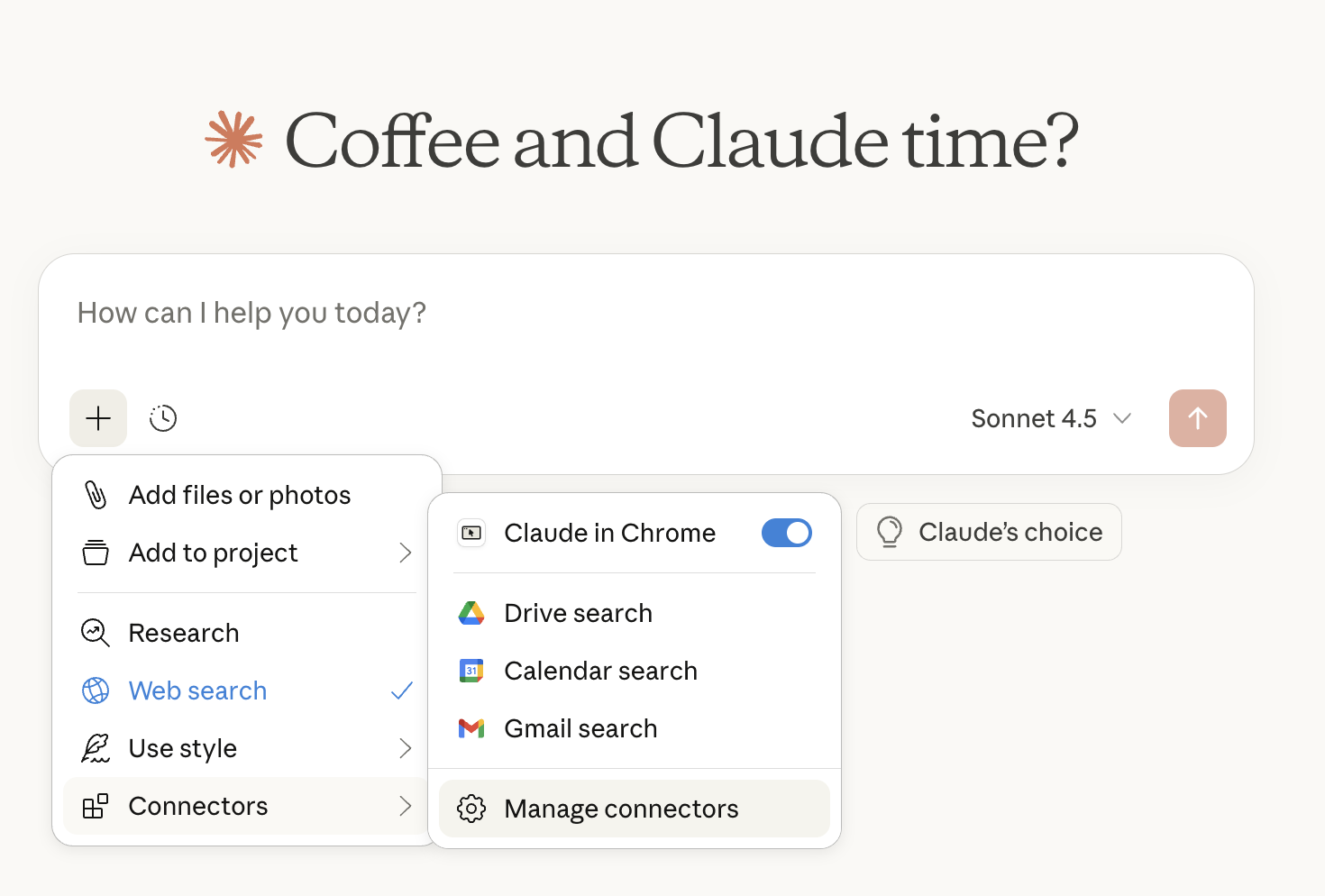
- Click the plus sign in the Claude chat menu. In the bottom left of the Chat menu you’ll see a plus sign. Once clicked, it will open a menu. Select Connectors
- Open the Connectors Settings Panel. Select Manage Connectors to open the Connectors settings panel
- Browse Connectors. In the Connectors settings panel, select Browse Connectors.
- Find and add Webflow. Search for Webflow, then click the + button to add the connector.
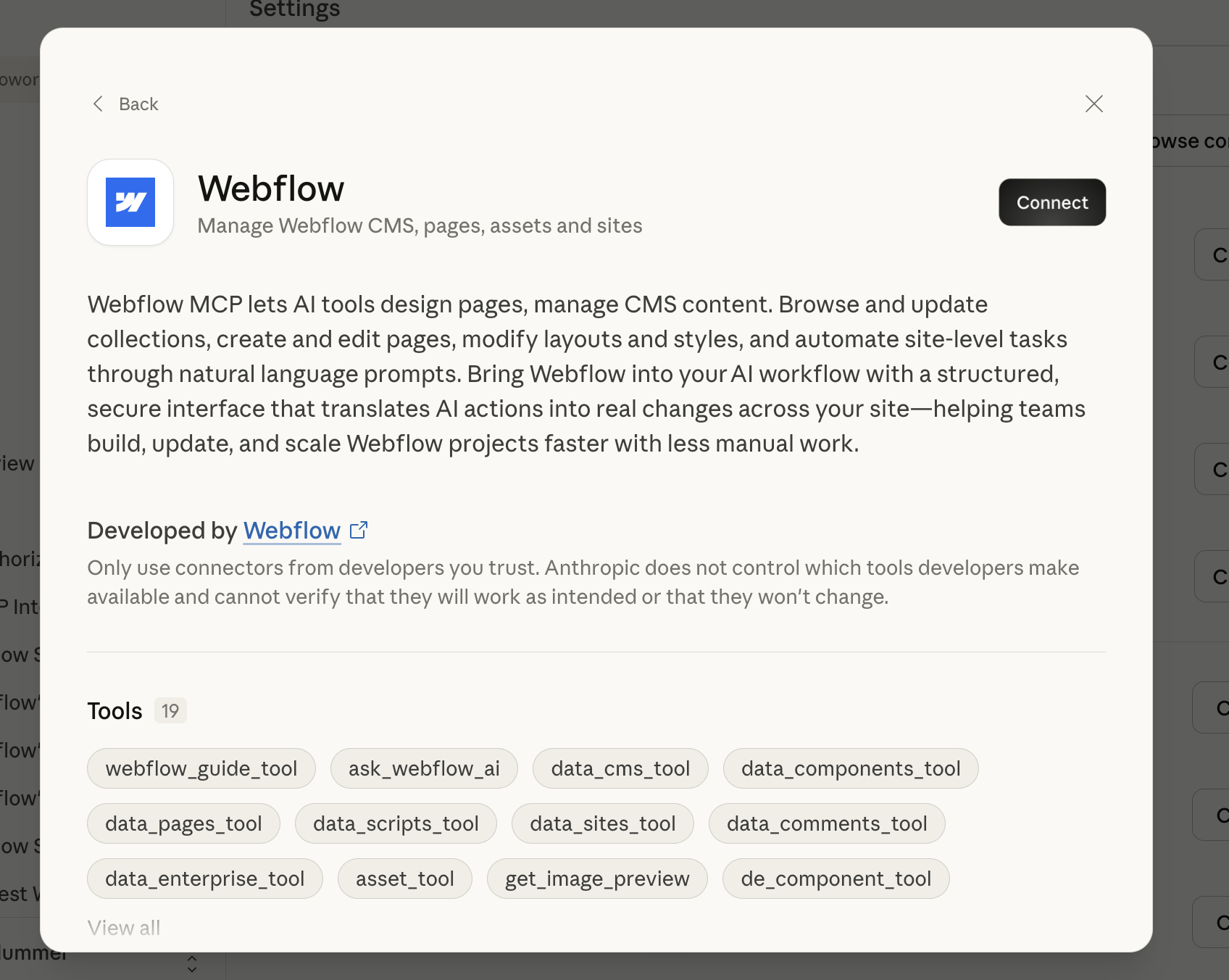
- Grant access to Webflow. Claude will redirect you to Webflow to request access. Review the permissions and choose which sites or workspaces Claude can access, then continue.
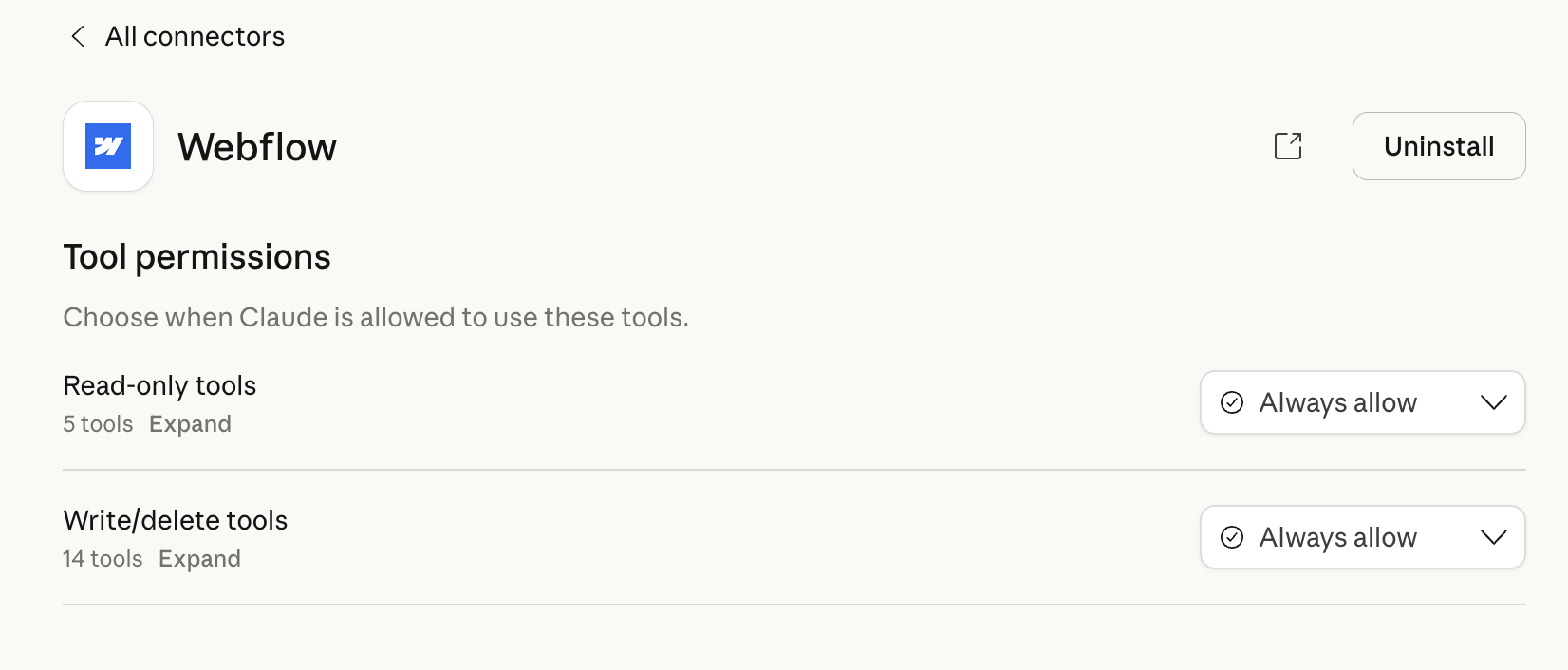
- Configure permissions. Once you are back in Claude, open the Webflow connector and click Configure. From here, you can decide how Claude is allowed to use Webflow tools.
You can allow actions automatically, or require Claude to ask for approval before making changes. This makes it easy to balance speed with oversight, especially when working on production sites. Choose the level of control that feels right for your workflow.
Once the connector is configured, you are ready to start prompting.
How the connector works
The Webflow connector is powered by Webflow’s MCP Server, which gives Claude defined tools to perform specific tasks in Webflow, like creating collections, updating classes, or managing variables. That structure is what makes the connector reliable enough for real site work.
If you want to see the full set of available tools and what each one can do, you can explore the MCP Server reference in the documentation.
This approach also makes it easier to improve over time. As the MCP Server evolves, the connector becomes more capable while keeping the same focus on correctness, consistency, and control.
Try it yourself
Once you’ve connected Webflow to Claude, the best way to understand the connector is to use it on real use cases. Below are a few prompts that show where AI assistance is most useful, especially for structure, content, and system level tasks.
Create or update a CMS structure
Use Claude to help with the initial set up or the evolution of your CMS while keeping things consistent and intentional.
Example prompt:
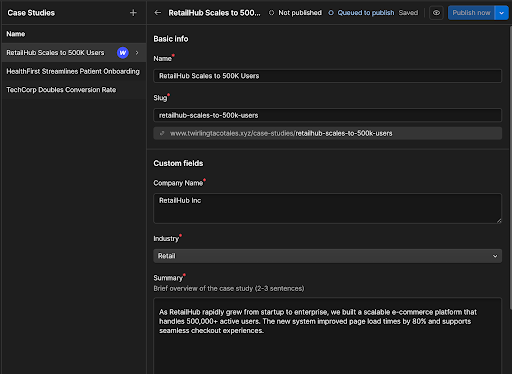
Create a CMS collection for customer case studies.
Include fields for company name, industry, short summary, featured image, and related articles.
Add 3 sample items so I can understand the structure, and use as placeholder content.
Follow Webflow CMS best practices for field naming and structure.
With this prompt, Claude created a CMS collection and examples with the appropriate field types, including an option field with prefilled options, as well as a multi-reference field for related case studies.


















Link relevant content in the CMS
Claude can review your existing content and suggest or apply internal links where they add context or improve discoverability.
Example prompt:
Review the articles in the "Case Studies" CMS collection and add links where referencing related posts would be helpful. Focus on natural placement and avoid over linking.This is especially useful for content-heavy sites where internal linking often falls behind as new content is added.
Check structure and compliance with web standards
You can ask Claude to review and update structural details that support accessibility and SEO.
Example prompt:
Review this page for heading hierarchy, ARIA attributes, and overall structure.
Add or update custom attributes where needed to follow web accessibility best practices.
These are the kinds of changes that improve quality and compliance, but are easy to miss when working quickly.
Respond to feedback and comments
Claude can help interpret feedback and apply changes based on comments or visual context.
Example prompt:
Look at the comments on this page and update the content and structure to address the feedback.
Keep the existing design intact and focus only on the requested changes.
This can speed up iteration when you are reviewing feedback or making small refinements across multiple pages.
Keep building
The Webflow connector is about doing better work, faster. Using Claude with Webflow will help you better support structure, consistency, and follow-through without changing how you design.
As you use it, Claude starts to feel less like a separate tool and more like part of your Webflow workflow. Something you can turn to for setup, cleanup, and system level tasks while you stay focused on the creative decisions that need a human touch.
If you want to go deeper, there is more to explore:
- The prompt library, with examples you can adapt to your own projects
- Claude Skills, if you are using Claude Code and want tighter integrations
- The MCP Server documentation, if you want to understand how the connector works under the hood
None of this requires a big commitment up front. Start small. Try a prompt. See where it fits.

Build with Webflow
Webflow Enterprise gives your teams the power to build, ship, and manage sites collaboratively at scale.



















