









Learn how to set up Cookiebot GDPR cookie consent on a Webflow site.
Is your Webflow site tracking users without their consent? Analytics scripts fire on page load, marketing pixels collect data before anyone clicks "Accept," and every visitor from the EU may have cookies set before they can reject them. If this is happening, it puts you in violation of GDPR before a single order comes in.
Cookiebot fixes this with a consent management layer that blocks non-essential cookies until users opt in, handles automated scanning as your cookie footprint changes, and produces the consent logs auditors request.
In this guide, we'll walk through implementing Cookiebot on a Webflow site using the direct script method. You'll create a Cookiebot account, configure a compliant consent banner, install the script in Webflow's custom code settings, and verify everything works before users arrive.
We'll also cover the limitations of Webflow's script placement and when you might need Google Tag Manager for complete cookie blocking.
What do you need to set up Cookiebot GDPR cookie consent on Webflow?
Three things need to be in place before you configure anything in Cookiebot or Webflow: a paid Webflow site plan, a Cookiebot account, and an understanding of which privacy legislation applies to your visitors. If any are missing, either the banner won't deploy, or the script won't run on published pages.
Before starting, verify you have each of these.
Webflow requirements
Verify you have access to these in your Webflow project:
- Active paid site plan (Starter, Basic, CMS, Business, or Enterprise)
- Site manager or designer role permissions
- Published site with live domain
Free Webflow accounts support design and prototyping, but don't allow custom code on published sites. You'll need a paid plan before the script can run.
Cookiebot requirements
You'll set these up during Step 1, but have them ready before you start:
- Valid email address for account creation
- Website domain
- Understanding of which legislations apply to your users (GDPR, CCPA, etc.)
You don't need an existing privacy policy to get started, but you'll want to publish one before activating the banner for real users. Cookiebot's banner typically links to it.
Optional for testing
These aren't required, but make verification significantly easier:
- Browser with developer tools enabled
- VPN or proxy to test region-specific banners
- Incognito/private browsing window
Cookiebot offers a free plan for sites with up to 50 subpages on a single domain. Sites exceeding this limit require a paid plan:
- Premium Lite starts at €7/month for small sites with under 50 subpages but needing full features
- Premium Small starts at approximately €30/month per domain
Check Cookiebot's pricing page for current rates before budgeting, as plans automatically upgrade when Cookiebot's scanner detects that your page count has exceeded a tier limit.
Custom code in Webflow requires a paid site plan. The Starter plan ($14/month when billed annually) is the minimum tier that enables custom code insertion. Free Webflow plans support design and prototyping, but don't allow custom code on published sites.
5 steps to set up Cookiebot GDPR cookie consent on Webflow
The workflow has four moving parts: a Cookiebot account that holds your configuration, a consent banner configured for your legislation, a script installed in Webflow's Head code, and a published site to test against.
Build the Cookiebot account first. The script you'll paste into Webflow comes from there.
1. Create a Cookiebot account and add your domain
Cookiebot's setup begins with account creation and domain registration. The platform needs to know which domain to scan for cookies and which consent regulations apply to your users. Unlike generic cookie notices that show the same banner to everyone, Cookiebot adapts its consent requirements based on the visitor's location and applicable laws.
Navigate to admin.cookiebot.com and click "Sign up" if you don't have an existing account. Complete the registration form with your email address and create a password. Cookiebot sends a verification email. Check your inbox and click the confirmation link to activate your account.
After logging in, you'll see the domain setup screen. Enter your primary website domain in the provided field.
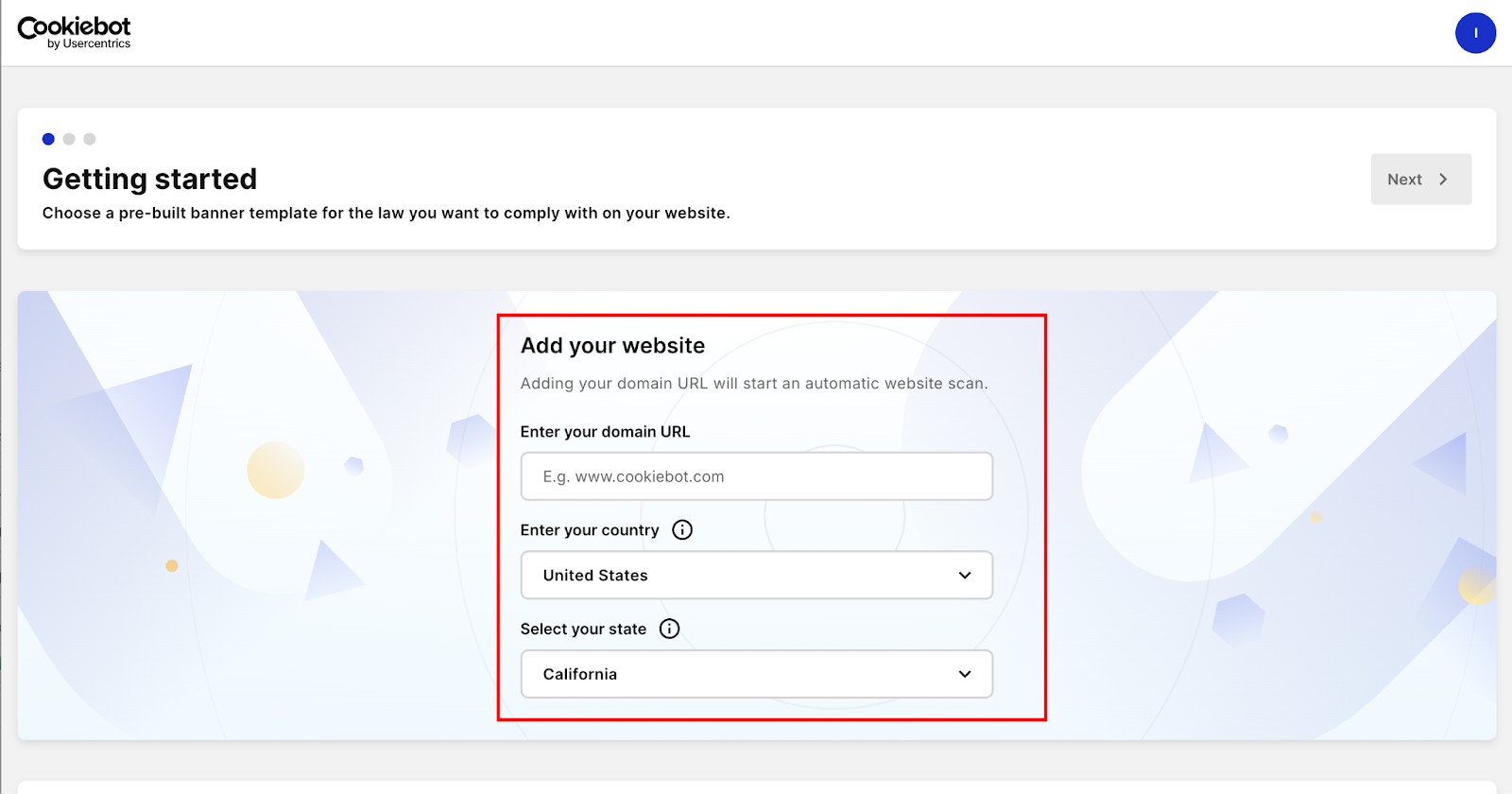
This domain becomes the primary identifier in your account.
If you manage multiple sites, you'll create separate domain groups for each. Each domain group has its own CBID (Cookiebot Domain Group ID), consent settings, and cookie scan results. For now, focus on adding your main Webflow domain.
Selecting your legislation template
Select the legislation template that applies to your primary user base:
General Data Protection Regulation (GDPR): For sites serving EU visitors. Requires explicit consent before loading non-essential cookies. Banner must offer reject options and detailed cookie information. The GDPR template includes specific language about data processors, legitimate interest, and the right to withdraw consent. Choose this if even a small percentage of your traffic comes from EU countries.
California Consumer Privacy Act (CCPA): For sites targeting California residents. Allows implicit consent but requires clear opt-out mechanisms and data deletion requests. The CCPA template focuses on "Do Not Sell My Personal Information" language and provides mechanisms for users to request data deletion.
Multiple regions: If your site serves users in multiple jurisdictions, select the strictest applicable law. You can configure region-specific banners later using geolocation rules. For example, you might show a GDPR-compliant banner to EU visitors while showing a simpler opt-out banner to US visitors outside California.
Cookiebot provides preset banner templates for each type of legislation. These templates include the minimum required legal text, button configurations, and consent flows that satisfy regulatory requirements.
Starting with a preset ensures compliance while allowing customization later. Don't try to create custom templates from scratch. Privacy lawyers have reviewed these presets to ensure they meet current legal standards.
Running the initial domain scan
After selecting a template, Cookiebot immediately queues a domain scan that detects all cookies, trackers, and third-party scripts on your site. This scan typically completes within 24 hours, though smaller sites may finish faster.
The scan crawler visits your site like a regular browser, clicks through pages, triggers interactions, and catalogs every cookie set during the session.
The scan results populate Cookiebot's cookie database and categorize trackers by type: necessary, preferences, statistics, and marketing.
How Cookiebot categorizes your cookies
Cookiebot uses several signals to categorize cookies:
- Cookie names and domains (Google Analytics cookies are automatically categorized as statistics)
- Known tracking service patterns (Facebook Pixel always falls under marketing)
- Manual review of new or unknown cookies
You can manually recategorize cookies if Cookiebot's automatic detection is incorrect, but this is rare with common tracking services.
While the scan runs, you can proceed with banner configuration. The scan results feed into the cookie declaration, helping you understand exactly what's being blocked or allowed based on user consent.
If your site is brand new or hasn't published tracking code yet, the initial scan will find a few cookies. That's normal. You can trigger new scans after adding analytics or marketing scripts.
Watch your subpage count: Cookiebot's monthly scanner automatically upgrades your plan if it detects your site has grown past your current tier's subpage limit. A Webflow site with dynamic CMS pages, blog posts, or product pages can quickly cross a threshold. Check your page count in Cookiebot's dashboard after the initial scan and after any major content additions.
2. Configure your consent banner
Banner configuration determines what users see when they first visit your site and how they interact with consent choices. Cookiebot's settings balance legal requirements with user experience.
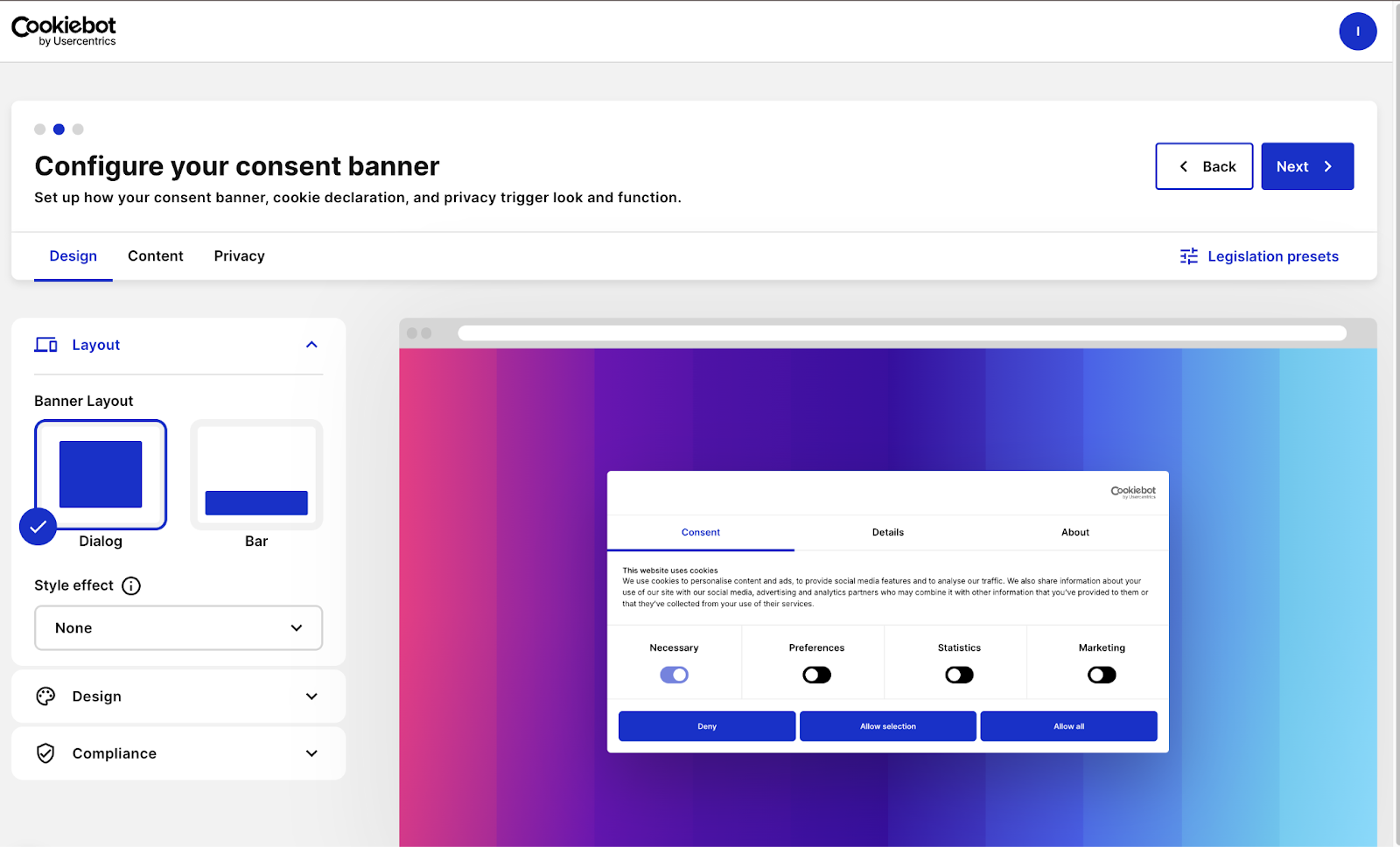
Layout and positioning
The default banner appears at the bottom of the screen with options to accept all cookies, reject non-essential cookies, or customize preferences. This layout satisfies GDPR requirements by making rejection as easy as acceptance. No dark patterns or hidden reject buttons.
You can change positioning to top overlay, full-page takeover, or sidebar. Bottom banners work well for content-heavy sites where you want to minimize disruption. Full-page overlays ensure users actively choose by accessing any content. This is useful for sites that handle sensitive data or require strict compliance documentation.
Language settings
Cookiebot supports 47+ languages with automatic detection based on the visitor's browser settings. If your site serves multiple regions, verify that translations are enabled for all relevant languages.
You can customize specific text strings if the default translations don't match your brand voice or legal requirements.
Common customizations include:
- Adding your company name to the banner heading
- Adjusting the explanation text to mention specific cookies by name
- Customizing button labels (though "Accept" and "Reject" are standard)
- Adding links to your full privacy policy
Save language settings before moving to cookie categories. Cookiebot's preview pane updates in real time as you make changes. Use it to spot readability issues before publishing.
Cookie categories
Cookiebot organizes cookies into four categories:
- Necessary: Essential cookies required for site functionality (shopping carts, authentication, load balancing). Users cannot turn these off under most privacy laws.
- Preferences: Cookies that remember user choices like language selection, currency, or interface customizations.
- Statistics: Analytics cookies that track page views, bounce rates, and user behavior for site improvement.
- Marketing: Advertising and retargeting cookies are used for personalized ads and conversion tracking.
Users can accept all categories, reject non-essential ones, or customize their choices through the preferences dialog. Each category must clearly explain what it collects and why. Regulatory requirements vary, but transparency is universal.
Privacy trigger configuration
The privacy trigger is a persistent element (usually a small icon or text link) that lets users change their consent choices after the initial banner disappears. This satisfies GDPR's requirement that users can withdraw consent at any time.
Common placements include:
- Footer links labeled "Cookie Settings" or "Privacy Preferences."
- Sidebar icons that expand when clicked
- Menu items in the main navigation
The trigger must be easily accessible but not intrusive. Most sites place it in the footer alongside links to the privacy policy and terms of service.
However, consent doesn't last forever. Cookiebot's default consent expiry is 12 months. After this, users will see the banner again and be asked to confirm their choices. This is a GDPR requirement, not a bug.
You can adjust the expiry period in Cookiebot Settings, but most privacy frameworks specify a maximum between 6 and 13 months. Don't set it higher than your applicable regulation requires.
Save all configuration changes before proceeding. Cookiebot displays a preview of your banner in the dashboard. Verify that text is readable, buttons are correctly labeled, and the layout matches your brand standards.
3. Copy the Cookiebot script
Once your banner is configured, you need the Cookiebot script that loads the consent system on your Webflow site. This script initializes the banner, blocks cookies until consent is granted, and logs all consent interactions for compliance auditing.
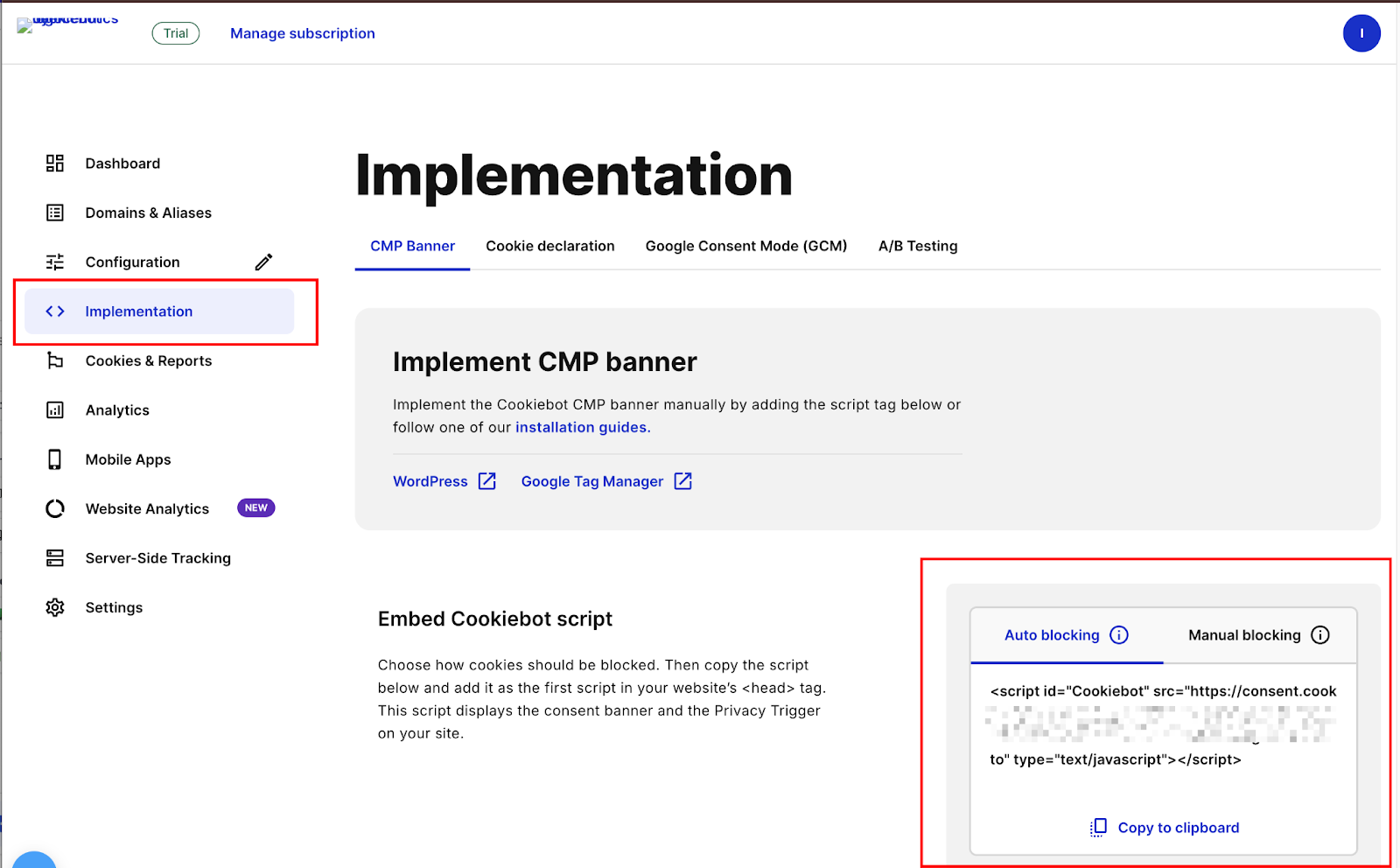
In the Cookiebot sidebar, navigate to Implementation.
You'll see your Cookiebot script displayed in a code block. It looks similar to this:
<script id="Cookiebot" src="https://consent.cookiebot.com/uc.js"
data-cbid="00000000-0000-0000-0000-000000000000"
type="text/javascript"
data-blockingmode="auto">
</script>
Each part of the script has a specific function.
Here's what each attribute does:
src="https://consent.cookiebot.com/uc.js": The Cookiebot consent manager script. This must always load from Cookiebot's CDN. Never host it locally; the internal references will fail.data-cbid="...": Your unique Cookiebot Domain Group ID. This 36-character identifier links the script to your specific configuration and domain settings. Each domain group has a different CBID.data-blockingmode="auto": Tells Cookiebot to detect and block cookies automatically. The "auto" mode works for most sites, but can be changed to "manual" if you need granular control over which scripts are blocked.
Don't modify any of these values. The script Cookiebot generates is tied to your specific domain configuration. Editing the CBID or changing the CDN URL will break the connection between your site and your consent settings.
Click the "Copy" button next to the script or manually select and copy the entire code block. You'll paste this into Webflow in the next step.
Cookie declaration script (optional)
If you want to display a detailed list of all cookies on your privacy policy page, Cookiebot provides a separate cookie declaration script:


















<script id="CookieDeclaration"
src="https://consent.cookiebot.com/00000000-0000-0000-0000-000000000000/cd.js"
type="text/javascript" async>
</script>
To add the cookie declaration to your privacy policy page, open that page in the Webflow Designer, add a Code Embed element where you want the declaration to appear, and paste the cookie declaration script into it.
Unlike the consent banner script (which goes in Project Settings and applies site-wide), this script goes in a page-level embed so it only renders on your privacy policy page. Cookiebot auto-updates it monthly as new cookies are detected.
4. Install the Cookiebot script in Webflow
Webflow's custom code settings allow you to inject scripts that run across all pages. This is where you'll add the Cookiebot consent banner script to ensure it loads before any other tracking or analytics code.
From your Webflow dashboard, locate your project and select Settings. This opens the project settings panel.
In the left sidebar, click Custom Code. You'll see three sections:
- Head Code: Scripts that load in the
<head>section of your HTML, before the page body renders - Footer Code: Scripts that load just before the closing
</body>tag - Page-specific code: Available by clicking individual pages in the Pages panel
For Cookiebot, you'll use the Head Code section.
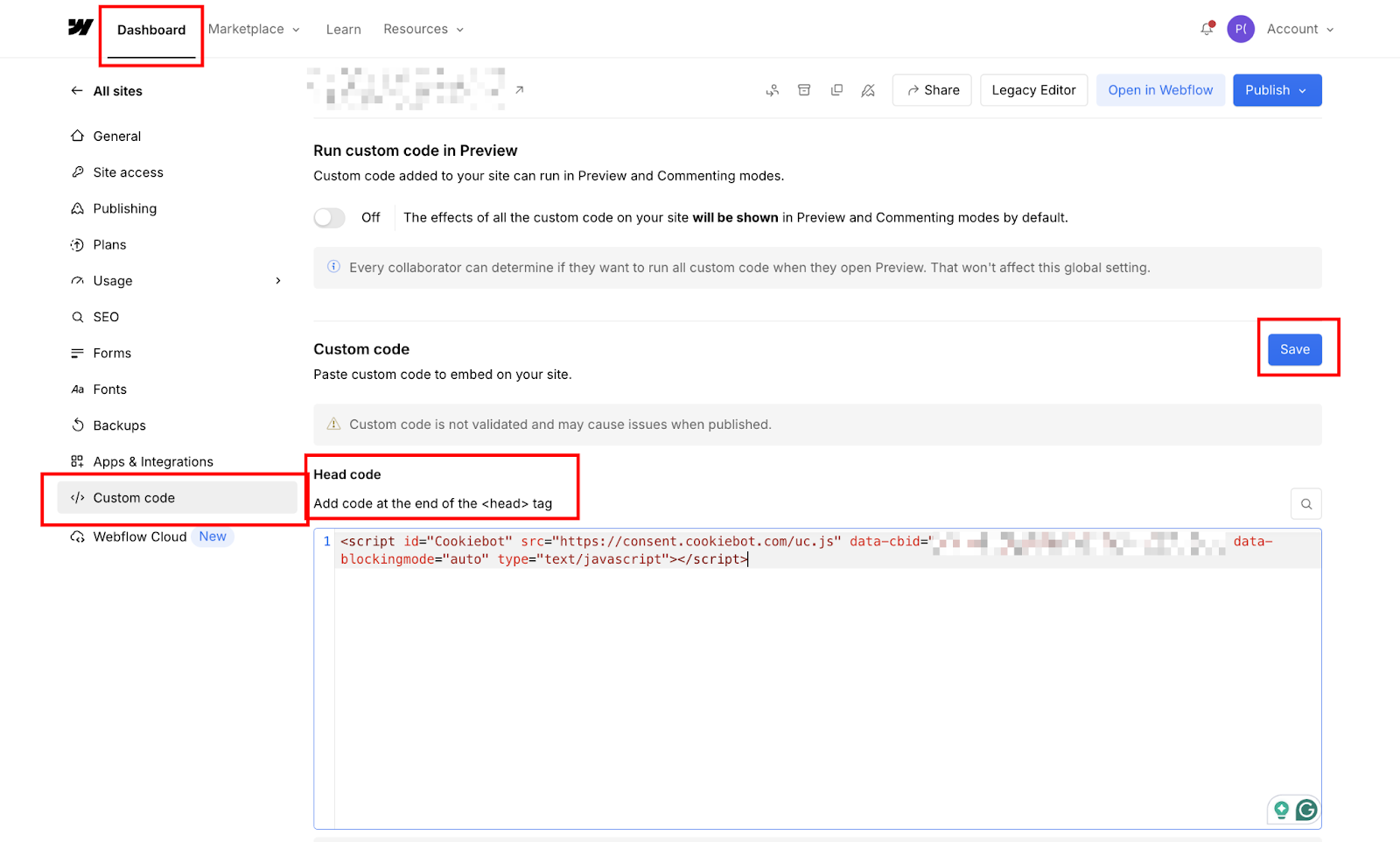
This ensures the consent banner initializes before analytics, marketing pixels, or other tracking scripts attempt to set cookies.
Paste your copied Cookiebot script into the Head Code field. Don't modify the script. Paste it exactly as provided by Cookiebot.
Click Save Changes at the top of the custom code panel.
Configure Google Consent Mode v2 (required for GA4 in the EU)
If your site uses Google Analytics 4 (GA4) or Google Ads, you must also configure Google Consent Mode v2. Without it, GA4 stops receiving event data from EU visitors who decline cookies, making your analytics unreliable for your highest-compliance-risk audience.
Cookiebot handles Consent Mode v2 automatically when you connect it to your Google services. In your Cookiebot dashboard, navigate to Google Consent Mode under Settings and enable it.
Cookiebot then passes consent signals directly to GA4 without requiring separate GTM configuration. If you're running GA4 through custom code (not GTM), verify the gtag('consent', 'default', {...}) command is present in your Head code before the GA4 script.
5. Publish your site and test the consent banner
Custom code in Webflow only executes on published sites. Changes made in the Designer or Project Settings don't affect the staging environment. You must publish to a live domain to see JavaScript effects.
Click Publish in the top-right corner of your Webflow dashboard (or from the Designer if you're editing pages). Select your live domain from the publish menu and confirm.
Wait 30-60 seconds for the publish process to complete. Webflow builds your site, uploads assets to its CDN, and applies custom code. The progress indicator shows when publishing finishes.
Verify the banner is working correctly
Open your published site in an incognito window (this clears any prior consent state). The Cookiebot banner should appear on first load.
Then, verify with these processes:
- Open browser developer tools (F12 → Network tab) and reload the page before accepting consent. Filter for third-party domains. Analytics and marketing pixels should not appear in network requests until you accept the relevant cookie categories.
- Accept all cookies, reload and verify that previously blocked scripts now fire.
- Clear cookies and repeat with rejection; blocked scripts should stay absent.
If you see analytics requests firing before consent is given, the script load order needs attention.
When to use Google Tag Manager instead of the direct script method
The direct script method in this guide works for most Webflow sites.
However, use GTM instead if:
- Your site loads multiple third-party scripts managed through GTM already
- You need granular per-tag consent control (firing specific tags only when specific consent categories are accepted)
- Your marketing team manages pixels and tags without touching Webflow's custom code
When using GTM, remove the Cookiebot script from Webflow's Head code entirely. All Cookiebot configuration lives inside GTM: the Cookiebot tag, consent triggers, and the GTM container snippet in Webflow's Head code are the only three things required.
What causes Cookiebot to fail on Webflow sites? Tips to troubleshoot
Most failures come down to four things: a CBID or domain mismatch, Webflow's script placement timing, browser caching returning a stale version of your site, or region-based settings hiding the banner from your test location.
The symptom is usually clear (banner doesn't appear, cookies still fire, or the banner looks broken), but the cause often isn't.
Here's how to identify which one you're dealing with.
Banner not appearing on published site
Cause: Wrong CBID, domain not added to the Cookiebot account, or script pasted incorrectly.
To fix, start by verifying your CBID matches exactly in both the Cookiebot dashboard and Webflow custom code. CBIDs are case-sensitive and must be 36 characters in UUID format. While you're checking the CBID, confirm that your domain is added in Cookiebot Settings.
The domain in Cookiebot must match exactly the domain your Webflow site is published to, so if you're using www.example.com in Webflow, ensure it's listed in Cookiebot with the www prefix.
If the CBID and domain look correct, inspect your site's actual source code to verify the script is present. Right-click on your published page, select "View Page Source," and search for "Cookiebot." The script should appear in the <head> section with your CBID visible.
If you don't see it, the script didn't save properly in Webflow's custom code settings. Go back and paste it again.
Sometimes the issue is simply browser caching. Your browser may have cached a version of your site from before you added the Cookiebot script. Clear your browser cache and cookies completely, or use Cmd+Shift+R (Mac) or Ctrl+Shift+R (Windows) to force a hard refresh that bypasses the cache.
Finally, check if you're testing from a region where the banner is configured not to show. Cookiebot's distribution settings allow you to hide banners in certain countries, so if you've configured the banner to appear only to EU visitors but you're testing from the US, you won't see anything. Verify your configuration includes your test location.
Banner appears, but cookies still load
Cause: Webflow's script placement timing or third-party scripts not configured for consent awareness.
The issue is that Webflow adds custom code at the end of the <head> tag, so some scripts may execute before Cookiebot initializes. To make third-party scripts wait for consent, you need to change how they're loaded.
For Google Analytics added via custom code, modify the script tag by changing its type to text/plain and adding a consent attribute. Instead of <script type="text/javascript">, use <script type="text/plain" data-cookieconsent="statistics">.
The type="text/plain" prevents immediate execution, while data-cookieconsent="statistics" tells Cookiebot this script requires statistics consent before running.
Apply the same pattern to marketing pixels like Facebook or LinkedIn. Use <script type="text/plain" data-cookieconsent="marketing"> to wrap your pixel code. This ensures these scripts remain dormant until users accept the marketing cookie category.
Banner text is invisible or improperly styled
Cause: CSS conflicts with Webflow styles or custom fonts affecting banner elements.
Begin by checking whether your Webflow site uses global CSS that applies aggressive styles, such as color: transparent, to all elements. Cookiebot's banner has its own CSS, but overly broad global styles can override it.
Use browser developer tools (F12 → Elements) to inspect the banner and look for conflicting styles on elements with #CybotCookiebotDialog or similar IDs. This will show you exactly which CSS rules are interfering with Cookiebot's default styling.
Once you've identified the conflict, add custom CSS to fix the styling issues.
In Webflow Project Settings > Custom Code > Head Code, add a style block that forces Cookiebot's default text color and font to appear:
<style>
  #CybotCookiebotDialog * {
    color: inherit !important;
    font-family: inherit !important;
  }
</style>
Adjust the properties as needed based on what's missing. You might need to add font-size, line-height, or other properties depending on the specific conflict.
If you're using custom fonts that don't load immediately, Cookiebot might render before the fonts are available, causing the banner to initially appear with fallback fonts. This is cosmetic and resolves once your fonts load, but you can speed it up by adding a font preload link in your Webflow custom code to ensure fonts are available before the banner renders.
Scan failed or shows a 502 error
Cause: Cookiebot's scanner cannot access your site, often due to password protection or hosting restrictions.
The most common cause is password protection on your Webflow site. If your site is password-protected during development, Cookiebot's scanner can't access it to catalog cookies. Temporarily remove password protection, let Cookiebot complete its initial scan, then re-enable protection afterward.
The scan only needs to run once initially. Subsequent monthly scans will work even with password protection because Cookiebot stores the initial cookie data.
Verify that your domain is actually live and publicly accessible. Cookiebot cannot scan unpublished Webflow sites or sites that only exist on webflow.io subdomains. You need a custom domain that resolves to your published Webflow site for the scanner to reach it.
If you've just published your site or changed domains, DNS propagation might still be in progress. Wait a few hours and try again.
Sometimes scanner issues are temporary. Wait 24 hours and check the scan status again in your Cookiebot dashboard. The scanner retries automatically on failure, so a transient network issue or server problem often resolves itself without intervention.
If 502 errors persist for more than 48 hours, contact Cookiebot support with your domain name and CBID. Their team can check server logs to identify why the scanner cannot reach your site, whether it's due to a firewall rule, a hosting configuration, or something specific to your domain setup.
Banner showing to users who have already consented
Cause: Consent cookie was deleted, expired, or isn't being set correctly across subdomains.
Start by checking the consent cookie expiration time in your Cookiebot settings. By default, Cookiebot sets consent to expire after 12 months, which means users who consented more than a year ago will see the banner again.
This is actually required under GDPR. Consent can't be perpetual, and most privacy frameworks require periodic reconfirmation. If you're seeing the banner reappear exactly one year later, this is expected behavior, not a bug.
The issue might also be subdomain-related. If your Webflow site uses www.example.com but some pages are on app.example.com or a subdomain, the consent cookie might not transfer between them.
Navigate to Cookiebot Settings and add all subdomains you use. This tells Cookiebot to set the consent cookie at the root domain level, so it applies automatically across all subdomains.
Consider whether users are clearing cookies manually or using privacy-focused browsers. Some browsers, like Safari with tracking prevention, Brave, or Firefox with enhanced tracking protection, automatically clear third-party cookies or cookies from sites not recently visited.
Finally, check for JavaScript errors that might prevent the consent cookie from being set. Open browser developer tools (F12 → Console) and look for red error messages mentioning "Cookiebot" or "consent."
If Cookiebot's script encounters an error before setting the cookie, users will see the banner on every visit, even though they previously consented. Fix any JavaScript conflicts to resolve this.
Consent banner not showing in specific countries
Cause: Geolocation-based distribution settings are limiting where the banner appears.
Navigate to Cookiebot Settings and examine the "Show consent banner" setting. Cookiebot allows you to restrict banners to specific regions, which is useful when you only need to comply with certain privacy laws.
The most common configurations are "Only in EU countries" for GDPR compliance, "Only in California" for CCPA compliance, or "Worldwide" to show the banner to all visitors regardless of location.
Pay close attention to how Cookiebot defines regions. The EU doesn't include Norway, Switzerland, or Iceland, even though these countries are subject to GDPR or similar laws.
UK visitors post-Brexit are covered by the UK GDPR, which is separate from the EU GDPR, though most compliance platforms treat them the same way. If you're targeting European visitors broadly, you may need to manually add non-EU countries to your distribution settings.
Test your configuration using a VPN to change your apparent location. If you're in the US but the banner is set to EU-only, you won't see it unless you appear to be browsing from a European IP address. This is the most reliable way to verify region-specific settings are working as intended.
Remember that geolocation is based on IP address, which isn't perfectly accurate. Mobile users, VPN users, and users behind certain corporate networks might appear to be in different countries than they actually are.
A user in Germany might show a US IP address if they're connected to their company's US-based VPN. This is a fundamental limitation of IP-based geolocation, not specific to Cookiebot, and affects all location-based systems equally.
Google Tag Manager integration conflicts
Cause: Attempting to use both the direct script method and the GTM method simultaneously, or GTM firing tags before Cookiebot consent.
The first rule of Cookiebot implementation is to choose one method and stick with it. You cannot run both direct script embedding and GTM integration simultaneously; they will conflict. If you've decided to use GTM for cookie blocking, remove the Cookiebot script from Webflow's custom code entirely.
All Cookiebot code should live in GTM when using this approach, with nothing in Webflow other than the GTM container snippet.
Once you've committed to GTM, verify that your consent triggers are configured correctly. In GTM, create triggers that fire only when specific consent categories are granted. For example, create a "Statistics Consent" trigger that activates when Cookiebot.consent.statistics equals true, and a "Marketing Consent" trigger for marketing cookies.
Apply these triggers to your Google Analytics, Facebook Pixel, and other tracking tags so they respect user consent choices instead of firing immediately on page load.
The best way to verify this setup is through GTM's preview mode. Open GTM's preview panel and visit your site. Reject all cookies and verify that no tags fire except necessary ones. Then accept the statistics consent and verify only the statistics tags fire.
This visual debugging shows exactly which tags respect consent and which don't, making it immediately obvious if something is misconfigured.
Importantly, don't use GTM's built-in consent mode if you're using Cookiebot. Google Tag Manager has its own consent system, separate from Cookiebot, and using both can create conflicts when consent signals don't match between the two systems.
If you're using Cookiebot, rely exclusively on Cookiebot's consent signals and turn off GTM's native consent mode.
What to set up after cookie consent
Cookiebot handles compliance infrastructure. The next question for most Webflow sites is where consented data actually goes — form submissions, order data, and analytics events that now fire correctly only after opt-in.
Two natural extensions from here: routing Webflow form submissions automatically via the Webflow + Zapier integration, or properly configuring analytics with consent mode via Google Tag Manager.
Explore Webflow's developer docs for more advanced consent mode implementation, such as passing consent signals to Google's ad and analytics stack.
Frequently asked questions
Can I use Cookiebot on Webflow's free plan?
No. Custom code insertion requires a paid Webflow site plan (Starter, Basic, CMS, Business, or Enterprise). Webflow's free plan allows design and prototyping, but doesn't support custom code on published sites. You must upgrade to at least the Starter plan ($14/month when billed annually) to add Cookiebot scripts.
Does Cookiebot slow down my Webflow site?
Cookiebot adds approximately 50-80KB to initial page load (the consent script and configuration). On modern connections, this translates to 100-200ms of additional load time. The script is served from Cookiebot's CDN with edge caching, so latency is minimal.
Can I customize Cookiebot's banner to match my Webflow site design?
Yes. Cookiebot provides extensive customization through its dashboard without requiring CSS knowledge. For advanced customization beyond dashboard options, you can add custom CSS to Webflow's custom code.



















