






Osmo SVG Import
Connect Osmo SVG Import with Webflow to add fully editable SVG elements to your site without character limits or manual code editing.

Webflow handles SVGs in limited ways by default. Uploading an SVG through the Assets panel renders it as a flat image. You lose access to individual paths, fills, and strokes. The standard upload also enforces a 10,000-character limit, which blocks complex illustrations entirely. Inline SVG through a Code Embed element requires a paid site plan and caps at 50,000 characters per element. None of these approaches gives you direct style control through Webflow's native interface.
Osmo SVG Import converts any SVG file into editable Webflow elements with no character limits. Drag a file into the app panel, toggle currentColor for fills and strokes, then paste the result onto your canvas. Every path, group, and shape becomes a standard DOM element you can style, animate, and interact with using Webflow's built-in controls. The app also includes a 200+ icon library with one-click copy to Webflow.
This integration applies to workflows where SVGs need post-import editing: moving icons from Figma to Webflow, building animated SVG sections, or managing reusable icon systems across client projects.
How to integrate Osmo SVG Import with Webflow
What is Osmo SVG Import? Osmo SVG Import is a Webflow App that imports SVG files as native DOM elements. Built by Dennis Snellenberg and Ilja van Eck, it supports drag-and-drop file input, pasted SVG code, and a built-in library of 200+ icons. The app ships through the Webflow Apps Marketplace and requires an Osmo membership for full access to import features and the icon library.
Osmo SVG Import is a manual, UI-driven tool with no public API, webhooks, or programmatic endpoints. The integration paths cover import, embed, and asset upload — from no-code app use to lightweight inline code.
The Osmo SVG Import–Webflow integration supports two approaches:
- The Osmo SVG Import app converts SVG files or code into editable DOM elements with currentColor support, directly from the Webflow canvas.
- Code Embed and asset upload let you add Osmo SVGs to Webflow without an Osmo membership, using inline SVG code or image-based file upload.
The right method depends on whether you need editable DOM elements or a simpler image-based result.
Use the Osmo SVG Import app
The Osmo SVG Import app is the most direct way to get fully editable SVGs into Webflow. Install it from the Webflow Apps Marketplace and access it through the Apps panel in your project. The app accepts .svg file drops and pasted SVG code, converts them into native Webflow elements you can style and animate, and provides a "Copy to Webflow" button on the Osmo icon library for one-click transfer of any icon.
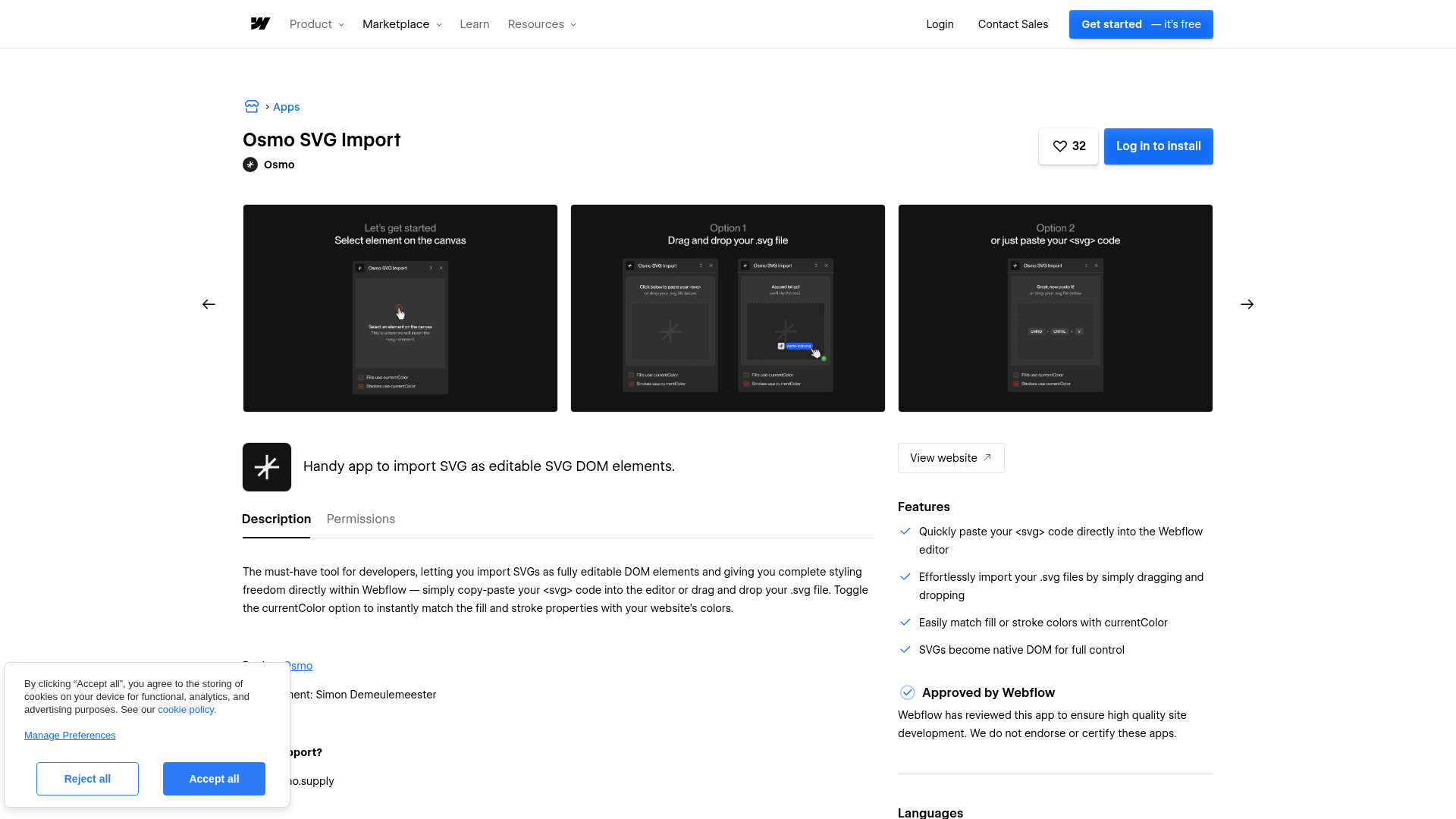
The app supports the following options:
- Drag an SVG file into the app panel or paste SVG code directly
- Toggle "Fills use currentColor" to make fill colors inherit the parent element's text color automatically
- Toggle "Strokes use currentColor" for stroke color inheritance across themes and sections
- Use the "Copy to Webflow" button on osmo.supply to copy icons to your clipboard, then paste with Cmd/Ctrl+V onto the canvas
- Download SVG files or copy raw SVG code from the Osmo interface for use outside Webflow
The app has no character limits on imported SVGs, making it practical for complex illustrations that exceed Webflow's 10,000-character upload limit. An Osmo membership is required for the full icon library and import features. Current plan options are listed at osmo.supply/plans.
Import SVGs from Figma through the app
The app accepts pasted SVG code from any source, including Figma. Copy an SVG element in Figma and paste the code into the Osmo SVG Import panel. Toggle currentColor settings before adding it to your canvas. Designer Daniel Abudu documented this workflow, noting it cut the transfer process from five or more steps to two, replacing the standard export-to-file, open, edit, and copy sequence.
This path works well for teams that design icons and illustrations in Figma and build production sites in Webflow.
Add SVG elements with Code Embed and asset upload
Code Embed and asset upload let you add Osmo SVGs to Webflow without the app or an Osmo membership. Use the "Copy Code" or "Download SVG" options from the Osmo interface.
- Paste SVG markup into a Code Embed element for inline SVG with CSS styling access. Limited to 50,000 characters and requires a paid Webflow site plan.
- Upload an SVG file to the Assets panel and drag it onto the canvas as an image element. No plan restrictions, but SVGs render as flat images without path or color editing.
- Use "Copy Code" from Osmo to grab SVG markup without needing file exports or external editors.
The Code Embed method preserves inline SVG editability for CSS and JavaScript. Asset upload works best for simple icon placement where color and path control are not needed. Asset uploads are capped at 4MB per file.
Paste SVG code into a Code Embed element
Open the Add panel in Webflow and drag a Code Embed element onto your canvas. Click the element, then open the code editor via Settings > Open code editor. Paste the SVG code from Osmo's "Copy Code" option — no wrapper HTML tags needed, just the raw SVG markup. Save and close the editor. This method supports CSS styling and JavaScript interaction with individual SVG elements. The 50,000-character limit applies, and Code Embed elements require a paid Webflow site plan.
Upload SVG files through the Assets panel
Download the SVG from Osmo using the "Download SVG" button. Open the Assets panel in Webflow and upload the .svg file. Drag the uploaded asset onto your canvas as an image element. This method works on any Webflow plan and requires no Osmo membership. The uploaded SVG renders as a standard image — individual paths and colors are not editable after placement. The file size limit is 4MB.
What you can build with Osmo SVG Import Webflow integration
Integrating Osmo SVG Import with Webflow lets you work with fully editable SVG elements on your canvas without manual code editing or character limit workarounds.
- Theme-adaptive icon systems: Build a single icon set that automatically adapts to different brand colors using currentColor inheritance. Agencies managing multiple client sites can maintain one SVG set and apply distinct color schemes per project through Webflow's text color settings, with no manual recoloring needed.
- Animated SVG hero sections: Import complex SVGs as native DOM elements and apply Webflow Interactions or CSS animations to individual paths and groups for motion-rich landing pages with interactive SVG elements.
- Complex illustration embedding: Import detailed SVG illustrations that exceed Webflow's standard 10,000-character upload limit. The app's DOM-based import has no character cap, making it suitable for intricate line art, detailed maps, and multi-element infographics that other built-in methods reject.
- Figma-to-Webflow icon workflows: Paste SVG code directly from Figma into the app panel and add elements to the canvas in two steps, bypassing the export-edit-copy process that standard SVG transfer requires.
The Osmo SVG Import app on the Webflow Apps Marketplace covers the import workflow end-to-end for teams working with complex SVGs or large icon libraries.
Frequently asked questions
Yes, the SVG Import app and the "Copy to Webflow" button both require an Osmo membership. You can still add Osmo SVGs to Webflow without a membership. Use the "Copy Code" option and paste it into a Code Embed element, or download the SVG file and upload it to the Assets panel. Membership details and plan options are available at osmo.supply/plans.
Yes. The app installs and runs on any Webflow plan. Osmo SVG Import uses Designer Extension APIs to write elements directly to the DOM, which bypasses the Code Embed restriction that applies to free plans. The Code Embed method for inline SVG does require a paid Webflow site plan.
SVGs are not recommended for product images, variant images, or e-commerce email brand logos in Webflow. Use PNG or JPG for those fields instead.
The Osmo SVG Import app has no character limits. It writes SVG elements directly to the DOM through Designer Extension APIs, bypassing both the 10,000-character SVG upload limit and the 50,000-character Code Embed limit. This makes it the most practical method for importing complex SVG illustrations that exceed Webflow's built-in thresholds.
Description
Add SVG files to Webflow as editable DOM elements through a marketplace app, with currentColor support for automatic color inheritance. It works via drag-and-drop, code paste, or one-click copy from the Osmo icon library.
This integration page is provided for informational and convenience purposes only.

Integrately
Connect Integrately with Webflow to automate form submissions, CMS updates, and e-commerce orders across 1,500+ apps without writing code.
ScheduleFlow
Connect ScheduleFlow to Webflow to schedule site and CMS publishes at specific dates and times.
Auth0
Connect Auth0, an identity and access management platform, with Webflow to add login, signup, and content gating to static sites through the SPA SDK, Lock widget, automation platforms, or direct API integration.
Neon
Connect Neon, a serverless Postgres database, with Webflow to store, query, and sync relational data that exceeds what the Webflow CMS supports natively.
Slater
Connect Slater with Webflow to write, test, and deploy custom JavaScript through an AI-assisted editor with staging environments and version history — without a full site publish for every change.
Relay.app
Connect Relay.app with Webflow to automate form processing, CMS updates, and e-commerce order management using workflows with AI steps and human approval checkpoints.
Sass
Write and compile Sass directly in Webflow with live preview, code autocompletion, and minified CSS output using the free Sass app.
Pipedream
Connect Pipedream, a serverless workflow automation platform, with Webflow to automate CMS updates, process form submissions, and sync data across thousands of apps using event-driven workflows.
MeldAPI
Connect MeldAPI, a no-code data sync platform, with Webflow to automate CMS data synchronization between external applications and your Webflow site.
Related integrations
Get started for free
Try Webflow for as long as you like with our free Starter plan. Purchase a paid Site plan to publish, host, and unlock additional features.
