






Slater
Connect Slater with Webflow to write, test, and deploy custom JavaScript through an AI-assisted editor with staging environments and version history — without a full site publish for every change.

Webflow's built-in custom code editor works for small additions, but it becomes a bottleneck on complex projects: there's a character limit per embed, no version history, and every code change requires a full site publish to test.
Slater is a dedicated JavaScript environment built specifically for Webflow that removes those constraints. It connects through a single script, so once you've set it up, you write, test, and deploy code entirely through Slater's interface.
This page covers the two main ways to connect Slater to Webflow and how to pair it with the Webflow API for CMS-driven workflows.
How to integrate Slater with Webflow
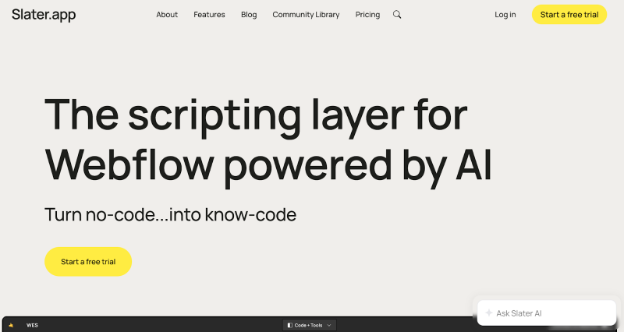
What is Slater? Slater is an AI-powered JavaScript development environment built for Webflow. It connects to your Webflow site through a single embed script and provides a dedicated editor with AI-assisted code generation, staging and production environments, a version history with rollback, and a reusable code library. Slater is built by the team at Edgar Allan.
The two integration methods below use the same underlying mechanism: a script added once to your Webflow site's footer code that tells Webflow to load JavaScript from Slater's CDN instead of from native embeds.
The difference between the two methods is how you set up that script — through the Webflow Apps Marketplace or by pasting it manually into Site settings.
Most teams use the app, then reach for the manual path only when working in environments where app installation isn't available. For teams who also need to run programmatic CMS operations, the Webflow API works alongside Slater as a separate layer.
Install the Slater app
Install Slater from the Webflow Apps Marketplace to connect both tools and access Slater's editor from inside Webflow. The app generates the script snippet you need and guides you through adding it to your site.
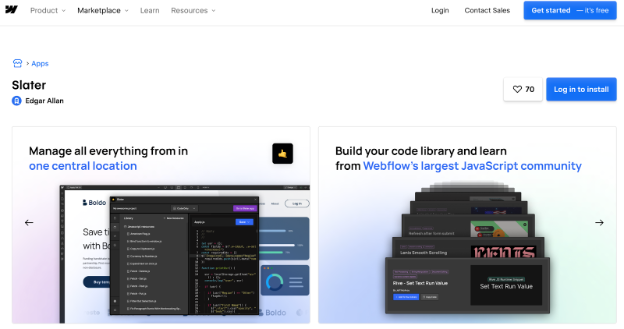
To set up the integration:
- Create a Slater account at hi.slater.app or through the Webflow Apps Marketplace listing
- In Webflow, go to Site settings > Custom code > Footer code
- Paste the Slater script snippet before the closing
</body>tag - Save your changes and publish your site to activate the script
Once the script is live, all subsequent code changes deploy directly through Slater — no Webflow republish needed. To verify the connection, add console.log("👋") to a new Slater file, publish to staging, and confirm the output appears in your browser console. Then promote to production when ready.
Slater's editor gives you several capabilities that Webflow's native custom code does not:
- AI-assisted code generation: Write a plain English prompt, get working JavaScript, and see Slater's explanation of how it works underneath
- Staging and production environments: Code deploys to your
.webflow.iosubdomain first, so you can test without affecting your live site - Version history: Use the History tab to revert to any previous version of your code
- Code library: Save reusable solutions and drag them into new Slater projects
- Team collaboration: Invite teammates and manage their access permissions within Slater
These features are independent. You can use AI generation on one file, manage a code library across another, and run staging tests on a third, all through the same dashboard.
Add Slater via site-level custom code
If you prefer to connect manually rather than through the marketplace listing, paste the Slater script directly into Webflow's custom code in the head and body tags settings.
Navigate to Site settings > Custom code > Footer code, paste the snippet before the closing </body> tag, then publish your site to activate the script. This achieves the same result as the app-based method — the script is identical.
This path is useful when you're working in a Webflow workspace where app installation requires a permission level you don't have, or when you want to manage all site-level code from one place without an additional app connection.
Once the script is active, you work exclusively through Slater's editor. The connection gives you the same capabilities as the app method: no character limits on your JavaScript, hot reloading on your staging subdomain, and multi-file organization across a single project.
This approach works on any Webflow plan that supports custom code in head and body tags.
Build with the Webflow API and Slater-deployed code
For workflows that require programmatic CMS operations — creating collection items from external data, syncing content, or triggering rebuilds — you can write JavaScript in Slater that calls the Webflow API. Slater handles the development environment. The Webflow API handles the data operations.
Because Slater-deployed code runs client-side in the browser, API calls that require authentication should route through a serverless function (AWS Lambda, Vercel, or Cloudflare Workers) rather than making credentialed requests directly from browser JavaScript.
Your Slater-deployed code calls the serverless function, which holds the credentials and calls Webflow's API endpoints. This keeps your tokens out of the browser and your code out of Webflow's native custom code editor.
The Webflow API endpoints most commonly used alongside Slater are:
POST /v2/collections/{collection_id}/items:Create Webflow CMS items from external data sources like Airtable, Google Sheets, or a custom databasePATCH /v2/collections/{collection_id}/items/{item_id}:Update existing collection items for real-time content synchronizationPOST /v2/sites/{site_id}/publish: Trigger a site publish after programmatic content updates
Slater does not have a public API or webhook system. For event-driven workflows, for example, running code when a CMS item is created or changed, use Webflow's native webhook system with events like collection_item_created and collection_item_changed.
You can write the code that handles those webhook payloads in Slater's editor and deploy it to your site as part of your client-side logic. Authentication for the Webflow API uses OAuth 2.0 Bearer tokens as described in Webflow's authentication docs.
What you can build with the Slater Webflow integration
Slater's editor covers a range of use cases, from designers who want to add a single custom animation without wrestling with character limits, to developers building CMS pipelines that generate pages from external data sources. The right build depends on how much of Slater's feature set you need.
Here are a few things you can build with this integration:
- Custom animation and interaction layers: Build motion-heavy sites with GSAP animations, scroll-triggered effects, and complex interaction sequences written in Slater's editor — staged and tested on your
.webflow.iosubdomain before going live, without the character constraints of Webflow's native code embeds. - Live data displays from external APIs: Create pages that fetch real-time data from third-party APIs — like the weather data demo in Slater's showcase — and render it with conditional logic on a Webflow page, using Slater's AI assistance to write and iterate on the fetch calls.
- Custom UI components with state management: Build interactive elements like date range pickers, multi-step forms, or custom filtering logic that require JavaScript state management unavailable through Webflow's native interactions — organized across multiple Slater files within a single project.
- Membership-gated experiences: Develop authenticated interfaces that integrate tools like Memberstack, where Slater's AI assists with the conditional display logic and user-specific functionality, as documented in Slater's Corey Moen case study.
For teams building programmatic SEO pages (hundreds of location pages, product listings, or resource directories generated from an external database), this pattern works well: write the CMS API calls in Slater's editor, route authenticated requests through a serverless function, and use the Webflow API to create and publish collection items programmatically.
Start by installing the Slater app from the marketplace.
Frequently asked questions
Yes. Slater provides separate staging and production environments. When you publish from Slater's editor, code deploys to your
.webflow.iostaging subdomain first. Your live site is unaffected until you promote the script to production from the Slater dashboard. Slater's Smart Scripts feature ensures staging and production environments always load the correct version.Yes. Slater hosts your JavaScript on its own CDN and injects it into your Webflow site through the single embed script. This removes the character constraint that applies to Webflow's native per-embed code blocks. You can organize your code across multiple files in Slater's editor, and the hosted script loads everything on page render.
No. Slater does not offer a public API or webhook events. It functions as a client-side JavaScript development environment. For programmatic CMS operations or event-driven workflows, use the Webflow API and Webflow's native webhook system directly. You can write the code for those integrations in Slater's editor and deploy it to your site.
Not necessarily. Slater's AI generates JavaScript from plain English prompts and explains how the generated code works. Slater describes the tool as designed for Webflow users who want to go beyond no-code limits, including those with little coding experience.
Description
Integrate Slater with Webflow by adding a single script to your site's footer code. From there, manage all JavaScript through Slater's editor — with AI assistance, staging and production environments, and version history.
This integration page is provided for informational and convenience purposes only.

Anthropic Claude
Webflow's Model Context Protocol (MCP) server connects Claude AI directly to your site's CMS, Designer APIs, and data layer.

ChatGPT
Direct API integration provides complete control over AI functionality compared to pre-built solutions, enabling custom conversation flows, context management, and advanced processing patterns that aren't possible through standard embeds.

Xano
Connect your Webflow site to a powerful no-code backend platform that handles databases, APIs, and business logic — all without writing server-side code.

Zapier
Connect Zapier's powerful automation platform with Webflow to streamline workflows, sync data across 8,000+ apps, and eliminate manual tasks. Transform your website into an automated hub that captures leads, processes orders, and updates content without writing code.

Relay.app
Connect Relay.app with Webflow to automate form processing, CMS updates, and e-commerce order management using workflows with AI steps and human approval checkpoints.
Sass
Write and compile Sass directly in Webflow with live preview, code autocompletion, and minified CSS output using the free Sass app.
Pipedream
Connect Pipedream, a serverless workflow automation platform, with Webflow to automate CMS updates, process form submissions, and sync data across thousands of apps using event-driven workflows.
MeldAPI
Connect MeldAPI, a no-code data sync platform, with Webflow to automate CMS data synchronization between external applications and your Webflow site.
Flowblock - Code AI
Connect Flowblock - Code AI, an AI-assisted code editor, with Webflow to write, test, and deploy custom JavaScript and CSS directly inside Webflow.
Related integrations
Get started for free
Try Webflow for as long as you like with our free Starter plan. Purchase a paid Site plan to publish, host, and unlock additional features.
