






Smartarget Reviews
Connect Smartarget Reviews with Webflow to display curated customer testimonials and star ratings on your site without building a review system from scratch.

Webflow does not include a built-in reviews or testimonials component. If you want to show customer feedback on a services page, product listing, or landing page, you either build a custom solution or rely on a third-party widget. Without one, visitors land on pages that lack the social proof that shapes their decisions.
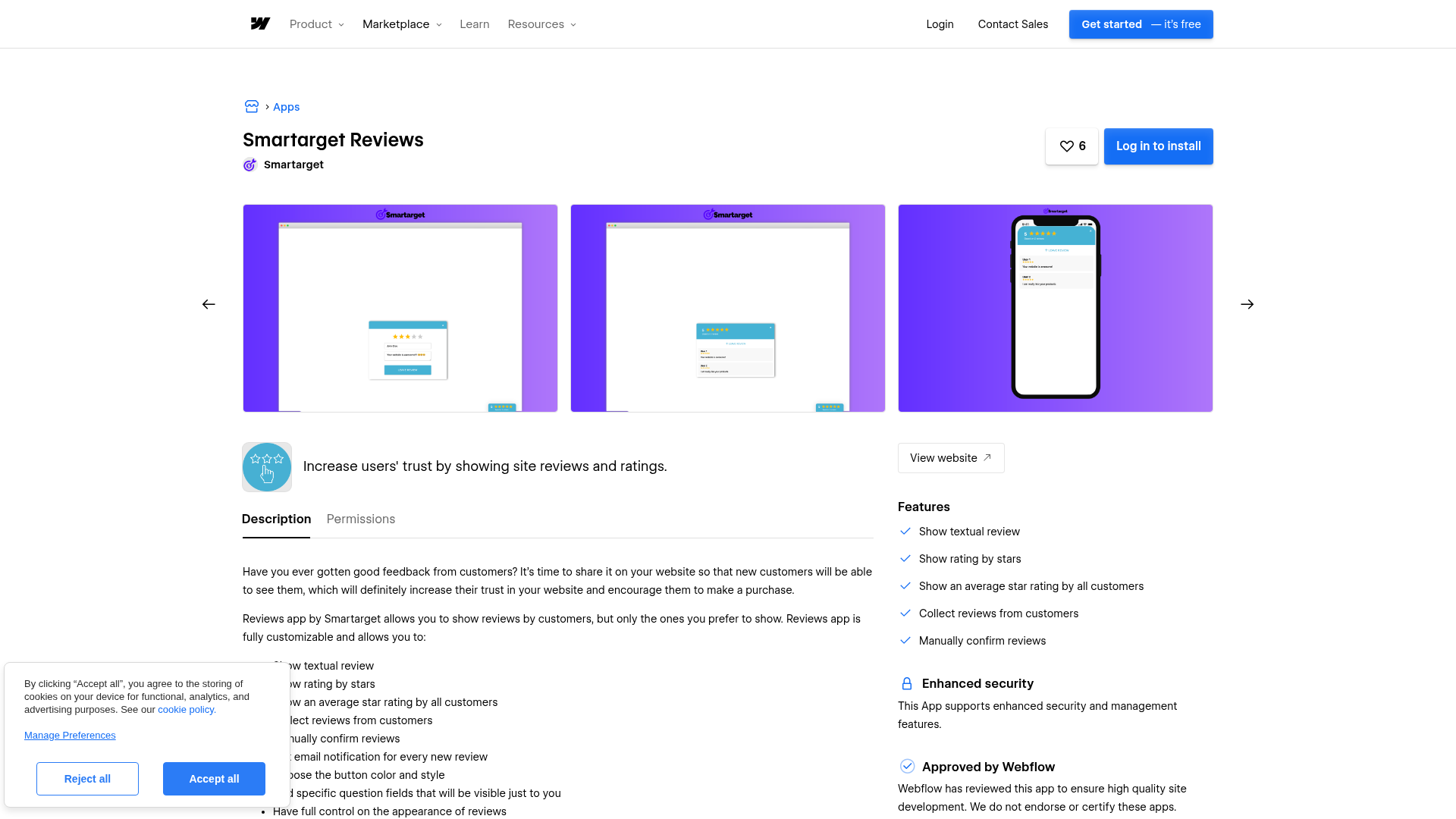
Smartarget Reviews adds a configurable widget that displays text reviews, star ratings, and an average rating summary on any published Webflow site. The widget collects new reviews from visitors, sends email notifications for each submission, and lets you approve reviews manually before they go live. All content management happens in the Smartarget dashboard, so updates appear on your published site without a Webflow republish.
This integration fits freelancers, agencies, and small business owners who run Webflow sites for services, e-commerce, or professional practices — and marketing teams that manage testimonials across multiple pages and want a single dashboard to control what visitors see.
How to integrate Smartarget Reviews with Webflow
What is Smartarget Reviews? Smartarget Reviews is a reviews widget that lets you manually curate testimonials, display star ratings, and collect new reviews from site visitors. It runs as a client-side JavaScript widget configured through a web dashboard.
Teams use Smartarget Reviews and Webflow together when they need a testimonial display that updates independently of Webflow's publishing cycle and requires no custom backend. The widget handles collection, approval, and display in a single dashboard, leaving Webflow responsible for page design and layout.
The Smartarget Reviews–Webflow integration supports two approaches:
- The Smartarget Reviews app provides a no-code installation path through the Webflow Apps Marketplace.
- Custom code injection gives you control over whether the widget loads site-wide, on specific pages, or at an exact position on the canvas using a Code Embed element, site settings, or page settings.
Most implementations use one method: the app for straightforward setup, or custom code injection for placement control.
Install the Smartarget Reviews app
The Smartarget Reviews app in the Webflow Apps Marketplace is the fastest way to get the widget running. It carries an "Approved by Webflow" label and covers the most common testimonial display use cases:
- Display text reviews with star ratings and an average rating across all customers
- Collect new reviews from visitors with manual approval before publication
- Receive email notifications for every new review submitted
- Customize button color, style, and position through the Smartarget dashboard
- Add custom question fields visible only to you

To set up the integration:
- Go to the Webflow Apps Marketplace and install the Smartarget Reviews app
- Connect your Smartarget account to authorize the integration
- Configure your reviews widget in the Smartarget dashboard
After installation, changes made in the Smartarget dashboard appear on your live Webflow site without requiring a Webflow republish. A paid Webflow site plan is required to publish the widget to a live domain.
Add Smartarget Reviews with custom code
Custom code injection lets you paste the Smartarget JavaScript snippet directly into Webflow for more precise placement control. Use this approach when the app's default placement does not match your layout requirements, or when you need the widget scoped to a single page.
To get your snippet, sign up at Smartarget, configure your Reviews widget in the dashboard, go to Integrations, and copy the JavaScript code. Then choose one of three placement options depending on scope.
Load the widget site-wide
Open Site settings > Custom code and paste your Smartarget JavaScript snippet in the Footer code section. Click Save changes and publish your site. The widget appears on every page of your site.
Custom code does not execute in Webflow's preview mode — view the published site to confirm the widget appears. Do not include <html>, <body>, or <head> tags in the pasted code, as these break your site layout. If Smartarget bundles its own jQuery version, it may conflict with Webflow's default jQuery v3.5.1 — check the browser console for errors if the widget does not load.
Load the widget on a single page
Open Page settings for the target page and scroll to Custom code. Paste your Smartarget snippet in the Before </body> tag field. Save and publish your site. This scopes the widget to that page only, which reduces unnecessary script loading elsewhere. It works well for product pages, landing pages, or service-specific pages where reviews matter most.
Place the widget at a specific canvas position
When you need the reviews widget between two sections or inside a specific layout column, use a Code Embed element. Open the Add panel in Webflow, drag a Code Embed element to the exact position on the canvas, paste your Smartarget JavaScript snippet, and save the modal. Publish your site to see the result.
The Code Embed element supports up to 50,000 characters. The widget's internal appearance is configured through the Smartarget dashboard rather than Webflow's visual styling controls — position, color, and layout adjustments happen in Smartarget, not Webflow.
What you can build with Smartarget Reviews Webflow integration
Integrating Smartarget Reviews with Webflow lets you display curated customer testimonials and collect new feedback without building a custom review system or managing a database.
- Testimonial sections on service pages: Add a reviews widget to a consulting, legal, or freelance services page to show approved client feedback with star ratings directly alongside service descriptions.
- Product review displays: Place the widget on e-commerce product pages to show curated reviews with average star ratings. For stores with more than ten products, Smartarget recommends using site-wide reviews rather than per-product reviews to avoid most products showing zero reviews because submissions are spread thin across the catalog.
- Event credibility pages: Display attendee testimonials from past events on a registration landing page using a Code Embed element positioned above the signup form, giving potential registrants social proof at the moment of decision.
- Local business trust pages: Show manually curated reviews on a restaurant, salon, or retail site. The manual approval model lets you control exactly which testimonials appear, keeping messaging consistent across the site.
For sites that want testimonials visible across all pages, the site-wide custom code method or the Smartarget Reviews app handles full-site coverage in a single step.
Frequently asked questions
Yes. A paid Webflow site plan is required to publish custom code, including Smartarget widgets, to a live domain. You can add the code in Webflow on any plan, but the widget only renders on a published site with a paid plan.
The most common cause is viewing Webflow's preview mode instead of the published site. Custom code does not execute in preview. Other causes include browser extensions blocking scripts, a cached page (clear with Ctrl+Shift+R), and jQuery conflicts with other custom scripts. If the widget still does not appear after publishing, check the browser console for errors and temporarily disable other custom scripts to isolate the conflict.
No. Smartarget Reviews is a manual testimonial display tool. You add reviews yourself through the Smartarget dashboard and approve each submission before it goes live. It does not aggregate or sync reviews from external platforms. If you need automated review aggregation from third-party platforms, a different tool is required.
Not directly. The widget renders from Smartarget's JavaScript, so its appearance is controlled through the Smartarget dashboard rather than Webflow's visual class system. Configure colors, button style, position, and call-to-action text in Smartarget. Webflow controls placement; Smartarget controls the widget's internal appearance and behavior.
Description
Add a configurable reviews widget to any Webflow site through the Webflow Apps Marketplace or custom code injection. Display curated testimonials, star ratings, and review collection forms.
This integration page is provided for informational and convenience purposes only.

Flowtrix Schema
Connect Flowtrix Schema with Webflow to add structured data markup to your site through visual forms without writing JSON-LD code manually.
Void Analytics
Connect Void Analytics, a privacy-focused analytics tool, with Webflow to track page views and visitor behavior without cookies or personal data collection.
Census
Connect Census, a reverse ETL platform, with Webflow to sync data from your cloud warehouse directly to CMS collections and automate content updates.
Mixpanel
Connect Mixpanel with Webflow to track specific user interactions that page view analytics miss entirely.
Yoast SEO
Yoast SEO is a WordPress-only plugin and cannot run on Webflow, but you can replicate its core functionality through Webflow's native SEO tools, third-party marketplace apps, and custom code.
Google Ads
Connect Google Ads with Webflow to track conversions and manage Performance Max campaigns.
Snowflake
Connect your Snowflake data warehouse to Webflow using REST APIs to sync analytics data, populate dynamic content, and build data-driven web experiences.

Zuko
Connect Zuko Analytics with Webflow to track detailed form interactions, identify drop-offs, and optimize conversion performance through behavioral insights.

The Facebook Pixel
Use the Facebook pixel to understand the actions people are taking on your website.
Related integrations
Get started for free
Try Webflow for as long as you like with our free Starter plan. Purchase a paid Site plan to publish, host, and unlock additional features.
