






Telegram Chat - Contact Us
Connect Telegram Chat - Contact Us to your Webflow site to add a floating Telegram chat widget that lets visitors message you directly from any page.

Webflow does not include a native Telegram messaging feature. Visitors who want a quick answer before purchasing or booking are left with contact forms and email links that create response delays, a friction point on product pages and service pages where fast replies matter.
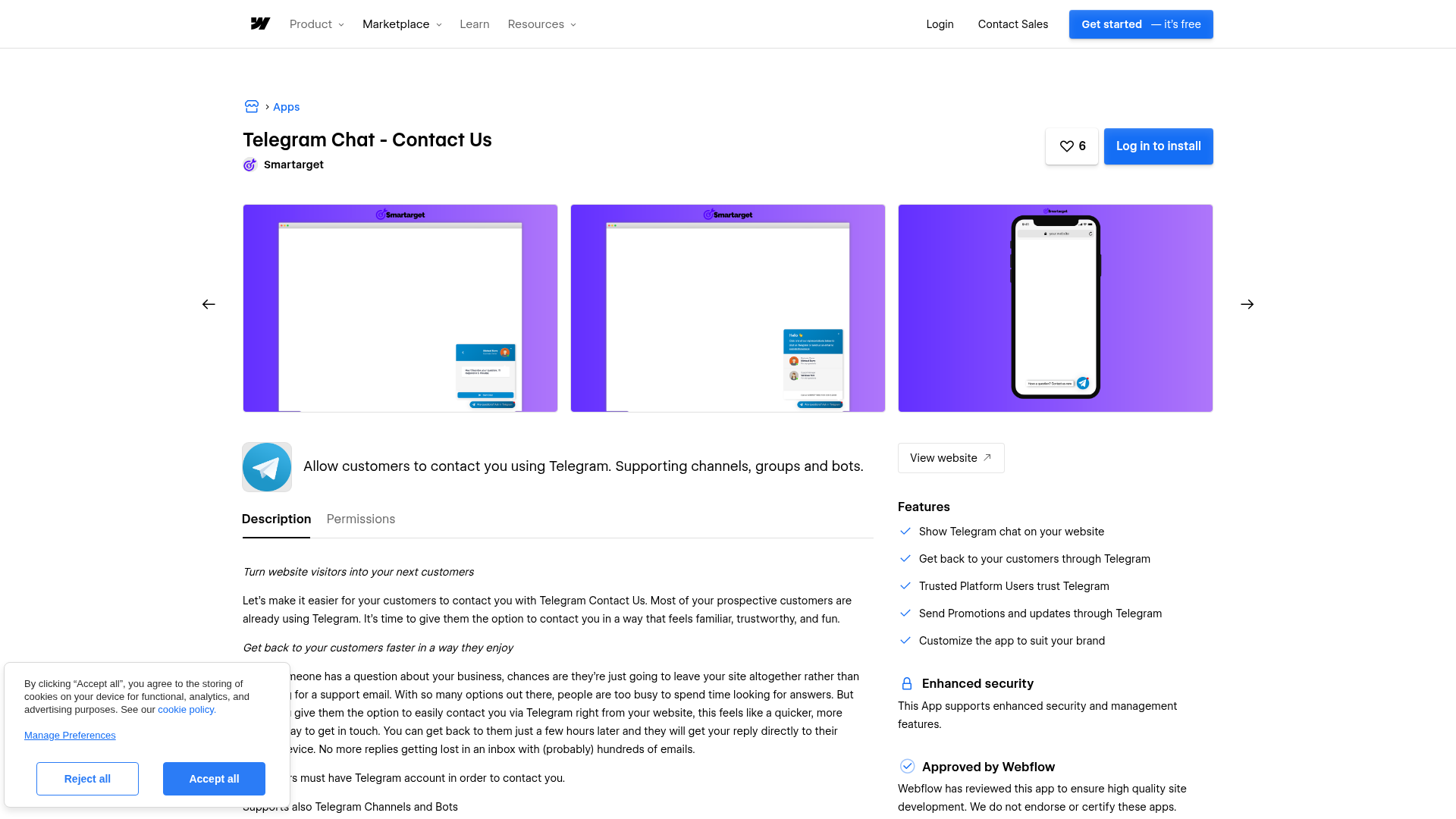
The Smartarget Telegram Chat - Contact Us widget places a customizable floating button on your Webflow site. When a visitor clicks it, their Telegram app opens with a conversation pre-addressed to your account, channel, or bot. You receive and reply natively in Telegram. No separate dashboard needed, with support for text, voice notes, video, and large file transfers.
This integration works best for businesses serving markets where Telegram is widely used, including Eastern Europe, the Middle East, Southeast Asia, and global tech communities, and for teams that already manage support inside Telegram and want to connect their Webflow site to that workflow.
How to integrate Telegram Chat - Contact Us with Webflow
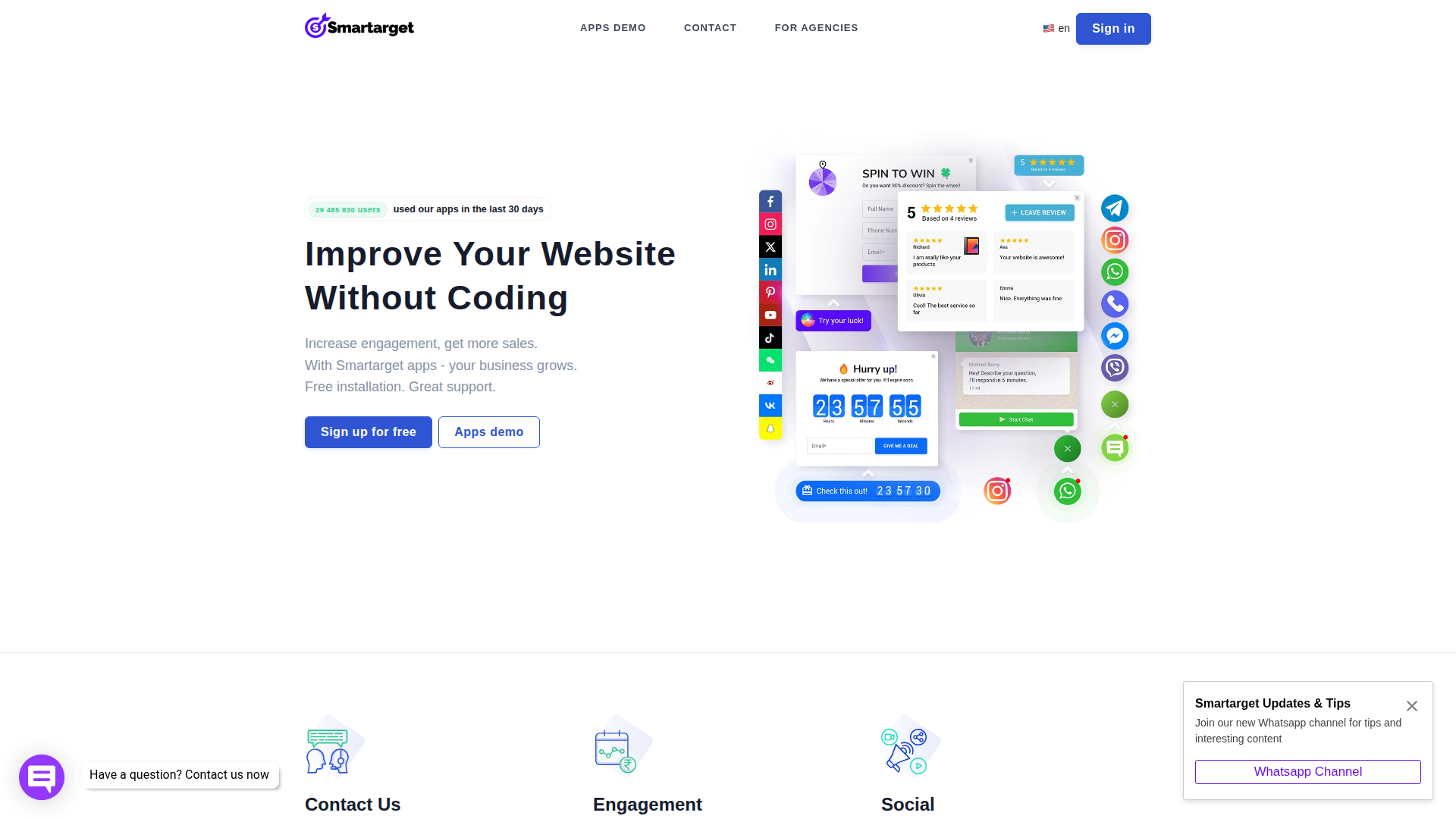
What is Telegram Chat - Contact Us? Smartarget Telegram Chat - Contact Us is a customer communication widget that adds a floating Telegram button to websites. Visitors click the button to open a Telegram conversation with your account, channel, group, or bot. The widget supports text, voice messages, video, and large file transfers, and all configuration happens in the Smartarget dashboard after installation.
Use this integration when you want to connect Webflow visitors directly to Telegram without adding a helpdesk platform or managing a separate messaging inbox. Common scenarios include e-commerce product pages where buyers need fast answers, agency client builds that need lightweight chat, and SaaS support channels that run outside enterprise ticketing systems.
The Telegram Chat - Contact Us–Webflow integration supports three approaches:
- The Telegram Chat - Contact Us app installs from the Webflow Apps Marketplace and adds the floating widget site-wide after you configure it in the Smartarget dashboard.
- Code Embed elements place the widget's JavaScript snippet on specific pages for targeted placement.
- Site-level custom code adds the widget globally across all pages by pasting the snippet directly in your Webflow site settings, without going through the marketplace app.
Most implementations use one of these methods depending on whether you need the widget site-wide or only on specific pages.
Install the Telegram Chat - Contact Us app
The Telegram Chat - Contact Us app is listed in the Webflow Apps Marketplace and approved by Webflow. It lets you add the floating Telegram chat button to your site after configuring the widget in the Smartarget dashboard.
The app requires "Read site data and publishing" and "Read and write custom code" permissions, meaning it injects a JavaScript snippet into your site. There is no true one-click install despite the marketplace listing — the setup path is still a script embed. Smartarget offers a free plan, but publishing custom code to a live Webflow site requires a paid Webflow site plan.
To set up the integration:
- Sign up at Smartarget — no credit card required
- Configure your Telegram widget in the Smartarget dashboard: set your Telegram account, channel, group, or bot connection, then customize the button color, position, and welcome message
- Go to Integrations in the Smartarget dashboard and copy the JavaScript snippet
- In Webflow, open Site Settings > Custom Code and paste the snippet into the footer code section, before the
</body>tag - Click Save Changes and publish your site
After publishing, verify the widget on your live site to confirm it loads correctly. The widget only renders on the published site — JavaScript in custom code sections shows a placeholder in the Webflow canvas. If the button does not appear, open the browser console (F12) and check for errors.
Add the widget to specific pages with a Code Embed element
Code Embed elements let you place the Telegram chat button on individual pages rather than site-wide. Use this approach when you want the widget on your contact page or product pages only, not throughout the entire site.
To add the widget to a specific page:
- Open the page in Webflow where you want the widget
- Open the Add panel (the + icon in the left sidebar)
- Drag a Code Embed element onto the canvas
- Double-click the Code Embed element to open the code editor
- Paste the Smartarget JavaScript snippet from your Smartarget dashboard
- Click Save & Close and publish your site
After publishing, open the live page and confirm the button appears as expected. Do not include <html>, <body>, or <head> tags inside the embed. These break page layout. Each Code Embed element supports up to 50,000 characters; the Smartarget snippet fits within that limit. For widget-specific issues, contact Smartarget support — Webflow does not troubleshoot custom code.
Add the widget site-wide using footer code
To display the Telegram chat button on every page without going through the Webflow Apps Marketplace, paste the JavaScript snippet directly in your site's footer code. In Webflow, open Site Settings > Custom Code, scroll to the footer code section, and paste the snippet there.
Footer placement loads the script after page content renders, avoiding render-blocking. The footer code section supports up to 50,000 characters. After saving, publish your site and verify on your live URL. This is the simplest path when you want the floating button available throughout your Webflow site and prefer to set it up without installing the marketplace app first.
What you can build with Telegram Chat - Contact Us Webflow integration
Integrating Telegram Chat - Contact Us with Webflow adds a real-time Telegram messaging entry point to any Webflow site without building chat infrastructure from scratch.
- Product inquiry chat on e-commerce pages: Add the widget to product pages so visitors can ask about sizing, compatibility, or availability; customers can send photos, voice notes, or video through the same floating button.
- Lead qualification for professional services: Place the widget on consulting or legal services pages where a bot asks qualifying questions before a human responds, letting you screen inquiries asynchronously between client meetings.
- Support channel for SaaS and service businesses: Add the widget to pricing or onboarding pages so prospects can reach your team directly in Telegram instead of waiting on email responses.
- Lightweight support for agency client sites: Add the widget to client builds that need a familiar messaging channel without introducing a helpdesk workflow or an additional inbox to manage.
For visitors who do not have Telegram, pair the widget with a standard Webflow form as a fallback contact method.
Frequently asked questions
Yes. Customers must have a Telegram account to contact you through the widget. Clicking the button opens the visitor's Telegram app with a conversation pre-addressed to your account. If Telegram is not installed, the button cannot start a conversation. Consider pairing the widget with a standard Webflow contact form for visitors who do not use Telegram.
No. JavaScript inside
<script>tags shows only a placeholder in the Webflow canvas and preview. You must publish your site to a staging or live URL to see the widget. After publishing, open your live site URL and hard-refresh (Ctrl+Shift+R on Windows, Cmd+Shift+R on Mac) to confirm the widget loads correctly.Start by confirming you are viewing the published live site, not the Webflow canvas or preview. Check the browser console (F12 > Console) for JavaScript errors. Temporarily disable browser extensions such as ad blockers, which can block third-party widget scripts. Confirm the snippet is in the footer code section, not the head, in Site Settings > Custom Code. If you have other custom scripts on the page, temporarily remove them to isolate conflicts. For widget-specific issues, contact Smartarget support.
Description
Adds a floating Telegram chat button to Webflow sites using the Smartarget marketplace app or a JavaScript snippet via Code Embed elements or site-level custom code.
This integration page is provided for informational and convenience purposes only.

Integrately
Connect Integrately with Webflow to automate form submissions, CMS updates, and e-commerce orders across 1,500+ apps without writing code.
ScheduleFlow
Connect ScheduleFlow to Webflow to schedule site and CMS publishes at specific dates and times.
Auth0
Connect Auth0, an identity and access management platform, with Webflow to add login, signup, and content gating to static sites through the SPA SDK, Lock widget, automation platforms, or direct API integration.
Neon
Connect Neon, a serverless Postgres database, with Webflow to store, query, and sync relational data that exceeds what the Webflow CMS supports natively.
Slater
Connect Slater with Webflow to write, test, and deploy custom JavaScript through an AI-assisted editor with staging environments and version history — without a full site publish for every change.
Relay.app
Connect Relay.app with Webflow to automate form processing, CMS updates, and e-commerce order management using workflows with AI steps and human approval checkpoints.
Sass
Write and compile Sass directly in Webflow with live preview, code autocompletion, and minified CSS output using the free Sass app.
Pipedream
Connect Pipedream, a serverless workflow automation platform, with Webflow to automate CMS updates, process form submissions, and sync data across thousands of apps using event-driven workflows.
MeldAPI
Connect MeldAPI, a no-code data sync platform, with Webflow to automate CMS data synchronization between external applications and your Webflow site.
Related integrations
Get started for free
Try Webflow for as long as you like with our free Starter plan. Purchase a paid Site plan to publish, host, and unlock additional features.
