










The Webflow MCP server is turning into a game changer for how designers and developers interact with their websites.
Our MCP server isn't just about saving time; it’s also about getting context about your sites and content. This is, as I said, game changing, but as much as I love working with GenAI and MCPs, the developer in me wants to know: how can I automate this? Different options are cropping up to enable this, and today I want to share an example of one using Claude Cowork.
Exploring the power of Webflow + Claude Cowork
First announced at the end of January this year, Claude Cowork greatly expands the power of the desktop app to enable deeper automations. This was further enhanced with scheduled tasks that allow you to run prompts on a schedule of your choosing. Let's look at an example of this.
Step 1: Assess my client’s needs
Before I even talk about prompts, schedules, and so forth, let's cover what our client request is. To keep things simple, we'll keep the request straightforward. Every week, the client wants a high-level report of their Webflow sites. Now, you can return a lot of information about your sites, but keeping with the idea of making this simple, we'll tell the client:
- The name of each of their sites
- When they were last updated
- When they were last published
Easy enough, right?
Step 2: Test my prompt
The next step is to try to generate this report with a prompt. I began with this:
I want you to create a PDF report of my Webflow sites. The report should be a table including the Site Name, last updated, and last published values. Be sure to include when the report was generated.I passed this to Claude and let it work. Not surprisingly, it worked well, but the times returned were in UTC. I modified my prompt to handle this, using CST/CDT for a preferred timezone:
I want you to create a PDF report of my Webflow sites. The report should be a table including the Site Name, last updated, and last published values. Be sure to include when the report was generated.When generating dates and times, use the CST or CDT time zone, depending on which is currently active. That last bit was important as initially I only asked for CST, got times that were an hour off, and remembered daylight savings. (Idea for my next prompt: how I can help advocate for the removal of daylight savings?)
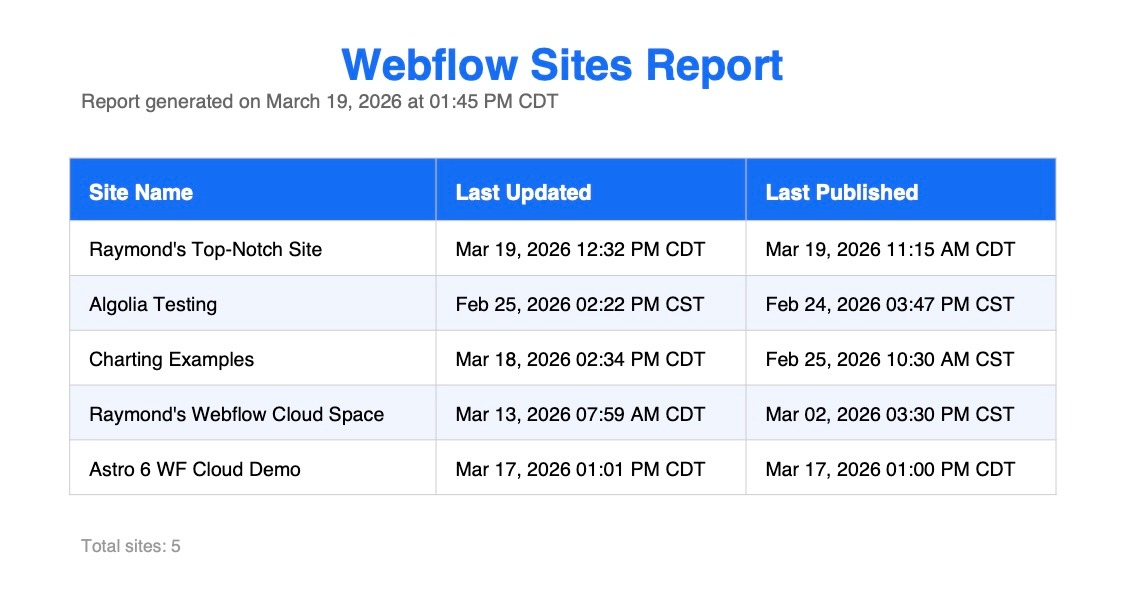
I opened up the PDF to verify it was working correctly, and while I could have provided more to my prompt in terms of styling and such, what Claude created seemed sufficient:
Step 3: Move into Cowork
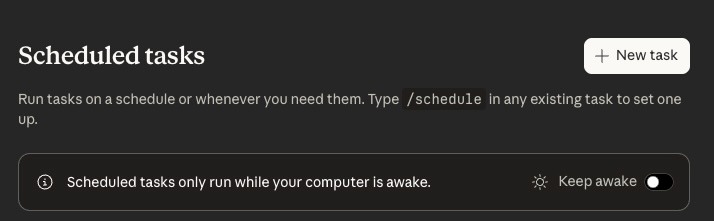
In Claude's desktop app, I switched over to the Cowork and selected "Scheduled" from the menu. From here, I created a new task.
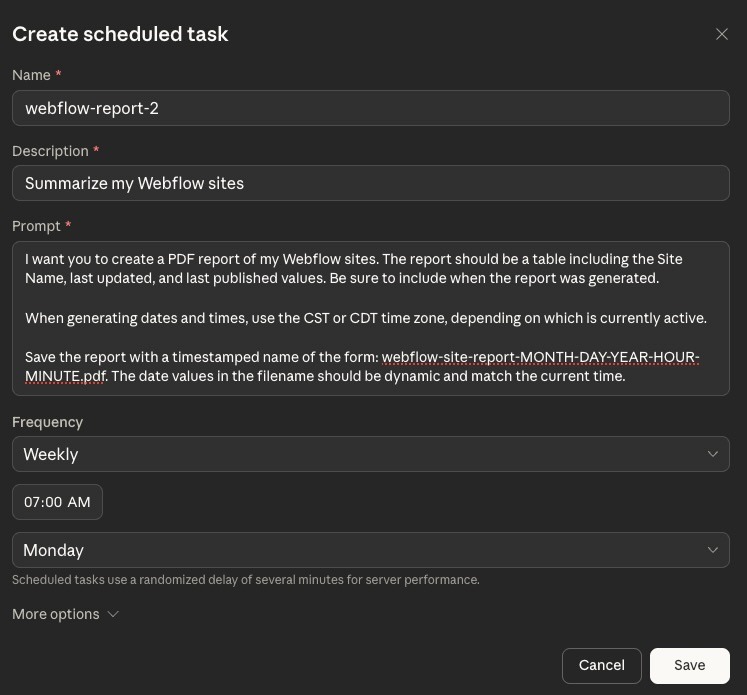
I clicked “New task” and gave it a name, description, and prompt, that was slightly modified from my earlier test. I added instructions to save the report with a specific filename that included the time it was generated:
I want you to create a PDF report of my Webflow sites. The report should be a table including the Site Name, last updated, and last published values. Be sure to include when the report was generated.

When generating dates and times, use the CST or CDT time zone, depending on which is currently active.

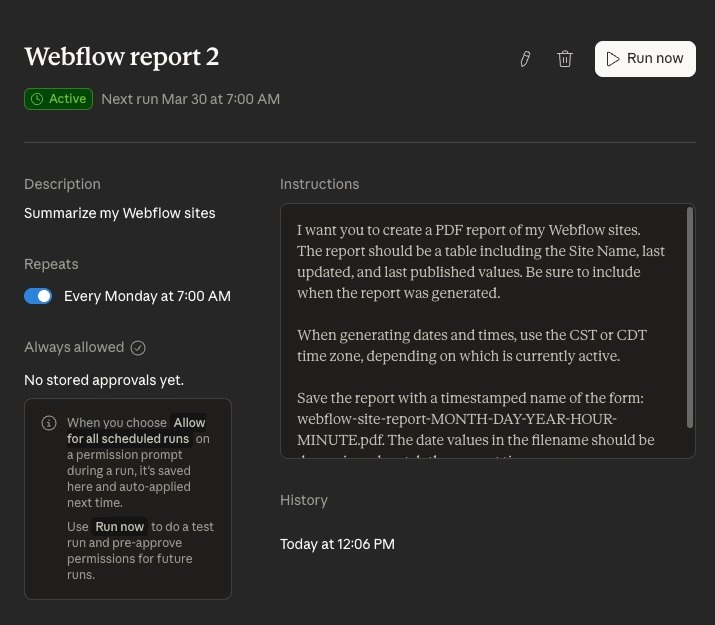
Save the report with a timestamped name of the form: webflow-site-report-MONTH-DAY-YEAR-HOUR-MINUTE.pdf. The date values in the filename should be dynamic and match the current time.
Lastly, I specified a frequency. There's a lot of options here but I went with weekly, on Monday, at 7AM, which in theory means when I show up to work at the beginning of the week, the report's waiting for me.
One thing to note: Claude clearly warns you that if your machine goes to sleep, so will the task. If this is a concern for you, be sure to enable that toggle to keep the machine awake.
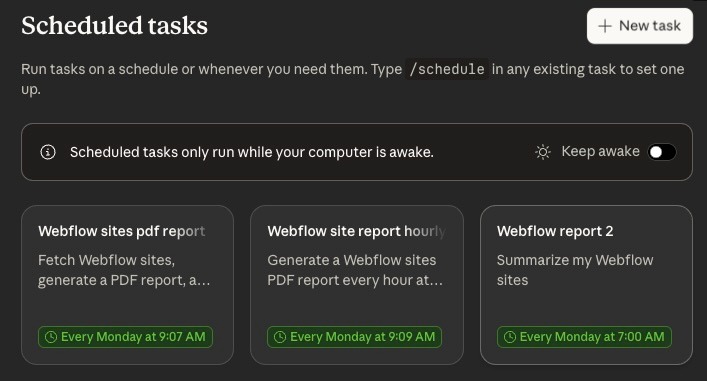
Once created, you can easily manage it, and other tasks, in the UI.
As you can see in the screenshot below, I've built a few iterations of this idea for my blog post:
If you click into your task, you get a basic report of the task, including the history of past runs. Even better, especially for a task like this that runs so rarely, you can run an execution immediately to test the result.
I ran a few tests and the output was awesome, but it did fluctuate a bit. It always reported what I asked for, but it wasn't necessarily consistent with the colors. I've gotten the blue table header as shown above and this version:
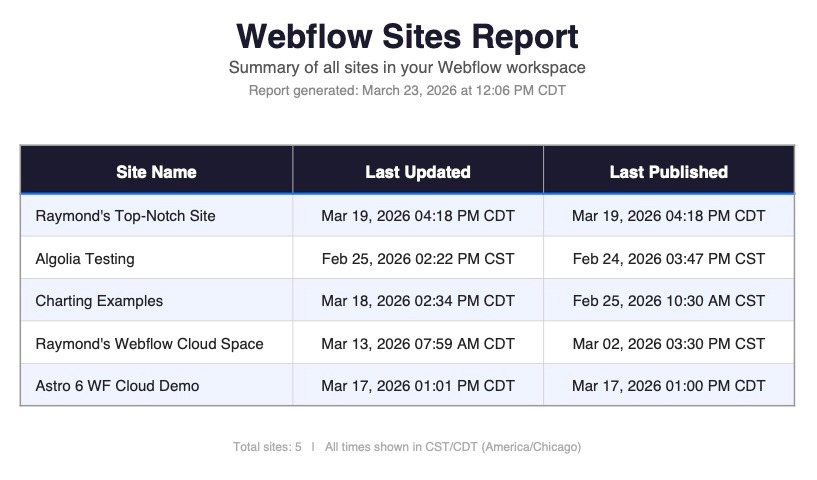
I could work on this a bit more by going deeper on the output description.
Start automating your work with the Webflow MCP
While many of our MCP examples involve updating or editing a site, the options available for reporting and examining existing content are truly exceptional — from SEO and accessibility related checks to examining your content for missing links or out of date content. Check out our "What you can do" content for even more ideas, and let us know what you're building (and automating)!



















Full-stack web apps hosted on Webflow
Extend the power of Webflow's platform by deploying full-stack web apps and dynamic, on-brand web experiences alongside your Webflow site.



















