










Add appointment booking to your Webflow site using Elfsight widgets with this implementation guide.
Elfsight provides embeddable booking widgets that integrate with Webflow through custom code injection. This guide explains the architecture, implementation concepts, and configuration patterns for building appointment booking flows for service businesses.
Elfsight widgets load via JavaScript from Elfsight's servers and render in your Webflow site. Configuration happens in the Elfsight dashboard, while placement and publishing happen in Webflow.
What Elfsight booking widgets can and can't do
Before implementing, understand the technical boundaries of this integration.
Elfsight Booking Widget capabilities:
- Service configuration with configurable durations in fixed time increments, pricing (fixed price, starting price, free, or hidden), and descriptions
- Weekly schedule and exception management for availability, with time zone configuration for multi-location support
- Google Calendar synchronization to help avoid double bookings by aligning widget availability with your connected calendar
- Email notifications to business owners and confirmation emails to customers
- Visual customization through color palette, fonts, images, and industry-specific templates
- Advanced styling via custom CSS editors
Critical limitations:
- No publicly documented API access for booking data extraction
- No officially supported webhooks for booking events (webhook support in the docs is limited to the Form Builder widget; the Booking Widget does not have publicly documented webhook support at this time)
- No built-in SMS notifications in the documented feature set (if you need SMS, you'd typically combine email outputs with an external provider like Twilio via an automation platform)
- No documented data export functionality (CSV/JSON)
- No documented native integration between Event Calendar and Booking widgets
If your implementation requires programmatic access to booking data, webhooks for booking events, or automation triggers, Elfsight Booking Widget may not be suitable. Consider alternatives like Calendly, Acuity Scheduling, or Square Appointments that offer comprehensive APIs and webhook functionality for booking automation.
For detailed feature specifications, see the Elfsight Appointment Booking Widget documentation.
System architecture overview
The integration relies on client-side JavaScript execution. Elfsight loads a script from its CDN that detects widget containers in the DOM and renders the widgets within specified elements. Webflow serves as the delivery platform, hosting the HTML, CSS, and the embedded Elfsight script code.
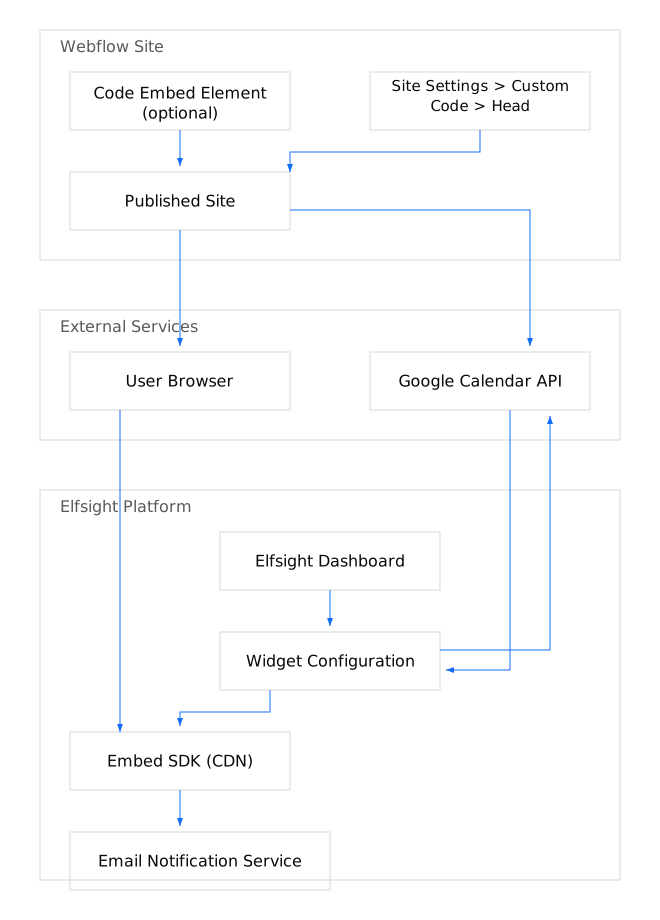
Data flow sequence:
- User visits published Webflow site
- Script tag in head section loads Elfsight's script from their CDN
- Script identifies widget containers in DOM and fetches configuration from Elfsight servers
- Widget renders in user's browser
- Booking submissions trigger email notifications through Elfsight's service
- Google Calendar integration syncs availability to help prevent double bookings
Webflow custom code embedding methods
Webflow provides three primary methods for embedding third-party widgets like Elfsight, each with specific use cases for widget integration.
Site Settings custom code for global widget loading
Use this method to load the Elfsight script across your entire site.
At a high level, you'll:
- Navigate to Site Settings > Custom Code
- Paste the Elfsight script tag in the Head section
- Publish your site to activate the code
Technical constraints:
- Character limits apply per section (check current Webflow docs for exact limits)
- Client-side code only (HTML, CSS, JavaScript)
- Do not include
<html>,<head>, or<body>tags
Elfsight specifically recommends head section placement for Webflow.
Code embed element for widget positioning
Use the Custom code embed element to place widget containers at specific DOM locations.
At a high level, you'll:
- Add an Embed element from the Add panel
- Position it where the widget should render
- Add the widget container HTML (typically a
<div>with a data attribute) or paste the generated Elfsight embed code
The Embed element shows as a placeholder in the Designer. Widgets only render on published sites or in preview mode with custom code enabled.
Page settings custom code for page-specific widgets
For widgets that should only load on specific pages, use Page Settings > Custom code (where you can add code to the head or before the body closing tag). This prevents unnecessary script loading on pages without booking functionality.
Configure the Elfsight booking widget
Widget configuration happens entirely in the Elfsight dashboard before generating embed code.
Create and configure your widget
At a high level, you'll:
- Create an Elfsight account and access the dashboard
- Select the Appointment Booking widget from the catalog
- Configure services, availability, and notifications
- Publish to generate installation code
See the widget editor documentation for detailed configuration steps.
Service configuration parameters
The widget supports these service settings:
- Duration: Configurable service durations in fixed time increments
- Pricing modes: Fixed price, "Starting from" price, Free, or Hidden
- Multi-currency support for international service businesses
Time slot and availability settings
Configure availability through:
- Weekly schedule: Define standard working hours per day with time intervals for recurring availability
- Exception dates: Special dates for date-specific hours
- Days off: Mark holidays and closures
- Time zone configuration: Essential for multi-location support
Connect Google Calendar for availability sync
Google Calendar synchronization helps prevent double bookings by aligning widget availability with your connected calendar.
Follow the Google Calendar integration guide to connect your calendar. This is the primary mechanism for preventing scheduling conflicts.
Set up email notifications
Email is the primary notification channel for Elfsight Booking Widget bookings. Configure both administrator alerts and customer confirmations in the widget settings.
Configure administrator notifications
Set up the "Notify Me" feature to receive booking alerts at specified email addresses. Configure administrator email notifications in the widget settings to ensure you receive alerts directly in the widget dashboard as documented in Appointment Booking Submissions.
Customer confirmation emails
Configure autoresponder confirmations for immediate customer acknowledgment. Options include:
- Personalization options for dynamic content insertion with submission data
- Custom SMTP configuration for sending from your domain
On-screen confirmation messages
Customize the message displayed immediately after booking submission through display settings.


















Embed the widget in Webflow
Widget embedding requires two steps: adding the script globally in Site Settings and placing the widget container element where you want it to render.
Retrieve the installation code
Get your widget's embed code from the Elfsight dashboard. The code follows this general structure:
<script src="https://static.elfsight.com/platform/platform.js" async></script>
<div class="elfsight-app-[your-widget-id]"></div>
See where to find your installation code for dashboard navigation details.
Add the script to Webflow site settings
At a high level, you'll:
- Open Site Settings > Custom Code
- Add the script tag to the Head section
- Save and publish your site
The script tag loads the Elfsight script globally. See Webflow custom code documentation for details.
Position the widget container
At a high level, you'll:
- Add a Code Embed element at your desired location
- Paste the widget container code from Elfsight dashboard
Example container:
<div class="elfsight-app-abc123def456"></div>
For floating widgets, container placement is less critical since the widget positions itself via CSS.
Verify your integration
Widgets do not render in the Webflow Designer. You must test on published sites.
Enable custom code in preview mode
Third-party widgets and custom code require explicit enablement in preview mode before testing.
Testing workflow recommendation:
- Add Elfsight embed code to Site Settings > Custom Code > Head section (per Webflow Elfsight guide)
- Enable custom code in preview settings to test widget functionality before publishing
- Verify all interactions work correctly in preview mode
- Publish to staging (Enterprise plans) or production for final validation
This execution gap between Designer and published environments is a common source of confusion. Widgets that fail to appear in Designer will typically function correctly once published, provided your code placement and syntax are correct.
Test on published site
At a high level, you'll:
- Publish to staging or production
- Verify widget renders and accepts test bookings
- Confirm email notifications and calendar sync (if configured)
See the verification checklist below for complete testing criteria.
Verification Checklist
Testing environment note: Widgets do not display in Webflow Designer. Test all items below on your published site or staging environment (if available) as custom code is disabled in Designer by default.
- Widget displays on published site
- Services and pricing show correctly in configured widget
- Available time slots match configured schedule
- Booking form submits successfully
- Confirmation message displays after form submission
- Business owner receives notification email for each booking
- Customer receives confirmation email after booking
- Google Calendar shows booked appointment (via configured calendar integration)
- Booked slot becomes unavailable for subsequent bookings (via Google Calendar sync)
- Widget displays correctly on mobile devices
Troubleshoot common issues
These solutions address the most common Elfsight widget embedding problems in Webflow projects.
Widget not displaying
Verify the script tag is in Site Settings > Custom Code > Head section and that the widget container element matches your widget ID exactly. Ensure the site has been published after adding the code. Review Elfsight's display troubleshooting guide for additional diagnostics.
Script conflicts
Avoid duplicate jQuery imports and conflicting library versions. Per Webflow's Code Embed documentation, don't manually include jQuery if your site already loads it, and place jQuery-dependent scripts in the "Before </body> tag" section.
AJAX and dynamic content loading
Sites using AJAX or client-side routing may experience widget loading issues when the widget initializes before the target container exists in the DOM. See Elfsight's AJAX troubleshooting for timing solutions.
Email notifications not arriving
Verify email addresses in widget notification settings and check spam/junk folders. For custom SMTP issues, verify domain authentication. Refer to Elfsight's troubleshooting resources for systematic troubleshooting.
Combine Event Calendar with Booking Widget
Elfsight does not document any built-in connection between Event Calendar and Appointment Booking; they are configured as separate widgets. However, you can use them together through manual linking.
Implementation pattern
At a high level, you'll:
- Create both widgets in the Elfsight dashboard
- Place Event Calendar to display availability or scheduled events
- Place Booking Widget for transaction functionality
- Link between widgets manually via event description call-to-action buttons or strategic page layout positioning
Event Calendar configuration
Configure Event Calendar display options in the Elfsight dashboard:
- View layouts: Grid, slider, list, or masonry display options
- Filtering: Category and date-range filters for event navigation
- Visual customization: Color palette and typography matching your brand
See the Event Calendar Widget documentation for full configuration options.
Manual linking strategy
Since no documented automatic integration exists, connect the widgets through:
- "Book Now" buttons or call-to-action links in event descriptions linking to booking sections
- Strategic page layout placing the Event Calendar above or beside the Booking Widget
- Anchor links from calendar events to the booking form
See community discussion on calendar-booking integration for additional context.
Advanced customization options
Elfsight provides a built-in CSS editor for styling customization beyond default options.
CSS customization
The Elfsight Booking Widget includes a built-in CSS editor for styling beyond the default options. When using custom CSS with Webflow, scope your selectors carefully to avoid conflicts with Webflow's default styles.
/* Example: Target only the Elfsight booking widget */
.elfsight-app-abc123def456 .booking-button {
  background-color: #your-brand-color;
}
JavaScript customization
Some Elfsight widgets expose limited configuration via JavaScript, but Elfsight does not provide a public, fully documented JavaScript API for Appointment Booking comparable to full developer SDKs. Check the Elfsight dashboard for any available customization options specific to your widget.
Performance optimization
For faster widget loading:
- Use the
asyncattribute on the script tag (included by default) - Implement lazy loading for below-fold widgets
- Review Elfsight's loading speed guide for additional optimization techniques
When to consider alternative solutions
The Elfsight Booking Widget works well for standalone appointment scheduling with email notifications. However, consider alternatives if you need:
API access and automation: Calendly, Acuity Scheduling, and Square Appointments provide comprehensive APIs and webhook support for integrating booking data with CRMs, automation platforms, and custom applications.
SMS notifications: Use alternative booking platforms with built-in SMS or webhook functionality, as Elfsight does not offer built-in SMS for the Booking Widget.
Data export and reporting: Calendly, Acuity Scheduling, SimplyBook.me, and Square Appointments offer data export and APIs for custom reporting pipelines.
Deep calendar integration: Elfsight's Event Calendar Widget does not have documented native integration with the Booking Widget. These are configured as separate widgets requiring manual linking.
Official documentation reference
These official resources provide detailed implementation guidance and troubleshooting support.
Webflow Resources:
Elfsight Resources:



















