










Learn how to embed Booking.com affiliate widgets in Webflow. Covers widget types, step-by-step setup, responsive fixes, and troubleshooting.
Travel blogs monetizing with affiliate links have a structural problem: every hotel recommendation sends the reader somewhere else.
Booking.com's Affiliate Partner Program is the most direct fix. Their embeddable widgets let you surface hotel search, deals, and maps without building a separate booking system. But embedding them in Webflow requires a few non-obvious steps, and the default widget breaks on mobile without a responsive workaround that most tutorials skip.
In this guide, we'll walk through how to embed Booking.com widgets in Webflow. We'll cover which widget type matches your use case, how to handle Webflow's iframe responsiveness challenges, and the specific embed configuration that prevents mobile scrollbar disasters.
We'll also clarify what's actually possible with Booking.com widgets (and what's not), because the term "Booking.com widget" encompasses three distinct products that solve different problems.
For appointment-based businesses (tours, experiences, consultations), explore Calendly Webflow integration for scheduling.3 types of Booking.com widgets, and which one do you need?
"Booking.com widget" means three distinct things, and choosing the wrong one can cost you time rebuilding:
- Affiliate Partner widgets (this guide) redirect users to Booking.com and pay you a commission
- Reviews widgets pull your property's guest ratings onto your site via a third-party service
- Direct booking widgets replace Booking.com entirely and live on a separate platform
What's not possible: Embedding actual Booking.com booking functionality where visitors complete transactions on your site. Booking.com doesn't offer this as they want bookings to happen on their platform. Affiliate widgets redirect users there to complete the transaction.
For this guide, we're focusing on Booking.com Affiliate Partner Widgets (#1) because that's what most Webflow users mean when they say "embed a Booking.com widget."
Here's a closer look at the five affiliate widget formats available in the Partner Center:
If your content is destination-specific, "Best hotels in Lisbon," "Where to stay in Kyoto," the Search Box or Map Widget will outperform the Inspiring variant. The Inspiring Search Box is better suited for top-of-funnel content like "Where to travel in Southeast Asia," where readers haven't decided on a destination yet.
Best for: Travel bloggers, destination guides, review sites, travel agents monetizing content
What do you need to embed Booking.com widgets in Webflow?
You need three things before you touch the Webflow Designer. Two are free to set up; one depends on your Webflow plan. If you're missing any of them, the embed will either not render or won't track commissions correctly.
Booking.com Affiliate Partner account (free)
You need approval to access widget embed codes.
Sign up for the Booking.com Affiliate Partner Program. Approval typically takes 1-3 business days.
Here are the key requirements to signing up:
- Active website with travel-related content
- Reasonable audience engagement (they don't publish specific traffic minimums, but your site needs actual visitors)
- Compliance with Booking.com's affiliate program terms
- Bank account (EUR, USD, or GBP) or PayPal account for commission payments
Approval usually takes 1 - 3 business days. While you wait, set up your Webflow embed structure, so you're ready to paste the widget code as soon as you have access.
Paid Webflow site plan
The free Starter plan doesn't support custom code or the Embed element.
You need at minimum:
- Basic plan ($14/month) for hobby sites
- CMS plan ($23/month) if you're building a blog with destination guides
- Any Business or Agency/Freelancer Workspace plan
If you're already on a paid plan, you're set. If not, the Basic plan is sufficient for static travel sites; upgrade to CMS if you're generating destination pages from a collection.
Basic HTML knowledge (helpful but not required)
You'll copy embed codes and paste them into Webflow's Code Embed element. If you can copy and paste and understand <iframe> tags, you're set. The most complex part is making widgets responsive, which we'll walk through with specific code.
Once all three are in place, the embed itself takes about 15 minutes end-to-end. Here's exactly how to do it.
6 steps to embed a Booking.com Affiliate widget in Webflow
To embed Booking.com widgets in Webflow, you join the Affiliate Partner Program, generate widget code in Partner Center, add the Code Embed element in Webflow, paste widget code, configure responsive dimensions, then publish and test.
However, the trickiest part isn't the embed itself. It's preventing mobile overflow and vertical scrollbar disasters.
Step #1: Generate your widget code in Booking.com Partner Center
Log in to the Booking.com Affiliate Partner Center (you should have received access credentials via email after approval).
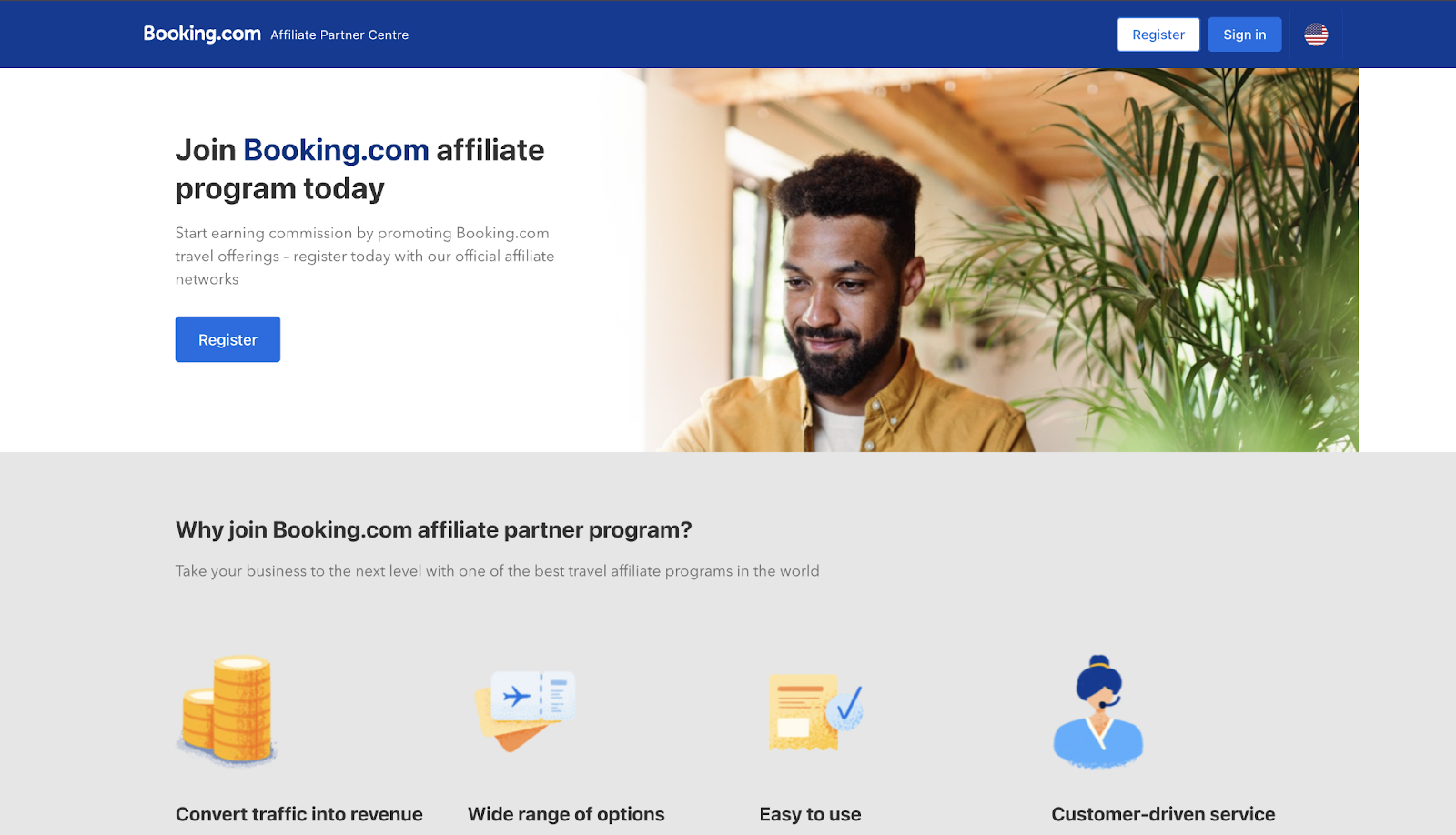
Navigate to Marketplace → Products in the left sidebar. You'll see six widget types.
For this example, I'll use the Search Box because it's the most versatile:
- Click the Search Box from the product list
- Configure your widget:
- Language: Choose from 40+ options (defaults to English)
- Width and Height: I recommend starting with width: 400px, height: 300px (we'll make it responsive later)
- Destination (optional): Leave blank for a general search box, or pre-fill with a city/landmark ID from the Partner Center
- Logo position, colors, fonts: Customize to match your site design
- Currency: USD, EUR, GBP, etc.
- Click Generate Code
Then, you'll see an embed code block that looks like this:
<ins class="bookingaff" data-aid="YOUR_PRODUCT_ID" data-target_aid="YOUR_AFFILIATE_ID" data-prod="nsb" data-width="400" data-height="300" data-dest_id="" data-dest_type="city">
<!-- Widget loads here -->
</ins>
<script type="text/javascript">
(function(d, sc, u) {
  var s = d.createElement(sc), p = d.getElementsByTagName(sc)[0];
  s.type = 'text/javascript';
  s.async = true;
  s.src = u + '?v=' + (+new Date());
  p.parentNode.insertBefore(s, p);
})(document, 'script', '//aff.bstatic.com/static/affiliate_base/js/flexiproduct.js');
</script>
Copy the entire code block (both the <ins> tag and the <script> tag). The script loads Booking.com's JavaScript library that renders the widget.
If you're using Map Widget or Deals Finder: The embed code structure is identical — just with different data-prod values (map for Map Widget, df for Deals Finder).
Step #2: Add a Code Embed element to your Webflow page
Open your Webflow project in the Designer.
Navigate to the page where you want the widget (for example, a destination guide page for "Best Hotels in Barcelona"):
- Open the Add panel (plus icon) on the left
- Scroll to Components → Code Embed
- Drag the Code Embed element onto your page where you want the widget to appear
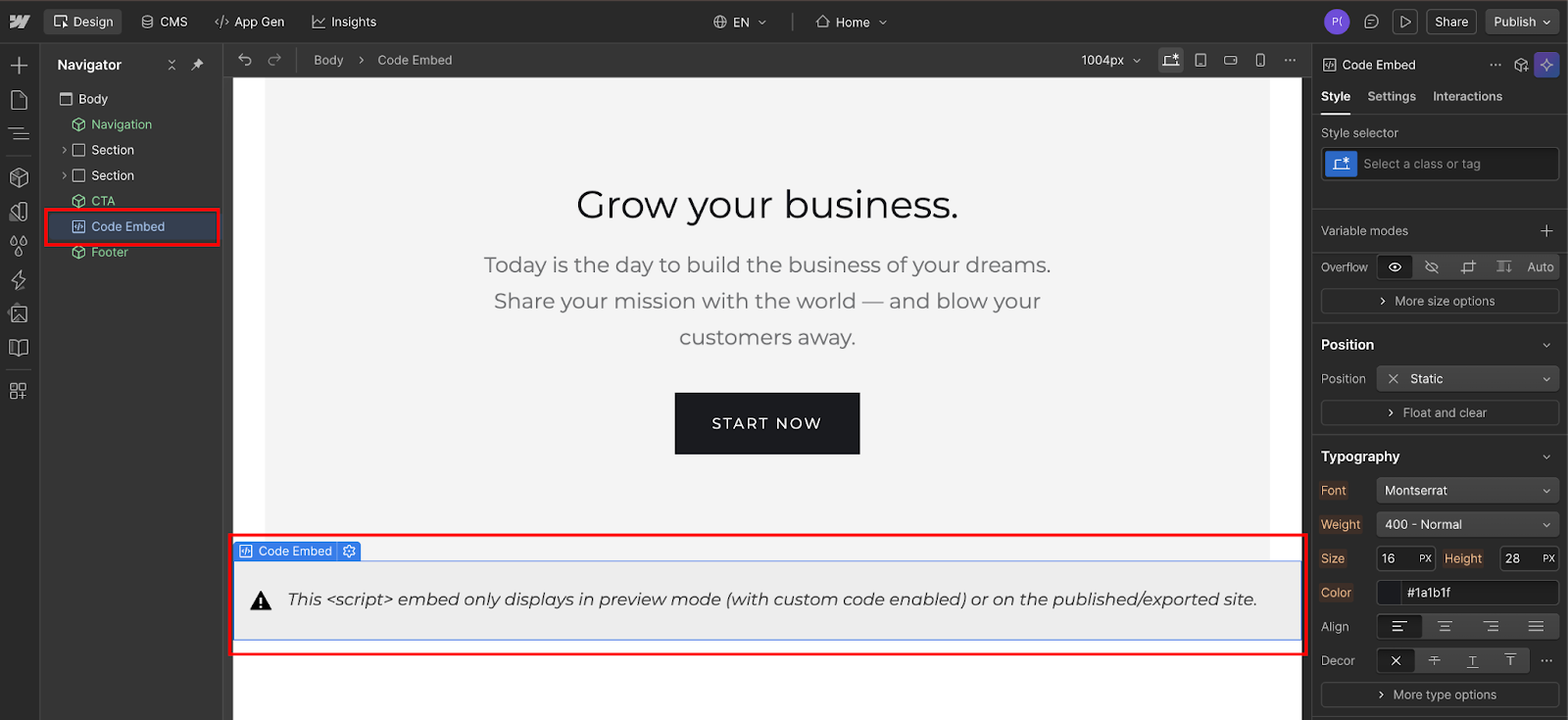
The Code Embed element shows as a gray placeholder box in the Designer. This is normal. Booking.com widgets only render on published sites or in Webflow's Preview mode with custom code enabled.


















EU visitors and cookie consent
Booking.com widgets load third-party JavaScript from aff.bstatic.com. If your Webflow site serves visitors in the EU or UK, this script likely falls under your cookie consent obligations. Make sure your consent banner covers third-party scripts and that Booking.com's widget only fires after consent is given.
Webflow's built-in cookie consent tool or a third-party like Osano can handle this.

Skipping it isn't just a legal risk; unconsented scripts can also trigger ad blockers and prevent the widget from rendering for a segment of your audience.
Step #3: Paste your Booking.com widget code into the Embed element
Click on the Embed element you just added. The Embed settings panel opens automatically. You'll see a large text field labeled "Code Embed Editor."
Paste the entire widget code you copied from the Booking.com Partner Center into this field.
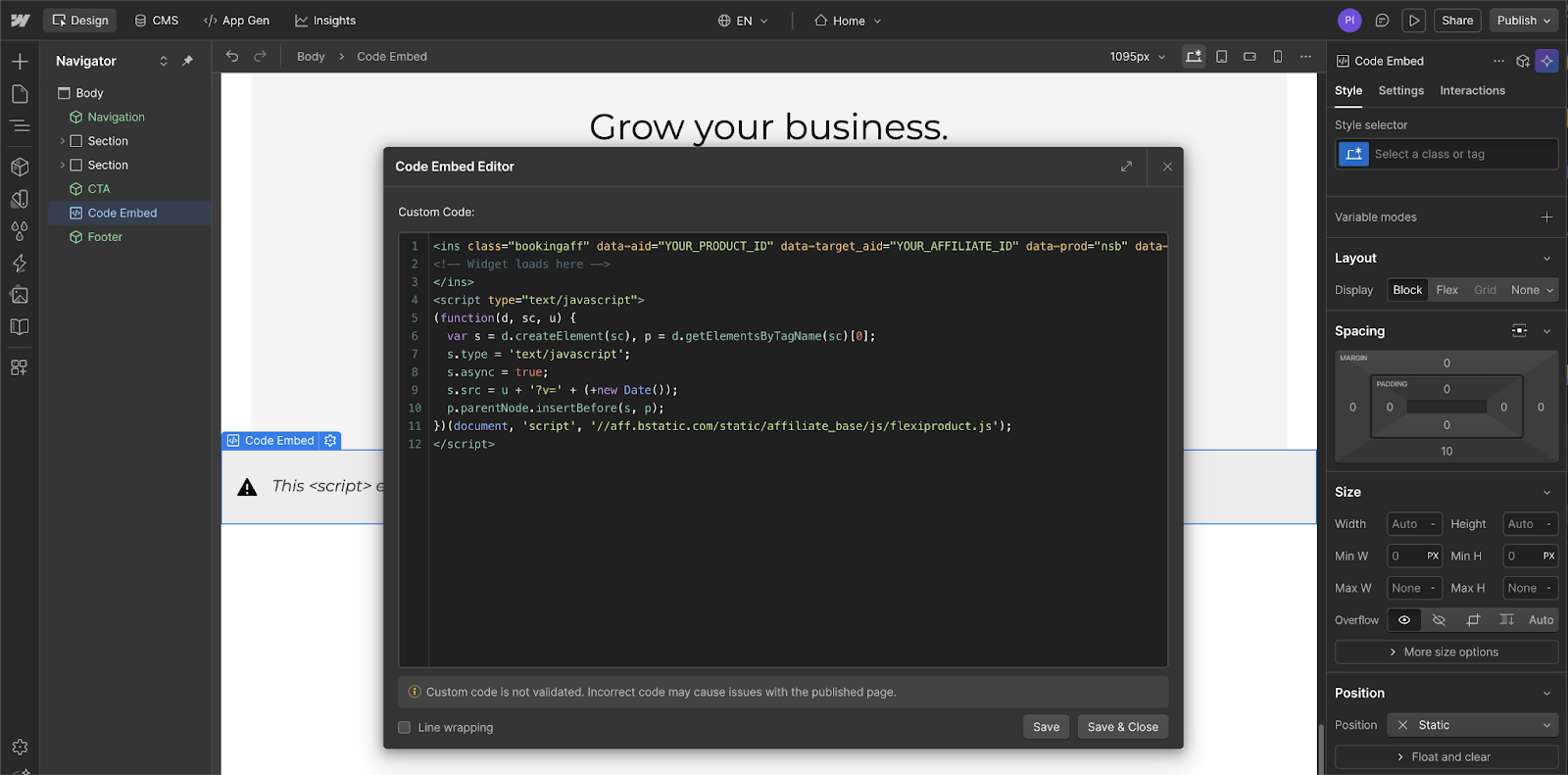
Lastly, click Save & Close.
At this point, the embed is technically functional, but you'll likely have responsive issues on mobile. Don't publish yet.
Step #4: Make the widget responsive (critical for mobile)
Booking.com widgets use fixed pixel dimensions by default (data-width="400" data-height="300"). On mobile screens, this creates horizontal overflow and scrollbars, which is a terrible user experience.
I've tested two approaches across many travel sites. Here's what actually works:
Option A: CSS wrapper method (recommended)
This uses the padding-top aspect ratio trick to maintain widget proportions across all screen sizes.
First, you wrap your Code Embed element in a Div Block:
- Add a Div Block to your page
- Give it a class name like
booking-widget-wrapper - Move your Embed element inside this Div
Second, you style the wrapper Div:
- Position: Relative
- Padding-top: 75% (for 4:3 aspect ratio; use 56.25% for 16:9)
- Height: 0px
- Width: 100%
Then, you modify your widget embed code to make it absolutely positioned:
In your Embed element, find the <ins> tag and add this attribute:
style="position:absolute; top:0; left:0; width:100%; height:100%;"Your updated embed code should look like:
<ins class="bookingaff" data-aid="YOUR_PRODUCT_ID" data-target_aid="YOUR_AFFILIATE_ID" data-prod="nsb" data-width="100%" data-height="100%" style="position:absolute; top:0; left:0; width:100%; height:100%;">
<!-- Widget loads here -->
</ins>
<script type="text/javascript">
(function(d, sc, u) {
  var s = d.createElement(sc), p = d.getElementsByTagName(sc)[0];
  s.type = 'text/javascript';
  s.async = true;
  s.src = u + '?v=' + (+new Date());
  p.parentNode.insertBefore(s, p);
})(document, 'script', '//aff.bstatic.com/static/affiliate_base/js/flexiproduct.js');
</script>
Publish your site and test on a real mobile device. The widget should scale cleanly within your container with no horizontal scrollbar. If you still see overflow, confirm that the wrapper Div has position: relative set in Webflow's Style panel. The absolute positioning on the embed only works if the parent is positioned.
Option B: Inline style method (quick fix)
If you just need basic responsiveness without perfect aspect ratio control:
Change data-width="400" to data-width="100%" in your widget code, and remove the fixed data-height value or set it to auto.
This works but can cause height-jumping as content loads. I prefer Option A for production sites.
Step #5: Configure breakpoint-specific dimensions (optional)
Webflow's custom code is viewport-agnostic. If you set width/height in the custom embed code, it applies to all breakpoints.
For breakpoint-specific sizing:
- Create separate Embed elements for Desktop, Tablet, and Mobile viewports
- Use Webflow's Display setting to hide/show appropriate embeds per breakpoint
- Adjust
data-widthanddata-heightvalues differently in each embed
Here’s an example:
- Desktop: 600px width
- Tablet: 450px width
- Mobile: 100% width
This is more work but gives you precise control. For most sites, the CSS wrapper method (Option A in Step 4) handles responsiveness without duplicating embed codes.
Step #6: Publish and test across devices
When done, click Publish in the top-right corner of Webflow Designer.
Publish to your staging domain or live site.
Here’s your testing checklist:
- Desktop: Widget displays at intended size, no horizontal overflow
- Tablet: Widget scales down proportionally, no scrollbars
- Mobile (critical): Widget fills container width, maintains aspect ratio, no content cutoff
- Click-through: Click the Search Box widget, verify it redirects to Booking.com with your affiliate ID in the URL (look for
aid=YOUR_AFFILIATE_IDparameter)
If you see scrollbars on mobile: Return to Step 4 and implement the CSS wrapper method. Fixed-pixel dimensions are the #1 cause of mobile embedding failures.
What causes Booking.com widget embeds to fail in Webflow? Tips for troubleshooting
Most Booking.com widget failures in Webflow come down to four things: incomplete embed code copying, testing in the Designer rather than on the published site, domain registration mismatches, and mobile overflow due to fixed pixel dimensions.
Here's how to diagnose and fix each one.
The widget doesn't appear at all
Causes:
- You're viewing in Webflow Designer instead of the published site; widgets only render after publishing
- Missing
<script>tag in embed code; you need BOTH the<ins>tag and the<script>that loads Booking.com's JavaScript - Affiliate account not approved or suspended; log in to Partner Center to verify status
- Ad blocker extensions blocking Booking.com's domain (
aff.bstatic.com)
Fix: Publish your site, disable ad blockers, and verify you copied the complete embed code, including the script tag.
Widget appears but is cut off / shows scrollbars
Cause: Fixed pixel dimensions (data-width="400") don't scale to mobile screen widths.
Fix: Implement the CSS wrapper method from Step 4, Option A. Set the wrapper to padding-top: 75%, and position the embed absolutely with width: 100%; height: 100%.
Widget height is too short / too tall
Cause: The aspect ratio doesn't match your content's actual dimensions.
Fix: Adjust padding-top percentage on the wrapper Div:
- 16:9 ratio = 56.25% padding-top
- 4:3 ratio = 75% padding-top
- Square (1:1) = 100% padding-top
Use Chrome DevTools to inspect the rendered widget dimensions and calculate: (height ÷ width) × 100 = padding-top %
The widget shows, but the affiliate link doesn't include your ID
Cause: You copied generic embed code instead of code generated from YOUR Partner Center account.
Fix: Log into Partner Center → Marketplace → Products, regenerate code. Look for data-target_aid="YOUR_AFFILIATE_ID" in the embed code. If this value is blank or missing, you won't earn commissions.
Build more integrated booking experiences in Webflow
Affiliate widgets redirect visitors to Booking.com to complete their transaction. That works well for travel content monetization. But if you're running a service business, e.g., consultations, tours, events, you'll want the booking flow to stay on your site.
For appointment-based bookings, Webflow's native Calendly embed keeps scheduling on your domain and automatically syncs with your calendar. See how to add Calendly to Webflow.
For API-level integration (pulling real-time availability from Booking.com directly), explore Webflow's developer platform and REST API docs.
Frequently asked questions
Can I embed Booking.com widgets on Webflow's free plan?
No. Webflow's free Starter plan doesn't support the Embed element or custom code. You need at a minimum a paid Basic site plan ($14/month) to embed Booking.com widgets. If you're building a blog with multiple destination guides, the CMS plan ($23/month) is a better fit.
How much commission do you earn from Booking.com affiliate widgets?
You earn a percentage of Booking.com's commission, not the total booking amount. Booking.com's commission from hotels ranges from 15% to 25% of the booking value. You earn 25-40% of that commission.
Do Booking.com widgets work with Webflow CMS for dynamic destination pages?
Yes, but you'll need to use Webflow's dynamic embed technique. Create a CMS field (Plain Text) to store the widget embed code, then reference that field in your CMS template page using an Embed element with the Purple dynamic field inserted. This lets you have different Booking.com widgets (pre-filled with different destinations) on each CMS-generated city guide page.
Why doesn't my Booking.com widget appear in Webflow Preview mode?
Booking.com widgets rely on JavaScript that modifies the DOM after page load. Webflow's Preview mode sometimes doesn't execute third-party scripts correctly. Always test on a published site (use a staging domain if you're not ready to go live). Widgets are designed to work on production domains with proper DNS, not Webflow's preview URLs.



















