










Learn how to prevent page scroll when a Webflow modal is open. Covers jQuery, Finsweet, and the iOS Safari fix.
Background scroll on open modals is one of the most-reported interaction bugs in the Webflow community, and almost every solution posted there works on desktop but silently fails on iOS Safari.
The core issue is that browsers interpret overflow: hidden differently. Chrome and Firefox on desktop respect it immediately. iOS Safari ignores it entirely due to its "rubber scrolling" behavior, as Apple's viewport implementation treats scrolling as a native gesture that CSS can't override.
In this guide, we cover how to prevent page scroll when modals are open in Webflow: the jQuery method that handles most cases, the Finsweet no-code option, and the full iOS-safe implementation for when mobile conversion actually matters.
What causes the page to scroll when modals are open in Webflow?
Modals are positioned elements, not separate documents. The browser doesn't automatically know that background content should become non-interactive when a modal appears, so scroll events keep firing on the page behind it.
Three specific scenarios trigger this:
The underlying cause is the same in all three cases: scroll events propagate up the DOM tree. When a user scrolls inside a modal, the event bubbles from the modal element up through its parents to the body and HTML elements.
If those elements are scrollable, they respond, even though the modal is visually blocking them.
What do you need to prevent page scroll when modals are open in Webflow?
Three things need to be in place before adding any scroll prevention code. If you're missing any of them, the implementation will either fail silently or do not affect published pages.
Verify you have these prerequisites in place.
A modal structure with trigger and container elements
Your Webflow modal needs at least two elements: a button or link that opens it (trigger element), and a wrapper div containing the modal content (container element). Both need class names you can reference in custom code.
Custom Code access in your Webflow plan
Scroll prevention requires adding JavaScript to your site. This feature is available on Webflow's paid plans (Basic, CMS, Business, or Enterprise hosting). Free sites cannot add custom code.
jQuery understanding (helpful but not required)
Webflow includes jQuery by default, and most scroll prevention solutions use it. You don't need to write jQuery from scratch (just paste the code snippets I'll provide), but understanding basic jQuery syntax helps if you need to customize trigger elements or add multiple modals.
Once these three are in place, implementation takes about 10 minutes.
Which scroll prevention method should you use in Webflow?
The right method depends on how much of your traffic is on iOS. If your modals are desktop-only or low-stakes, Method #1 or #2 gets you there in minutes. If iOS conversion matters, skip directly to Method #4.
Two approaches cover the majority of cases. The jQuery method gives you full control and works in any project. The Finsweet method requires no custom JavaScript; just HTML attributes and a single script tag.
Choose based on your setup:
- jQuery toggle: You're comfortable pasting a script, or you need custom trigger logic
- Finsweet Attributes: You want no-code implementation, or you have multiple modals across pages
Both work on desktop and Android; neither fully solves iOS Safari without the advanced implementation in the troubleshooting section.
I implement Method 2 (jQuery toggle) in 80% of projects. It works in desktop browsers and provides acceptable mobile behavior. For e-commerce sites where modals drive purchases, I use Method 4 to guarantee iOS Safari works correctly.
5 steps to prevent page scroll in Webflow modals with jQuery toggle
This walkthrough uses Method #2 (jQuery toggle), which covers most cases. It works reliably on all desktop browsers and provides acceptable behavior on Android. iOS Safari requires additional handling covered in the advanced methods section.
Step #1: Add class names to your modal elements
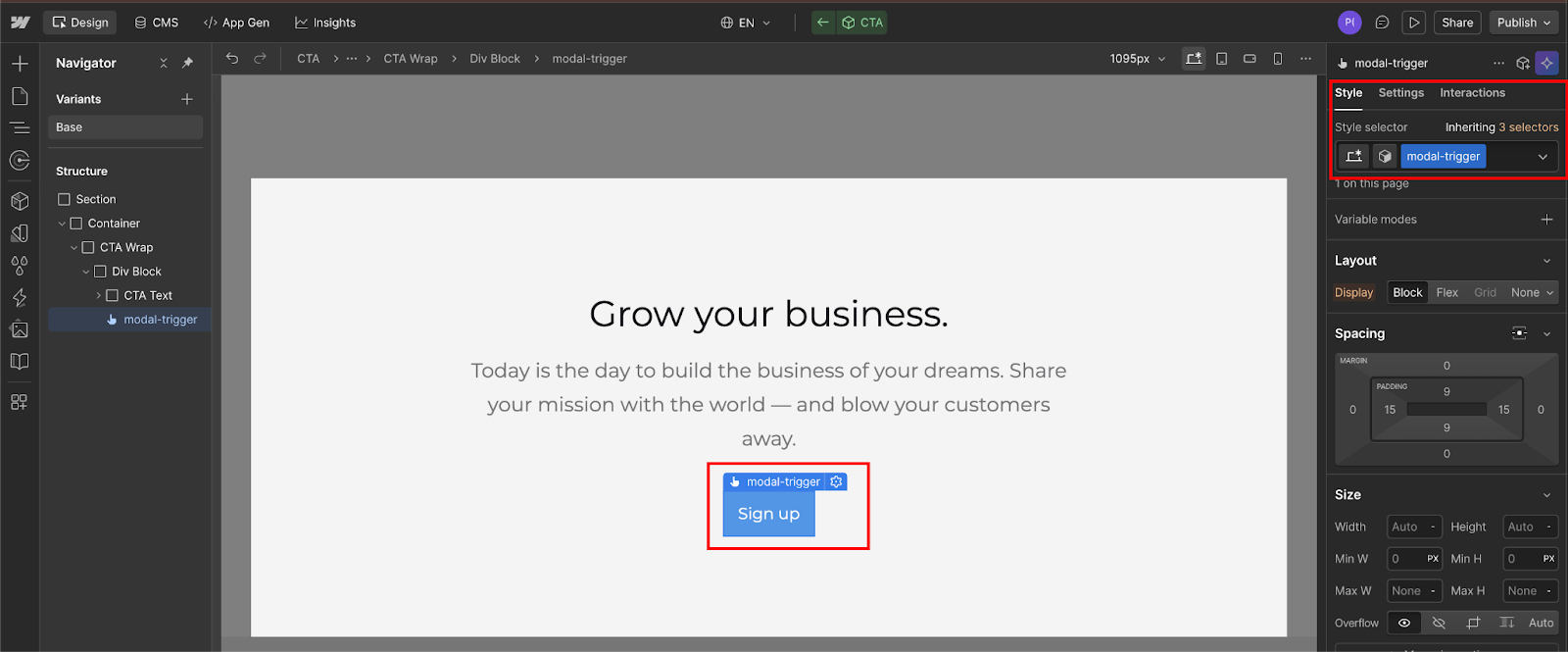
Open your Webflow Designer and select the element that triggers your modal (usually a button or link). In the Settings panel, add a class name like modal-trigger.
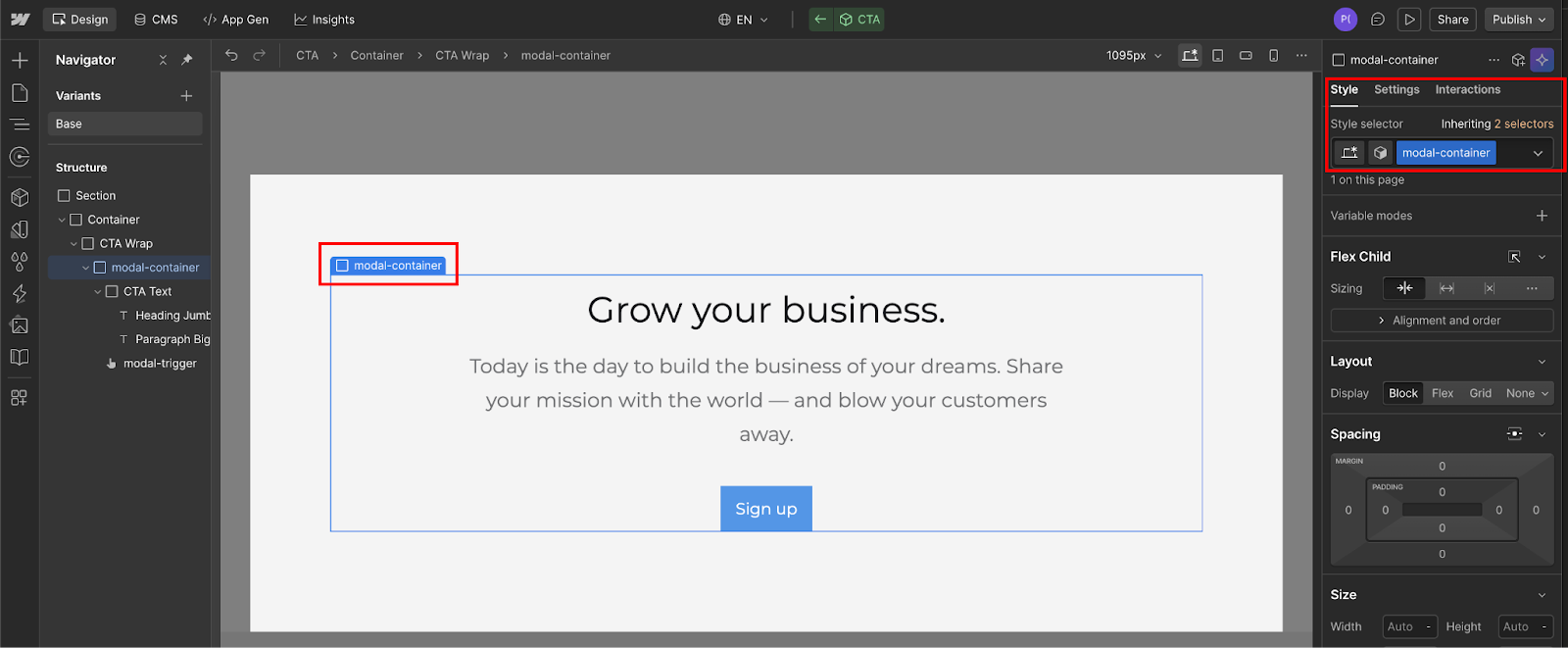
Next, select your modal container, the parent div that holds all modal content. Add a class like modal-container to it.
Finally, select the close button inside your modal. Add a class like modal-close.
These class names become the selectors your JavaScript uses to detect clicks and toggle scroll locking.
Step #2: Navigate to Project Settings custom code
Click the project settings icon in the left sidebar (gear icon), then select the "Custom code" tab.
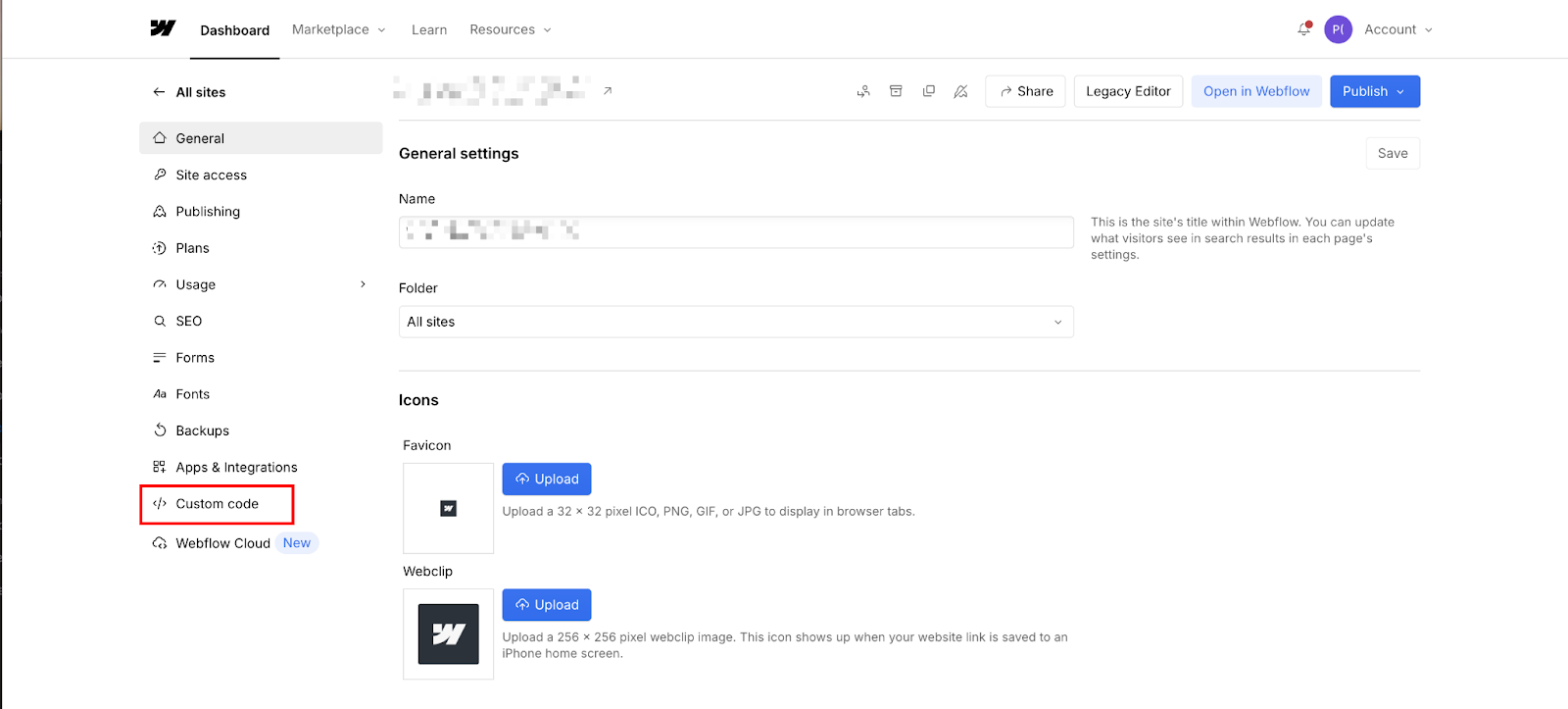
You'll see two fields: one for code in the <head> tag, another for Footer code (for code before the </body> tag). Scroll prevention code goes in the Footer code field because it needs to run after the DOM loads.
Step #3: Paste the scroll prevention script
Copy this code and paste it into the Footer code field:
<script>
var Webflow = Webflow || [];
Webflow.push(function() {
  // When modal opens
  $('.modal-trigger').click(function(e) {
    e.preventDefault();
    $('html, body').css('overflow', 'hidden');
  });

  // When modal closes
  $('.modal-close').click(function(e) {
    e.preventDefault();
    $('html, body').css('overflow', 'auto');
  });
});
</script>
This script waits for Webflow's JavaScript to initialize (via Webflow.push), then listens for clicks on your trigger and close buttons.
When the trigger is clicked, e.preventDefault() prevents the default link behavior, and css('overflow', 'hidden') hides scrollbars on both the html and body elements.
When the close button is clicked, css('overflow', 'auto') restores normal scrolling.
Add keyboard dismissal while you're here
Users expect Escape to close modals. Add this to the same script block, inside Webflow.push:
$(document).keydown(function(e) {
  if (e.key === 'Escape') {
    $('html, body').css('overflow', 'auto');
    $('.modal-container').hide(); // replace with your close logic
  }
});
Replace .modal-container with whatever your modal close is handled with. If you're using Webflow Interactions to show/hide the modal, you'll need to trigger that interaction programmatically or use a click on the close button instead.
Step #4: Update class names to match your elements
Replace .modal-trigger, .modal-container, and .modal-close with the actual class names you assigned in Step 1.
If your trigger button has class open-portfolio-modal, change $('.modal-trigger') to $('.open-portfolio-modal').
Make sure to include the period before the class name; that's jQuery's class selector syntax.
Step 5: Publish and test on your live site
Save your custom code, then publish your Webflow site.
The script won't work in Designer preview mode because custom code only executes on published sites.
Open your published site in a browser, click your modal trigger, and try scrolling. The page behind the modal should remain stationary.
Test the close button to verify scrolling re-enables when the modal closes.
Expected behavior: Desktop browsers (Chrome, Firefox, Safari) should completely prevent background scrolling. Mobile browsers will show mixed results: Android Chrome typically works, while iOS Safari may still allow some scroll-through.
What scroll prevention doesn't cover
Locking scroll is one piece of an accessible modal. Two more things break for keyboard and screen reader users if you stop here:
- Focus trapping: When a modal opens, keyboard focus should move into the modal and cycle only within it until the modal is closed. Without this, Tab continues moving through elements hidden behind the overlay. Add
tabindex="-1"to your modal container and call.focus()on it when the modal opens. - ARIA roles: Screen readers need
role="dialog"andaria-modal="true"on the modal container, plusaria-labeloraria-labelledbypointing to the modal's heading. Without these, screen reader users get no signal that a modal has opened.
These are custom attribute additions in Webflow's Settings panel; no code required. Add them directly to the modal container element.
3 steps to prevent page scroll in Webflow modals with Finsweet Attributes (no custom JavaScript)
Finsweet Attributes is the no-code path. One script tag in Project Settings, one custom attribute on your modal container, and scroll lock fires automatically whenever Webflow's Interactions show or hide the modal.
No jQuery, custom event listeners, or trigger logic to maintain. If you're managing multiple modals across pages or want a solution that works without touching JavaScript, this is the faster setup.
Step #1: Add the Finsweet script to Project Settings
Go to Project Settings → Custom Code → Footer code.
Paste this once:
<script async type="module"
  src="https://cdn.jsdelivr.net/npm/@finsweet/attributes@2/attributes.js"
  fs-scrolldisable>
</script>
It covers all Finsweet Attributes solutions on the page, so you won't need to add it again if you use other Finsweet tools
Step #2: Add the attribute to your modal container
Select your modal container, i.e., the wrapper div that Webflow's Interaction controls via Hide/Show.
In the Settings panel, add a custom attribute:
- Name:
fs-scrolldisable-element - Value:
scroll
This attribute applies to the element whose visibility changes, not to the trigger button. Finsweet watches for when that element's display state changes and automatically fires scroll lock.
Step #3: Publish and test
Publish your site. Open the modal and try scrolling, and the page behind should lock. Close the modal and verify that scrolling is restored.
Expected behavior: Consistent across desktop browsers and Android Chrome. iOS Safari edge cases remain. Finsweet's own documentation acknowledges this. If your site uses Lenis smooth scroll, see the troubleshooting section before implementing.


















4 steps to prevent page scroll in Webflow modals on iOS Safari (the full fix)
When to use this: Your site has meaningful iOS traffic, and your modal is tied to a conversion action (lead capture, purchase, sign-up). If the modal is informational and scroll bleed doesn't affect the outcome, Methods #2 or #3 are faster to implement. Both methods handle desktop and Android. This method handles iOS Safari.
The approach is different from the jQuery toggle because it has to be. Instead of setting overflow: hidden on the body (which iOS ignores), you freeze the page by switching the body to position: fixed with a negative top value equal to the current scroll position.
From the user's perspective, the page looks identical. From the browser's perspective, it's no longer a scrollable document, so iOS has nothing to scroll.
When the modal closes, you reset the body styles and call window.scrollTo() to jump back to the position you stored. Done correctly, the transition is invisible.
Step #1: Add the iOS scroll lock script to Project Settings
Go to Project Settings → Custom Code → Footer code and paste this:
var Webflow = Webflow || [];
Webflow.push(function() {
  var scrollPosition = 0;

  function lockScroll() {
    scrollPosition = window.pageYOffset;
    $('body').css({
      'overflow': 'hidden',
      'position': 'fixed',
      'top': -scrollPosition + 'px',
      'width': '100%'
    });
  }

  function unlockScroll() {
    $('body').css({
      'overflow': '',
      'position': '',
      'top': '',
      'width': ''
    });
    window.scrollTo(0, scrollPosition);
  }

  // Open
  $('.modal-trigger').click(function(e) {
    e.preventDefault();
    lockScroll();
  });

  // Close (button click)
  $('.modal-close').click(function(e) {
    e.preventDefault();
    unlockScroll();
  });

  // Close (Escape key)
  $(document).keydown(function(e) {
    if (e.key === 'Escape') {
      unlockScroll();
    }
  });
});
</script>
The key difference from Method #2 is position: fixed combined with top: -scrollPosition. This combination tells iOS Safari there's literally nothing to scroll, rather than asking it to respect an overflow rule it ignores.
Step #2: Add overscroll-behavior to your modal container
This prevents the scroll event from bubbling out of the modal if it has scrollable content (long forms, articles, etc.).
Select your modal container in the Webflow Designer. In the Settings panel, add a custom attribute:
- Name:
style - Value:
overscroll-behavior: contain;
Alternatively, add this in your site's global CSS (Project Settings → Custom Code → <head>):
.modal-container {
  overscroll-behavior: contain;
}
Replace .modal-container with your actual class name. Without this, users' scrolling within the modal can still cause the page to scroll when they reach the top or bottom of the modal's content.
Update class names to match your elements
Same as Method #2. Replace .modal-trigger, .modal-close, and .modal-container with the class names you've assigned in your project.
Step #3: Publish and test on a real iOS device
This is the one method where testing in an iOS Simulator is not reliable enough. Publish to your webflow.io subdomain, open it on a physical iPhone or iPad in Safari, trigger the modal, and try to scroll.
Expected behavior on iOS Safari: The page behind the modal should be completely stationary. No rubber-scroll bleed, no background content shifting. Scrolling within the modal (if applicable) should work normally and stop at the modal's boundaries without affecting the page.
Expected behavior everywhere else: Identical to Method #2; full scroll lock on desktop Chrome, Firefox, and Safari; full scroll lock on Android Chrome.
One thing to watch: If your page has a sticky header or other position: fixed elements, they may briefly flicker when the body switches to position: fixed. This is a known cosmetic side effect. If it's noticeable, add a short CSS transition on those elements or suppress the visual state change with a class toggle during the lock/unlock cycle.
What causes scroll prevention to fail on modals in Webflow?
Most failures come down to one of four things: testing in the wrong environment, a conflicting overflow property on a parent element, iOS Safari's native scroll behavior, or a page jump caused by position: fixed interactions.
Here's how to identify which one you're dealing with.
Code only works in the published site, not the Designer preview
Does your scroll prevention work perfectly on the published site, but does nothing in Designer preview mode or when testing with preview links?
Cause: Webflow Designer doesn't execute custom code during preview. This is intentional. Designer preview loads a sandboxed version of your site that ignores scripts in Project Settings.
Fix: Always test scroll prevention on your published site, not in preview. If you need to test before publishing to your production domain, publish to a staging domain or use Webflow's provided webflow.io subdomain.
Scroll prevention breaks when the modal is inside a wrapper
Does your background scrolling continue even though the script is implemented correctly? Inspection shows that the overflow property is set to html/body, but scrolling still works.
Cause: A parent wrapper div has overflow: auto or overflow: scroll set in your styles. When nested elements have conflicting overflow properties, the innermost scrollable container takes precedence.
Fix: Inspect your modal's parent elements in the Navigator panel. Look for any wrapper divs that might have overflow settings. Either remove overflow properties from wrappers or apply overflow: hidden to the specific wrapper element instead of html/body.
Code adjustment if you're targeting a wrapper instead of the body:
$('.wrapper-class-name').css('overflow', 'hidden'); // Lock the wrapper
// Instead of:
$('html, body').css('overflow', 'hidden');
After updating the selector, republish and test. If scroll still bleeds through, open DevTools, inspect the scrollable element, and look for any parent divs with overflow: auto or overflow: scroll set at the CSS level rather than in Webflow's style panel.
Those won't show up in the Navigator but will still override your lock.
iOS Safari ignores overflow hidden completely
Desktop browsers work perfectly, but iPhone and iPad users can still scroll the background when modals are open.
Cause: iOS Safari treats scrolling as a native gesture that CSS overflow properties can't override. Apple's "rubber scrolling" (the bounce effect when you reach the top or bottom of a page) is implemented at the browser level, not the CSS level.
Fix: Standard jQuery solutions won't fix this. You need either:
- Accept the limitation as a progressive enhancement (desktop works, mobile doesn't)
- Implement Finsweet Attributes, which includes iOS Safari-specific touch event handling
- Use the full iOS-safe implementation covered in the advanced features section (involves viewport height calculations and overscroll-behavior properties)
There's no CSS-only fix for iOS Safari. If your analytics show significant iOS traffic and your modal is tied to a key conversion action( lead capture, product purchase, onboarding), the iOS-safe implementation is worth the extra work.
For informational modals where background scroll is annoying but not conversion-breaking, accepting the limitation as a desktop-first enhancement is a reasonable call.
Finsweet scroll turn off doesn't work with Lenis smooth scroll
Finsweet's scroll turns off watches for changes to overflow on the body. Lenis's smooth scroll overrides native scroll behavior entirely; it uses JavaScript to control all scroll movement, so overflow: hidden doesn't actually prevent Lenis from running.
Cause: Lenis runs independently of the DOM overflow state. Telling the body to hide overflow does not affect Lenis's animation loop.
Fix: You need to call lenis.stop() and lenis.start() directly on your modal open/close triggers instead of (or in addition to) the Finsweet attribute.
Here’s a minimal version:
// When modal opens
$('.modal-trigger').click(function() {
  window.lenis.stop();
});

// When modal closes
$('.modal-close').click(function() {
  window.lenis.start();
});
If window.lenis isn't accessible in your setup, check where your Lenis instance is initialized and expose it globally, or move this code into the same script block where Lenis is configured.
Page jumps to the top when the modal opens
The modal opens correctly, and scrolling is prevented, but the page position resets to the top when the modal appears.
Cause: Setting position: fixed on body or html elements (a common alternative to overflow: hidden) changes the scroll context. The browser interprets the body as no longer scrolled, resetting scroll position to 0.
Fix: Store the scroll position before locking, apply it as a negative top position, then restore it when unlocking:
var scrollPosition = 0;

// When modal opens
$('.modal-trigger').click(function(e) {
  e.preventDefault();
  scrollPosition = window.pageYOffset;
  $('body').css({
    'overflow': 'hidden',
    'position': 'fixed',
    'top': -scrollPosition + 'px',
    'width': '100%'
  });
});

// When modal closes
$('.modal-close').click(function(e) {
  e.preventDefault();
  $('body').css({
    'overflow': 'auto',
    'position': 'static',
    'top': '0'
  });
  window.scrollTo(0, scrollPosition);
});
This captures the current scroll position, applies it as a negative top value to keep content visually in place, then scrolls back to that position when the modal closes.
Build Webflow modals that don't need workarounds
Scroll prevention fixes a browser behavior problem. But native Webflow modals still require custom code for focus trapping, keyboard dismissal, and ARIA roles; the full production checklist doesn't stop at scroll.
If you're building something conversion-critical, Webflow's developer platform gives you the primitives to go further: custom components, REST API integration, and the tooling to extend what the Designer can't do natively.
Explore Webflow's developer docs for deeper customization beyond what Webflow's Designer handles natively.
Frequently asked questions
Why does my modal scroll prevention work on desktop but not on iPhone?
iOS Safari treats scrolling as a native gesture that CSS overflow properties can't block. The browser implements "rubber scrolling" (a bounce effect at the top/bottom of pages) at the OS level, not at the rendering level. To fix, use Finsweet Attributes (which include iOS-specific touch event handling) or implement the full iOS-safe solution: store the current scroll position, switch body to position: fixed with a negative top value equal to that position, and restore both when the modal closes. This tells iOS Safari there's nothing to scroll, rather than asking it to respect an overflow rule it ignores.



















