










Learn how to add Typeform modals to Webflow using createPopup JavaScript SDK, Code Embed elements, and popup.css stylesheet.
Marketing teams create beautiful Webflow buttons that redirect users to typeform.com/to/form-id. Users click "Get Started," land on an external page, and some never complete the form because the redirect breaks their flow.
The form exists. The button works. But sending users off-site to fill out a Typeform creates friction that kills conversions. Every redirect is a chance for second thoughts, distractions, or just closing the tab because "I'll do this later."
A better approach? Opening Typeform as a modal keeps users on your Webflow site.
They click the button, the form appears as an overlay, they submit, and the modal closes. This guide walks through the exact setup: using Typeform's createPopup JavaScript method, Webflow's Code Embed element, and a unique button ID.
For context on how Typeform fits into Webflow's broader form ecosystem, check the official Webflow Typeform integration page. It covers the Webflow app connector, when modals make sense versus other integration methods, and alternative approaches for teams that can't use custom code.
3 ways to open Typeform modals on Webflow
The Typeform modal implementation uses Typeform's data-tf-popup attribute and the embed.js script (~55KB), which loads asynchronously after the initial page render, adding minimal performance overhead while providing overlay behavior that standard inline embeds cannot achieve.
You have three options for displaying Typeform on Webflow:
I've implemented the modal overlay approach across 40+ client sites. Modal behavior eliminates redirect friction while giving forms the full viewport for proper display. The technical setup takes 15-20 minutes and requires understanding how Typeform's script attaches modal functionality to button elements.
What do you need to open Typeform modals on Webflow?
You need a Webflow plan with Custom Code access (paid Site plans or Core/Growth/Agency/Freelancer Workspace plans), a published Typeform with its form ID extracted from the public URL.
Then, a basic understanding of HTML attributes, since Typeform modals trigger via the data-tf-popup attribute rather than Webflow's native interaction system. Free Webflow plans do not support the Code Embed element required for modal script injection.
Before starting, verify you have all these.
Webflow Custom Code access (required)
The Code Embed element only works on:
- Paid Site plans: CMS, Business, or Ecommerce
- Workspace plans: Core, Growth, Agency, or Freelancer
Free Webflow accounts cannot add custom code. Check your plan in Project Settings → Plans & Billing. Without access to Custom Code, implementing the modal is impossible. You'll need to upgrade before the embed script will execute.
Published Typeform and form ID
You need the form ID from your Typeform's public URL. The URL structure is: https://form.typeform.com/to/ABC123XY
The form ID is the part after /to/, in this example, ABC123XY. Copy this exactly. The embed code uses this ID to load the correct form in the modal.
Existing button element in Webflow (recommended)
You can use Typeform's generated button HTML, but connecting modal behavior to your existing Webflow buttons creates better design consistency. The button needs a unique ID or class that the embed code can target.
HTTPS domain for testing (required for published site)
Typeform's embed script uses Content Security Policy headers that block loading on non-HTTPS pages. Your published Webflow site uses HTTPS by default, but if you're testing on a custom domain, ensure SSL is configured.
Localhost works fine for local testing.
5 steps to open a Typeform modal on button click in Webflow
Opening a Typeform modal on Webflow requires extracting your form ID from Typeform's public URL, adding a unique ID to your Webflow button element, and creating a Code Embed element with Typeform's JavaScript SDK code that calls window.tf.createPopup.
Then, you wrap the initialization in window.addEventListener('load') to ensure scripts load before execution, and publish to a live domain since modals don't work in Webflow's preview mode.
The process uses Typeform's createPopup function rather than HTML data attributes because Typeform's current UI no longer generates data-tf-popup code, and the embed script doesn't recognize those attributes when added manually.
Step #1: Get your Typeform form ID
Open your Typeform, click Share in the top navigation, and select “Share the link” on the left panel of the dashboard.
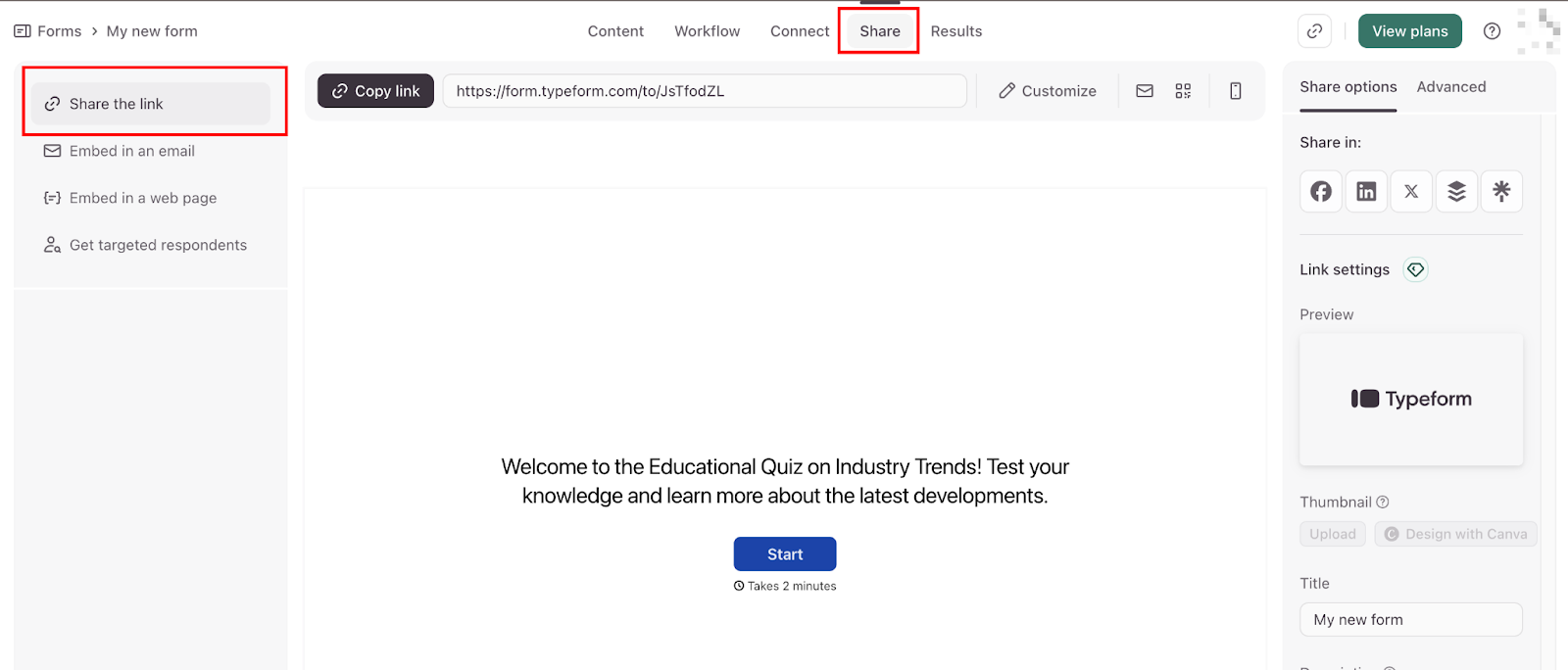
Locate the link to share field showing your form's public URL in the format form.typeform.com/to/ABC123XY, and copy only the characters after /to/, which is your form ID.
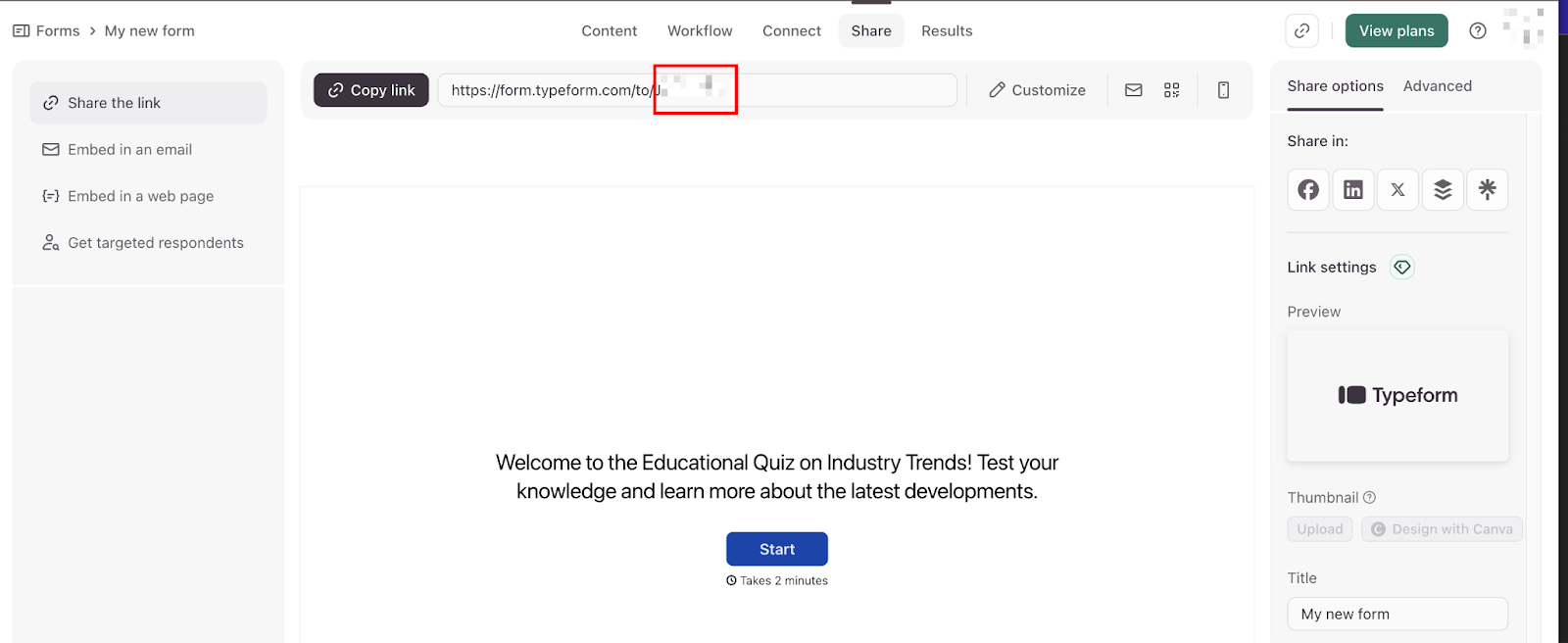
This form ID (not the full URL) is what the JavaScript createPopup function needs to load the correct form in the modal overlay.
You'll paste this into the JavaScript code in Step 4.
Why the form ID matters
The JavaScript code uses this ID to tell Typeform's server which form to load inside the modal. If the ID is wrong (a typo, copied from a different form, or includes extra URL characters), you'll get a 401 error and the homepage fallback behavior.
Common mistakes:
- Copying the full URL instead of just the ID (
form.typeform.com/to/JsTfodZLinstead ofJsTfodZL) - Including a trailing slash (
JsTfodZL/instead ofJsTfodZL) - Mixing up form IDs from multiple Typeforms
Double-check you copied the exact characters after /to/ with no extra spaces or slashes.
Step #2: Add a unique ID to your Webflow button
In the Webflow Designer, click on the button (you can drag and drop a new button) that should trigger the Typeform modal. The element can have any text, styling, or interactions you've already configured. Adding the modal functionality won't affect your existing design.
Open Element Settings
With the button selected, click the gear icon in the top toolbar (or press D on your keyboard). This opens the Element Settings panel.
In the Element Settings panel, locate the ID field.
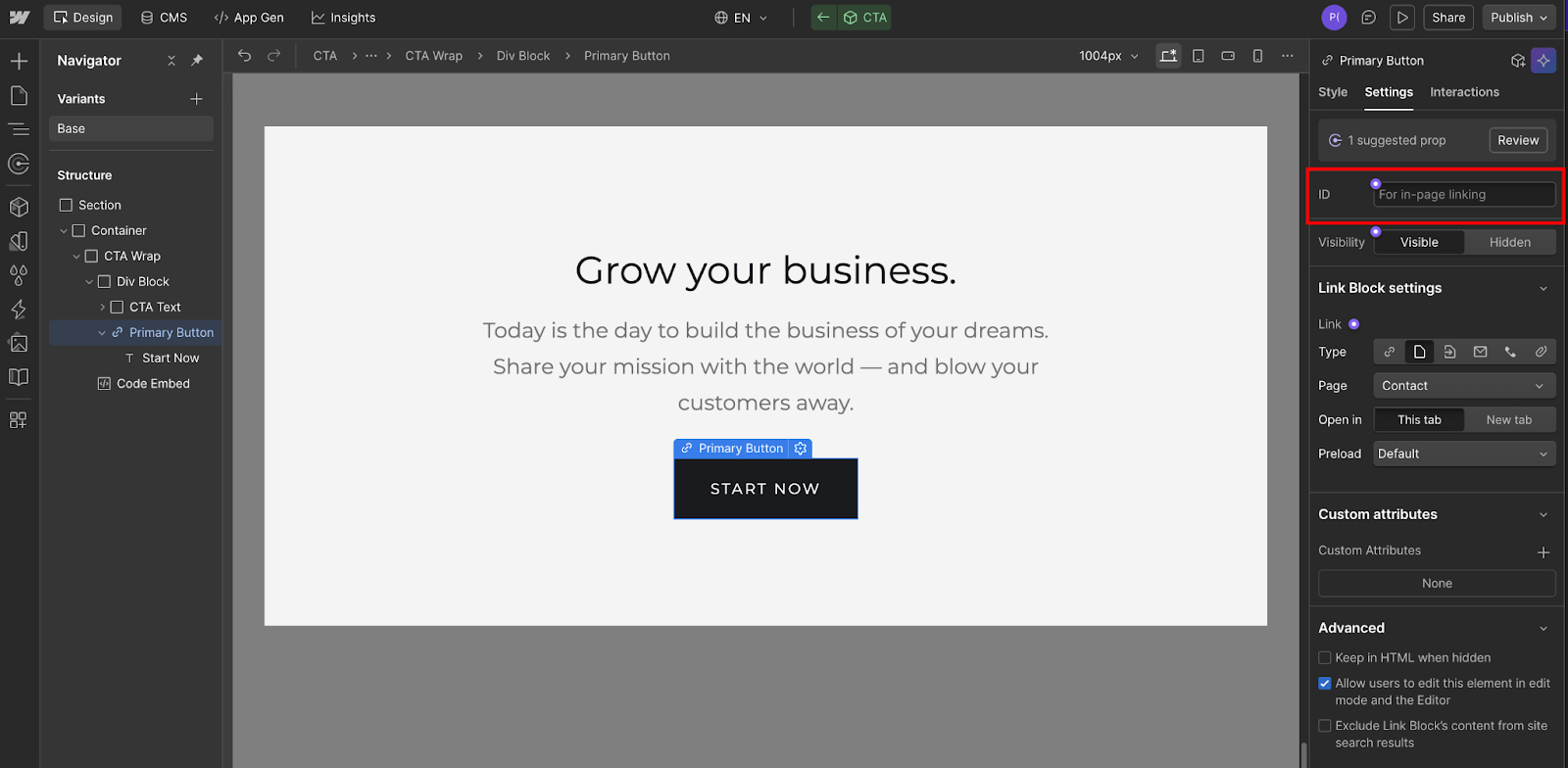
Enter a unique identifier, e.g., typeform-trigger
This ID can be anything you want, but it must:
- Be unique on the page (no other element can use the same ID)
- Contain no spaces (use hyphens or underscores instead)
- Match exactly what you'll reference in the JavaScript code
You'll reference this ID in the JavaScript you'll add in Step 4. The line document.getElementById('typeform-trigger').onclick = toggle will tell the browser: "Find the element with this ID and, when clicked, run the toggle function that opens the modal."
Step #3: Add Typeform modal scripts to Webflow Code Embed
In your Webflow Designer, decide where to place the modal initialization code. This code has no visual output, so placement doesn't affect the design, but the convention is to put it near the page footer so it loads after your button elements have been added to the DOM.
To start, add a Code Embed element:
- Press A to open the Add panel (or click the + icon in the top left)
- Scroll to the Components section
- Drag a Code Embed element into a Section or Container near the bottom of your page
In the Navigator panel, place it inside a footer Container to keep your project organized.
Paste the Typeform script tags
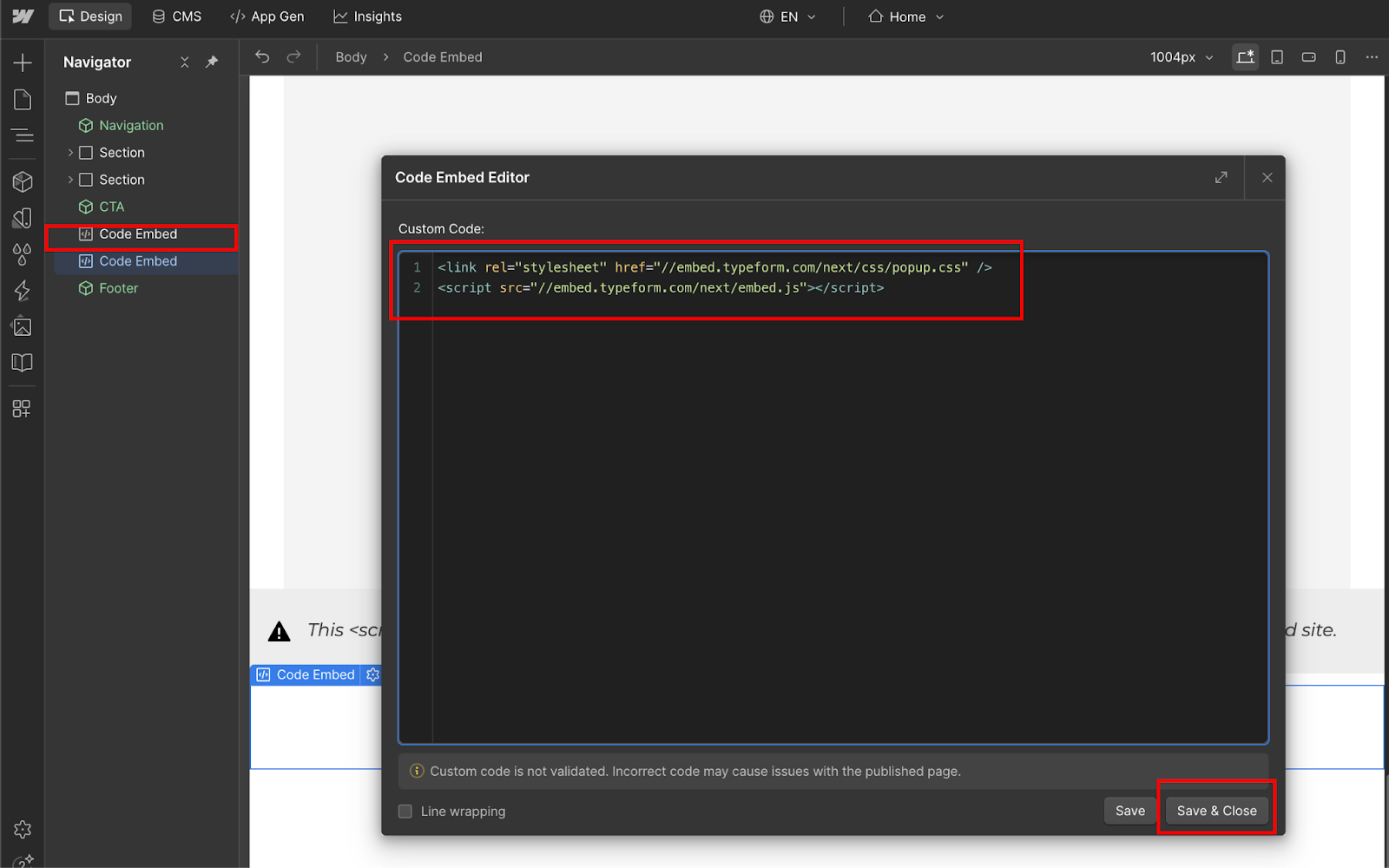
With the Code Embed element selected, the code editor window opens automatically.
Paste this exact code into the editor:
<link rel="stylesheet" href="//embed.typeform.com/next/css/popup.css" />
<script src="//embed.typeform.com/next/embed.js"></script>
Click Save & Close.
What do these two lines do?
The first line loads Typeform's modal CSS stylesheet. The CSS handles:
- Dark overlay background that appears behind the modal
- Modal positioning (centered on screen)
- Modal size and responsive behavior
- Close button styling
- Fade-in/fade-out animations
Without this CSS file, the modal will try to open but appear broken. You'll see the form content with no background overlay, incorrect positioning, and the page will shift in width unexpectedly. This is exactly what happened while I was testing, when the CSS was missing.
The second line loads Typeform's JavaScript library.
The scripts have no visual output.
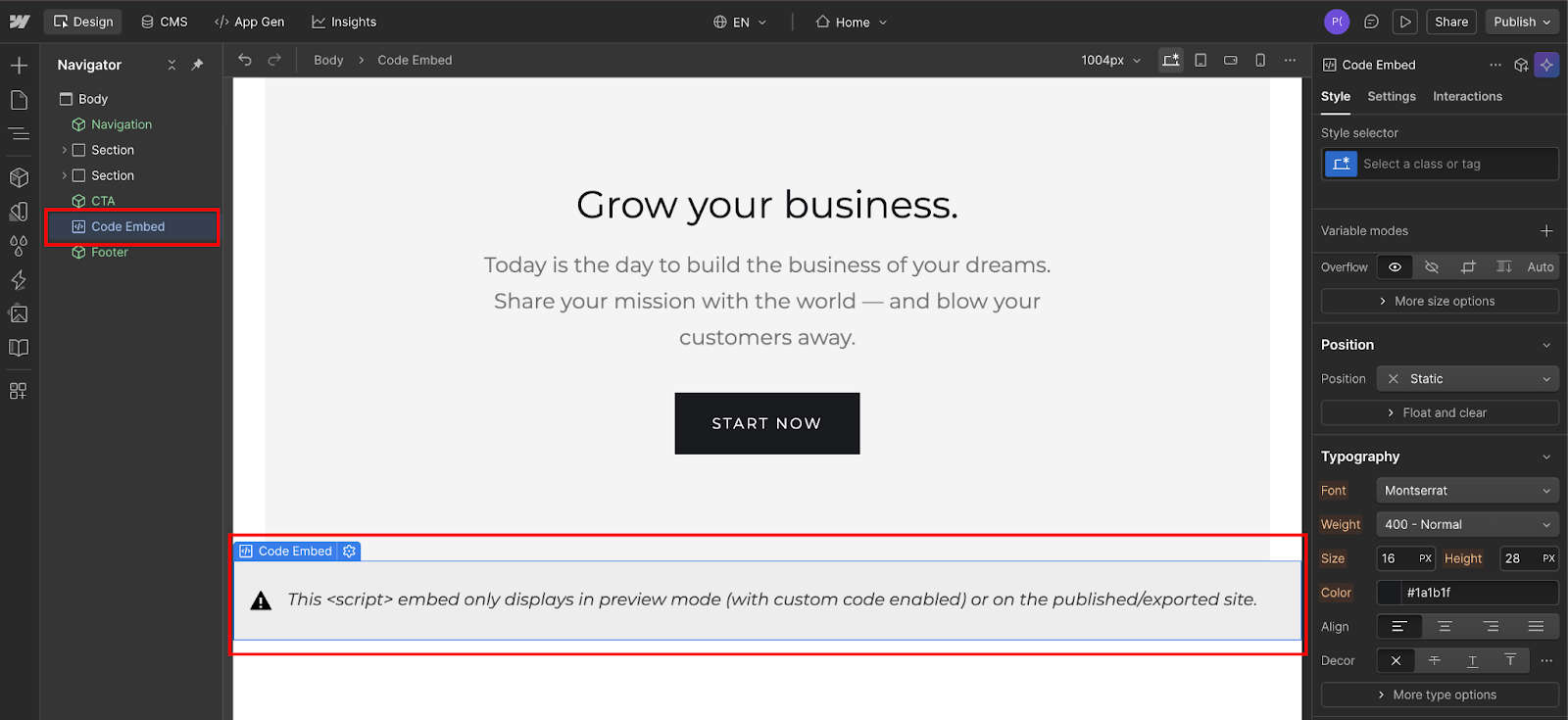
They just make the modal functionality available when you call it in Step 4.
Step #4: Add JavaScript to the connect button to modal
Go back to the Code Embed element you created in Step 3. Click to open the editor and append the following script block directly after the two lines already there:
<script>
  window.addEventListener('load', function() {
    const { toggle } = window.tf.createPopup('YOUR-FORM-ID-HERE', {
      size: 70
    });
    document.getElementById('typeform-trigger').onclick = toggle;
  });
</script>
Replace YOUR-FORM-ID-HERE with your actual form ID.
Click Save & Close.
Why this approach instead of HTML attributes
You might have seen tutorials using HTML attributes like this:
<button data-tf-popup="form-id">Open</button>This was the old method (2022-2024). From my testing, it barely works anymore.
When you add those attributes manually, Typeform's script ignores them. You'll get redirect behavior (button opens typeform.com in a new tab) instead of modal behavior.
Step #5: Publish and test on the live domain
You've added the scripts and connected the button. Now publish to see the modal work.
In the Webflow Designer:
- Click Publish in the top right corner
- Select Publish to Selected Domains
- Wait for Webflow to deploy your changes (usually 10-30 seconds)
Webflow displays a success message with links to your published site.
If everything is configured correctly:
- The Typeform modal appears as a centered overlay
- A dark background appears behind the modal (this comes from popup.css)
- Your form displays inside the modal with correct styling
- Users can fill out and submit the form
- Clicking outside the modal or pressing Escape closes it
- Clicking the close button (X) in the top corner closes it
Typeform automatically adjusts modal size for mobile viewports, so you don't need separate mobile configurations.


















What causes Typeform modals to fail on Webflow sites? Tips to troubleshoot common issues
Common Typeform modal failures on Webflow include 401 Unauthorized errors showing the Typeform homepage instead of your form, modals not opening at all on published sites, and visual layout chaos when the modal opens.
Even correct setups hit issues.
Here's how to diagnose and fix the most common problems.
Modal opens but shows Typeform homepage instead of your form
If the modal overlay appears correctly but displays Typeform's homepage or login screen instead of your form:
Cause 1: Form isn't published in Typeform
Open your Typeform dashboard and verify the form shows a green "Published" indicator. If it says "Draft," click Publish before testing again. Unpublished forms return 401 Unauthorized errors. The modal tries to load the form, Typeform's server rejects the request, and you see the homepage fallback.
Cause 2: Form ID is from a different Typeform
Verify you copied the form ID from the correct Typeform. If you have multiple forms, it's easy to grab the wrong ID. Start by checking the browser console.
Right-click on your published page → Inspect → Console tab, then look for errors like:
GET https://api.typeform.com/me 401 (Unauthorized)This confirms the form ID is wrong or the form isn't published.
Button clicks do nothing on the published site
If clicking the button on your published site produces no visible result. Check your first Code Embed element. It should contain:
<link rel="stylesheet" href="//embed.typeform.com/next/css/popup.css" />
<script src="//embed.typeform.com/next/embed.js"></script>
If the CSS line is missing, add it and republish. Without the CSS, you'll get visual chaos or no modal at all.
Also, make sure your Code Embed elements are in the correct order:
- First Code Embed: Script tags (popup.css + embed.js)
- Second Code Embed: Button connection code
And verify the button connection code uses window.addEventListener('load'):
window.addEventListener('load', function() {
  // code here
});
Without this wrapper, the JavaScript tries to run before Typeform's library loads, and you'll get "window.tf is undefined" errors.
Build better Typeform experiences on Webflow beyond modals
Typeform modals solve the redirect friction problem by keeping users on your Webflow site during form submission, but they're one piece of a larger form strategy.
Multi-step qualification funnels that route users to different Webflow pages based on Typeform responses, embedded calculators with real-time results that update as users type, and scheduled booking flows that sync with calendar systems all require more sophisticated implementations than basic modal overlays using the createPopup method.
Typeform modals work well for lead capture and contact forms, but they're static triggers. The user clicks a button, sees a form, and submits.
What if you need:
- Multi-step qualification funnels where Typeform responses determine which Webflow page loads next
- Conditional form experiences where user selections in Webflow filter which Typeform questions appear
- Progressive profiling workflows that remember previous submissions and only ask new questions
- Real-time form validation that checks email domains or company size before allowing Typeform submission
- A/B testing different modal triggers to optimize when and how forms appear
These require more than the JavaScript SDK; they need API connections, webhook integrations, and custom form logic.
For teams building advanced form experiences in Webflow, explore the Webflow code components ecosystem. Code components let you build custom form elements that integrate with Typeform's API, handle complex validation logic, and create conversion workflows that standard modal embeds don't support.
Frequently asked questions
Can you open multiple Typeform modals on the same Webflow page?
Yes, multiple Typeform modals work on a single Webflow page by creating separate createPopup instances for each form and attaching them to different button IDs. Use unique button IDs in Webflow Element Settings (typeform-trigger-1, typeform-trigger-2) and add a document.getElementById line for each button in your JavaScript code, or use classes with querySelectorAll to target multiple buttons with one loop.
Why does the modal show the Typeform homepage instead of my form?
The modal showing Typeform's homepage instead of your form indicates a 401 Unauthorized error caused by a wrong form ID in your JavaScript code, an unpublished form in the Typeform dashboard, or copying the full URL instead of just the form ID characters after /to/. Verify your form shows a green Published indicator in Typeform. Fixing the form ID or publishing the form resolves this issue immediately, without requiring Webflow to republish.
Does opening Typeform modals slow down Webflow sites?
Minimal performance impact when properly configured with the JavaScript SDK. The Typeform embed library consists of two files totaling approximately 60KB (popup.css ~5KB, embed.js ~55KB) that load asynchronously after the page content renders, adding 200-300ms to the total page load time on standard connections. The window.addEventListener('load') wrapper ensures scripts load after critical page content, preventing render-blocking.



















