






Gemini
Connect Google Gemini to Webflow to add AI text generation, image analysis, and automated content pipelines to your site.

Webflow handles layout, CMS content, and hosting. Currently, it does not have a built-in AI model for generating copy, analyzing uploaded media, or responding to visitor prompts. Without one of those capabilities, every piece of AI-driven content has to be produced outside Webflow and pasted in manually.
Connecting Google Gemini to Webflow closes that gap. Once you build a server-side layer between the two platforms, your site can generate structured text, analyze images and documents, and return JSON that maps directly to Webflow CMS collection fields — without rebuilding your design or publishing workflow.
This integration is relevant to marketing teams producing CMS content at scale, agencies building AI chatbots for client sites, and developers creating pipelines that connect Gemini's text generation to Webflow's publishing workflow.
How to integrate Gemini with Webflow
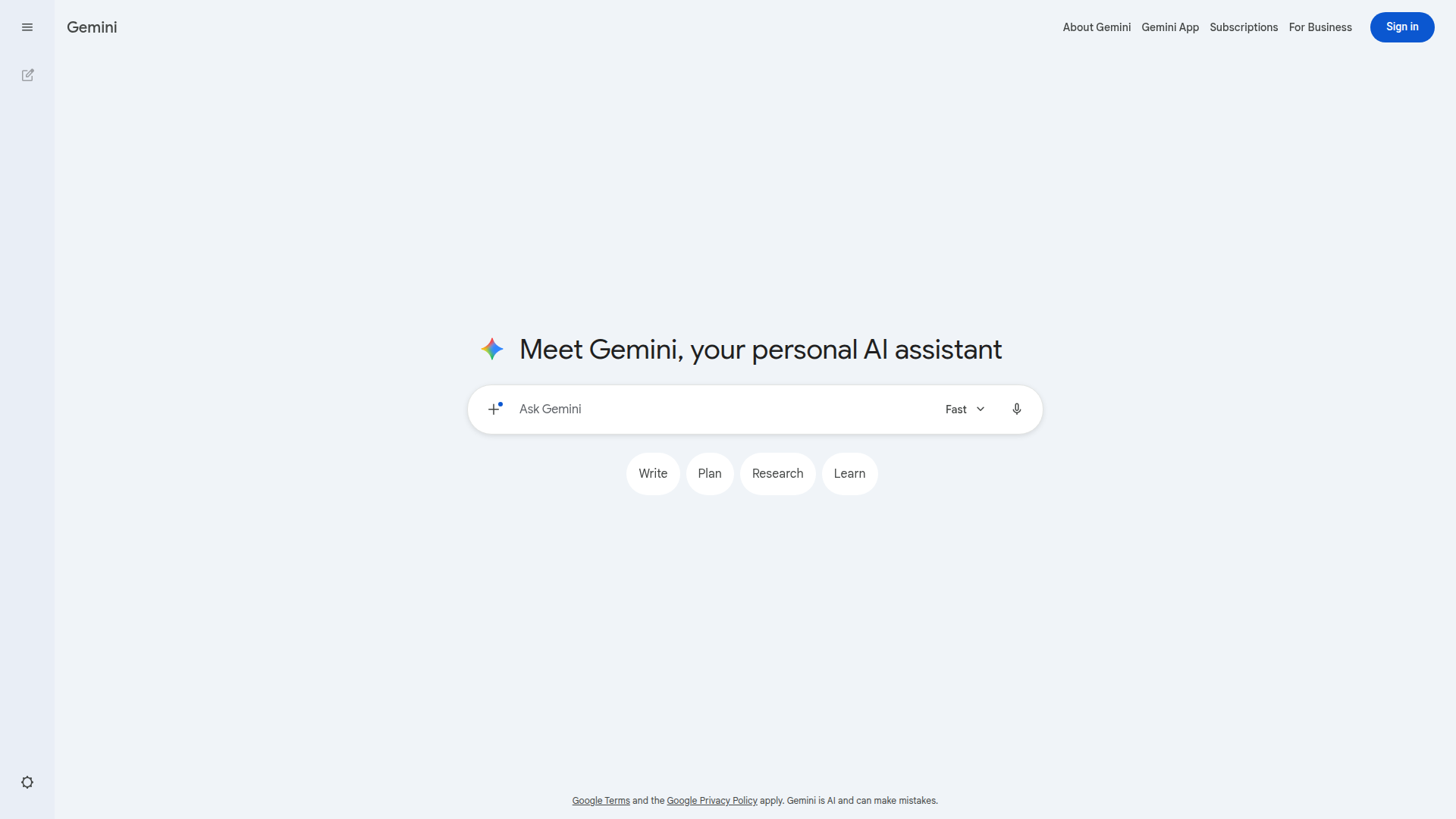
What is Gemini? Gemini is Google's family of generative AI models. The consumer Gemini experience lives at gemini.google.com, but for Webflow integrations, the relevant surface is Google's developer platform — including Google AI Studio, a REST API, and a JavaScript SDK. It supports text generation, image and video analysis, document understanding, embeddings, and structured JSON output.
Development teams use Gemini and Webflow together when they need more than static CMS content, specifically when they want to generate blog drafts from a prompt, classify inbound form submissions, enrich product catalog fields from images, or expose a visitor-facing AI interface without maintaining a separate application.
The Gemini-Webflow integration supports three approaches:
- Code Embed elements and custom code let you add visitor-facing AI features to individual pages or site-wide, using a backend proxy to keep API keys off the client.
- Zapier, Make, or n8n connect Webflow events — form submissions, CMS item creation, or scheduled triggers — to Gemini actions and write AI-generated output back to your site.
- The Webflow and Gemini APIs give you full programmatic control over content generation, CMS publishing, and webhook-driven pipelines, but require server-side development.
Most production setups combine methods: an automation tool for scheduled CMS content and a Code Embed proxy for visitor-facing interactions.
Add Gemini features with Code Embed elements and custom code
The most direct way to add Gemini-generated content to a Webflow page is through a Code Embed element that calls a backend proxy. This approach works for visitor-facing features like AI Q\&A boxes, product description generators, and on-page summarizers.
The core pattern: write HTML, CSS, and JavaScript inside a Code Embed element, but have your JavaScript call your own server endpoint rather than the Gemini API directly. Never put a Gemini API key inside a Code Embed element or any custom code field. Keys in browser code are visible to anyone who opens browser DevTools.
Several options exist for this approach:
- Embed an AI prompt interface on any page using a Code Embed element that sends user input to a proxy endpoint and displays the Gemini response
- Add a site-wide AI chatbot by placing JavaScript in the footer code field under Site settings > Custom code
- Use Social Intents to embed an AI-powered chatbot widget without writing backend code — train it on your site URL and paste the snippet into your footer code
- Use BuildShip to create a no-code backend that stores the Gemini API key in a secrets vault and exposes a REST endpoint your Code Embed element calls
- Deploy a full Gemini app built in AI Studio Build Mode to Cloud Run, then embed it as an iframe in a Code Embed element (advanced path — see below)
Embed a Gemini proxy interface
This pattern places an input field and response container on a Webflow page. The JavaScript calls your proxy, not the Gemini API directly. Build the proxy on Cloudflare Workers, Vercel, or any serverless platform where the API key stays in an environment variable.
<div id="gemini-output" style="padding:16px;border:1px solid #ddd;border-radius:8px;min-height:48px;"></div>
<input id="gemini-input" type="text" placeholder="Ask Gemini..." style="width:100%;padding:8px;margin-top:8px;" />
<button id="gemini-btn" style="margin-top:8px;padding:8px 16px;background:#4285f4;color:white;border:none;border-radius:4px;cursor:pointer;">Ask</button>

<script>
  document.getElementById("gemini-btn").addEventListener("click", async () => {
    const prompt = document.getElementById("gemini-input").value;
    const output = document.getElementById("gemini-output");
    output.textContent = "Thinking...";
    try {
      const response = await fetch("https://your-proxy.com/gemini", {
        method: "POST",
        headers: { "Content-Type": "application/json" },
        body: JSON.stringify({ prompt })
      });
      const data = await response.json();
      output.textContent = data.candidates[0].content.parts[0].text;
    } catch (e) {
      output.textContent = "Error: " + e.message;
    }
  });
</script>
Replace https://your-proxy.com/gemini with your actual proxy URL. Cloudflare Workers offers a free tier and lets you route paths like /api/* to Workers while serving your Webflow site normally.
Embed an AI Studio app via iframe
For teams who want to ship a full Gemini-powered interface without building a custom proxy, Google AI Studio's Build Mode lets you create an app through natural language prompts, deploy it to Cloud Run, then embed it in a Code Embed element as an iframe. This is an advanced path that requires a Cloud Run deployment — it is not a default option for most integrations.
<iframe
  src="https://your-cloud-run-deployed-app-url"
  width="100%"
  height="600px"
  style="border:none;border-radius:8px;"
  title="Gemini AI Assistant">
</iframe>
Shared AI Studio URLs without Cloud Run deployment may return 403 Access Restricted errors for visitors. Deploy to Cloud Run for production use.
Connect with Zapier, Make, or n8n
Automation platforms connect Webflow events to Gemini and write AI-generated content back to CMS collections without server-side code. Zapier, Make, and n8n all have confirmed connectors for both Webflow and Google AI Studio (Gemini). IFTTT does not support Gemini at the time of writing.
On all three platforms, Google AI Studio acts as an actions-only connector. It cannot initiate a workflow, so every automation starts with a Webflow trigger or a schedule. Check each platform's connector page for the current list of supported actions, as these update with platform releases.
Build a form-to-AI-to-CMS pipeline with Zapier
Zapier connects Webflow form submissions to Gemini and writes results to your Webflow CMS. A typical workflow takes a form response, sends it to Gemini's Send Prompt action for processing, then creates a CMS item in Webflow with the AI-generated output.
- New Form Submission (instant trigger) → Send Prompt (Gemini processes form data) → Create Live Item (writes to Webflow CMS)
- New Order (instant trigger) → Conversation with Memory Key (multi-turn analysis) → Update Order (adds AI-generated notes)
- Schedule trigger → Send Prompt (generates blog content) → Create Item (drafts CMS post for editorial review)
Zapier's Webflow actions include both Create Item (saves as draft) and Create Live Item (publishes immediately), so you control whether AI-generated content goes live automatically or waits for review. This makes Zapier a straightforward option for form-driven or scheduled CMS workflows.
Build a content pipeline with Make or n8n
Make and n8n both support multi-step workflows where Gemini generates structured content and Webflow receives it as CMS items. Example workflow patterns on each platform:
- On Make: Schedule trigger → Generate a response → Create an Item → Publish an Item
- On Make: Watch Events (form submission) → Extract structured data → route to external CRM
- On n8n: HTTP trigger → Message a Model → Webflow node (create CMS item) → publish
- On n8n: Schedule → Analyze Document (process uploaded PDF) → generate article → write to Webflow CMS
n8n counts one execution per full workflow run regardless of step count, while Make charges one credit per module action — a meaningful cost difference at scale. n8n also offers a self-hosted option for teams with data sovereignty requirements.
Build with the Webflow and Gemini APIs
For full control over content generation and publishing, connect the Gemini REST API directly to the Webflow Data API v2. This approach runs on your own server or serverless function. You call Gemini's generateContent endpoint, parse the response into field values, then write those values to Webflow CMS collections through the v2 API.
This method handles use cases that automation platforms cannot — custom retry logic, batch processing, conditional publishing, and structured JSON output mapped to specific collection fields.
- Call
generateContentwithresponse_mime_type: "application/json"to get structured output that maps directly to CMS field slugs - Use
POST /v2/collections/:id/itemsto create draft CMS items (up to 100 per request) - Call
POST /v2/collections/:id/items/publishto publish specific items after creation - Register Webflow webhooks for
form_submissionorcollection_item_createdevents to trigger Gemini calls automatically - Use
embedContentto generate vector embeddings for CMS items and build semantic search - Use Gemini's function calling (the
toolsparameter) to let Gemini invoke Webflow CMS operations during generation
The Webflow v1 API stopped receiving maintenance after March 31, 2025 — use v2 exclusively.
Generate and publish CMS content with a server-side pipeline
This pattern runs on a Node.js server, Cloudflare Worker, or any environment where API keys stay in environment variables. It calls Gemini to generate a blog post, creates a draft CMS item in Webflow, then publishes it.
const GEMINI_API_KEY = process.env.GEMINI_API_KEY;
const WEBFLOW_TOKEN = process.env.WEBFLOW_API_TOKEN;

// Step 1: Generate content with Gemini
// Note: this example uses the REST API directly. Field names in raw REST
// requests use snake_case. The @google/genai SDK uses camelCase equivalents.
// Check the current API reference at ai.google.dev for the latest field names.
const geminiRes = await fetch(
  `https://generativelanguage.googleapis.com/v1beta/models/gemini-2.5-flash:generateContent`,
  {
    method: 'POST',
    headers: {
      'Content-Type': 'application/json',
      'x-goog-api-key': GEMINI_API_KEY
    },
    body: JSON.stringify({
      contents: [{ parts: [{ text: "Write a blog post about headless CMS" }] }],
      generation_config: { response_mime_type: "application/json", temperature: 0.8 }
    })
  }
);
const geminiData = await geminiRes.json();
const { title, slug, body } = JSON.parse(
  geminiData.candidates[0].content.parts[0].text
);

// Step 2: Create CMS item in Webflow (always creates as draft)
const webflowRes = await fetch(
  `https://api.webflow.com/v2/collections/{collection_id}/items`,
  {
    method: 'POST',
    headers: {
      'Authorization': `Bearer ${WEBFLOW_TOKEN}`,
      'Content-Type': 'application/json'
    },
    body: JSON.stringify({
      fieldData: { name: title, slug, "post-body": body }
    })
  }
);

// Step 3: Publish the item
await fetch(
  `https://api.webflow.com/v2/collections/{collection_id}/items/publish`,
  { method: 'POST', headers: { 'Authorization': `Bearer ${WEBFLOW_TOKEN}` } }
);
Install the current Google AI SDK with npm install @google/genai if you prefer the SDK over raw fetch calls. The legacy @google/generativeai package is no longer maintained — use @google/genai for all new integrations.
Trigger Gemini from Webflow webhooks
Webflow webhooks let you run Gemini calls in response to CMS or form events. Register a webhook pointing to your server, receive the payload, call Gemini, and write the result back to Webflow.
- Register a webhook for
form_submissionto process form data through Gemini and store AI-generated responses in a CMS collection - Listen for
collection_item_createdevents to auto-generate SEO metadata or summaries when editors add new CMS items - Filter
collection_item_changedpayloads bycollectionId— these events fire for all collections on a site - Verify webhook signatures using the
x-webflow-signatureheader; see Webflow's webhook documentation for the correct signing method for your webhook setup, as it varies by how the webhook was created
Check Webflow's webhook documentation for current retry behavior and per-site webhook limits, as these may vary by plan.
Use the Webflow MCP server with Gemini
The official Webflow MCP server exposes Webflow site, page, and collection operations as tools that any MCP-compatible model can call. Gemini supports tool use through its tools parameter, which means it can invoke Webflow operations during content generation — reading existing CMS collections for context, creating new items, or updating fields as part of a multi-step task.
To use this approach, run the Webflow MCP server as a local or hosted process, then configure Gemini to call its exposed tools by passing them in the tools parameter of your generateContent request. This is an agentic pattern suited to workflows where the model decides which operations to run based on the prompt rather than following a fixed sequence of steps.
What can you build with the Gemini Webflow integration?
Integrating Gemini with Webflow lets you generate, process, and publish AI-driven content without copying and pasting between tools.
- Automated blog content pipeline: Set up a scheduled Make or n8n workflow that sends topic briefs to Gemini, receives structured JSON with title, slug, and body fields, and creates CMS items automatically — landing first drafts in Webflow CMS as unpublished items ready for editorial review.
- Visitor-facing AI assistant: Embed a Gemini-powered Q\&A widget on product pages using a Code Embed element and a Cloudflare Workers proxy, so visitors can ask questions about features and receive context-aware answers with API key handling entirely on the server side.
- AI-generated product descriptions at scale: Connect Webflow CMS product entries to a Gemini pipeline that analyzes product images, generates descriptions, and writes them back to each CMS item — populating description fields across a large catalog without manual copywriting.
- Form submission classification and routing: Build a Zapier workflow where a Webflow form submission triggers a Gemini prompt that classifies the inquiry as a support request, sales lead, or feedback, then routes it to the right team — removing manual triage from inbound requests.
For more complex pipelines like batch content generation, semantic search, or multi-step agentic workflows, start with the Gemini API documentation and the Webflow Data API v2 reference.
Frequently asked questions
Use
gemini-2.5-flashfor most use cases. It offers the best balance of speed and cost and supports a 1M-token input context window. Usegemini-2.5-profor complex reasoning tasks. Avoidgemini-2.0-flashandgemini-2.0-flash-lite, which are being discontinued on June 1, 2026. Check the Gemini models documentation for the current list of stable and preview models before building.No. The Webflow v2 API's
POST /v2/collections/:id/itemsendpoint always creates items as drafts. You need a separate call toPOST /v2/collections/:id/items/publishto push items live. Alternatively, usePOST /v2/collections/:id/items/liveto create and publish in a single request. This applies to every integration method like Zapier, Make, n8n, and custom API pipelines all require an explicit publish action.The free tier works for development and testing. For production, free-tier rate limits are more restrictive than paid tiers, and data handling terms differ between free and paid plans. Check your project-specific limits in the AI Studio dashboard and review Google's current usage policies before processing visitor data on a free-tier account. Switch to a paid tier for production apps that need higher throughput or stricter data handling terms.
Description
Connect Google Gemini to Webflow to generate CMS content, analyze media, and add AI features to your site through Code Embed, automation platforms, or direct API integration.
This integration page is provided for informational and convenience purposes only.

PromoteKit
Connect PromoteKit, a Stripe-native affiliate tracking platform, with Webflow to run an affiliate program with commission tracking through Stripe's payment lifecycle.
Semflow
Connect Semflow with Webflow to run AI-assisted SEO audits, keyword research, rank tracking, schema markup, and metadata generation directly inside the Webflow Designer.
Cometly
Connect Cometly, a marketing attribution platform, with Webflow to track which ads drive form submissions and send conversion data back to ad platforms.
Cometly
Connect Cometly, a marketing attribution platform, with Webflow to track which ads drive form submissions and send conversion data back to ad platforms.
Website Speedy
Connect Website Speedy, a site speed optimization tool, with Webflow to improve Core Web Vitals scores and page load times through automated speed optimizations.
Optibase
Connect Optibase with Webflow to run A/B tests without writing code.
Optily
Connect Optily with Webflow to automatically compress CMS images and convert them to WebP format for faster page loads.
BulkSEO
Connect BulkSEO with Webflow to manage SEO metadata across hundreds of pages through CSV-based bulk editing.
NoBreakWeb
Connect NoBreakWeb, an automated Lighthouse auditing tool, with Webflow to run daily performance, SEO, and accessibility scans on your published site without manual testing.
Related integrations
Get started for free
Try Webflow for as long as you like with our free Starter plan. Purchase a paid Site plan to publish, host, and unlock additional features.
