






ScheduleFlow
Connect ScheduleFlow to Webflow to schedule site and CMS publishes at specific dates and times.

Webflow's native scheduled publishing has plan and functionality restrictions that create friction for content teams. Full-site scheduled publishing requires a CMS plan or above and applies only to content that has never been published. You cannot schedule a republish of updated content this way. For teams that plan content in advance, this creates a gap between when work is ready and when it goes live.
ScheduleFlow addresses this by calling Webflow's publish API on your behalf at the time you specify. Set a date and time, and the app triggers the publish automatically with no open browser tab, no manual click, no monitoring a clock. It supports both full-site publishes and CMS item publishing, so content updates and site-wide changes can run on the same schedule.
This integration suits marketing teams coordinating product launches, agencies managing multiple client sites, editorial leads running content calendars, and freelancers who publish outside working hours.
How to integrate ScheduleFlow with Webflow
What is ScheduleFlow? ScheduleFlow is a Webflow app built by Manuel Ogomigo, a verified Webflow Partner, that automates site and CMS publishing on a user-defined schedule. It runs as a backend service that triggers Webflow's publish endpoints at a specified date and time, without requiring any front-end code or embeds.
The integration uses a single approach: the ScheduleFlow app installs from the Webflow Apps Marketplace through OAuth authorization and handles all scheduling from the backend. No embed codes, script tags, or front-end components are involved.
Use the ScheduleFlow app
The ScheduleFlow app is listed in the Webflow Apps Marketplace with an "Approved by Webflow" designation and an "Enhanced Security" badge. Installing it connects your Webflow sites to ScheduleFlow's scheduling engine, which calls Webflow's publish endpoint at the times you configure. The app supports scheduling for both full-site publishes and CMS item publishing across multiple sites. The developer describes the setup as "Connect Sites → Schedule Site or CMS → Relax."
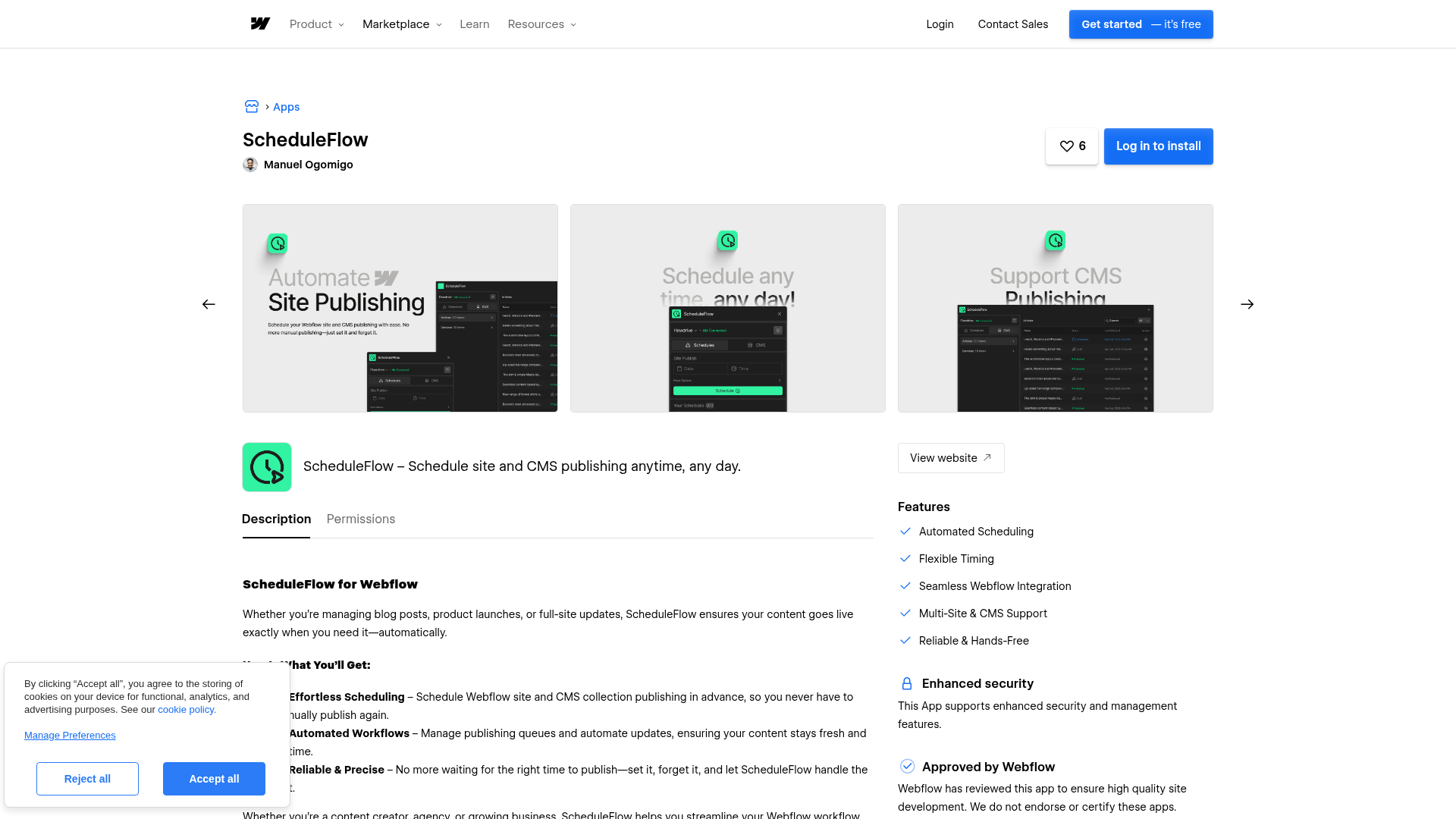
The app requests these OAuth permissions during installation:
- Read and write CMS data — allows creating, updating, and deleting CMS collections and items
- Read and write site configuration — allows modifying site settings
- Read site activity data — provides access to audit logs and events
- Read and write site data and publishing — allows triggering site publishes
- Read information about authorized users — identifies the installing user
- Read App subscriptions — accesses subscription status
To install:
- Go to the ScheduleFlow marketplace listing or visit scheduleflow.app and click Install Webflow App
- Log in and authorize the requested OAuth permissions
- Select the sites you want to connect and configure your publishing schedules
After installation, ScheduleFlow connects to your selected sites and runs publishes on the schedule you set.
No public documentation, setup guides, or changelogs exist outside the marketplace listing. For support, contact the developer at manuelogomigo@gmail.com as listed on the Webflow marketplace page.
What you can build with ScheduleFlow Webflow integration
Integrating ScheduleFlow with Webflow lets you automate publish timing for sites and CMS content without manual intervention or browser-dependent workflows. Here is what is possible:
- Timed product or feature launches: Schedule a full-site publish to go live at a specific time for a product launch, embargo-timed announcement, or PR-coordinated release, even if no one is at their computer when it fires.
- Off-hours content publishing: Queue blog posts, case studies, or landing pages to publish at 6 AM on weekdays. A marketing agency managing ten client blogs can batch-schedule a week of posts in one session.
- Multi-site agency management: Connect multiple client Webflow sites to one ScheduleFlow account and set independent publishing schedules for each, without logging into separate site dashboards.
- Weekend and holiday campaign deploys: Schedule a Black Friday sale page or seasonal promotion to go live at a specific time, useful for e-commerce sites running time-sensitive campaigns that cannot depend on someone being online to publish manually.
For any workflow that depends on precise publish timing, ScheduleFlow handles the scheduling layer so your team can focus on the content.
Frequently asked questions
Publishes can fail for the same reasons a manual publish would: validation errors in CMS content, an expired OAuth token, or Webflow platform downtime.
No. ScheduleFlow publishes through Webflow's API, so all CMS item limits set by your site plan still apply. The CMS plan supports up to 2,000 items; the Business plan supports up to 10,000. ScheduleFlow cannot publish beyond your plan's limit.
Webflow OAuth tokens can expire after extended inactivity. If ScheduleFlow's authorization token lapses, scheduled publishes may stop working until you reauthorize the app. Because ScheduleFlow does not publish documentation on failure notifications or token-refresh handling, reauthorizing through the Webflow Apps Marketplace is the recommended first step if publishes stop firing as expected.
Description
Schedule Webflow site and CMS publishes at specific dates and times through the ScheduleFlow app.
This integration page is provided for informational and convenience purposes only.

Webflow Pack for Coda
Connect Webflow with Coda to sync CMS collections as spreadsheet-style tables, manage content, and automate workflows without switching platforms.
SyncFlow
Connect SyncFlow with Webflow to automatically publish Notion content to your CMS collections without manual content transfer.
Apix Drive
Connect Apix Drive, a no-code integration platform, with Webflow to automate form data transfer to 300+ CRMs, spreadsheets, notification tools, and marketing platforms.
Create Variables
Connect Create Variables with Webflow to automatically convert class naming conventions into Webflow color variables.
Flatly
Connect Flatly’s no-code data synchronization platform with Webflow to sync data from 50+ business tools into CMS collections through CSV exports and automation workflows.
Apico
Connect Apico, a backend API integration platform, with Webflow to sync form submissions and CMS data to Google Sheets through server-side API implementation.
Taskade
Connect Taskade, a collaborative project management platform, with Webflow to sync task and project data to CMS collections through webhook automation.
MySQL
Connect MySQL with Webflow to add dynamic database-driven content, real-time product catalogs, and complex user management.
Wrike
Connect Wrike with Webflow to automate client intake, track website requests, and create tasks directly from form submissions.
Related integrations
Get started for free
Try Webflow for as long as you like with our free Starter plan. Purchase a paid Site plan to publish, host, and unlock additional features.
