






Shopify
Ecommerce solution that allows you to organize products, customize a storefront & accept payments.

What is Shopify: Shopify is an ecommerce platform that manages products, inventory, payments, and orders. Its Buy Button sales channel generates embeddable product widgets, including product cards and checkout buttons, that you can place on any website, including Webflow.
Community apps for Shopify–Webflow integration
The Buy Button method in this integration guide works for adding individual products to an existing Webflow site, but requires manual setup for each product. If you need a more complete storefront, Webflow's app ecosystem includes tools built specifically for Shopify–Webflow workflows:
- Shopyflow: Syncs Shopify products into Webflow CMS automatically and provides pre-built components for carts, product pages, and customer accounts. Design your storefront in Webflow while Shopify handles checkout and inventory. No Webflow ecommerce plan required.
- Liquiflow: Converts Webflow designs into Shopify 2.0 theme files using custom HTML attributes. The store runs entirely on Shopify's infrastructure after conversion, no ongoing sync required.
If the Buy Button approach fits your needs, here's how to set it up.
How to integrate Shopify with Webflow
This Shopify-Webflow integration uses Webflow's CMS and Code Embed elements to display Shopify products dynamically on Collection Pages and Collection Lists. Shopify handles checkout and order management; Webflow controls the design and layout.
This integration stores Shopify product identifiers in Webflow CMS collections and uses them to render the correct Buy Button for each Collection Item.
The setup follows these steps in sequence:
- Create a Shopify account
- Create a CMS collection for your products in Webflow
- Add your products from Shopify
- Add a Code Embed element to a Collection List or Collection Page
- Get the embed code from Shopify
- Replace the unique IDs with CMS fields
Let’s dive in!
Create a Shopify account
Set up a Shopify account and add the products you want to sell.

Once your store is ready, move on to step 2.
Create a collection for your products in Webflow
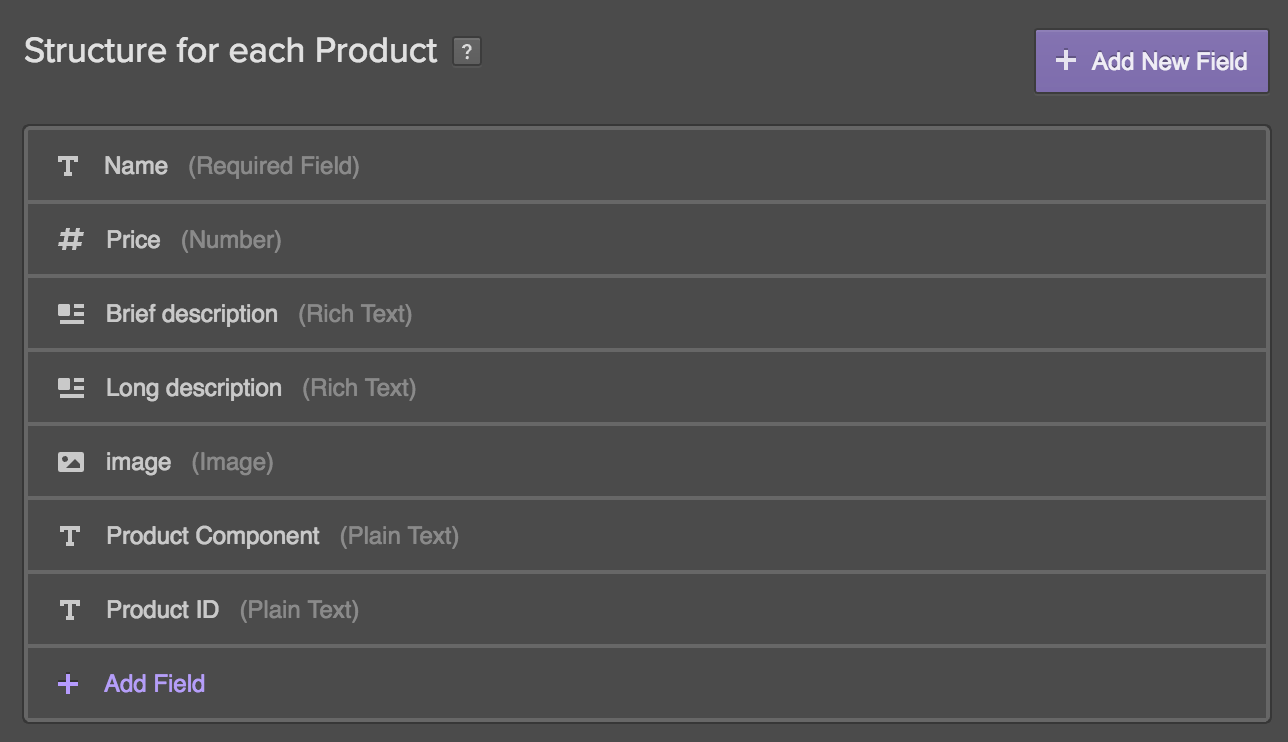
Create a CMS collection in Webflow to hold your product data.
In this example, the collection is named Products and includes these fields:
- Price (Number Field)
- Brief Description (Rich Text Field)
- Long Description (Rich Text Field)
- Thumbnail Image (Image)
- *Product ID (Plain Text Field)
- *Product Component (Plain Text Field)
*Unique identifier
The Product ID and Product Component fields act as unique identifiers that link each Webflow Collection Item to the correct Shopify product. You'll pull these values from the embed code Shopify generates, covered in step 3.
Add your products from Shopify
For each product, create a new item in your Webflow collection and fill in the Product ID and Product Component fields using the values from Shopify's embed code. Here's how to find them.
Get the Product ID and Product Handle
In your Shopify admin, go to Sales channels → Buy Button. If Buy Button doesn't appear in your sidebar, add it first from the Shopify App Store.
Then, follow these steps in sequence:
- Click Create a Buy Button
- Select Product Buy Button
- Choose a product from your catalog
- Customize the button layout and checkout behavior, then click Next
- Copy the generated embed code
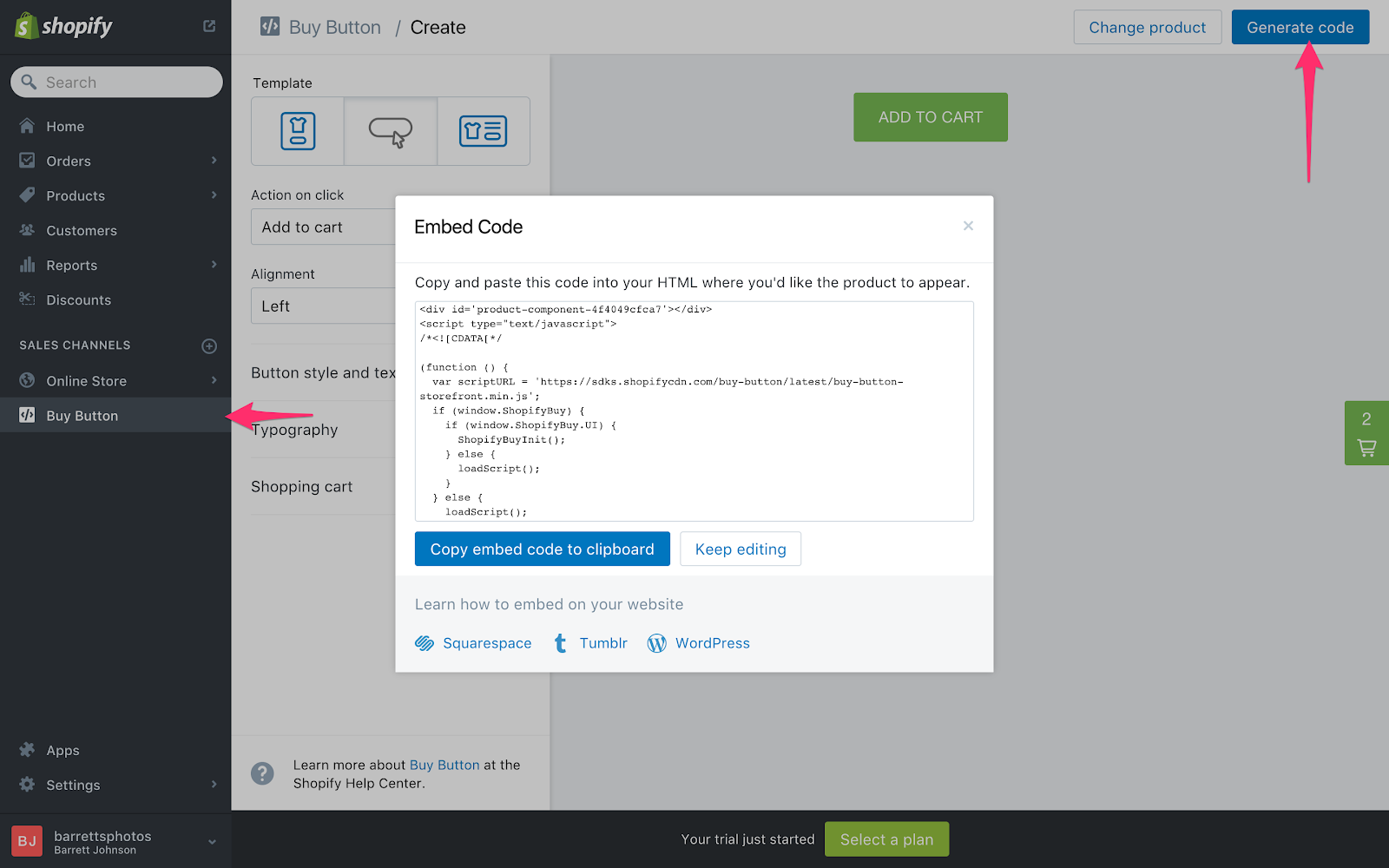
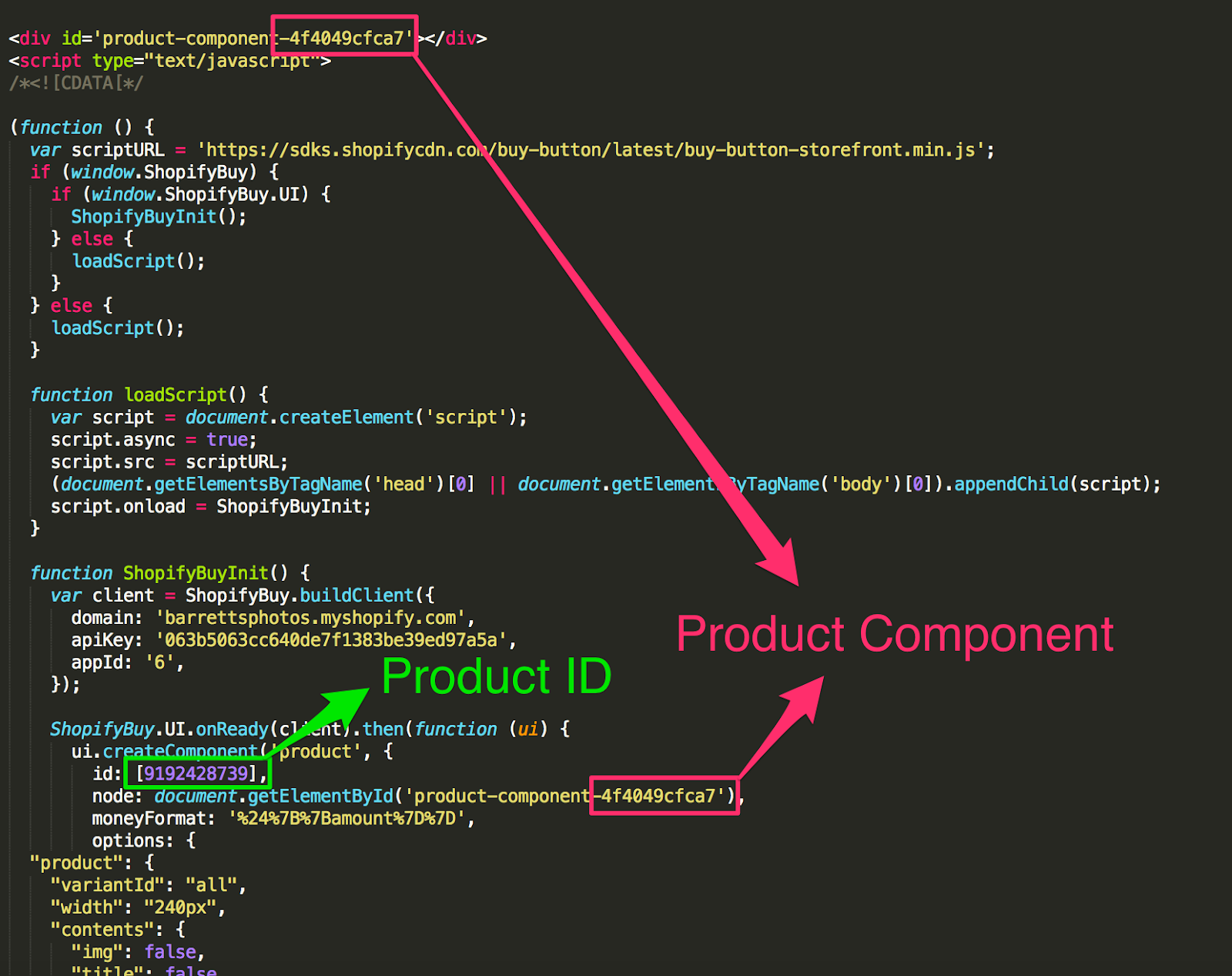
You'll find the Product Component and Product ID in the embed code. Copy each value and paste it into the corresponding fields in your Webflow collection:
- Product Component: the string of numbers and letters after product-component-
- Product ID: the string of numbers in brackets after id: in the embed code
Add a Code Embed element to a Collection List or Collection Page
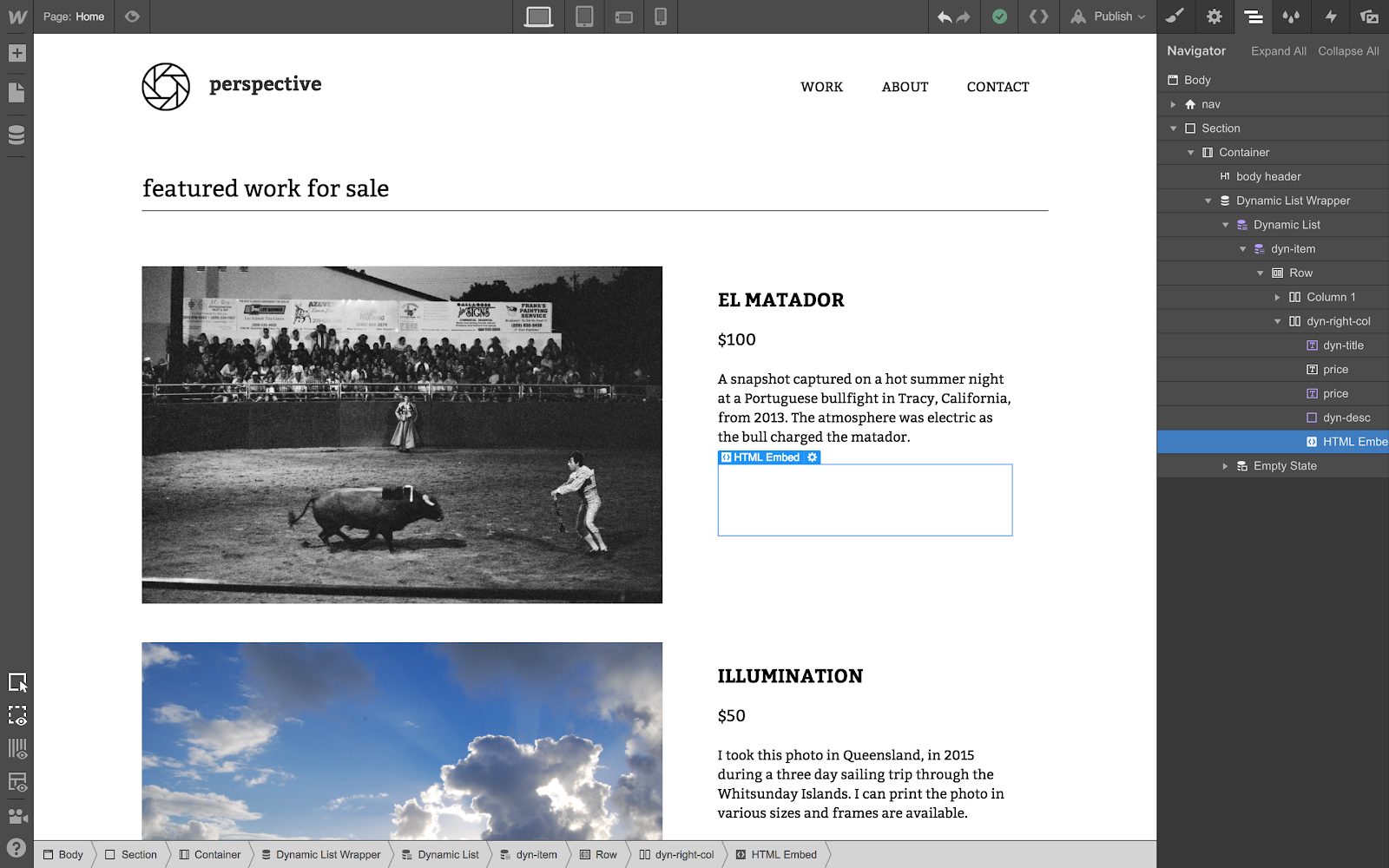
Dynamic Embeds require a Collection Page or Collection List: they only work with dynamic content. In this example, a Code Embed element is added to a Collection List, but the same approach applies to a Collection Page.
Place the Code Embed element where you want the Buy Button to appear inside the Collection List.
Add a Code Embed element from the Add panel.
Get the embed code from Shopify
Return to Shopify's Buy Button channel and generate the embed code for each product following the same steps in the previous section.
Two embed types are available.
One includes the product image, name, and price pulled from Shopify. The other generates just the Buy Button.
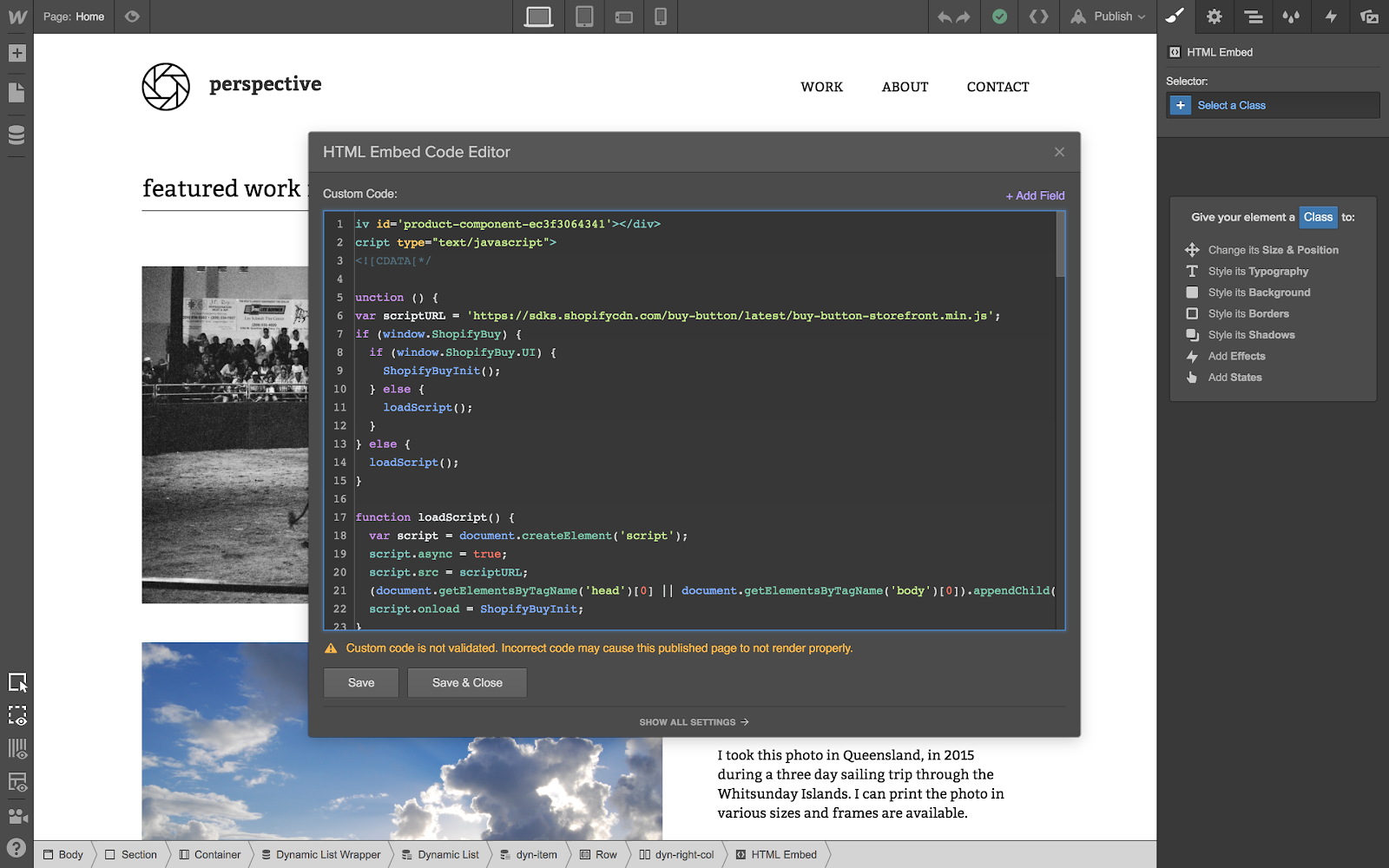
For maximum layout control in Webflow, the button-only option is best; it lets you design the product display in Webflow and handle the purchase action in Shopify.
Copy the embed code and paste it into the Code Embed element added in the previous step. Paste the Buy Button code into the Code Embed element.
Replace the unique IDs with CMS fields
Without this step, every Buy Button on the page will point to the same product.
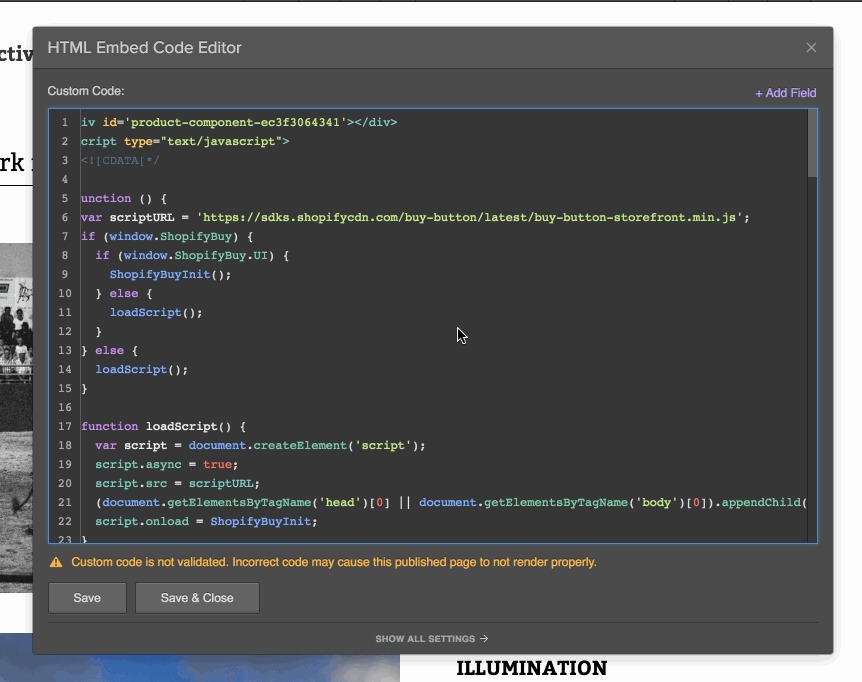
To connect each button to its corresponding Shopify product, replace the hardcoded Product Component and Product ID values in the embed code with the CMS fields created in step 2.
Select each value individually (the Product Component appears twice in the embed code) and use Add Field to replace it with the matching CMS field.
The Buy Button renders on the published site. It won't appear in Webflow's editor.
The button will appear on publish, but not in the editor.
To add more products in the future:
- Create a new item in your Products collection
- Grab the unique identifiers from Shopify's embed code
- Paste them into the corresponding collection fields
What you can build with the Shopify Webflow integration
Connecting Shopify's Buy Button with Webflow lets you add purchase functionality to an existing Webflow site without rebuilding your storefront or switching platforms.
Here are a few things you can build with this integration:
- Product showcase pages: Design custom product listing pages in Webflow's CMS with your own layouts, typography, and imagery, with a Shopify Buy Button handling checkout for each item
- Content-commerce hybrids: Add Buy Buttons to blog posts, editorial pages, or lookbooks so readers can purchase products without leaving the page
- Landing pages with embedded checkout: Build campaign or product-specific landing pages in Webflow with a single embedded Buy Button pointed at one Shopify product or collection
Portfolio or agency sites with light commerce: Add a small product catalog to an existing Webflow site (digital downloads, merchandise, or services) without setting up a full Shopify storefront
Frequently asked questions
Yes. The Buy Button sales channel is available on all paid Shopify plans. It is not available on the free trial.
Partially. You can customize the button's colors, typography, and layout inside Shopify's Buy Button builder before generating the embed code. However, the appearance can't be changed after embedding; if you want to update the style, you'll need to generate new embed code and replace it. For deeper design control, using the button-only embed and styling the surrounding product display entirely in Webflow gives the most flexibility.
No. Clicking the Buy Button opens Shopify's hosted checkout, either in a modal or a new tab, depending on how the button is configured. Customers complete payments on Shopify's infrastructure, ensuring PCI compliance.
The Buy Button embeds a Shopify checkout widget into individual Webflow pages. It's lightweight and quick to set up, but design customization is limited to what Shopify's builder allows. Full headless integrations, like Shopyflow, sync all Shopify product data into Webflow's CMS and give you complete design control over every page.
Yes. This is the core use case covered in this article. Each Collection Item stores a unique Product ID and Product Component from Shopify, and the Code Embed uses those fields to render the correct Buy Button per item. Without the unique ID replacement step, every button on the list will point to the same product.
Description
This integration page is provided for informational and convenience purposes only.

PayPal Shopping Cart
Connect PayPal Shopping Cart with Webflow to add multi-item purchase functionality and hosted cart management.

Looop
Connect Looop with Webflow to sync Shopify products into Webflow CMS and build headless e-commerce storefronts with full checkout functionality
AstroIC
Connect AstroIC with Webflow Ecommerce via OAuth to generate invoices and manage product catalogs in bulk for your ecommerce store.
Smootify
Connect Smootify with Webflow to build custom Shopify storefronts without exporting code.
ShipStation
Connect ShipStation with Webflow to sync orders, print shipping labels, and update tracking information.
Revidflow
Connect Revidflow to your Webflow e-commerce store to automate review collection and display customer feedback.
Shopyflow
Connect Shopyflow, a Shopify-to-Webflow bridge, with Webflow to build custom Shopify storefronts using visual design tools.
Shipping IO
Connect Shipping IO with Webflow to automate multi-carrier shipping workflows through custom API integration.
Penni Cart
Connect Penni Cart with Webflow to build custom e-commerce stores with complete design control and subscription billing without Webflow's e-commerce plan.
Related integrations
Get started for free
Try Webflow for as long as you like with our free Starter plan. Purchase a paid Site plan to publish, host, and unlock additional features.
