






Twise
Connect Twise, an AI chat assistant, with Webflow to answer visitor questions, capture leads, and respond in 92 languages using a chat widget that learns from your site content.

Most Webflow sites do a good job of presenting information. What they don't do is answer the question a visitor is about to close the tab over, qualify a lead at 2am, or handle a support request in Portuguese when your team is offline. That's the gap Twise fills.
When you connect Twise and Webflow, your site gains a chat assistant trained on your own content like product pages, help docs, and FAQs that answers questions, captures contact details, and books meetings without your team involved.
This integration is most useful for businesses that field repetitive visitor questions, serve international audiences, or want to qualify leads before they reach a sales conversation.
How to integrate Twise with Webflow
What is Twise? Twise is an AI chat assistant that learns from your existing site content and answers visitor questions through a chat interface. It qualifies leads, books meetings through Calendly, and supports 92 languages. Configuration happens through the Twise dashboard.
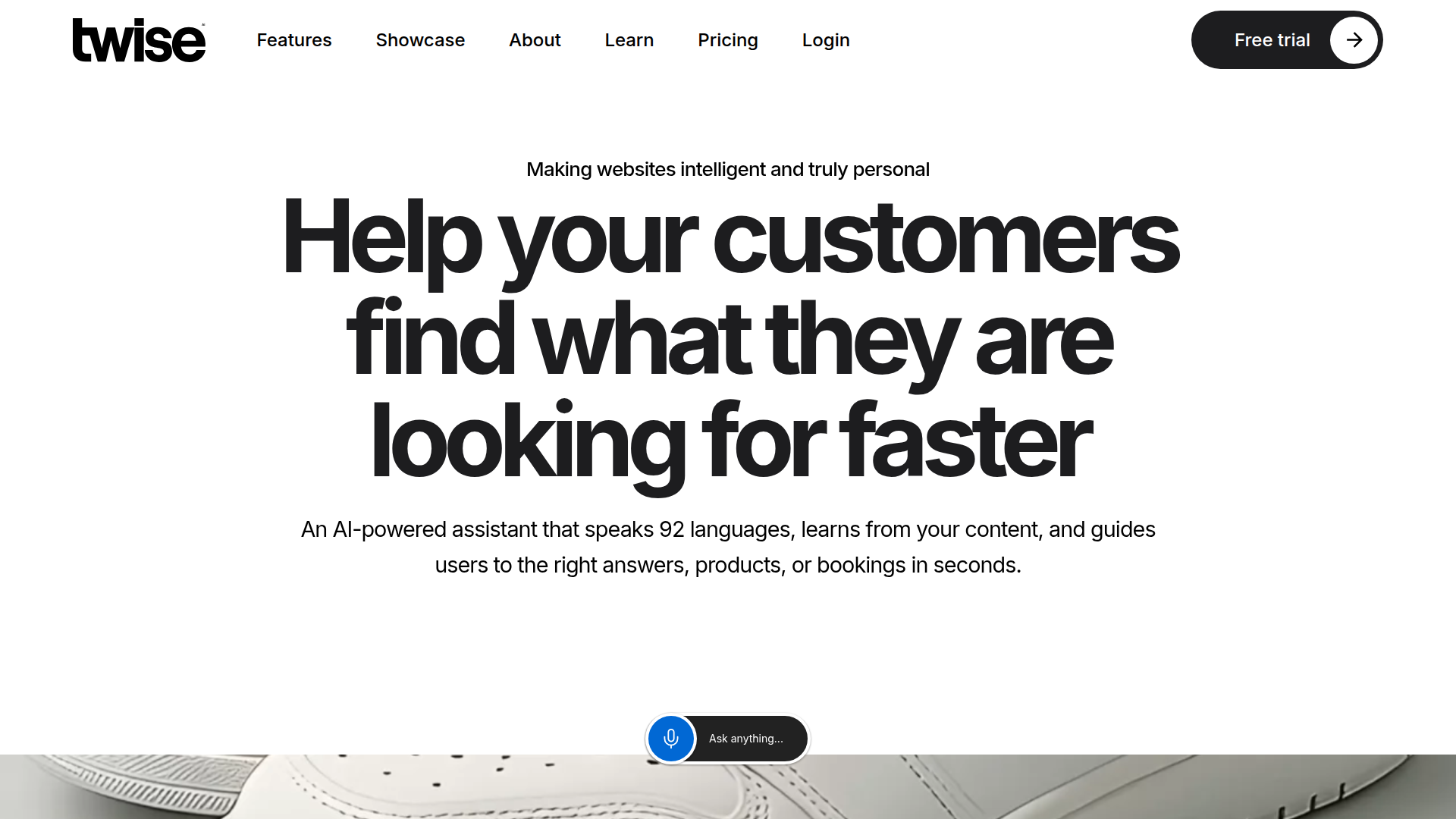
Teams use Twise and Webflow together when they need more than a contact form — specifically when they want to answer visitor questions automatically, qualify leads through conversation, or support international audiences without building out a multilingual support team.
The Twise-Webflow integration supports four approaches:
- The Twise app handles knowledge base setup, lead capture, and widget deployment without writing code.
- Code Embed elements let you add the Twise JavaScript widget or an iframe to specific pages or site-wide through Webflow's custom code settings.
- Zapier connects Twise lead events and knowledge card creation to Webflow CMS actions, form triggers, and order events.
- The Twise and Webflow APIs give you full control over knowledge base syncing and real-time CMS integration, but require server-side development and a Twise Enterprise plan.
Most implementations use the app combined with Zapier for lead routing.
Install the Twise app
The Twise app in the Webflow Apps Marketplace connects your site to an AI chat assistant without writing any custom code. It pulls your site's styles, logos, and content from key pages to generate an initial knowledge base automatically.
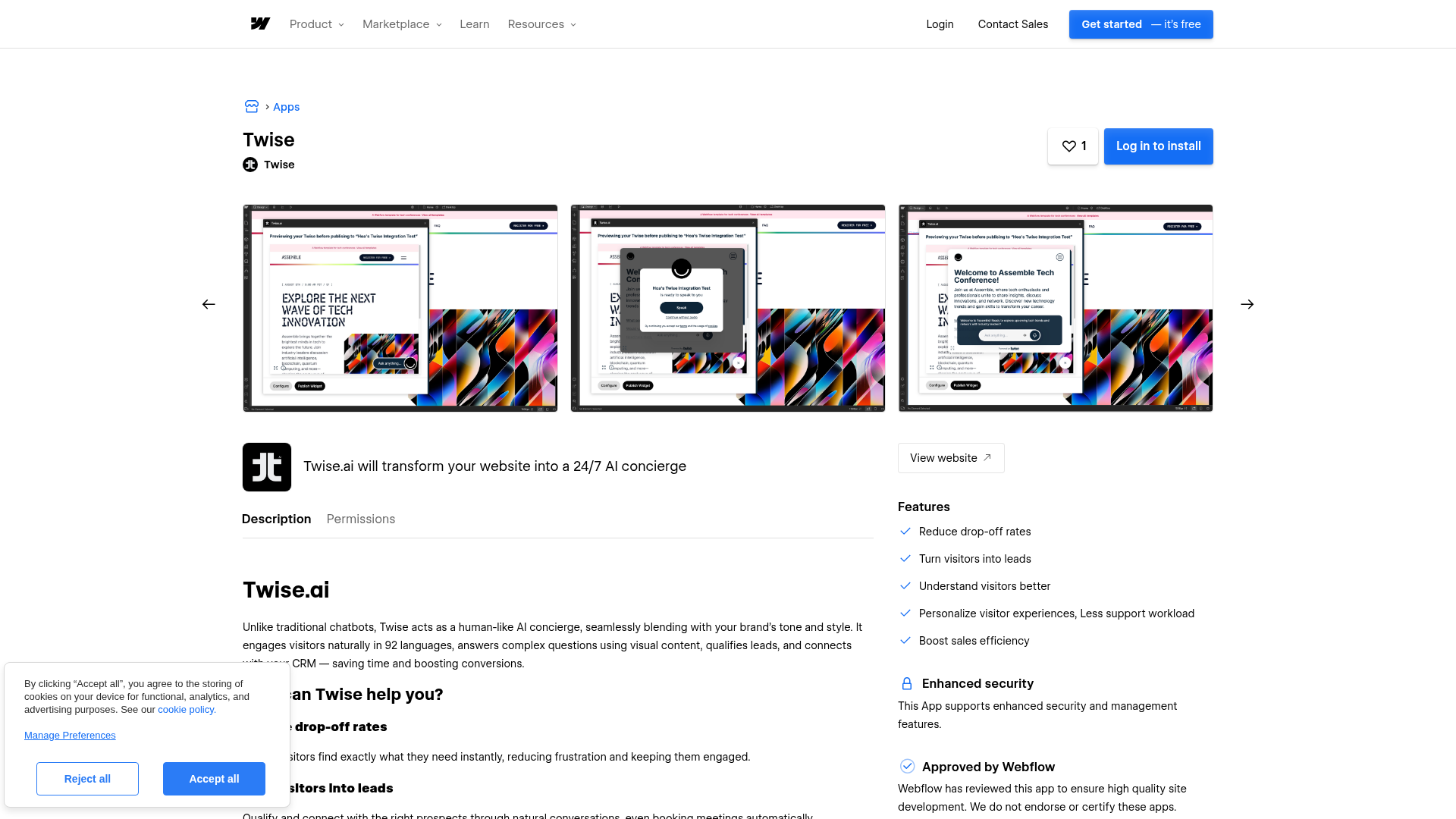
To set up the integration:
- Open Webflow, go to the Apps panel, search for Twise, and click Install
- Select your target site and authorize the required permissions
- Choose Create from website to generate knowledge cards from your existing content, or Create from scratch for manual configuration
- Expand the knowledge base by adding documents, videos, images, or additional page content through the Twise dashboard
The app covers the most common chat assistant use cases:
- Content learning: Generates knowledge cards from key pages during initial setup. Add more content from CMS collections, documents, videos, and images through the Twise dashboard.
- Lead capture and qualification: AI-driven conversations capture contact details and qualify leads, with CRM integration and Calendly meeting booking.
- 92-language support: International visitors interact in their preferred language without any additional configuration.
- Unanswered question tracking: Identifies content gaps so you can improve chatbot responses over time.
Twise is designed to reduce hallucinations by staying within the scope of your provided knowledge cards and documents, rather than drawing on general AI knowledge.
Embed the Twise widget or iframe
Code Embed elements give you more control over widget placement and appearance when the app's default position doesn't suit your layout. Twise offers two embed options through Webflow's custom code settings.
JavaScript widget embed
The JavaScript widget renders an overlay chat button that appears across your site. Add the widget script to your site's Head Code section in Site Settings → Custom Code. Activate the chat on any element by adding a data-twise custom attribute:
<button data-twise>Chat with AI Assistant</button>
To set custom overlay dimensions, add JavaScript variables before the widget script:
<script>
  var WIDTH = "1600px";
  var HEIGHT = "900px";
</script>
<script src="https://cdn.twise.ai/widget/v1/twise-widget.js" async></script>
Use the exact snippet and configuration options provided in your Twise admin dashboard under the Sharing tab — the examples above are illustrative and may differ from your account's widget code.
Iframe embed
For inline chat on a dedicated support or FAQ page, use a Code Embed element with your Twise-provided embed URL:
<iframe
  src="https://your-twise-instance.twise.ai/embed"
  width="100%"
  height="600"
  frameborder="0"
  allowfullscreen>
</iframe>
Replace the URL with your actual Twise embed URL from the Sharing tab in your Twise admin dashboard.
Connect with Zapier
Twise connects with Webflow through Zapier for automated lead routing and knowledge base management. Twise provides an official Zapier integration; other automation platforms such as Make and n8n are not officially supported and may require custom HTTP or webhook steps if used.
Available Zapier connections:
- Twise trigger — New Lead: Fires when Twise captures a lead. Pair with Webflow's Create Live Item action to add qualified leads to a published CMS collection automatically.
- Twise action — Create Knowledge Card: Accepts PDFs, images, text, videos, and events. Pair with Webflow's New Form Submission trigger to create knowledge base entries from customer questions.
- Webflow trigger — New Order: Pair with Twise's Create Knowledge Card action to document frequently purchased products and improve AI responses.
To authenticate Twise in Zapier, generate an API key in the Twise admin under Edit Twise → Integrations → Zapier. The key displays only once — save it before closing. No pre-built Zap templates exist specifically for Twise and Webflow, so you'll build custom Zaps from scratch.
CMS-related Webflow actions in Zapier require a CMS site plan. Reference and multi-reference fields cannot be mapped through Zapier.
Build with the Twise and Webflow APIs
Direct integration using the Webflow Data API and the Twise REST API lets you sync CMS content to the Twise knowledge base in real time and build programmatic lead routing beyond what Zapier covers. This path requires server-side development and a Twise Enterprise plan.
The Twise REST API is available at https://api3.twise.ai. Authentication uses custom headers — refer to your Twise API reference for the exact header names and values, as they are not fully documented publicly:
Twise-Auth-Provider: cli
Twise-Auth-Payload: {"token":"<your_api_key>"}
Generate your API key in the Twise admin under Edit Twise → Integrations → Zapier. It displays only once.
Key endpoints available through both APIs (verify Twise endpoint paths against your current API reference before implementation):
- Create content: Upload text content from Webflow CMS items to the Twise knowledge base using
multipart/form-datawith atext_contentfield - Update content: Sync knowledge base entries when CMS items change
- Delete content: Remove individual or batch entries when CMS items are deleted
- List CMS items:
GET /v2/collections/{collection_id}/itemson the Webflow API to fetch content for ingestion - Create webhooks:
POST /v2/sites/{site_id}/webhookson the Webflow API with event typescollection_item_created,collection_item_changed, andcollection_item_deleted
Both the Webflow API and the pattern of pushing CMS content to an external knowledge base via webhooks are well-established. The Twise-side endpoints are available to Enterprise customers — coordinate with Twise support if endpoint paths differ from the examples below.
To sync Webflow CMS content to the Twise knowledge base, set up Webflow webhooks for CMS item events. When a webhook fires, your middleware fetches the updated item and pushes it to Twise:
// Fetch items from a Webflow CMS collection
const response = await fetch(
  `https://api.webflow.com/v2/collections/${collectionId}/items`,
  {
    headers: {
      'Authorization': `Bearer ${webflowToken}`,
      'accept': 'application/json'
    }
  }
);
const { items } = await response.json();

// Send each item to the Twise knowledge base
// Verify the endpoint path against your current Twise API reference
for (const item of items) {
  const formData = new FormData();
  formData.append('text_content', item.fieldData.name + '\n' + item.fieldData.description);
  formData.append('is_public', 'true');

  await fetch(`https://api3.twise.ai/content/${twiseId}`, {
    method: 'POST',
    headers: {
      'Twise-Auth-Provider': 'cli',
      'Twise-Auth-Payload': JSON.stringify({ token: twiseApiKey })
    },
    body: formData
  });
}
This pattern works for CMS collections that feed the knowledge base, FAQ content that requires real-time synchronization, and product descriptions that change frequently.
What you can build with Twise Webflow integration
Integrating Twise with Webflow lets you add an AI chat assistant that answers visitor questions using your own content, qualifies leads through conversation, and handles international audiences without a dedicated support team.
- Multilingual travel booking assistant: Build a tourism site where the Twise chatbot answers destination questions in multiple languages, suggests itineraries, and books meetings through Calendly integration.
- E-commerce product discovery page: Add an AI assistant to a product catalog that guides shoppers through available options, answers sizing or availability questions, and captures lead details from prospective buyers.
- Automated support hub: Deploy a dedicated support page where a Twise iframe embed answers visitor questions using your site content, with unanswered questions logged to identify knowledge gaps over time.
- Lead qualification landing page: Build a service business landing page where Twise qualifies visitors through conversation, captures contact details, and routes qualified leads to CRM systems or sales teams through Zapier.
Frequently asked questions
When you install Twise and choose Create from website, it generates an initial set of knowledge cards from key pages on your site. You can then expand the knowledge base by adding documents (PDFs, text files), videos, images, and additional page content through the Twise dashboard. Twise also tracks unanswered questions to help identify content gaps over time.
Yes. Twise supports Zapier with a New Lead trigger and a Create Knowledge Card action. Pair these with Webflow's Zapier triggers and actions — such as New Form Submission, New Order, or Create Live Item — to route leads into CMS collections or turn form submissions into knowledge cards. CMS actions in Zapier require a Webflow CMS site plan.
No. The Twise REST API at https://api3.twise.ai is available exclusively to Enterprise plan customers. Authentication uses custom headers and an API key generated in the Twise admin under Edit Twise → Integrations → Zapier. If you're on a non-Enterprise plan, use the marketplace app, embed methods, or Zapier instead.
Yes. Twise pulls your site's styles and logos during setup, so the widget matches your brand by default. For further customization, use the widget snippet and configuration options in the Sharing tab of your Twise admin dashboard, including overlay dimension controls.
Description
Add an AI chat assistant to your Webflow site that answers visitor questions using your own content, qualifies leads, and supports 92 languages — no manual training required.
This integration page is provided for informational and convenience purposes only.

Superflow
Connect Superflow, a visual feedback and review tool, with Webflow to collect comments, annotations, and approvals directly on your published site.
Corner Ribbon
Connect Corner Ribbon with Webflow to add customizable promotional ribbons that highlight sales, announcements, and offers on your site.
Urgency Deal
Connect Urgency Deal with Webflow to encourage visitors to complete purchases before time runs out.
Smartarget Stories
Connect Smartarget Stories, a story-format content widget, with Webflow to display images and videos in a swipeable format for product announcements, promotions, and brand content.
Brandzway Reviews Photos and More
Connect Brandzway with Webflow to collect and display customer reviews with photo submissions on your e-commerce site.
Boosters
Connect Boosters with Webflow to add interactive features like GSAP animations, carousels, and improved forms without writing custom JavaScript.
Flowstar Sales Notification
Connect Flowstar Sales Notification with Webflow to display real-time purchase notifications on eCommerce sites.
Chat Everywhere
Connect Chat Everywhere to Webflow to help visitors connect to messaging platforms through a customizable floating button widget.
Chat Whisperer
Connect Chat Whisperer with Webflow to deploy automated chatbot responses using ChatGPT and Claude models.
Related integrations
Get started for free
Try Webflow for as long as you like with our free Starter plan. Purchase a paid Site plan to publish, host, and unlock additional features.
