











Add interactive product demos to Webflow sites using Storylane's iframe embed code and Webflow's Code Embed element.
Storylane generates iframe embed code for interactive product demos. Webflow provides the Code Embed element for adding custom code to sites. The Storylane-Webflow integration works through standard HTML iframe embedding with no API configuration required.
This guide covers embed code generation, Webflow implementation methods, analytics setup, and security controls for iframe-based demo embedding.
Integration architecture overview
Storylane uses iframe isolation for all embedded demos. Configuration happens in Storylane's editor before code generation. The embed code contains an iframe element and an async loader script (storylane.js).
Webflow renders the iframe within your site using the Code Embed element or site-wide custom code sections.
Architecture diagram:

The data flow follows this sequence: configuration in the Storylane editor, embed code with an iframe and the storylane.js script, Webflow renders the iframe on published pages, and analytics data is returned to theStorylane dashboard.
Storylane provides no client-side JavaScript API for runtime control. All customization occurs before copying the embed code.
Step 1: Create your Storylane account and demo
Before generating embed code, you need a Storylane account with at least one configured demo.
At a high level, you'll need to:
- Create an account at app.storylane.io/sign-up
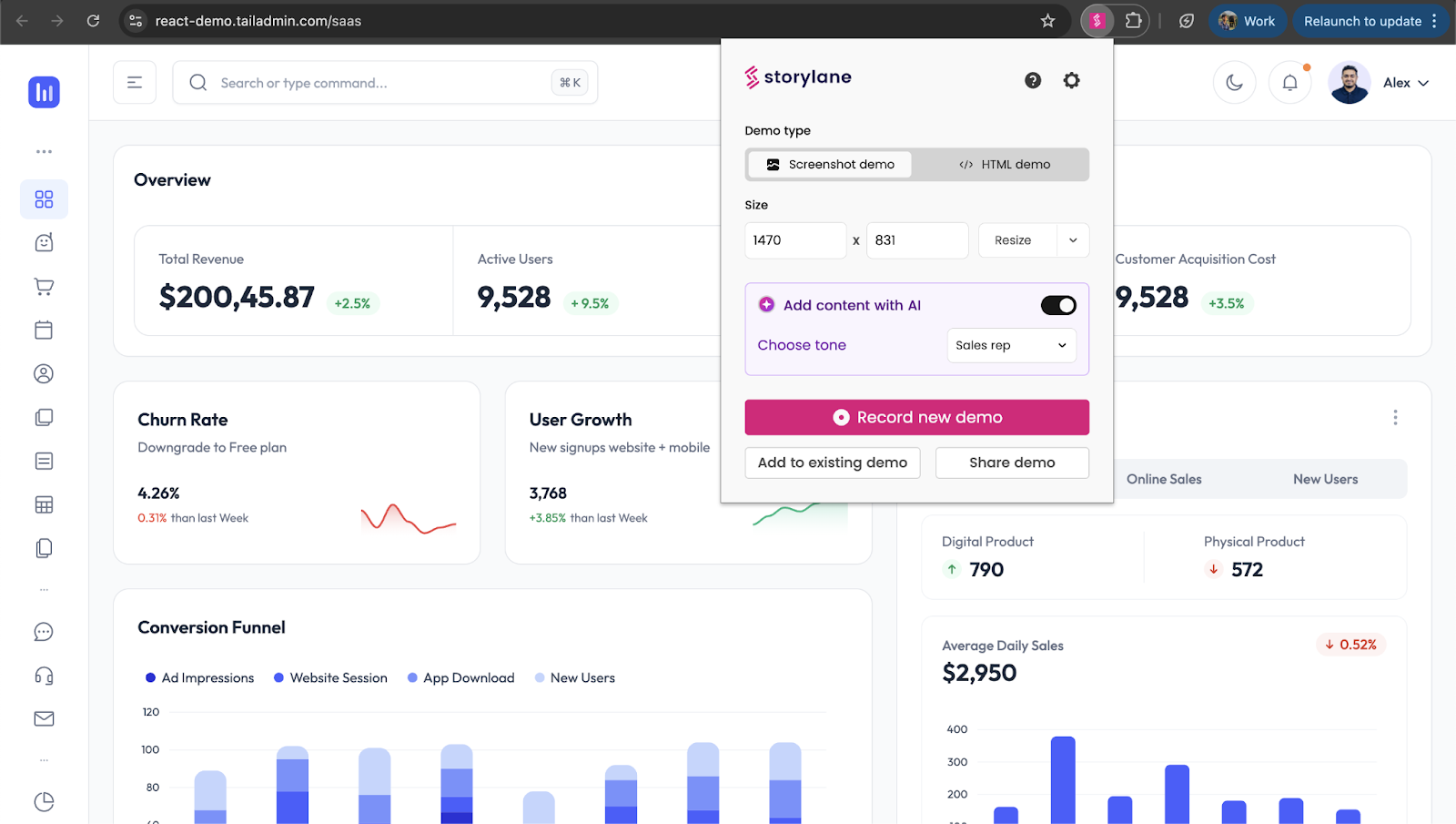
- Record your demo via Chrome extension, Figma plugin, Mac desktop app, or manual asset upload
- Configure settings in Storylane editor, and assign team members appropriate roles (Admin, Creator, or Presenter)
Step 2: Configure demo behavior in Storylane
All behavior customization happens in the Storylane editor before generating embed code. No runtime configuration is available after embedding.
At a high level, you'll configure:
- Autoplay settings (toggle, inactivity delay defaulting to 5 seconds, looping, speed control) via Demo Settings panel
- Layout mode (Cover expands with cropping, Fit scales with padding, Fill provides default balance) via Screenshot Editing interface
- Responsive behavior (enable auto-scale for different screen sizes, use popup embeds for mobile)
Step 3: Generate embed code from Storylane
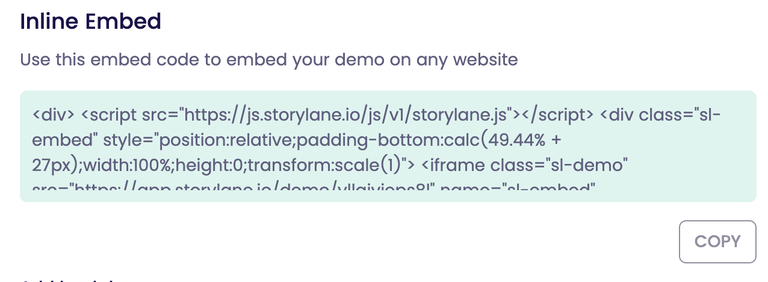
Storylane provides two embed formats. Each uses iframe-based rendering with different display modes.
Method 1: Inline embed
Inline embeds load immediately when the page renders. Optionally, you can display a preview with a button overlay configured via the data-sl-show-cta attribute.
Inline embed code:
<script async src="https://js.storylane.io/js/v2/storylane.js"></script>
<div class="sl-embed"
     style="position: relative; padding-bottom: calc(53.89% + 25px); width: 100%; height: 0; transform: scale(1)">
  <iframe loading="lazy"
          class="sl-demo"
          src="https://app.storylane.io/demo/[demo-id]"
          name="sl-embed"
          allow="fullscreen"
          allowfullscreen
          style="position: absolute; top: 0; left: 0; width: 100%; height: 100%; border: 1px solid rgba(63,95,172,0.35); box-shadow: 0px 0px 18px rgba(26, 19, 72, 0.15); border-radius: 10px; box-sizing: border-box;">
  </iframe>
</div>
Method 2: Popup embed
Popup embeds include a button that opens the demo in a full-screen overlay when clicked.
Popup embed code:
<script async src="https://js.storylane.io/js/v2/storylane.js"></script>
<div class="sl-embed" style="position: relative; width: fit-content;">
  <a class="sl-demo"
     href="https://app.storylane.io/demo/[demo-id]"
     data-sl-show-cta>
    <button style="padding: 10px 20px; background-color: #007bff; color: white; border: none; border-radius: 5px; cursor: pointer;">
      View Demo
    </button>
  </a>
</div>
Copy the complete embed code from your Storylane dashboard.
Step 4: Add embed code to Webflow
Webflow provides three methods for adding custom code. Each method suits different placement requirements.
Method 1: Code Embed element
The Code Embed element provides inline placement within page content. Access it from the Elements panel > Components > Embed. This method provides the most control over demo placement within your page layout.
Method 2: Page-specific custom code
Page-specific custom code applies to individual pages through Page Settings > Custom Code. Use this method when demos appear only on specific pages.
Method 3: Site-wide custom code
Site-wide custom code applies across all pages through Site Settings > Custom Code. Use this method when the same demo appears on multiple pages.
Custom code requires a paid Webflow plan (Core, Growth, Agency, Freelancer Workspace or active Site plan) and has a 50,000-character limit per section. Only HTML, CSS, and JavaScript are supported.
See Webflow's custom code documentation for complete constraints. Custom code appears only as placeholders in Designer preview mode. Test embeds on published or staging URLs.
Step 5: Verify the integration
Storylane embeds cannot be verified in Webflow's Designer preview mode. Designer shows placeholder elements for iframes, not functional embeds.
At a high level, verification requires:
- Publishing to your staging URL or production domain
- Opening browser developer tools to check for console errors
- Confirming the iframe loads and the demo responds to interaction
- Testing across devices if you've enabled responsive behavior
Use Webflow staging URLs for integration testing before deploying to production domains. If the embed fails to display, check code completeness, plan requirements, character limits, and syntax errors. The Webflow troubleshooting guide covers additional debugging steps.
Step 6: Configure analytics tracking
Storylane captures engagement data automatically through a three-tier system covering global metrics, single demo analytics, and session-level data.
At a high level, analytics integration involves:
- Reviewing metrics in the analytics dashboard (global, demo, and session levels)
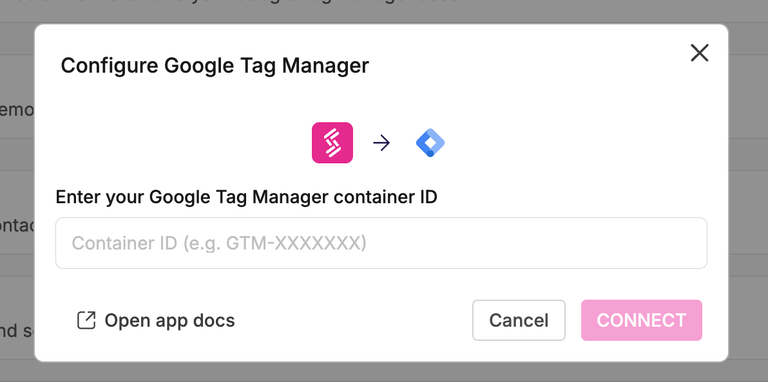
- Connecting analytics platforms (Google Analytics, GTM, or Segment) via the Storylane dashboard
- Configuring webhooks for custom analytics pipelines
Google Analytics integration
Google Analytics receives custom events (demo_opened, demo_finished, step_viewed) after you enter your tracking ID. See the GA integration guide for configuration details.

Google Tag Manager integration
Google Tag Manager transmits the same events plus completion milestones (10%, 25%, 50%, 75%, 100%). See the GTM integration guide for setup instructions.
Webhook integration
Webhooks stream events to custom endpoints configured in Settings > Integration. See Webhooks documentation for payload structure details.
UTM parameters from the hosting page URL are automatically captured and included in analytics data without additional configuration.
Step 7: Implement security controls
Cross-origin iframe embedding requires configuration at three layers depending on your security requirements.
At a high level, you'll need to:
- Configure Webflow CSP headers (Enterprise only) to whitelist https://app.storylane.io in your frame-src directive
- Set Storylane access controls, including password protection, link expiration, domain restrictions, or private access via protection settings
- Validate cross-origin message origins when implementing custom event handlers
Custom Content Security Policy headers are available only to Webflow Enterprise customers. Non-Enterprise users cannot configure custom CSP headers. The default Webflow configuration allows standard iframe embeds from any source.
For educational content with broad access, restrictions may not be needed. For internal training or gated content, domain restrictions and password protection provide access control.
Scale with Storylane API
Enterprise customers can access a backend REST API for programmatic workflows beyond manual embedding.
At a high level, the API enables listing published demos and generating personalized demo links, managing passcodes and expiration controls, and integrating with existing systems programmatically.
The backend REST API requires Bearer token authentication. This is a server-only API and does not provide client-side control over embedded demos. The Storylane API documentation does not publish specific rate-limiting thresholds. Consult Storylane support for Enterprise usage guidelines.
Reference documentation
Storylane resources
Webflow resources





































