






CMS Bridge
Connect CMS Bridge with Webflow to sync Airtable records to your CMS collections with record-level control over content states and publishing.

Webflow CMS works well for managing content directly in the browser. But when your content lives in Airtable, shared across teams, processed through formulas, filtered by views, you hit a wall. There is no native way to push Airtable records into Webflow CMS collections or pull Webflow items back into Airtable. You end up copying and pasting between tabs or building custom API scripts that need ongoing maintenance.
CMS Bridge by Finsweet solves that by connecting Airtable to Webflow CMS through a visual field-mapping interface. You choose a sync direction, link an Airtable View to a CMS collection, and map fields one-to-one. From Airtable, you control whether each record gets drafted, staged, published, archived, or deleted in Webflow, without opening the CMS editor.
This integration is built for content teams managing large datasets in Airtable, agencies running multi-client Webflow sites, and marketing operators who need to publish content without developer intervention. If you maintain product catalogs, editorial calendars, course listings, or event directories in Airtable and publish through Webflow, CMS Bridge removes the manual transfer step.
How to integrate CMS Bridge with Webflow
What is CMS Bridge? CMS Bridge is a data integration tool developed by Finsweet that syncs records between Airtable and Webflow CMS collections. It installs from the Airtable Marketplace, runs within the Airtable interface, and communicates with Webflow through stored API credentials. Each Connection links exactly one Airtable View to one Webflow CMS collection, with support for syncing in either direction, though true two-way sync in a single operation is not yet available.
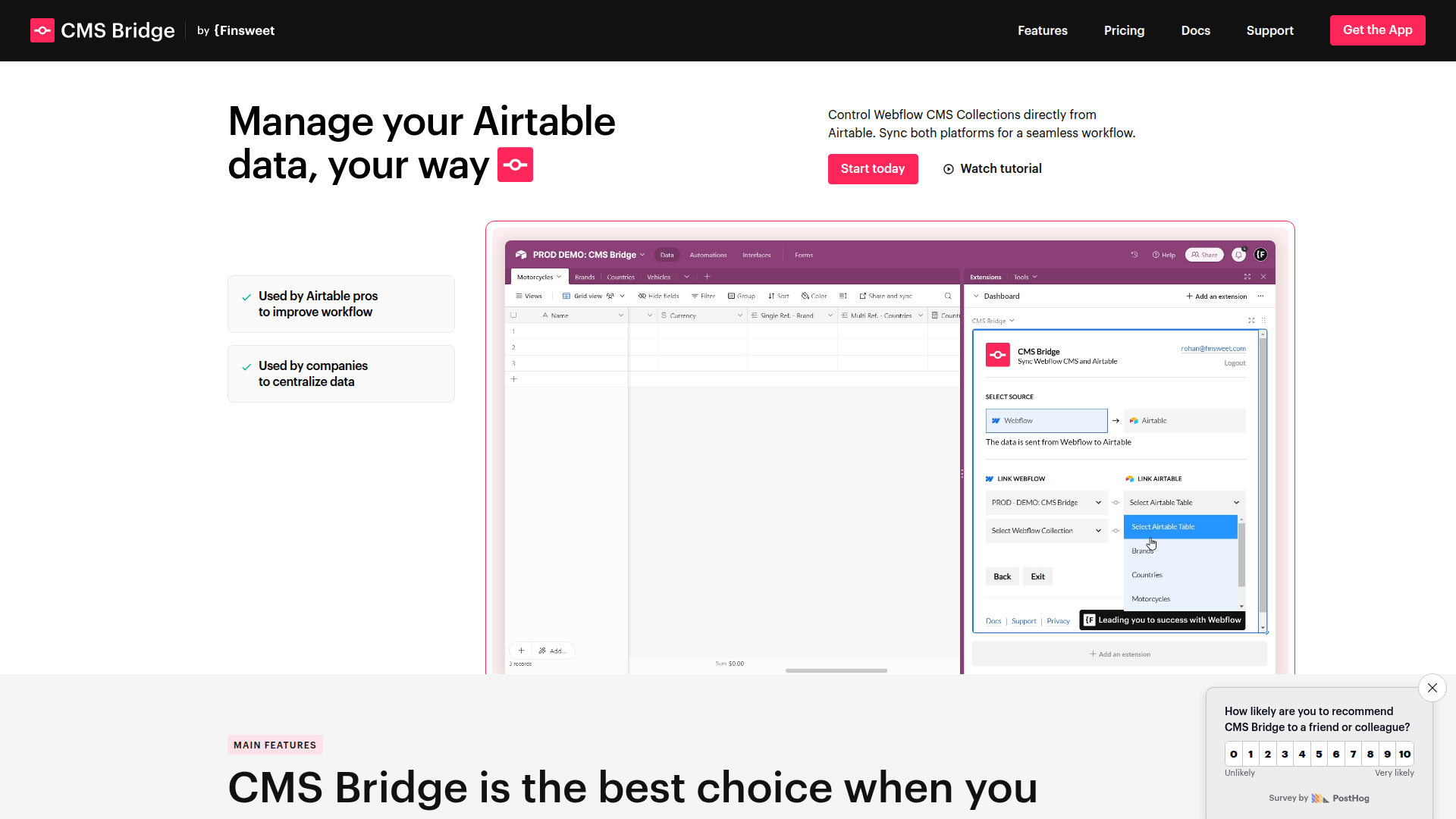
Content and marketing teams use CMS Bridge and Webflow together when Airtable is already the source of record for structured content (product descriptions, team bios, job listings, press releases), and publishing to Webflow requires too much manual effort to sustain. The integration gives Airtable-based workflows a direct path to the live site, with sync status and error reporting flowing back to Airtable for visibility.
The CMS Bridge-Webflow integration supports three approaches:
- The CMS Bridge app handles the core sync between Airtable and Webflow CMS through a visual field-mapping interface and manual sync triggers.
- Collection List elements with Finsweet Attributes let you display, filter, and sort synced CMS data on Webflow pages without writing JavaScript.
- The Webflow Data API v2 gives you direct access to CMS collections and items for building custom automation layers around CMS Bridge syncs.
Most teams start with the app for day-to-day content operations and add API-based workflows when they need webhook-driven automation or custom publishing logic.
Use the CMS Bridge app
The CMS Bridge app is available from the Airtable Marketplace and also has a Webflow Apps listing for discovery and permissions review. The app itself is installed and configured inside Airtable. It covers the core sync workflow without writing code:
- Syncing records from Airtable to Webflow CMS collections, or in the reverse direction
- Controlling CMS item states per record — draft, stage, publish, archive, or delete
- Running background syncs that process only records modified since the last sync
- Reporting errors back to Airtable through a per-record message field
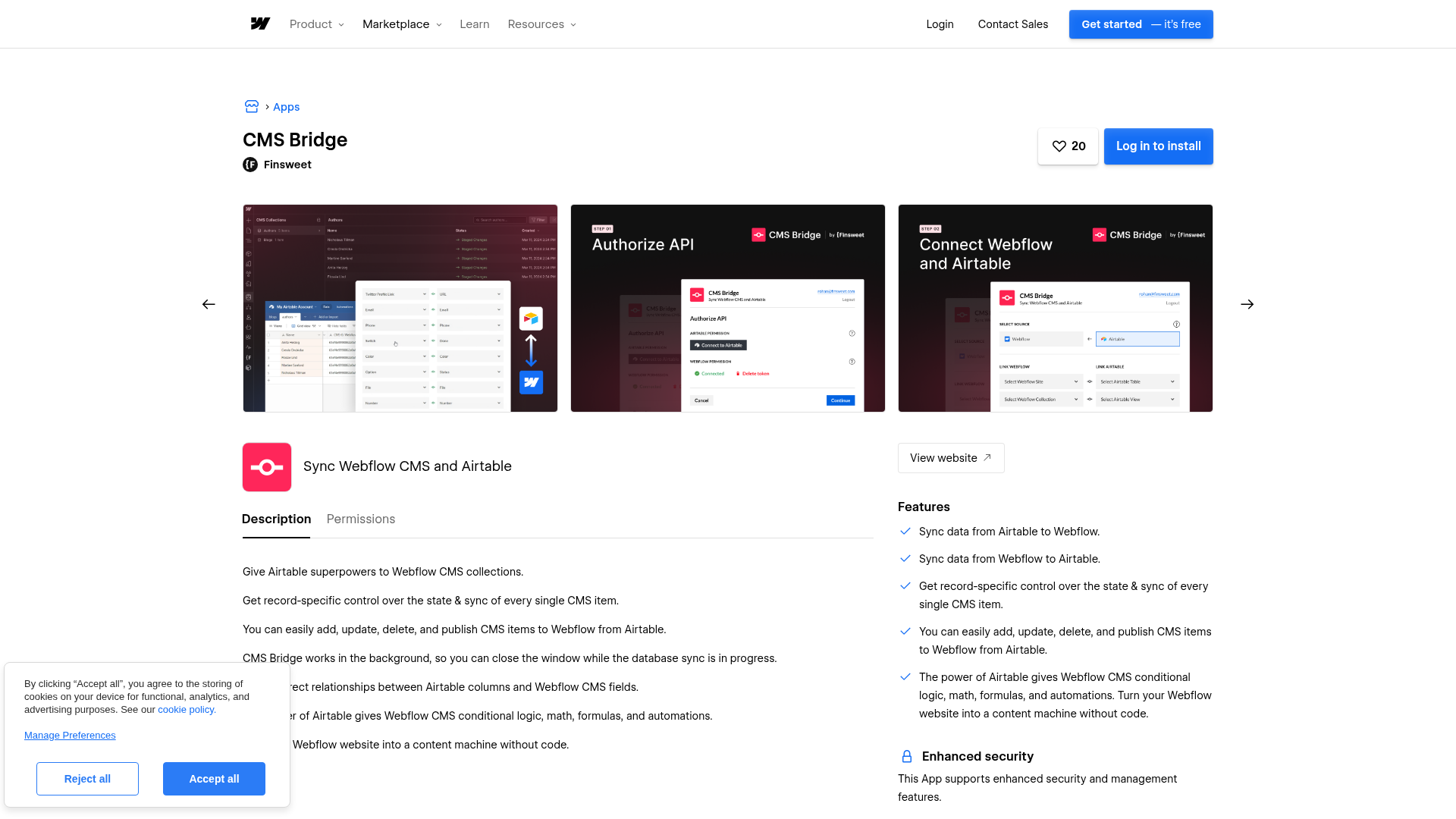
To set up the integration:
- Install CMS Bridge from the Airtable Marketplace, then review the Webflow Apps listing for required permissions
- Add a Single Line Text field named
record-idto each Webflow CMS collection and a Last Modified Time field to your Airtable table — both are required before creating a Connection - Create a Connection by selecting a sync direction, linking your Webflow site to an Airtable table, linking a CMS collection to an Airtable View, and mapping fields through the visual interface
- Control CMS item states from the auto-created CMS-B: Action field in Airtable — set each record to draft, stage, publish, archive, or delete
- Monitor sync status with color-coded indicators and check the CMS-B: Message field for per-record error details
CMS Bridge requires a paid Airtable plan — free Airtable does not support extensions — and a free Finsweet account for credential storage. The tool operates on a credit system: each record consumes one credit per sync if your Connection has 30 or fewer linked fields, and two credits if it exceeds 30.
Field mapping is the core configuration step that determines how data moves between platforms. Field type compatibility varies by sync direction. For Airtable to Webflow syncs, Single Line Text maps to Plain Text or Color fields, Long Text maps to Rich Text, Attachments map to Image or File fields, and Checkboxes map to Switch fields.
For Webflow to Airtable syncs, Plain Text maps to Single Line Text, Rich Text maps to Long Text, and Image maps to Attachment. Each field can only be linked once per Connection. If you need a single source field mapped to multiple destinations, duplicate the source field in Airtable as a workaround.
For existing projects that already have data in both Airtable and Webflow, follow the integration guide for existing projects before running your first sync. CMS Bridge mirrors data between platforms, which means any unmatched data gets deleted during a Database Sync. Back up both platforms before every sync, and use a dedicated Airtable View filtered to records marked ready to sync as your Connection source.
Display synced data with Collection List elements and Finsweet Attributes
Once your Airtable data is synced to Webflow CMS, you display it on pages using Collection List elements and optionally add client-side filtering with Finsweet Attributes. This approach requires no JavaScript writing — just element configuration in Webflow and a single script tag.
To set up filtering and sorting on synced content:
- Add a Collection List element to your page, select it, open Element settings, and bind CMS fields to page elements using the Collection List documentation
- Add the Finsweet Attributes script to your page using a Code Embed element, or add it site-wide in Site settings > Custom code:
<script async type="module" src="https://cdn.jsdelivr.net/npm/@finsweet/attributes@2/attributes.js" fs-list></script>
- Apply
fs-cmsfilter-elementandfs-cmsfilter-fieldcustom attributes to elements in Webflow's custom attributes panel — the Finsweet Attributes filtering documentation covers attribute naming conventions and setup
The synced CMS data renders through standard Webflow Collection List elements, so your site's visual design stays intact. This gives content teams a way to publish filterable, sortable directories without building custom JavaScript.
Build with the Webflow Data API
The Webflow Data API v2 gives you direct access to the same CMS endpoints CMS Bridge uses internally. For teams that need custom automation layers — triggering actions when CMS items change, building publishing workflows beyond what CMS Bridge offers natively, or handling bulk operations at scale — the API provides full control.
All endpoints use Authorization: Bearer {access_token} headers with the base URL https://api.webflow.com/v2. Key endpoints for CMS workflows include:
- List Collections:
GET /v2/sites/{site_id}/collectionsto discover collection IDs and field schemas (requirescms:readscope) - Create Items:
POST /v2/collections/{collection_id}/itemsto add staged CMS items, orPOST /v2/collections/{collection_id}/items/bulkto create up to 100 items per request - Update Items:
PATCH /v2/collections/{collection_id}/itemsto batch update up to 100 items per request - Publish Items:
POST /v2/collections/{collection_id}/items/publishto move staged items live - Delete Items:
DELETE /v2/collections/{collection_id}/items/{item_id}to permanently remove CMS items
Bulk endpoints are important for staying within rate limits on large syncs. Creating 1,000 items individually takes over 8 minutes on a CMS plan (120 RPM); batching them into groups of 100 takes seconds.
Register webhooks for real-time CMS change detection
CMS Bridge syncs are triggered manually — there is no auto-sync feature yet. If you need to react to Webflow CMS changes in real time, you can register webhook listeners using the Webflow API and build custom handlers that trigger downstream updates.
To register a webhook:
- Create a webhook with
POST /v2/sites/{site_id}/webhooks(requiressites:writescope) - Subscribe to CMS-specific events:
collection_item_created,collection_item_changed,collection_item_deleted, andcollection_item_published, all documented in the webhook events reference - Validate incoming webhook requests using the
x-webflow-signatureandx-webflow-timestampheaders
{
  "triggerType": "collection_item_changed",
  "url": "https://your-endpoint.com/webhook-handler"
}
You can register up to 75 webhooks per trigger type per site, with a maximum of 3 delivery attempts per event.
What you can build with CMS Bridge Webflow integration
Integrating CMS Bridge with Webflow lets you manage and publish Airtable-driven content at scale without copying data between platforms or writing sync scripts.
- Filterable resource directories: Build a searchable partner directory, job board, or knowledge base where content editors manage listings in Airtable and sync them to Webflow CMS. Combine Collection List elements with Finsweet Attributes for client-side filtering by category, location, or status — all without custom JavaScript.
- Multi-site content distribution from a single source: Maintain one Airtable table as the source for product descriptions, team bios, or press releases that publish across multiple Webflow sites. Map different Airtable Views to different CMS collections or sites using separate Connections.
- Editorial publishing workflows with approval gates: Set up an Airtable base where writers draft content and editors review it, then set the CMS-B: Action field to publish for approved pieces. The sync pushes only approved records to Webflow, keeping drafts and in-review content off the live site.
- Large-scale product catalogs with batch updates: Manage hundreds or thousands of product records in Airtable with formulas for pricing, categorization, and inventory status. Use the batch sync feature to push updates to Webflow CMS collections significantly faster than individual item syncs, then display them through Collection List elements with sorting and filtering.
For workflows that need real-time automation beyond manual sync triggers, the Webflow Data API v2 provides direct webhook registration and bulk item operations to extend what CMS Bridge handles natively.
Frequently asked questions
No. All syncs must be triggered manually from the Airtable extension interface. Auto-sync is listed as not yet available in the CMS Bridge documentation. CMS Bridge uses an incremental sync approach. It targets only records whose Last Modified Time field changed since the last sync, which reduces credit consumption but still requires a manual trigger.
CMS Bridge syncs are constrained by your Webflow plan's item limits. The CMS plan supports 2,000 items, and the Business plan supports 10,000 items across all collections. Syncs that would exceed your plan's total item count will fail. Check current plan limits on the Webflow pricing page.
CMS Bridge does not support Webflow Localization, Webflow eCommerce, or Webflow Memberships. Rich Text syncing from Webflow to Airtable also has limitations: H4 through H6 headings, images, videos, and code blocks within Rich Text fields do not transfer.
Description
Sync Airtable records to Webflow CMS collections with record-level state control.
This integration page is provided for informational and convenience purposes only.

Anthropic Claude
Webflow's Model Context Protocol (MCP) server connects Claude AI directly to your site's CMS, Designer APIs, and data layer.

ChatGPT
Direct API integration provides complete control over AI functionality compared to pre-built solutions, enabling custom conversation flows, context management, and advanced processing patterns that aren't possible through standard embeds.

Xano
Connect your Webflow site to a powerful no-code backend platform that handles databases, APIs, and business logic — all without writing server-side code.

Zapier
Connect Zapier's powerful automation platform with Webflow to streamline workflows, sync data across 8,000+ apps, and eliminate manual tasks. Transform your website into an automated hub that captures leads, processes orders, and updates content without writing code.

Smartarget Contact Us
Connect Smartarget Contact Us with Webflow to add a floating multi-channel contact widget that lets visitors reach you on WhatsApp, Telegram, email, and 12+ messaging platforms.
Osmo SVG Import
Connect Osmo SVG Import with Webflow to add fully editable SVG elements to your site without character limits or manual code editing.
Telegram Chat - Contact Us
Connect Telegram Chat - Contact Us to your Webflow site to add a floating Telegram chat widget that lets visitors message you directly from any page.
Form Fields Pro
Connect Form Fields Pro with Webflow to add advanced input types, including searchable selects, date pickers, number range pickers, and file uploaders, to native Webflow forms.
Vault Vision User Authentication
Connect Vault Vision with Webflow to add passwordless login, social sign-in, and per-page access control to any Webflow site without backend code.
Related integrations
Get started for free
Try Webflow for as long as you like with our free Starter plan. Purchase a paid Site plan to publish, host, and unlock additional features.
