






Cookie Consent
Connect Cookie Consent, a GDPR and CCPA compliance app, with Webflow to add configurable cookie banners that block third-party scripts until visitors make a consent choice.

Webflow handles design and publishing well. What it does not include is a consent management layer: no mechanism to block tracking scripts until visitors agree, no geo-targeted banner logic, and no consent log for compliance auditing.
When you add Google Analytics, Meta Pixel, or other tracking scripts to a Webflow site, those scripts load immediately on page load unless a consent layer intercepts them. That violates GDPR opt-in requirements for EU visitors and creates opt-out obligations under CCPA for US visitors. A consent tool sits between your site and those scripts, holding them until the visitor makes a choice.
Connecting Cookie Consent with Webflow adds that layer through a Marketplace app that installs without custom code. You configure geo-targeting, script blocking, and banner appearance inside Webflow itself, no external dashboard required.
How to integrate Cookie Consent with Webflow
What is Cookie Consent? Cookie Consent is a Webflow Marketplace app by FlowAppz that adds cookie consent popups to Webflow sites. It supports GDPR and CCPA compliance with geo-targeted banners, automatic third-party script blocking, and ready-made templates. All visual customization happens inside Webflow.
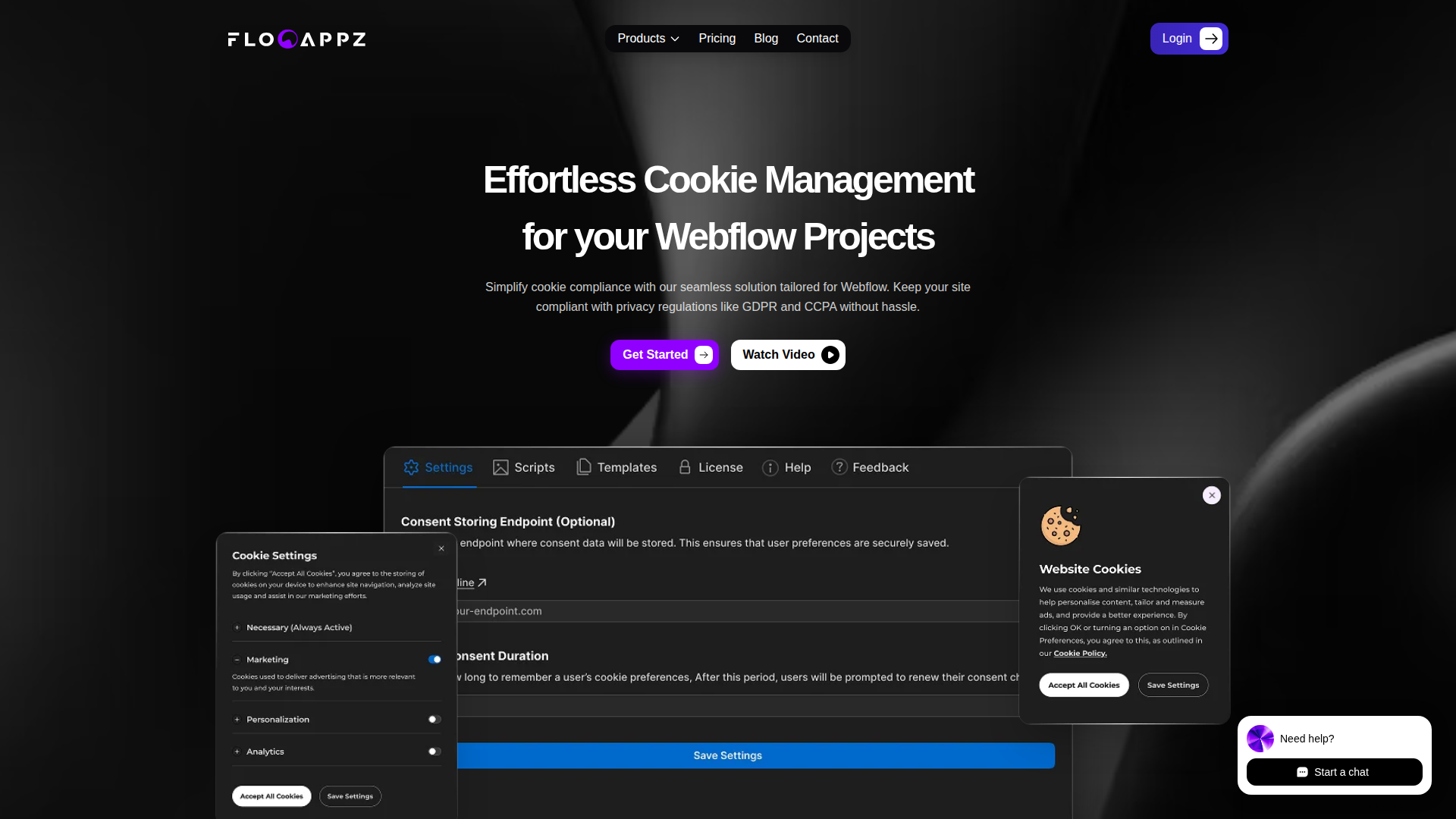
Marketing, legal, and agency teams use Cookie Consent and Webflow together when they need to meet privacy requirements without building consent infrastructure from scratch, specifically when they want to block tracking scripts by region, preserve analytics attribution, and customize the banner to match their site's design.
The Cookie Consent–Webflow integration supports three approaches:
- The Cookie Consent app handles banner display, script blocking, geo-targeting, and visual customization without writing code.
- Code Embed elements let you add consent-related components, such as a cookie declaration table or a preferences button, to specific pages.
- Webflow's Browser and Data APIs give you full control over consent state, conditional script loading, and multi-site deployment, but require client-side or server-side development.
Most implementations rely on the Cookie Consent app alone, reaching for Code Embed or API methods only when the app does not cover a specific requirement.
Install the Cookie Consent app
The Cookie Consent app in the Webflow Apps Marketplace connects your site to a consent management layer without writing any code. It covers the most common compliance use cases:
- Displaying geo-targeted banners for GDPR and CCPA
- Blocking third-party scripts until consent is granted
- Customizing banner appearance using Webflow's design tools
- Tracking consent rates and monitoring the consent log
- Configuring cookie categories and consent expiration

To set up the integration:
- Open your project in Webflow and click the Applications panel in the left sidebar
- Search for Cookie Consent, then click Install on Site and select your site or workspace
- Authorize the app to grant access to custom code, page data, and site data
- Hover over the app in the Applications panel and click Launch to open the configuration interface
- Select a template, configure cookie categories, expiration settings, and region targeting
- Add tracking scripts (Google Analytics, Google Tag Manager, Meta Pixel) inside the app's settings so they load only after consent
- Style the banner using Webflow's standard design tools to match your site
- Publish your site and verify the banner appears on the live domain
The app includes geo-targeting that shows strict opt-in banners to EU visitors and lighter opt-out notices to US visitors, handling both regulations from a single configuration. Script blocking prevents third-party trackers from firing until a visitor makes a choice. A free plan is available, with paid tiers for production use.
The banner does not render in Webflow's preview environment. Always test consent behavior on the published site, either on your staging .webflow.io domain or the production URL.
Add consent elements with Code Embed elements
Code Embed elements let you add consent-related components, such as a cookie declaration table or a button that reopens consent preferences, to individual pages. Use this approach when you need a page-specific consent element that the app's banner does not cover.
All custom code methods require a paid Webflow site plan. The free Starter plan does not support script injection.
Inject consent-related code site-wide
Adding custom code in head and body tags applies it across every page. Use this to support site-wide consent behavior alongside Cookie Consent, for example, adding a consent signal to a data layer or conditionally loading scripts based on consent state.
To add site-wide code:
- Prepare the code you want to inject
- In Webflow, go to Site settings > Custom code
- Paste the snippet into the Head Code section if it must load before other scripts
- Click Save changes, then publish your site
Any tracking script placed above consent logic may fire before consent is collected. Place consent-related code as the first entry in the head to reduce that risk.
Place consent elements on specific pages
Use a Code Embed element to add consent-related content to a single page, such as a cookie declaration table generated by the Cookie Consent app or a "reopen preferences" button.
To add a Code Embed for consent content:
- Copy the widget code you want to place on the page
- Open the page in Webflow and add a Code Embed element to the canvas where the consent content should appear
- Paste in the custom code and save
Do not include \<html>, \<body>, or \<head> tags inside a Code Embed element. This method applies only to the page where the element is placed.
Build a native consent banner with Webflow interactions
You can create a consent popup using Webflow's native interactions system if you want full design control over the banner rather than using the app's templates. This approach requires adding consent logic code separately.
To trigger a consent popup with interactions:
- Design the consent banner as a hidden element on your page with Accept and Decline buttons
- Open the Interactions panel, click the Page trigger plus icon, and choose Page load
- Set the animation to show the consent popup when the page starts loading
- Repeat the page trigger setup on every page where the banner should appear
- Add the consent logic code using Webflow's allowUserTracking and denyUserTracking Browser APIs in Site settings > Custom code > Footer code
Select the popup wrapper element when adding animation actions, not the banner element itself. This method suits teams comfortable with JavaScript who want banner behavior distinct from the app's templates.
Build with Webflow's consent APIs
The FlowAppz Cookie Consent app does not expose a public API or webhooks. For programmatic consent management (checking consent state in the browser, registering scripts across multiple sites, or storing consent records), Webflow provides its own Browser and Data APIs. These are separate from the Cookie Consent app and require development work.
Webflow's consent-related APIs cover three areas:
- The Webflow Browser API exposes client-side methods for checking and setting consent state
- The Webflow Data API custom code endpoints handle script registration across sites via server-side calls
- Webflow webhooks trigger real-time events that can support broader consent-related workflows
Custom code endpoints require OAuth app authentication. Site tokens do not grant access to these endpoints.
Check and set consent state with Browser APIs
Webflow's Browser API exposes three methods for managing consent on the client side. Use these to build a custom consent modal or connect a custom Webflow experience to consent state.
To implement client-side consent management:
- Call wf.getUserTrackingChoice() on page load to check whether the visitor has already made a consent choice
- If no choice exists, display a consent modal; wire the Accept button to allowUserTracking and the Decline button to denyUserTracking
- Conditionally load tracking scripts based on the returned consent state
These are client-side methods only, no server, OAuth token, or API key is required. They gate only Webflow's own tracking tools. Third-party scripts need separate blocking logic, either through the Cookie Consent app or by delaying script execution until consent is confirmed.
Deploy consent scripts across multiple sites
Agencies managing multiple Webflow client sites can use Webflow's Data API custom code endpoints to register and update consent scripts programmatically without editing each site's settings manually.
To register a consent script via the API:
- Authenticate with an OAuth Bearer token that has the custom_code:write scope
- Send a POST request to /v2/sites/:site_id/registered_scripts with the hosted script location, integrity hash, version, and display name
- Repeat for each managed site using the site IDs returned from GET /v2/sites
- Publish each site via POST /v2/sites/:site_id/publish to apply the changes
The Data API supports up to 800 registered scripts per site.
Store consent records in the Webflow CMS
For compliance auditing, you can write consent records to a Webflow CMS collection using the Data API. This requires a server-side process since CMS write operations use protected access tokens.
To store consent data:
- Capture consent choices on the client side from your site experience
- Send the consent data (categories accepted, timestamp, user identifier) to your server endpoint
- Write the record to a Webflow CMS collection via POST /collections/{collection_id}/items with the cms:write scope
This creates an auditable consent log inside the Webflow CMS. CMS item limits vary by Webflow plan, so review current plan limits when planning your retention strategy.
What you can build with Cookie Consent Webflow integration
Integrating Cookie Consent with Webflow lets you meet GDPR and CCPA requirements across your site without building consent infrastructure from scratch.
- Region-aware e-commerce compliance: Build a Webflow store that shows strict opt-in banners to EU visitors and lighter CCPA opt-out notices to US shoppers, keeping retargeting pixels like Meta and Google Ads firing only after consent so attribution data stays accurate.
- Analytics-gated marketing sites: Create a landing page where Google Analytics, Hotjar, and HubSpot tracking scripts load only after visitors accept cookies, preserving data quality for marketing teams while meeting consent requirements for each tool.
- Multi-client agency consent management: Deploy consent banners across client Webflow sites with consistent branding per client, using the Marketplace app for visual customization and Webflow's Data API for script registration and deployment workflows at scale.
- Consent-aware lead capture forms: Build lead generation pages where form submissions include consent metadata, so CRM integrations only receive contact data from visitors who have explicitly opted into tracking and data collection.
For more control over consent record storage, multi-site script deployment, or conditional script blocking logic, Webflow's APIs support a broader implementation alongside Cookie Consent.
Frequently asked questions
No. Webflow does not ship with a native consent management feature. Displaying a consent banner, blocking third-party scripts, and storing user consent choices all require either a Marketplace app like Cookie Consent or a custom implementation. Webflow does provide client-side Browser APIs that expose allowUserTracking and denyUserTracking methods, but these gates only Webflow's own tracking tools and are described as a starting point rather than a complete compliance solution.
This is a real risk on Webflow sites. Scripts placed in Site settings > Custom code > Head Code load immediately on page load. If tracking scripts appear above consent logic in that section, they may execute before the banner collects a visitor's choice. Place consent-related code as the first entry in head code to reduce that risk. Webflow does not enforce script execution order at the platform level.
Yes. The Cookie Consent app by FlowAppz provides ready-made templates and supports visual customization directly in Webflow. Unlike tools that require styling in an external dashboard, changes to the Cookie Consent banner are made using Webflow's standard design tools alongside the rest of your site. The banner will not appear in Webflow's preview environment; always verify appearance on the published site.
The site owner is responsible. Webflow acts as a data processor and fulfills its own legal obligations under GDPR, while the customer holds separate compliance obligations. Webflow's developer documentation for consent management includes a disclaimer that its consent examples may not fully comply with all privacy laws, and that site owners must validate their implementation against applicable legal requirements.
Description
Add customizable GDPR and CCPA cookie consent banners to Webflow sites through the Cookie Consent Marketplace app or custom code, with visual styling handled directly in Webflow.
This integration page is provided for informational and convenience purposes only.

Countdown Bar Timer
Connect Countdown Bar - Timer with Webflow to add urgency-driven countdown timers to landing pages, product pages, and sitewide promotions.
Smartarget Reviews
Connect Smartarget Reviews with Webflow to display curated customer testimonials and star ratings on your site without building a review system from scratch.
TripleChecker
Connect TripleChecker, an automated proofreading tool, with Webflow to scan your published site for spelling errors, grammar mistakes, and broken links on a recurring schedule.
Gemini
Connect Google Gemini to Webflow to add AI text generation, image analysis, and automated content pipelines to your site.
Algolia
Connect Algolia with Webflow to add real-time search, faceted filtering, and content discovery to CMS-driven sites.
Datadog
Connect Datadog with Webflow to monitor real user performance, track frontend errors, and run synthetic uptime checks on your published site.
Braintrust
Connect Braintrust with Webflow to monitor AI-powered features on your site and sync evaluation data into your CMS.
Sentry
Connect Sentry with Webflow to monitor JavaScript errors, track performance, and replay user sessions on your published site.
Graphite
Connect Graphite with Webflow to audit and optimize your site for SEO and AEO using the Graphite app, CMS templates, and the Webflow CMS API.
Related integrations
Get started for free
Try Webflow for as long as you like with our free Starter plan. Purchase a paid Site plan to publish, host, and unlock additional features.
