






Icon Drop
Connect Icon Drop with Webflow to search, insert, and manage 20,000+ open-source SVG icons directly inside the Designer, no code or external tools required.

Webflow projects need icons for navigation, feature sections, CTAs, and UI feedback. Searching external repositories, downloading SVGs, and uploading assets adds steps that slow down every build.
What is Icon Drop? Icon Drop puts icons from 8 open-source libraries directly inside Webflow, removing the export-upload cycle. Icons insert as native SVG elements with color editing, path targeting for animation, interaction support, and cross-project sharing.
How to integrate Icon Drop with Webflow
Icon Drop is a native Webflow Designer application — not an embed, script, or API integration. You install it from the Webflow App Marketplace and authorize access. From there, you can search, preview, and insert over 20,000 icons from libraries like Heroicons, Tabler, and Phosphor without leaving Webflow.
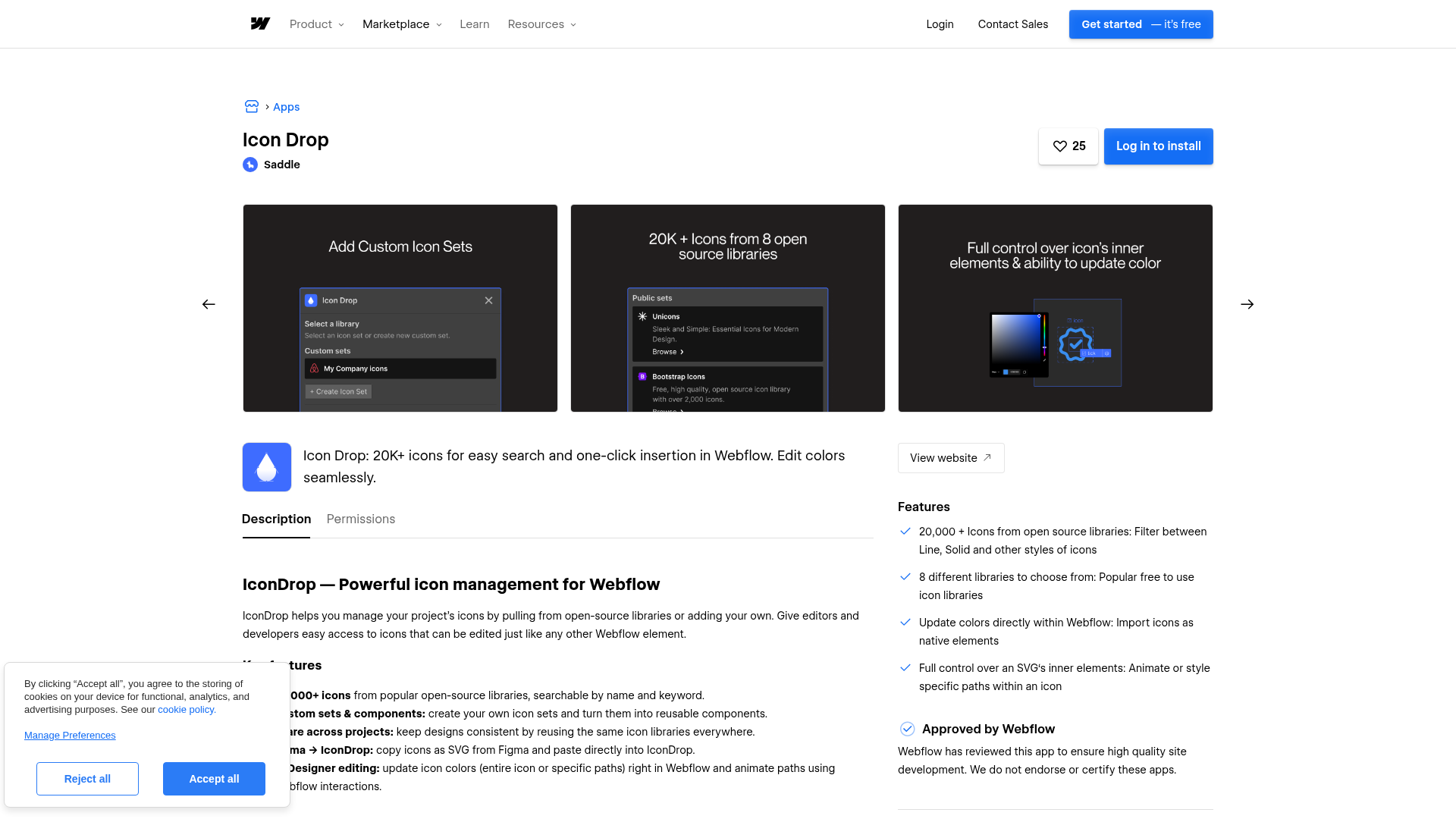
Icon Drop is most useful for designers and developers who want to keep icons consistent across builds without managing external asset libraries. Because icons land on the canvas as standard Webflow SVG elements, they respond to Webflow's styling controls, interaction system, and component workflow without custom code.
The integration works through one method: the Icon Drop app in the Webflow App Marketplace.
Install the Icon Drop app
Icon Drop is available as a free app on the Webflow App Marketplace. After installing, the app adds a panel inside Webflow. From this panel, you search, preview, and insert icons across 8 libraries: Heroicons, Feather Icons, Phosphor Icons, Tabler Icons, Lucide, Boxicons, Bootstrap Icons, and Iconoir.
To install:
- Visit the Icon Drop marketplace listing and click Add to site
- Select the Workspace and sites that should have access
- Click Authorize application
- Open Webflow, hover over Icon Drop in the Apps panel, and click Launch
Once the app is active, you can:
- Search and filter icons by keyword and style (line, solid, or library-specific variations) across the icon library
- Insert icons with one click as SVG elements that respond to Webflow's styling controls
- Edit SVG colors and target individual paths directly inside Webflow without writing code
- Animate individual SVG paths using Webflow's native interactions and animation system
- Create custom icon sets to organize project-specific icons and share them across multiple Webflow sites
- Add your own SVG icons to import existing brand icon collections
- Copy icons from Figma using Icon Drop's SVG import workflow for design-to-Webflow handoff
- Convert icons to Webflow components for reusable elements with global updates
Icons insert as standard Webflow elements. They respond to color controls, path targeting, and the interaction system without custom code.
Build animated icon interactions
Icon Drop icons support animation through Webflow's interaction system because they insert as SVG elements with accessible inner paths. You can trigger animations on hover, click, or scroll and target specific SVG paths within a single icon.
- Apply hover state color changes to icon elements using Webflow's interaction system
- Create scroll-triggered icon animations by integrating with Webflow's scroll interactions
- Build multi-step animations using Webflow's timeline feature for icon SVG elements
Select an inserted icon element and open the Interactions panel. Add animation steps targeting the SVG or its child paths using Webflow's standard animation controls.
Manage cross-project icon libraries
For agencies and teams managing multiple Webflow sites, Icon Drop supports shared icon sets that stay consistent across projects. Create a custom set once, and any authorized team member can access it across projects.
- Build client-specific icon collections that match brand guidelines
- Share icon libraries across team members on the same or related projects
- Add an entire SVG icon family to avoid one-by-one imports
- Maintain a single source of truth for iconography across a multi-site design system
What you can build with Icon Drop Webflow integration
Integrating Icon Drop with Webflow gives you direct access to searchable, styleable SVG icons inside Webflow, with full support for animations, reusable components, and cross-project design systems.
Here's what's possible:
- Feature sections with animated icons: Build product or service pages where each feature card uses a Tabler or Phosphor icon, animated with Webflow interactions to shift colors or draw paths on scroll.
- Navigation systems with consistent iconography: Create header menus, mobile navbars, and sidebar navigation from a shared Icon Drop icon set, kept visually consistent across the site with reusable components.
- Icon-driven landing pages: Build pricing tables, comparison grids, and benefit lists where each row uses a consistent SVG icon from Icon Drop, styled and sized directly in Webflow.
- Client-ready design systems with reusable icon components: Set up a cross-project icon library by creating a custom icon set in Icon Drop and converting icons into Webflow components. Clients can swap or reuse icons through Webflow's component system.
Frequently asked questions
Visit the Icon Drop listing on the Webflow App Marketplace and click Add to site. Select your Workspace and authorize the app. Once installed, open any project in Webflow. Find Icon Drop in the Apps panel and click Launch. The Webflow Apps overview covers the general app installation process for more detail on Workspace permissions.
Icon Drop provides access to 8 open-source icon libraries: Heroicons (~316 icons across 4 styles), Feather Icons (287 icons), Phosphor Icons (multiple weight variations), Tabler Icons (6,000+), Lucide (1,700+), Boxicons (1,500+), Bootstrap Icons (2,000+), and Iconoir (1,600+). All icons are searchable and filterable by style directly inside Webflow.
Yes. Icon Drop integrates with Webflow's interaction system for icon animation. The official marketplace listing confirms SVG-level animation support. Specifically, you can:
- Apply Webflow interaction triggers (hover, click, scroll) directly to icon elements
- Animate individual SVG paths within icons using Webflow's timeline system
- Create multi-step icon animations without requiring custom code
- Target SVG path colors through Webflow's native animation controls
Icons are inserted as editable SVG elements rather than static images, giving them access to Webflow's interaction and animation capabilities.
Yes. Icon Drop supports copying SVG icons from Figma into Webflow projects. You can copy SVGs from your Figma designs and paste them directly into Icon Drop inside Webflow. This helps teams that finalize icon selections in Figma bring icons into Webflow without manual exports. See the Icon Drop marketplace listing for more details on supported import features.
Description
Icon Drop gives Webflow designers native access to icons from 8 open-source libraries: Heroicons, Feather, Phosphor, Tabler, Lucide, Boxicons, Bootstrap Icons, and Iconoir. Icons insert as editable SVG elements with color editing, path targeting for animation, interaction support, and cross-project sharing.
This integration page is provided for informational and convenience purposes only.

Remove Background
Remove Background by divRiots removes image backgrounds using on-device AI directly inside Webflow.
Icons8 Graphics
Connect Icons8 Graphics with Webflow to search and insert icons, illustrations, and photos directly in your project without leaving the canvas.
Logo To Use
Install the Logo To Use app to browse copyright-free logos and add them directly to your Webflow project's assets. You can also download logos from logotouse.com and upload them manually.
Modulo
Connect Modulo with Webflow to add pre-designed, production-ready UI components to your sites like hero sections, feature blocks, FAQ layouts, CTAs, and more, directly inside Webflow.
Stockpress
Connect Stockpress, a digital asset management platform, with Webflow to browse, search, and place brand assets directly in Webflow without switching platforms.
Stockpress
Connect Stockpress, a digital asset management platform, with Webflow to browse, search, and place brand assets directly in Webflow without switching platforms.
Modulo
Connect Modulo with Webflow to add pre-designed, production-ready UI components to your sites like hero sections, feature blocks, FAQ layouts, CTAs, and more, directly inside Webflow.
Goat Slider
Connect Goat Slider, a CMS-driven slider app, with Webflow to add dynamic carousels and sliders that automatically update when your content changes.
Pixcap Editable 3D Icons and Characters
Connect Pixcap, a customizable 3D asset library, with Webflow to browse, customize, and insert 3D icons, illustrations, and characters directly in Webflow without 3D modeling skills.
Related integrations
Get started for free
Try Webflow for as long as you like with our free Starter plan. Purchase a paid Site plan to publish, host, and unlock additional features.
