






Feature
Edit Mode
Quick access to edit content on live sites
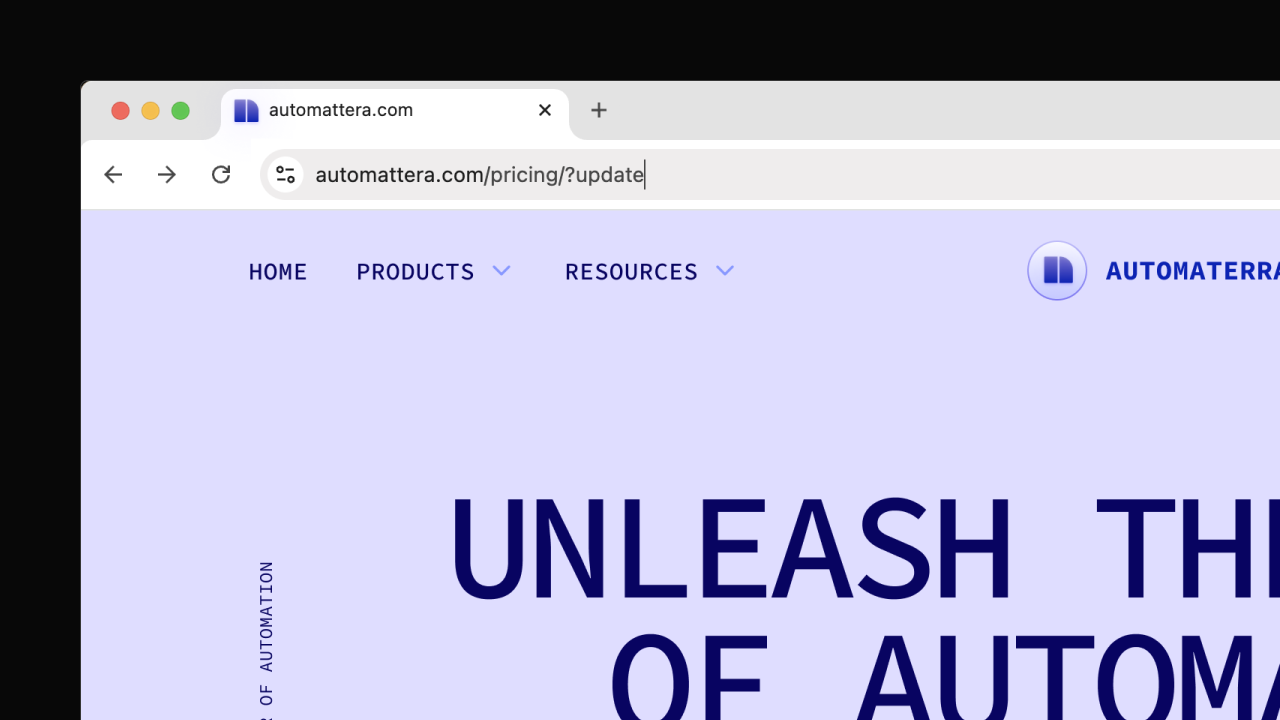
Quick access lets you enter the Webflow canvas directly from a live Webflow site by adding ?update to the URL, making content updates faster and easier for workspace members.
Sometimes you just need to make a quick content change without navigating dashboards or hunting for the right page.
Quick access gives you a faster path into the Webflow canvas to edit content. By adding ?update to any Webflow-hosted site URL, you can jump straight into editing the page you’re viewing.
This will help you save time when making small content updates, reduce friction for people new to Webflow, and allow you to start editing from the context that matters most — the live page.
Here’s how it works
- Add ?update to the end of a live site URL to enter the Webflow canvas
- Authenticate if needed, then land on the same page in the canvas
- Make your desired updates
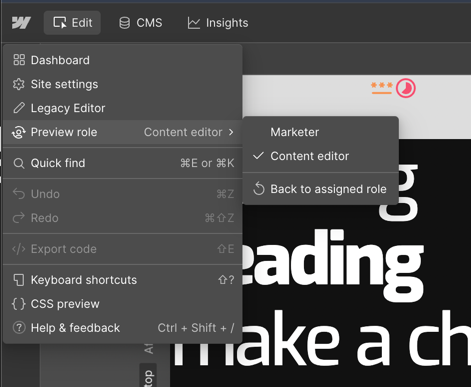
If you have a Designer or Site manager role, when you enter via this shortcut, you will preview the canvas as a Content editor by default. You can switch back to your assigned role by navigating to the hamburger menu and clicking Back to assigned role.
Quick edit access works for all Workspace members or users with a client seat.
Related updates





















Get started for free
Try Webflow for as long as you like with our free Starter plan. Purchase a paid Site plan to publish, host, and unlock additional features.
Try Webflow for as long as you like with our free Starter plan. Purchase a paid Site plan to publish, host, and unlock additional features.