










Learn how to post once on Instagram, and it appears automatically on Webflow.
Are you still manually uploading Instagram content to Webflow? You post to Instagram. Then, you open Webflow and do it all over again.
Every Instagram post has now become a Webflow task.
There’s a better way!
Embedding an Instagram feed through widgets can automate the entire process for you. Post once on Instagram, and it appears automatically on your Webflow site. No manual sync, duplicate captions, or stale content. Set it up in 15 minutes, then forget it exists.
This guide walks you through the exact setup to add a live Instagram feed to your Webflow site. You’ll learn which widget to choose, how to customize it, where to paste the embed code, and how to fix the most common issues that break Instagram feed embeds on Webflow.
4 methods to embed Instagram feeds in Webflow
You have four options for displaying Instagram content in Webflow:
- Manual upload (full control, maximum work)
- Instagram native embed (no extra account, basic styling)
- Zapier automation (workflow automation via API connection; works best for teams already in the Zapier ecosystem)
- Widget services (set-it-and-forget-it automation with minimal maintenance)
For context on how Instagram fits into Webflow's broader integration ecosystem, check the Webflow Instagram integration page. It covers native options, cloneable templates, and when widget services make sense.The best method is using widget services, which auto-sync Instagram content to Webflow without manual intervention, updating feeds every 24-48 hours based on caching schedules. This eliminates the double-posting workflow that manual uploads require, keeping site content current without ongoing maintenance.
What do you need to embed Instagram feeds on Webflow? Key prerequisites for widget setup
You need a Webflow plan with Custom Code access (paid Site plans or specific Workspace plans), a public Instagram account, 15-20 minutes for setup, and optionally a widget service account (free or paid).
These requirements ensure the Embed element works and the widget can pull your Instagram content via API without authentication barriers.
Before you start, verify you have all these.
Webflow Custom Code access (required)
The Embed element only works on:
- Paid site plans: CMS, Business, or Ecommerce
- Workspace plans: Core, Growth, Agency, or Freelancer
Free Webflow accounts can't add custom code. Check your plan in Project Settings → Plans & Billing. If you're on a free plan, you'll need to upgrade before widget embed codes will work.
Public Instagram account (or Business/Creator)
Widget services pull content via Instagram's API. Private accounts block API access, so your feed won't load.
If you need to keep your personal account private:
- Create a separate public account for business content
- Or convert to an Instagram Business/Creator account (Settings → Account → Switch to Professional Account)
Business accounts unlock additional features, such as location tagging and insights, which some widget services support.
Widget service account (free or paid)
You'll need an account with a widget service to generate the embed code.
Most offer free trials or free plans with basic features:
Choose SociableKIT for free basic feeds, Elfsight for a variety of templates and ease of use, EmbedSocial for content moderation and shoppable posts, or Curator for multi-platform feeds that combine Instagram, X (formerly Twitter), and Facebook.
Each service balances features, pricing, and setup complexity; match the tool to your specific use case rather than defaulting to the most popular option. The widget service you choose depends on three factors: budget, the features you need, and how much control you want over content moderation.
For this guide, we'll use Elfsight as the example because it offers the smoothest setup experience.
5 steps to embed an Instagram feed on Webflow through widget implementation
Embedding an Instagram feed on Webflow requires creating a widget account, customizing the feed layout and styling to match your brand, copying the generated embed code, pasting it into Webflow's Embed element inside a Container, and publishing to a live domain to verify it renders correctly.
The entire process takes 15-20 minutes and requires a paid Webflow plan with Custom Code access. Free plans cannot use the Embed element that enables widget integration.
Step #1: Create your Instagram feed widget to embed on Webflow
Create an account at elfsight.com, and select Instagram Feed from the apps menu.
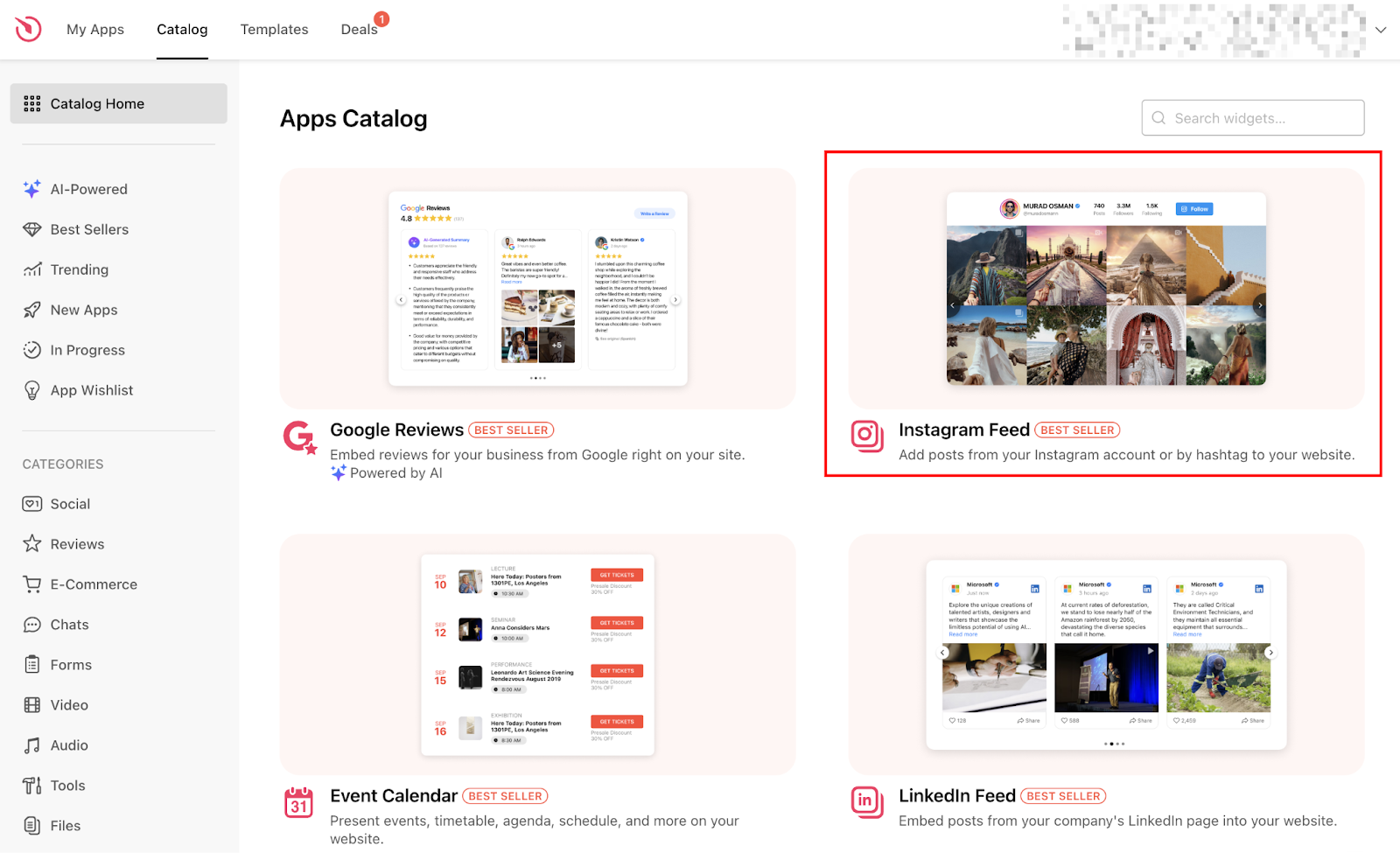
Then, choose a template (grid, slider, or masonry), and connect your Instagram source: either your account username (e.g., @webflow), a specific hashtag (e.g., #webflow), or a location. This initial step establishes what content the widget will pull and how it will display visually before you customize specific styling details.
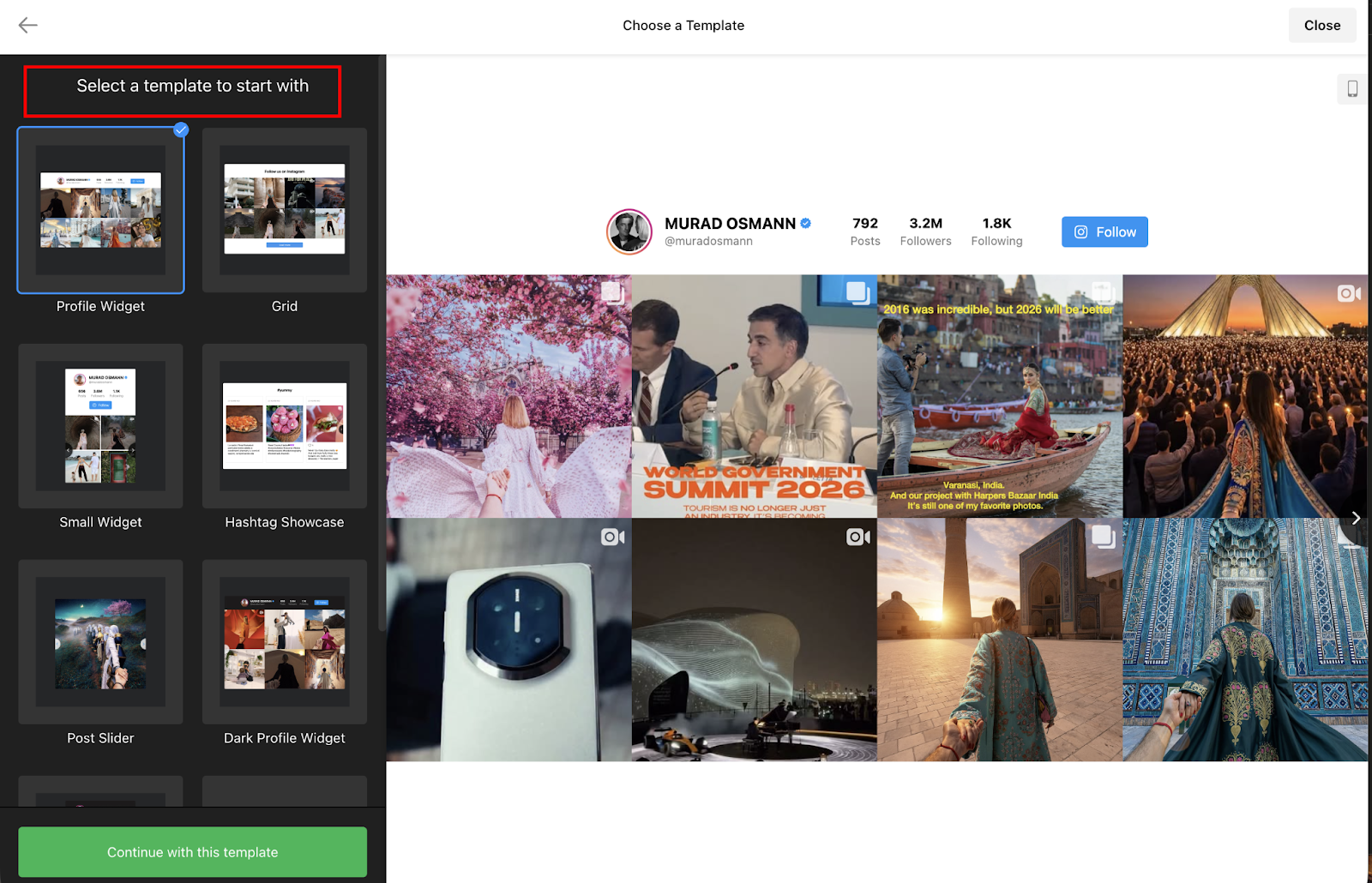
Choose your template
Templates determine the base layout:
- Grid: Classic Instagram grid layout, best for photo galleries and portfolios
- Slider: Carousel that cycles through posts, works well in hero sections or sidebars
- Masonry: Pinterest-style layout with variable heights, great for mixed content (photos + videos)
- Cards with header: Includes Instagram profile info above the feed
Pick the template that matches where you're placing the feed. For homepage hero sections, I can say the slider works. For portfolio pages, grid. For blog sidebars, cards with a header.
Connect your Instagram source
In the Sources tab, enter your Instagram source directly — no account connection required:
- Account username: Enter @yourinstagram to pull all public posts from a specific account
- Hashtag: Enter #yourbrandhashtag to aggregate posts using that tag (great for UGC campaigns)
- Location: Enter a place name (e.g., "California" or "Times Square") to pull location-tagged posts
Example: If you run a coffee shop, you might use #YourCoffeeShopName to show customer photos. If you're showcasing your own work, use your account username.
The account or hashtag must be public. Private accounts return zero posts even if you own them.
Then, click Create Feed to generate the widget. It pulls your most recent posts immediately so you can preview the layout.
Step #2: Customize your Instagram feed widget for Webflow embedding
With your widget created, move through the customization tabs in the left panel:
- The Layout tab controls structural elements (columns, rows, gaps, and header visibility)
- The Post tab determines which post details display (likes, comments, captions)
- The Style tab adjusts visual aesthetics (colors, overlay effects, backgrounds)
These customizations ensure the widget integrates seamlessly with your Webflow site's design system, rather than appearing as an obvious third-party embed.
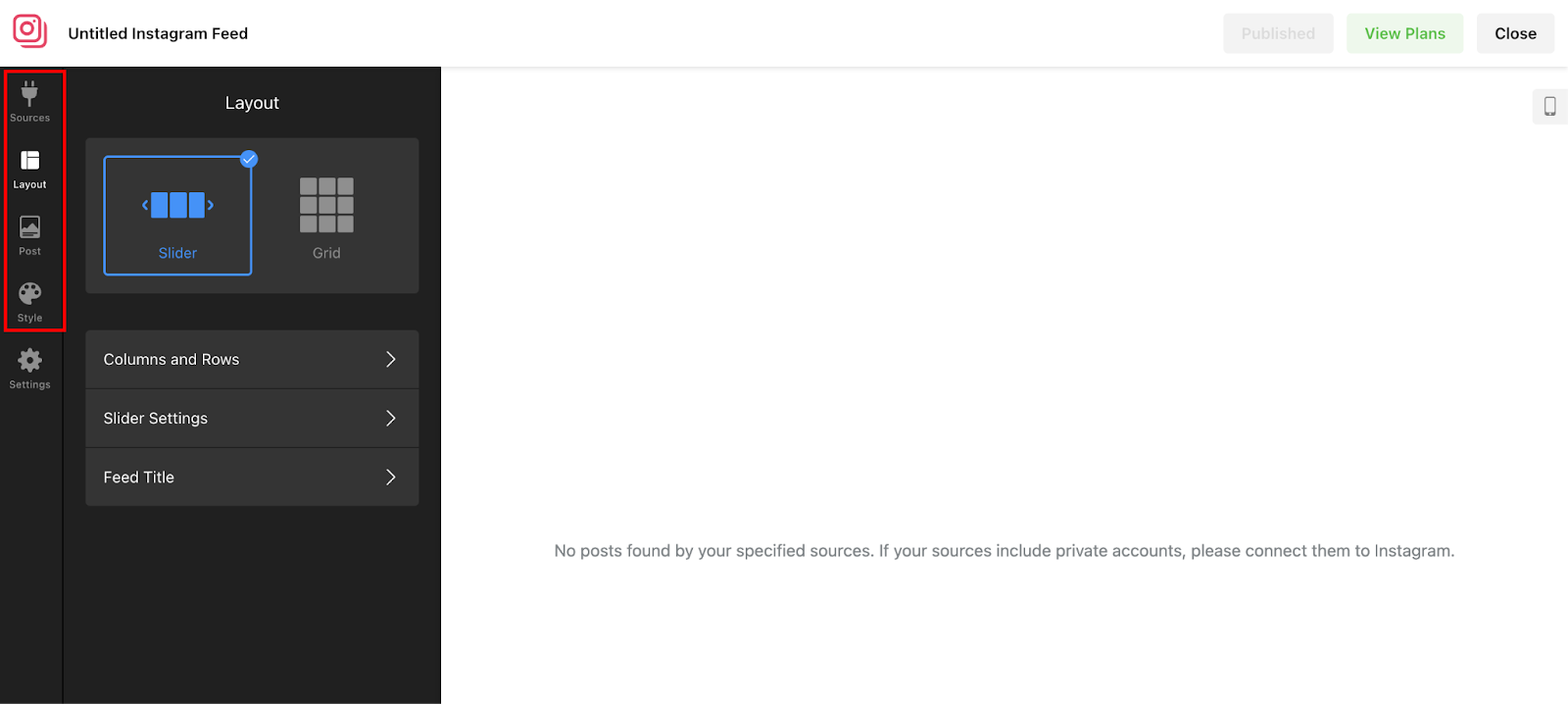
Once you're happy with how it looks in the preview, move to the next step.
Step #3: Get the embed code for your Instagram feed Webflow widget
After customizing your widget, you need the embed code to add it to Webflow.
Click the "Publish" button in the top right of the Elfsight editor. This saves your settings and makes the widget live.
A popup appears with your installation code. It looks something like this:
<!-- Elfsight Instagram Feed | Untitled Instagram Feed -->
<script src="https://elfsightcdn.com/platform.js" async></script>
<div class="elfsight-app-a1b2c3d4-e5f6-7890-abcd-ef1234567890" data-elfsight-app-lazy></div>
Click "Copy code" to add it to your clipboard.
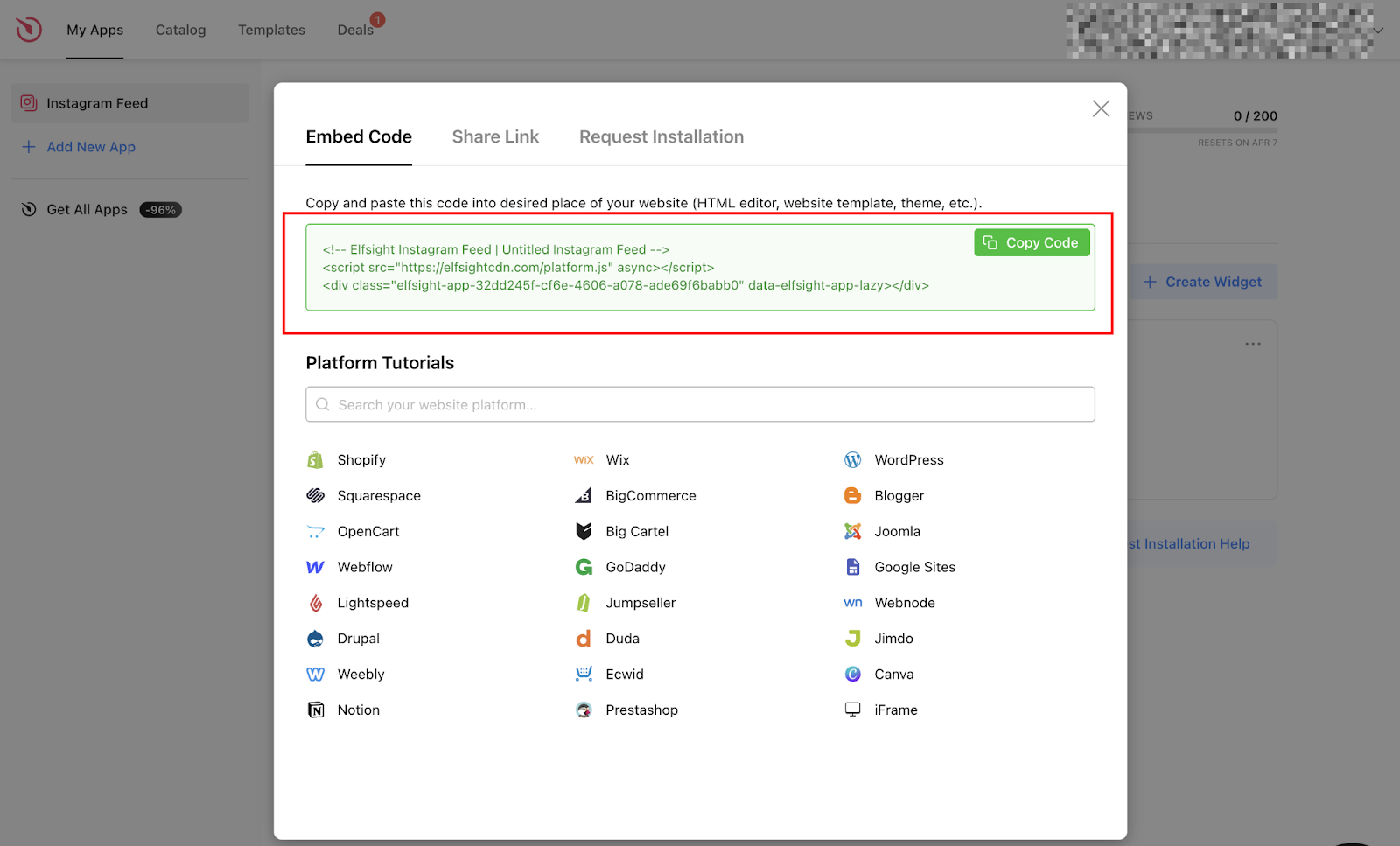
Important notes about this code:
- The
<script>tag loads Elfsight's platform script (required once per page) - The
<div>tag with the unique class ID is your specific widget - This code is unique to your widget — if you create multiple widgets, each gets a different ID
- The code contains all your customization settings (colors, layout, filters)
Keep this code handy. You'll paste it into Webflow in the next step.
Optional: If you want to share the feed via direct link or request free installation from Elfsight's support team, those options appear in the same popup. For this guide, we're using the embed code method.
Step #4: Embed your Instagram feed on Webflow with the Embed element
Now that you have the embed code, it's time to add it to your Webflow site.
Open your Webflow Designer
Log in to Webflow and open the project where you want the Instagram feed.
Navigate to the specific page (e.g., Homepage, About page, Contact page).
Add the Embed element
Here’s how to add the embed element to your page:
- Click the + (Add Elements) icon in the left sidebar
- Scroll to the Components section
- Drag “Code Embed” onto your canvas where you want the feed to appear
Common placement locations:
- Homepage hero section (use slider template)
- About page "Our Work" section (use grid template)
- Footer (use small grid, 3 columns × 1 row)
- Blog sidebar (use cards with header template)
Don't just drop the Embed element directly on the page. Wrap it in a Container or Section for proper responsive behavior.
Standard structure:
- Section (full-width background)
- Container (centered, max-width)
- Heading (optional: "Follow us on Instagram")
- Embed element (paste code here)
- Container (centered, max-width)
This ensures the feed stays centered and responsive across devices.
With the Embed element selected:
- The Embed code editor window opens automatically
- Paste your Elfsight code (the code you copied in Step 3)
- Enable Line wrapping at the bottom of the editor (optional, makes code easier to read)
- Click Save & Close
Make sure you paste the complete code, i.e., both the <script> tag AND the <div> tag. Missing either one, and the widget won't render.
Step #5: Publish your Webflow site with an embedded Instagram feed
You've pasted the code.
Now publish your site to see the widget actually work.
In the Webflow Designer:
- Click Publish in the top right corner
- Select Publish to Selected Domains
- Wait for the publish process to complete (usually 10-30 seconds)
Webflow will show a success message with a link to your live site.
Click the link to your live site (e.g., yoursite.webflow.io or your custom domain).
Navigate to the page where you added the Instagram feed.
The widget should now display your Instagram posts in the layout you configured. If you see the feed loading, you're done. If you see an error or blank space, jump to the Troubleshooting section below.
Your Instagram feed is now live and auto-updating. New posts appear on your Webflow site without you touching anything.


















What causes Instagram feed embeds to fail on Webflow sites? Tips to troubleshoot common widget issues
Even straightforward setups hit snags.
Common problems include the feed not showing in the Designer, the feed not appearing on the live site, only 12 posts displaying, videos not playing, and slow loading.
Here are some common issues and how to fix them.
Feed not showing in Webflow Designer (this is normal)
If you see a placeholder message in the Designer that says "This embed won't display," you're in the clear.
Webflow intentionally doesn't render embedded widgets in the Designer canvas to avoid performance issues and broken previews. The widget only shows on your published site.
Fix: Publish your site and view the live URL. The feed will appear there.
Feed not appearing on published site
If you published and the feed still doesn't show, check these four things:
First, verify your Webflow plan has Custom Code access:
- Required: Paid Site plan (CMS, Business, Ecommerce) OR Core/Growth/Agency/Freelancer Workspace plan
- Free plans can't use the Embed element
- Check in Project Settings → Plans & Billing
Second, confirm that the Instagram account is public:
- Log out of Instagram and search for your account/hashtag
- If you can't see posts while logged out, neither can the widget
- Solution: Change account to Public in Instagram settings OR convert to Business/Creator account
Third, check that the embed code was pasted correctly:
- Open the page in Webflow Designer
- Select the Embed element → Open code editor
- Verify both the
<script>tag AND the<div>tag are present - Common mistake: Copying only half the code
Fourth, ensure you didn't include forbidden tags:
- Don't add
<html>,<body>, or<head>tags in your embed code - These break Webflow's layout and prevent rendering
- Your embed should only contain the
<script>and<div>tags from Elfsight
Be sure to walk through these checklists.
Only showing 12 posts (cache issue)
Widget services cache feeds for performance. When you first publish, you might see only 12 posts even if you configured more.
This is a server cache delay, not a broken widget.
Fix: Wait 6 hours for the server cache to update. Once it does, all configured posts will appear.
You can also try:
- Clearing your browser cache and viewing in incognito mode
- Using the manual sync button if your widget service offers one (SociableKIT has this)
If it persists, contact widget support if posts still don't appear after 24 hours.
Videos not playing
If images load fine but videos appear blank or frozen, it's likely due to a network issue.
First, check for CSS conflicts with your Webflow theme:
- Some themes apply styles that break embedded video players
- Test by temporarily disabling custom CSS in the widget settings
- If videos work without custom CSS, you have a conflict to resolve
Second, verify video sources are public and available:
- Log out of Instagram and try playing the video
- Private or age-restricted videos won't load in widgets
Third, turn off filters temporarily:
- Sometimes filters block video content unexpectedly
- Turn off all Show/Hide filters in your widget settings
- If videos appear, re-enable filters one by one to find the culprit
Fourth, update to the latest widget version. Widget services occasionally release updates to fix video playback bugs. Check your widget service's dashboard for update notifications
If none of these fixes work, contact your widget service's support team. Most respond within 24 hours and can debug server-side issues you can't see.
Build better Instagram feed experiences on Webflow beyond basic embeds
Instagram feed embeds address the social proof and fresh content challenges, but they're just one piece of a larger visual content strategy. Dynamic galleries, user-generated content displays, shoppable product showcases, and real-time social walls all require similar embed-based approaches, but each serves a different conversion goal.
Instagram feed embeds work well for social proof, but they're static displays. The user sees posts and maybe clicks through to Instagram.
What if you need:
- Shoppable product galleries where clicking an image adds items to the cart
- User-generated content displays that rotate customer testimonials across multiple platforms
- Interactive visual experiences like 360° product views or filterable image grids
- Real-time social walls embedding live content from Instagram, Twitter, and TikTok during events
These require more than basic Instagram feed widgets. They need to handle dynamic data, integrate APIs, and implement custom interactions.
For teams building advanced visual content experiences in Webflow, explore the Webflow code components ecosystem. If your Instagram feed embed strategy stops at "show posts," you're only using 20% of what's possible on Webflow.
Frequently asked questions
Can you embed Instagram Stories and Reels in Webflow feeds?
Yes, most widget services support Instagram Stories, Reels, and carousel posts, in addition to standard photo posts. Elfsight, EmbedSocial, and SociableKIT all handle modern Instagram content types seamlessly — videos autoplay, carousels let users swipe through multiple images, and Reels display in their vertical format.
Will embedded Instagram feeds update automatically on Webflow?
Yes, widget services auto-sync at different intervals based on caching schedules. Elfsight refreshes every 48 hours, so new Instagram posts appear on your Webflow site within 2 days without any action on your part. SociableKIT offers both auto-refresh on its paid plans and a manual "Request sync" button on all plans for immediate updates. The feed pulls new posts via Instagram's API, so there's no manual work required.
Can you filter which Instagram posts appear in your Webflow embed?
Yes, all major widget services offer filtering and moderation tools. You can show or hide posts by keyword (hide posts containing "giveaway" or "contest"), by hashtag (only show posts tagged #YourBrand, even if pulling from your full account), by date range (only posts after January 1, 2025), or through manual approval, where you individually select which posts display.
Does embedding an Instagram feed slow down your Webflow site?
Minimal impact if properly configured. Widget scripts typically add 50-100KB and load asynchronously, meaning they don't block your page from rendering while Instagram content fetches. A well-optimized Instagram feed should add less than 0.5 seconds to your page load time, according to Google PageSpeed Insights.



















