









Learn how to display Airtable data in Webflow using CMS sync tools, dynamic JavaScript, or direct embeds.
You manage data in Airtable (products, listings, team members, resources), and your Webflow site is supposed to reflect it. But the moment something changes in Airtable, your site is already out of date. Keeping both in sync manually is the kind of work that sounds simple until it isn't.
Webflow's CMS caps at 10,000 items on standard plans. If you're hitting that ceiling, or simply want Airtable to stay the source of truth, you need a real sync strategy.
Sync tools mirror Airtable data into Webflow CMS — SEO intact, Airtable stays the source of truth. Dynamic rendering bypasses CMS limits entirely, but sacrifices search visibility. Embed methods take a few minutes, but hand Airtable control over your design. The right choice depends on what your content needs to do.
In this guide, we explore these three proven approaches (CMS sync tools, dynamic JavaScript display, and direct embeds), each with specific use cases, technical requirements, and trade-offs.
What do you need to display Airtable data in Webflow?
Three things are universal across every Airtable-Webflow integration method:
- An Airtable account with API access
- A Webflow site on a paid plan
- Admin-level permissions on both platforms
Everything else depends on which display method you choose, and that choice determines your SEO visibility, your team's workflow, and your ability to scale:
These affect all three methods:
The right method comes down to one question: do you need SEO-friendly public content (CMS sync), dynamic member-only data (JavaScript), or a quick form or view embed (direct iframe)?
3 methods to display Airtable data in Webflow
The method you choose determines whether search engines index your content, how often your team touches the sync configuration, and whether you hit Webflow's CMS item limits.
Before reading all three in detail, find your situation below and start there:
Use CMS sync (Method #1) if:
- Your content needs to rank in search (blog posts, product pages, landing pages, anything targeting organic traffic)
- Your team edits content regularly and wants to stay in Airtable
- You need Webflow's full design control over how data is displayed
- You're building programmatic SEO pages from structured Airtable data
Use dynamic JavaScript (Method #2) if:
- Content is behind a login (member dashboards, admin interfaces, personalized views)
- Data updates so frequently that a sync delay is unacceptable (live scores, real-time inventory)
- You're building a prototype, and SEO isn't a concern yet
Use direct embeds (Method #3) if:
- You need something live in the next 10 minutes
- The content is internal-facing, and brand styling doesn't matter
- You're collecting form submissions and want them to flow directly into Airtable without middleware
One signal that cuts across all three: if the page will ever need to rank on Google, eliminate Method #2 and #3 immediately. CMS sync is the only path that preserves search visibility.
Method #1: Sync Airtable to Webflow CMS with automated tools
CMS sync tools mirror Airtable records into Webflow CMS collections, treating Airtable as your editing interface and Webflow as your publishing platform. This is the only method that preserves full SEO capabilities while allowing your team to work in Airtable.
Four tools handle the majority of Airtable-to-Webflow CMS sync in production. They share the same core workflow but differ in sync direction, field handling, and pricing.
Here's how each one works and when to use it.
Tool #1: PowerImporter
PowerImporter specializes in one-way sync from Airtable to Webflow. It converts Airtable views into Webflow collections, automatically handling image attachments, reference fields, and rich text.
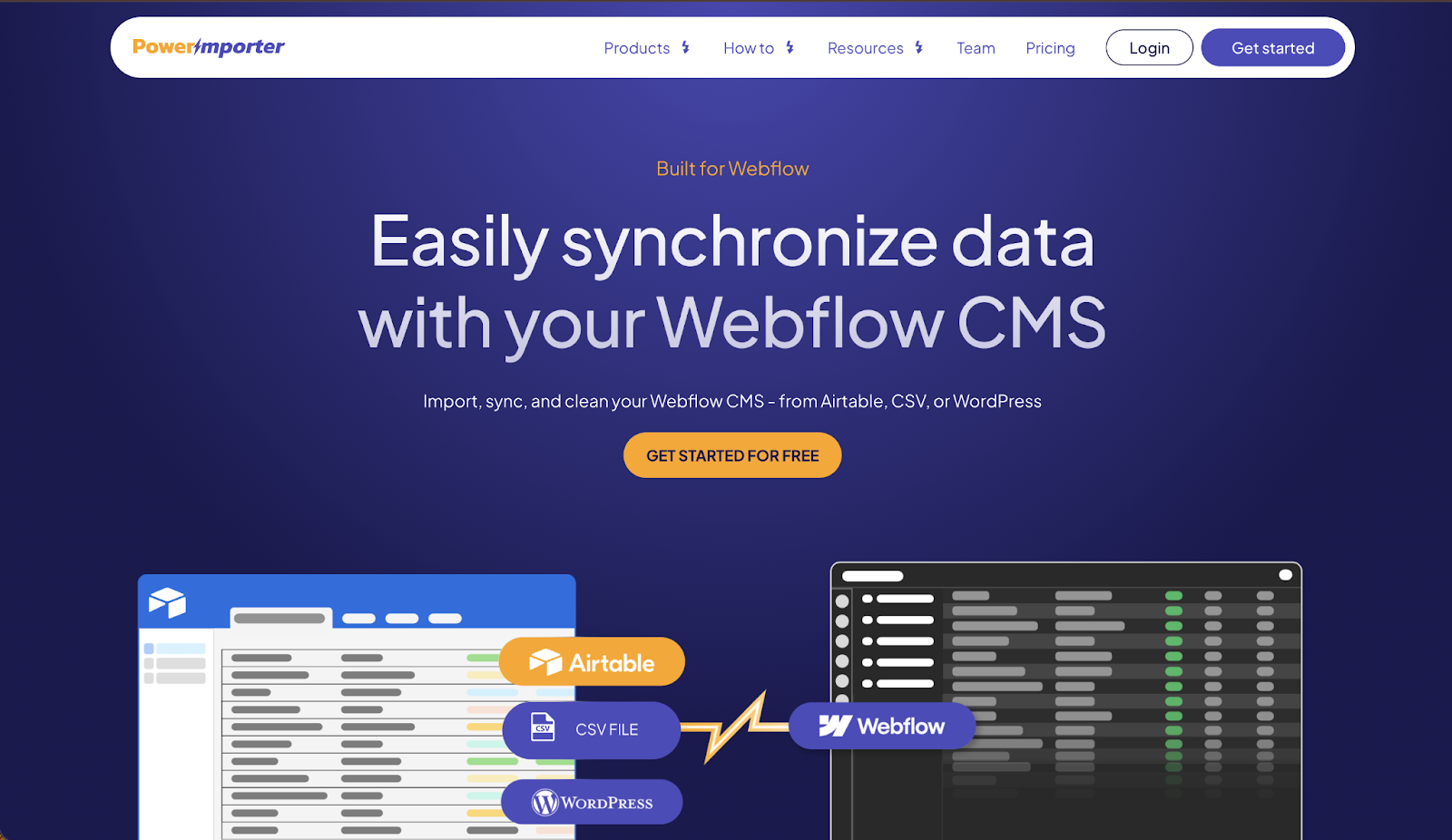
The visual field mapper detects compatible types and suggests connections. Sync frequency ranges from manual triggers on the free tier to every-minute automation on premium plans. Check current pricing before committing, as tiers are based on CMS item volume.
I've used PowerImporter for clients who manage product catalogs in Airtable but need SEO-optimized product pages in Webflow. The one-way sync makes it clear: Airtable is the source of truth, Webflow is the display layer.
If someone edits content in the Webflow CMS, the next sync overwrites their changes. This prevents data conflicts but requires team discipline.
Tool #2: Whalesync
Whalesync provides true two-way sync — edit in either platform and changes propagate automatically. It maps multi-reference fields across platforms, handles rich text with proper formatting, and supports unlimited updates without task-counting.
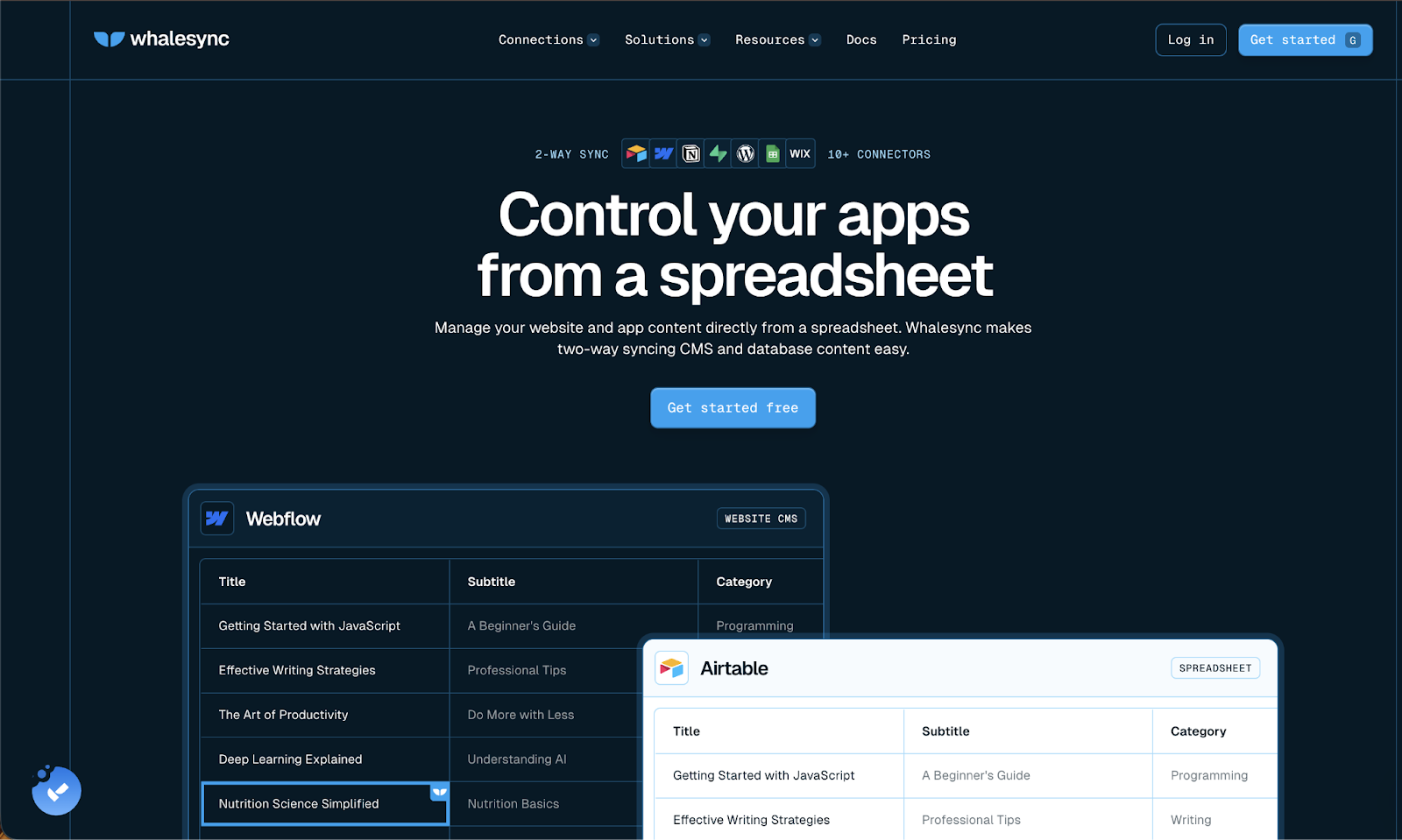
Real-time sync means Airtable changes appear in Webflow within seconds, not minutes. Plans for Airtable-to-Webflow sync start at $5/month for up to 250 records. Whalesync counts records once across both platforms — a 500-record Airtable base synced to Webflow counts as 500, not 1,000.
Tool #3: CMS Bridge by Finsweet
CMS Bridge by Finsweet offers granular control over sync behavior with record-level status management. You can mark individual Airtable records as draft, archived, staged, or published through a status field that Finsweet creates automatically.
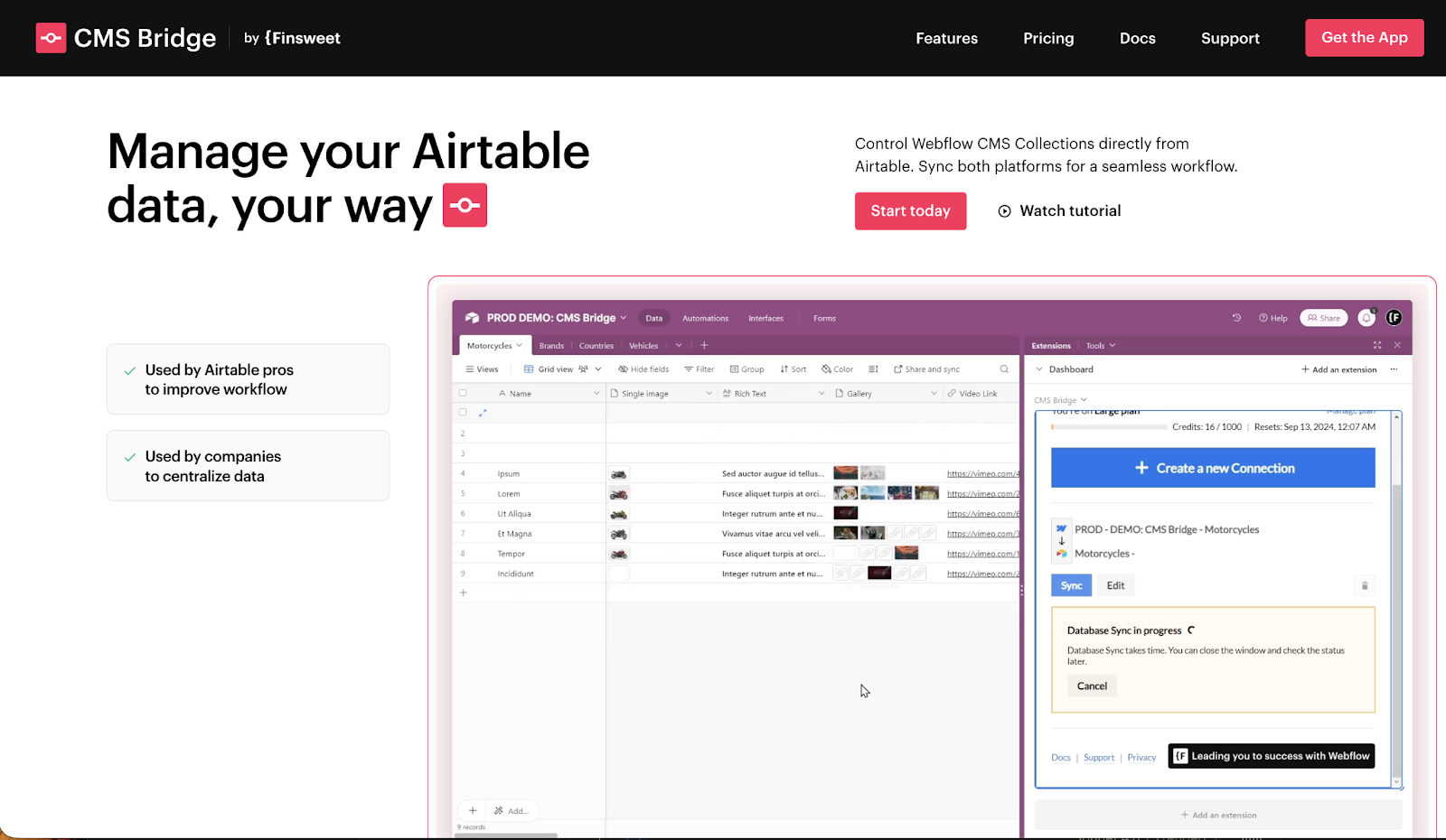
It handles linked records across collections, supports all Webflow field types, and runs sync in the background so you can close the browser.
The record-level control makes CMS Bridge powerful for editorial workflows. Content moves through approval stages in Airtable (Draft → Review → Approved), and only approved records sync to Webflow.
CMS Bridge pricing is usage-tier based. Verify current plans before setup, as the free tier supports a limited number of records and premium workflow features require a paid plan.
Tool #4: Flowmonk
Flowmonk combines two-way sync with pageview tracking, letting you sync Google Analytics data back into Webflow CMS. This enables dynamic sorting by popularity or trending content.
The auto-configuration feature automatically creates your Airtable base structure from your Webflow collections, eliminating manual field setup. Plans start at $29/month.
I implemented Flowmonk for a media site that needed "most popular this week" sections. Pageviews sync to Webflow CMS every minute, and Collection Lists filter/sort by view count using native Webflow settings. This would be impossible with one-way sync tools.
Sync tool setup process
Sync tool setup process follows the same pattern across platforms:
Step 1: Connect both accounts via OAuth authorization. You'll click through permission screens for Airtable (granting read/write access to specific bases) and Webflow (authorizing CMS access to selected sites).
Step 2: Map Airtable tables to Webflow collections. If you're syncing a Products table to a Products collection, the tool detects matching names and maps them automatically. Mismatched names require manual mapping.
Step 3: Map individual fields between platforms. Text fields map to plain text, attachments convert to image assets, and linked records become reference fields. The tool shows field-type compatibility and flags incompatible pairings (e.g., you can't map a number field to a reference field).
Step 4: Configure sync direction and frequency. One-way tools like PowerImporter only sync Airtable → Webflow. Two-way tools like Whalesync let you choose between bidirectional sync and unidirectional sync. Set automatic sync intervals (every hour, every 5 minutes, real-time) or trigger manually.
Step 5: Run the initial sync and verify that the data appears correctly in Webflow. Check that images loaded properly, reference fields linked correctly, and rich text formatting preserved. Publish your Webflow site to confirm live display matches expectations.
Important: Running a sync pushes data to Webflow CMS as staged items. It does not automatically publish them to your live site. After verifying data looks correct in the Webflow CMS Editor, you need to publish your site manually (or configure Webflow's auto-publish via the API if you're running high-frequency syncs).
I’ve seen first-time users consistently miss this step and assume the sync failed when the live site doesn't update.
Common sync tool issues
Three issues cause most sync failures: field type mismatches, image attachment limits, and sync timing collisions. All three are preventable with the right setup.
Here's what to watch for:
Field type mismatches cause the most sync failures. Airtable's single-line text won't sync to Webflow's email field. Long text with rich formatting needs Webflow's rich text field, not plain text. Multi-select in Airtable requires multi-reference in Webflow, which means creating a second collection for the options.
Image attachment limits hit when Airtable records contain 10+ images. Webflow CMS limits multi-image fields to 25 assets per item, so if your Airtable gallery has 30 product photos, the sync truncates. PowerImporter handles this by uploading images to Webflow's asset library and linking them, but watch your asset storage limits (300GB on Business plans).
Sync timing delays occur even on "real-time" plans. Airtable's API has rate limits (5 requests/second), so syncing 5,000 records takes 15-20 minutes minimum. Plan sync schedules around content publication deadlines. I've seen teams schedule syncs at 5 am, so morning content updates are complete before 9 am when editors arrive.
What about Zapier and Make?
Zapier and Make are the tools many teams reach for first. They're already running for other workflows, and both officially support Airtable-to-Webflow connections. They're worth knowing about, but they're the wrong default for this use case.
Both work well for event-driven triggers: when a new Airtable record is created, push it to Webflow CMS. For that pattern, especially if you're already on Zapier, they're a reasonable choice.
Where they fall short compared to dedicated sync tools:
- Multi-reference fields require multi-step zaps that are brittle to maintain
- Bulk syncs (importing 500+ records) hit Zapier's task limits quickly and get expensive fast
- Two-way sync requires separate zaps in each direction with no conflict resolution built in
- Field type handling is more manual — mismatches fail silently until you notice missing data
For one-off imports or simple single-field triggers, Zapier or Make are fine. For any ongoing sync of structured data with references or images, use a dedicated tool (PowerImporter, Whalesync, CMS Bridge, or Flowmonk).
The setup time is similar; the reliability gap over time is not.
Method #2: Display Airtable data dynamically with JavaScript
Dynamic rendering fetches Airtable data at page load via JavaScript, bypassing Webflow CMS entirely. There are no item limits, sync delays, or middleware required for simple setups. The cost is SEO — search engines may not reliably execute JavaScript, so dynamically rendered content can be difficult or slow to index.
Use this method only when the content is behind authentication or doesn't need to rank.
Two approaches make sense for dynamic display: Wized, a low-code platform built specifically for Webflow, and custom JavaScript with NoCode API, which gives complete control at the cost of more setup.
Using Wized
Wized is a low-code platform built specifically for Webflow that adds backend logic through a visual interface.
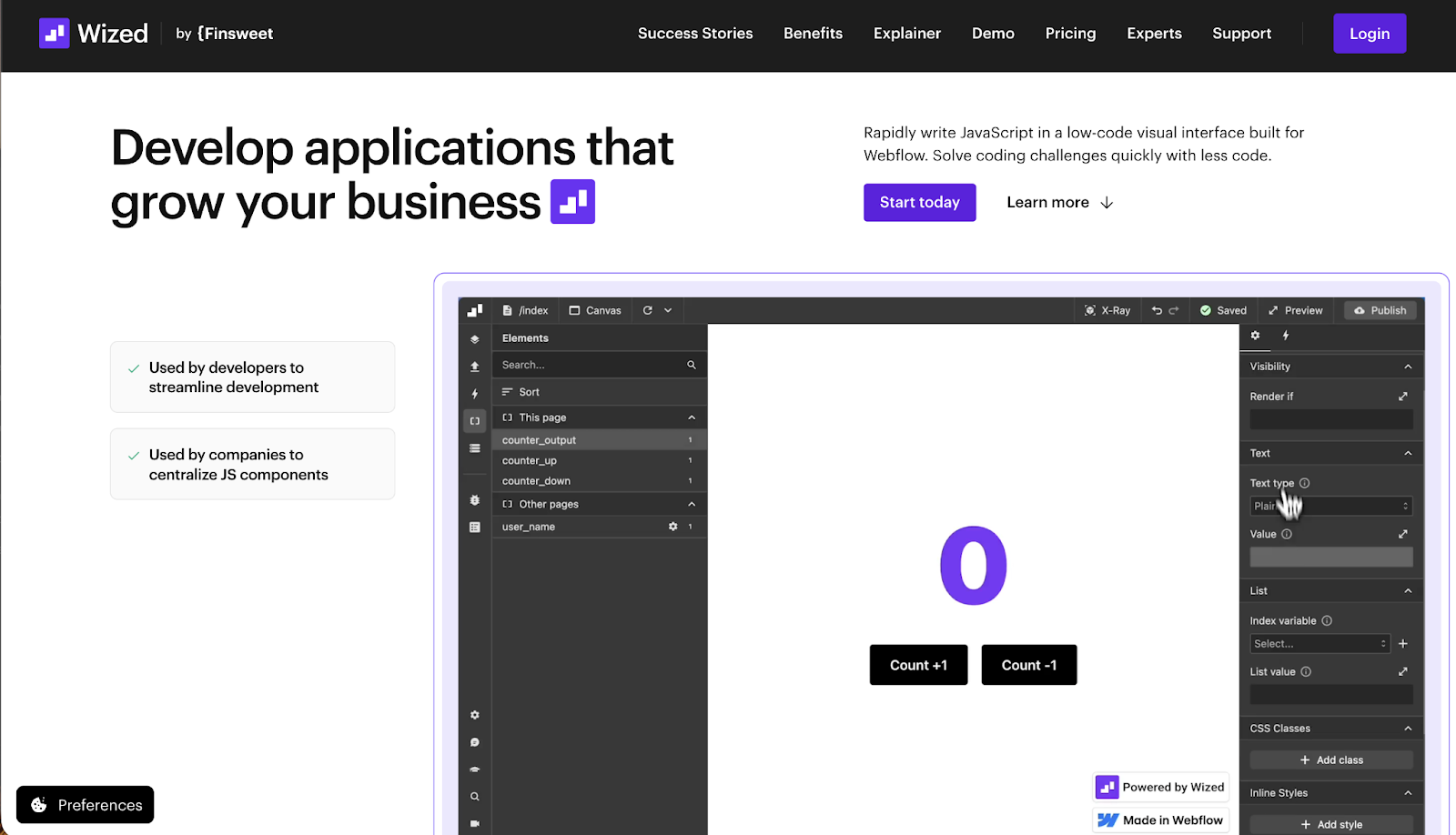
Instead of writing fetch() calls and DOM manipulation manually, you configure requests in Wized's dashboard and bind data to Webflow elements using their configurator. Basic JavaScript knowledge helps, but isn't required for simple implementations.
I set up Wized for a membership platform where users see personalized dashboards pulling data from Airtable — activity logs, progress metrics, and custom recommendations. Since this content is behind authentication, SEO doesn't matter. Users log in and see their data rendered dynamically via Wized's request system from Airtable's API.
Wized pricing starts at $12/month, with API call limitations. Complex applications that require extensive data fetching hit these limits quickly and require $60-$169/month plans.


















Using custom JavaScript with NoCode API
Custom JavaScript with NoCode API gives you complete control over how data displays. NoCode API creates secure endpoints for your Airtable data, protecting your API keys and providing caching to avoid rate limits.
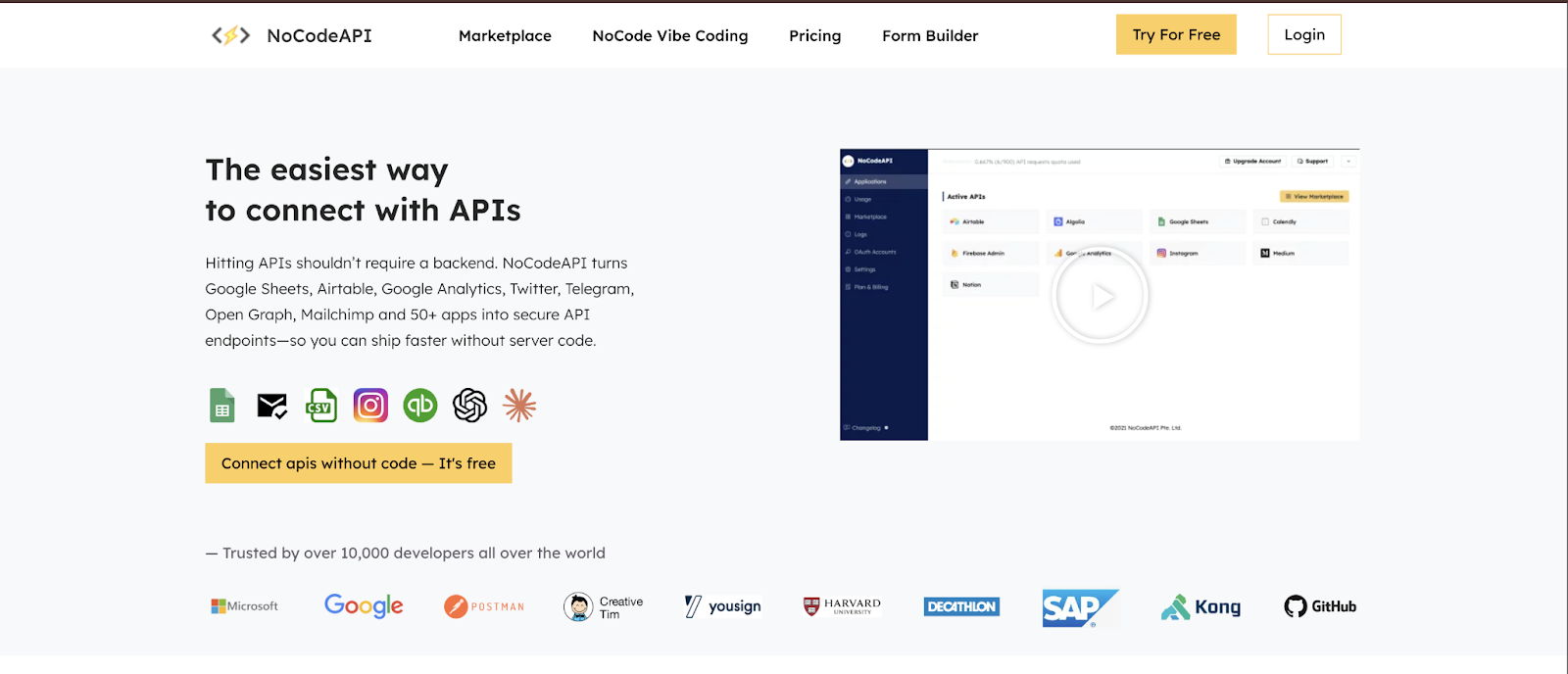
You write JavaScript that fetches data from the NoCode endpoint and generates HTML that matches your Webflow design:
// Example: Fetch job listings from Airtable via NoCode API
fetch('https://nocodeapi.com/username/airtable/endpoint')
  .then(response => response.json())
  .then(data => {
    const container = document.getElementById('jobs-list');
    data.records.forEach(record => {
      const jobDiv = document.createElement('div');
      jobDiv.innerHTML = `
        <h3>${record.fields['Job Title']}</h3>
        <p>${record.fields['Description']}</p>
        <span>${record.fields['Location']}</span>
      `;
      container.appendChild(jobDiv);
    });
  });
Why can't you call Airtable's API directly from Webflow's custom code field?
Pasting a fetch() call with your Airtable API key directly into Webflow's Footer code field exposes that key in your page's HTML source — visible to anyone who opens browser DevTools.
Airtable does support read-only API tokens, which limit exposure. But even a read-only key exposes every record in your base to anyone who finds it, and general API keys grant full read/write access. Keys embedded in client-side code get scraped by bots that scan GitHub and public HTML, so at minimum, scope your token to the least privilege your use case requires.
NoCode API solves this by acting as a secure proxy. Your Airtable key lives on their server, your Webflow page calls the NoCode endpoint instead, and the browser never sees the actual key.
If you need to avoid a third-party proxy entirely, the alternative is a serverless function (Cloudflare Workers, Vercel Edge Functions, AWS Lambda) that holds the key server-side and handles the Airtable request on the browser's behalf.
Either path works. Calling Airtable directly from client-side JavaScript is possible with a scoped read-only token, but understand the tradeoff: anyone can view the key in your page source and read your data. For anything sensitive, a server-side proxy is the safer default.
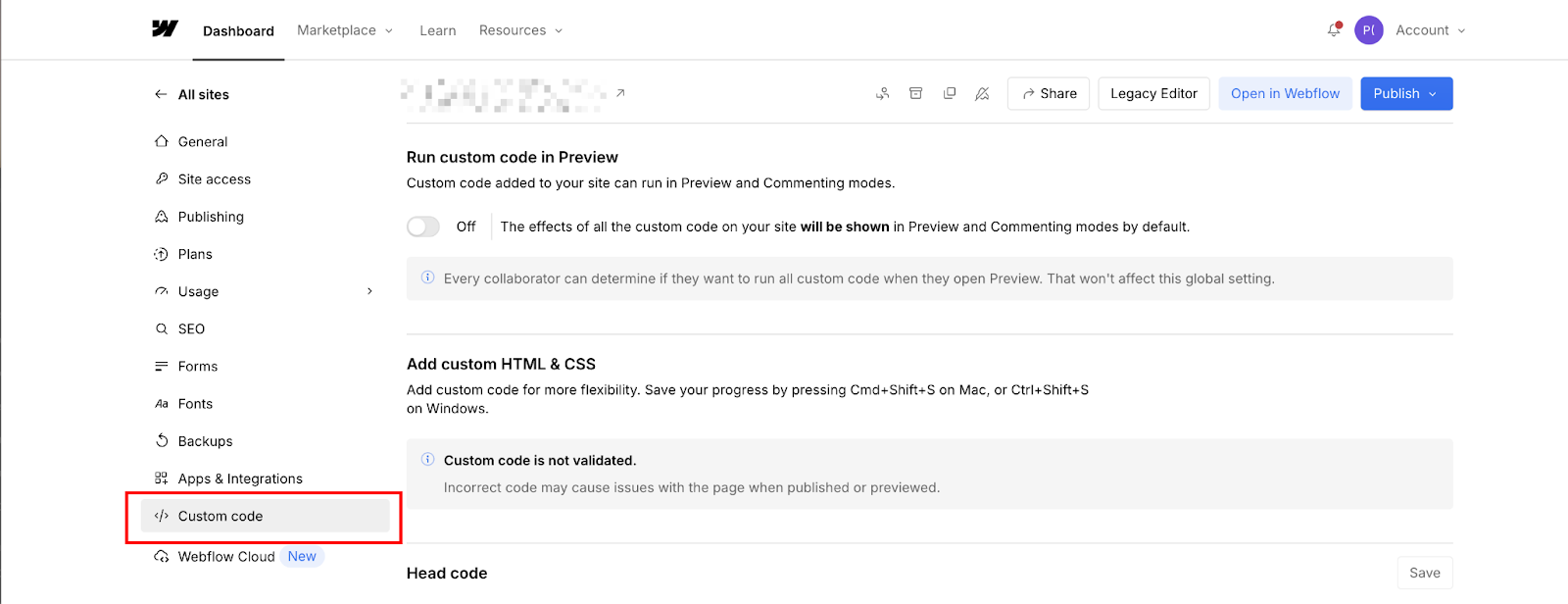
Now, back to the code. The code fetches job listings and dynamically creates HTML elements. You paste it in Webflow's Custom Code section (Settings → Custom Code → Footer code).
The jobs display when the page loads, but search engines indexing your HTML see an empty container; they don't execute JavaScript to fetch and render content.
I've used this approach for internal dashboards where employees view real-time data that changes frequently. A sales dashboard that pulls current-quarter metrics from Airtable doesn't need SEO. It needs fast updates without touching Webflow CMS.
NoCode API costs $12/month for basic plans. It handles authentication, caching (reduces API calls to Airtable), and rate limiting automatically. You can also call Airtable's API directly, but securing your API key client-side requires server-side middleware; NoCode API solves this.
SEO impact is severe with dynamic rendering. Google's crawler sees empty divs because it doesn't wait for JavaScript execution. Your Webflow page source shows placeholder elements rather than actual content. If your business model depends on organic search, dynamic rendering impacts your traffic.
When dynamic rendering makes sense:
- Member dashboards
- Logged-in user data
- Administrative interfaces
- Frequently-updating data displays (stock tickers, live scoreboards)
- Prototypes and MVPs, where SEO comes later
When it doesn't:
- Blog posts
- Product pages
- Landing pages, any content targeting organic search traffic
If neither SEO nor deep customization is the priority (if you just need a form or data view on your site in the next 10 minutes), Method #3 is the answer.
Method #3: Embed Airtable forms and views directly in Webflow
Direct embeds are the fastest path: Airtable generates an iframe code, you paste it into Webflow's Code Embed element, and it's live. No API connections, sync configuration, or middleware. The tradeoff is total. You get Airtable's interface on your page (its fonts, colors, and layout) with no ability to style it to match your brand.
Using Airtable form embeds
Airtable form embeds let users submit data to your Airtable base through a form that matches Airtable's styling.
In Airtable, switch to Form view, customize field labels and descriptions, then click Share Form → Embed this form on your site. Copy the iframe code.
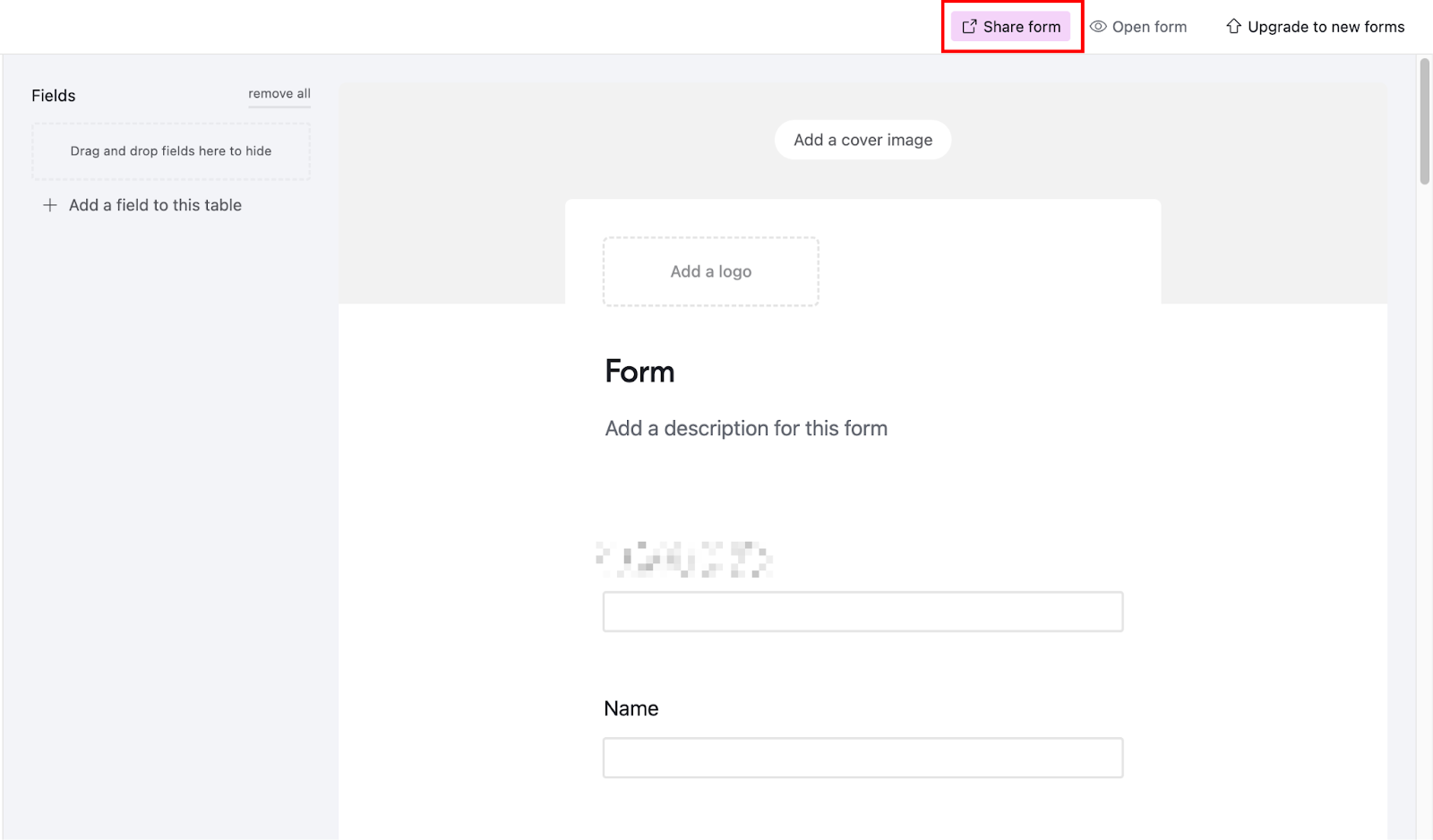
In Webflow, drag a Code Embed element onto your page and paste the code.

Then, publish and test the submission.
I use form embeds for event registrations where the event organizer manages attendee data in Airtable. The form submissions flow directly into their Airtable base with no middleware. The tradeoff is styling; Airtable forms use Airtable's design system, not yours.
You can't change button colors, typography, or layout to match your Webflow brand without CSS hacks that break when Airtable updates its styles.
Using Airtable view embeds
Airtable view embeds display gallery, grid, or kanban views directly on your site:
- Team directories (showing headshots in gallery view)
- Resource libraries (displaying documents in grid view)
- Project boards (kanban view for workflow stages)
Like forms, you get Airtable's interface with limited customization.
To embed a view: Open your Airtable base, switch to the view you want to display (Gallery, Grid, Kanban), click Share and Sync → Embed this view, and copy the iframe code.
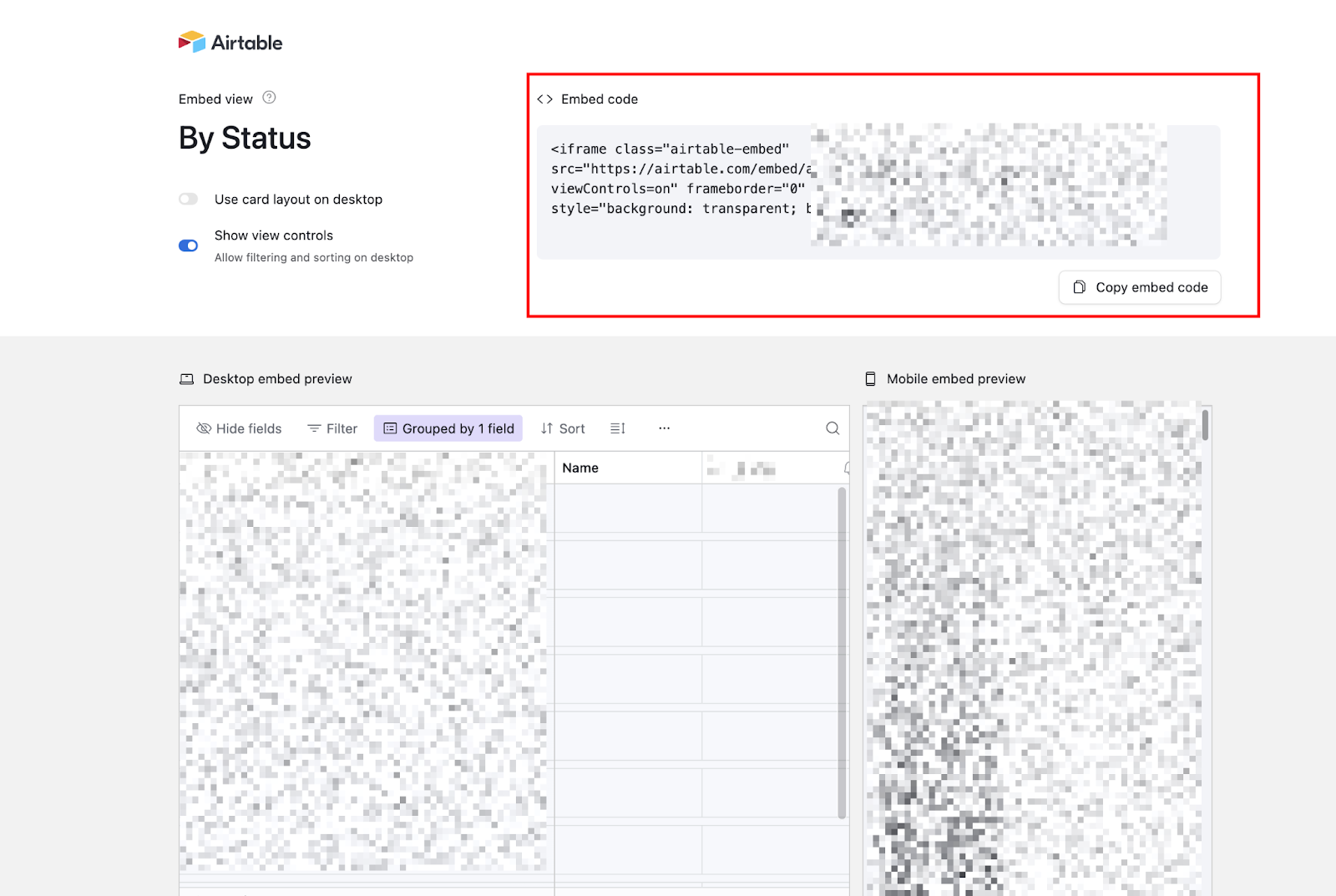
Paste the embed code into Webflow's Code Embed element.
Styling limitations
Styling limitations make embeds impractical for public-facing content. You can't change Airtable's default fonts, colors, or spacing through the embed code. CSS targeting the iframe requires !important overrides and breaks when Airtable updates their classes.
I've seen teams spend hours fighting Airtable's styles only to have an Airtable platform update break everything the next month.
When do embeds work, and when don’t they work?
When they work:
- Internal team tools (project trackers, resource dashboards)
- Quick prototypes where styling doesn't matter
- Client portals that show "powered by Airtable" are acceptable
When they don't:
- Marketing sites prioritizing brand consistency
- Customer-facing applications
- Any page where the Airtable interface conflicts with your design
For anything customer-facing or brand-sensitive, CMS sync (Method #1) is the right path. Embed methods are tools for internal use or proof-of-concept work; not for production marketing sites.
What causes Airtable-Webflow integrations to fail?
Most integration failures trace back to five root causes: field type incompatibilities, API rate-limit collisions, deleted-record propagation, empty-collection requirements, and authentication expiration. The symptoms are usually obvious (sync stops, items disappear, data looks wrong), but the cause isn't always clear.
Here's how to diagnose and fix each one.
Field type incompatibilities
Field type incompatibilities cause most sync failures. Airtable's attachment field contains URLs to files hosted on Airtable's CDN. Webflow's image field expects assets to be uploaded to Webflow's asset library.
Sync tools like PowerImporter download Airtable attachments, upload them to Webflow, and link them. But this fails if file sizes exceed Webflow's limits (10MB per asset) or if attachment URLs expire before upload completes.
Fix this by resizing images in Airtable before syncing (use Airtable's image editing features or external tools), limiting attachment fields to 5-10 files maximum, or using external image hosting (Cloudinary, Imgix) and storing URLs as text fields instead.
API rate limits
API rate limits are triggered when sync operations hit Airtable's 5-request/second cap. Syncing 10,000 records requires 10,000+ API calls (one per record plus field operations). At 5 calls/second, that's 33+ minutes.
Sync tools implement rate limiting internally, but simultaneous operations (multiple team members triggering manual syncs) stack requests and cause failures.
Avoid this by scheduling syncs during off-hours when no one's editing Airtable data, using incremental sync instead of full resync (sync only changed records, not everything), and checking your sync tool's rate-limit handling before running large operations.
Deleted records propagation
Deleted records propagation creates broken references. If you delete an Airtable record linked to 50 other records, CMS sync tools must decide whether to delete the Webflow item (breaking those 50 references) or leave it published (showing outdated content). PowerImporter defaults to deletion; CMS Bridge lets you configure deletion behavior per sync.
This bit me when a client archived 200 "old" products in Airtable without realizing they were referenced in 1,000+ blog posts as "related products." The next sync deleted all 200 Webflow items, breaking every reference. The fix required restoring from backup and reconfiguring sync to "unpublish" instead of "delete."
Configure sync tools to unpublish or archive rather than delete, maintain backup copies of your Webflow site before running destructive syncs, and test deletion behavior in staging environments before production.
Empty CMS collections requirement
Empty CMS collections requirement trips up existing sites. Tools like Flowmonk and Whalesync require empty Webflow collections for initial sync to prevent duplicate records. If you've already published 500 products in Webflow CMS, you must delete them before connecting Airtable.
This seems simple until you realize blog posts, landing pages, and automated emails reference those 500 items.
Workaround: Export existing Webflow CMS data to CSV, import into Airtable to merge with your Airtable base, clear Webflow collections completely, then run initial sync from Airtable. This makes Airtable the source of truth from the start.
Authentication expiration
Authentication expiration breaks automated syncs silently. OAuth tokens expire after 90 days, API keys are regenerated when someone leaves your team, and permission changes (such as downgrading an Airtable plan) revoke API access.
Sync tools try to refresh tokens automatically, but edge cases can cause silent failures that leave syncs running, and nobody notices for weeks.
Set up monitoring alerts (most sync tools offer Slack/email notifications for sync failures), schedule monthly permission audits to confirm active users still need access, and test your sync manually once per quarter, even if automation seems fine.
Take Airtable further with Webflow's API
CMS sync tools cover most use cases, but teams with custom data structures, high-frequency updates, or content that falls outside Webflow's CMS limits often outgrow them within a year.
Webflow's Data API lets you create, update, and delete CMS items programmatically. Airtable automations can trigger webhook actions directly to Webflow API endpoints, bypassing sync tools entirely for specialized workflows.
Explore Webflow's developer docs to build direct connections from Airtable automations to Webflow CMS without middleware.
Frequently asked questions
Can you sync more than 10,000 Airtable records to Webflow?
Yes, but only with Webflow Enterprise plans (100,000 item limit) combined with sync tools that support high-volume operations. PowerImporter's premium tier handles 10,000+ items, Whalesync scales to tens of thousands, and Flowmonk supports unlimited records on higher plans.
How do you handle Airtable attachments that exceed Webflow's file size limits?
Resize images before uploading to Airtable (keep attachments under 10MB), use external image hosting (Cloudinary, Imgix) and store URLs as text fields in Airtable, or configure PowerImporter's image optimization settings to compress during sync. Webflow's CMS asset limit is 10MB per file and 300GB total on Business plans.
Does displaying Airtable data dynamically affect Webflow's page speed?
Yes. JavaScript fetching adds 200-800ms latency depending on Airtable's API response time, data processing time, and DOM manipulation complexity. Client-side rendering blocks initial paint until JavaScript executes, and rendering large datasets (500+ records) freezes the browser.
Can you use Airtable's automation to update Webflow directly?
Yes, through Webflow's Data API. Airtable automations can trigger webhook actions to Webflow's API endpoints, creating, updating, or deleting CMS items directly. This bypasses sync tools for specialized workflows.



















