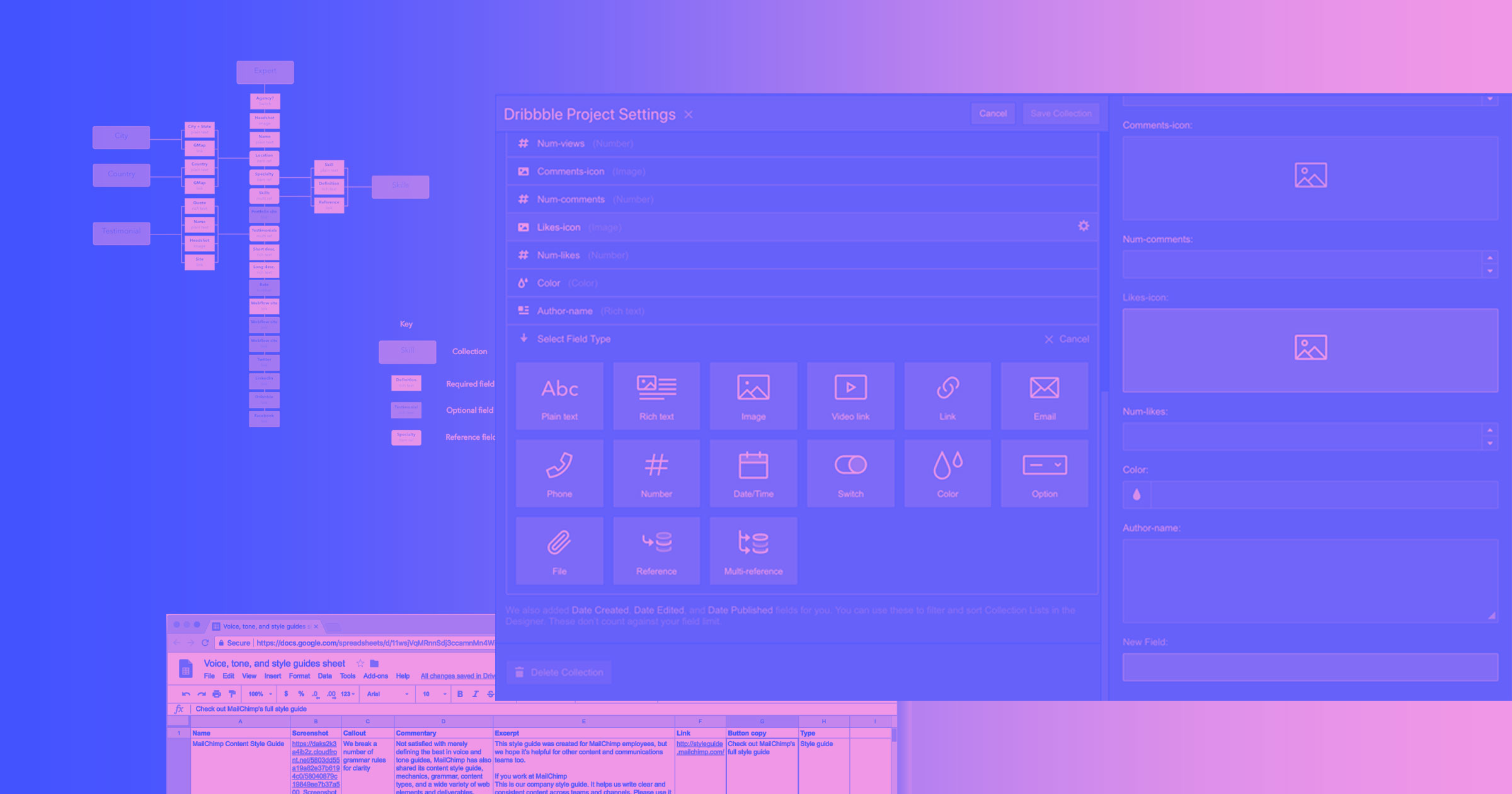



If you’ve ever moved a WordPress site — or a site on any other CMS — to Webflow, you know how laborious getting all that content into Webflow can be. We’ve seen Webflow-using designers get creative with scraping, RSS-powered Zaps, Fiverr tasks, and more.
But we’ve always thought you shouldn’t have to do that. Which is why we’re excited to announce that:
Today, migrating content to Webflow CMS gets approximately 100 times easier.*
Because with the new CSV import, you can bring hundreds of posts into Webflow with a click of a button. (And a little work to get that content into the CSV, naturally.)
Using CSV import to bring content to Webflow CMS
The first step is getting your content into a CSV to import to Webflow. If you’re migrating a site from WordPress, you’ll find plenty of plugins that export to CSV, and the same should hold for other popular content management systems.
Once you’ve got your content in that CSV, just head over to Webflow, open your Collections panel and:
- Create a new Collection, or
- Pick an existing Collection
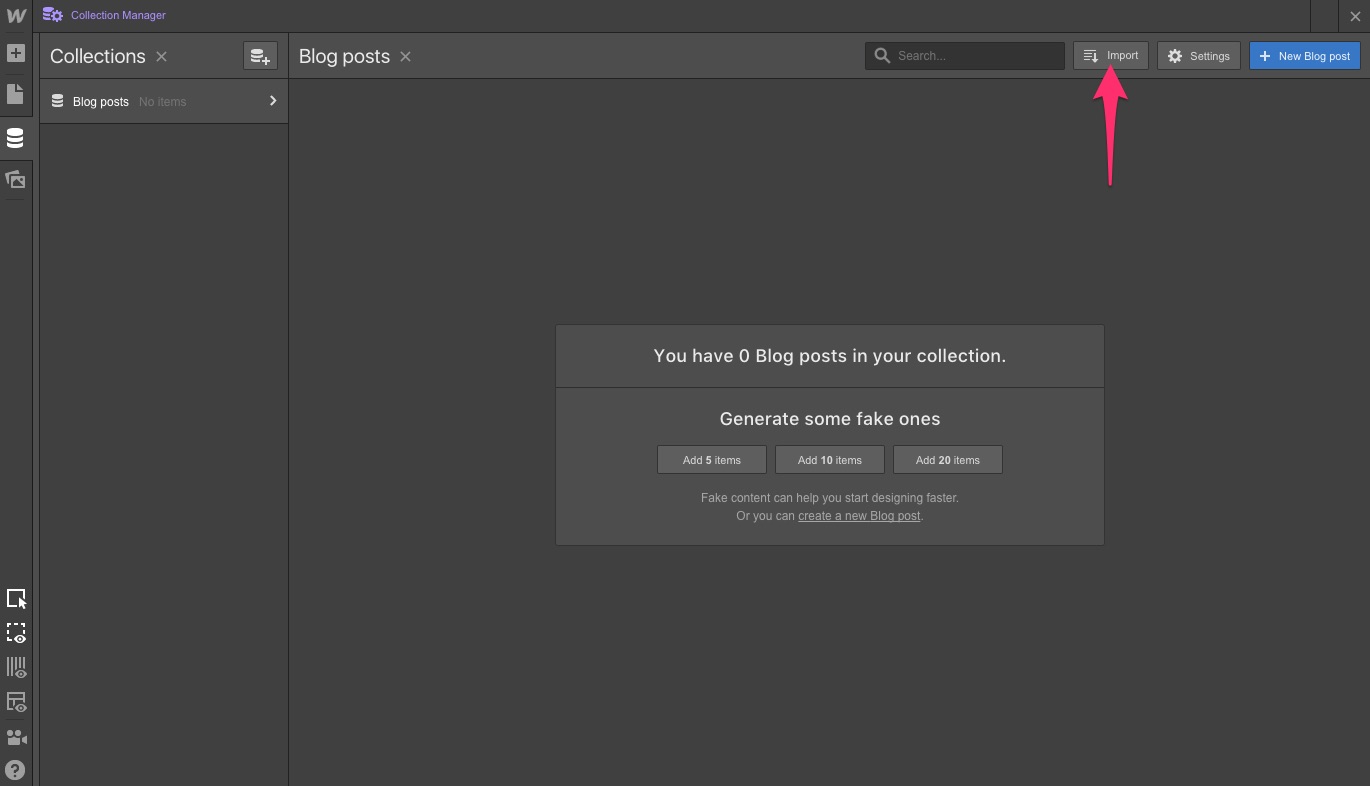
Then click the import button in your Collection settings.
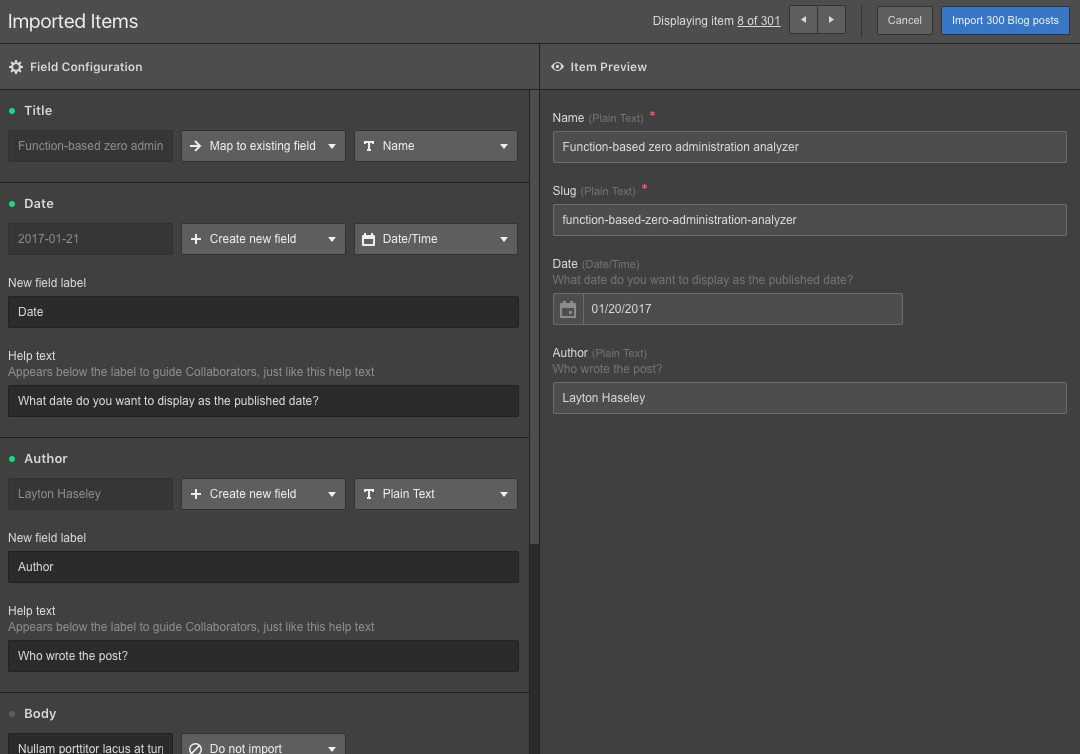
Whether you’re using a new or existing Collection, you can map each row in the CSV to an existing field, create a new field, or ignore that row entirely. This lets you create the content structure on the fly, based on the data in your CSV.
If you’re looking to test the import process out for free, simply start with a CSV of 50 items or less — you’re free to play around with the CMS as much as you like with that number of CMS items. After that, you’ll need to add CMS or Business hosting to unlock the full power of the Webflow CMS.
For more info, check out “Importing CMS content from a CSV” in our Help Center.



















Get started for free
Create custom, scalable websites — without writing code. Start building in Webflow.
Importing images
One thing to note before you get started: Images work two different ways on import, depending on how they’re brought in:
- Mapped to image fields in Webflow CMS: For images you import to a Webflow CMS field (such as a hero image), we’ll upload the images to Webflow automatically. You don’t have to do a thing to make these work, other than map the fields!
- Mapped to rich text fields: Images in content mapped to a Webflow CMS rich text field (such as a blog post) will be imported via the image’s src URL. That means they’ll display fine on your Webflow site, but only as long as the src URL remains functional. So be sure to download any images in rich text fields and manually upload them to the CMS so they don’t break when you take the original site down.
We’ll be working on adding full import of images in rich text fields in the future.
Making the switch from WordPress to Webflow?
Check out “Migrating from WordPress to Webflow CMS.”
Other uses for CSV import
Obviously, CSV import isn’t just useful for moving content between content management systems. Any time you have content in a spreadsheet that needs to make it to Webflow, it’ll come in very handy.
Just this weekend, our head of content used this feature to bring several dozen videos hosted on YouTube into a site he’s building for a client. It’s fairly standard for content strategists to model sites and even create content using the strong structure of a spreadsheet, so this should fit right into their workflows!
What will you build with CSV import?
What are you going to build now that you can import content to the Webflow CMS? Let us know in the comments!
*Statement not verified by data analysts.